Help › Members and fees
Signup forms and questions
Ask new members questions when they join, and build reusable entry forms for tournaments, games and other registrations.
Watch it first
A short recording from the app, with the waiting cut out. The steps below go through it slowly.
Sportdify has two kinds of forms. Your club's signup form holds the questions people answer when they join, such as medical details or an emergency contact. Entry forms are saved sets of questions you attach to tournaments and games. Your waiver is set up separately.
1Turn on your signup form
The club signup form is set up on the web dashboard.
Open Settings and choose the Signup form tab. In the Signup form card:
- Turn on Enabled. With it off, people join without answering any questions.
- Give the form a Title. It starts as Join our club.
- Add a Description if you like. It shows before the questions.
You need to be the club owner, an admin, or have the Registrar club role.
Web: Settings › General › Signup form
2Add your questions
Click Add question and choose a type for each one:
- Short text and Long text
- Single choice and Multiple choice
- Consent checkbox, for a yes they have to tick
- Date, Number, Phone and Email
- File upload, which accepts JPG, PNG, WebP or PDF files up to 10MB
Type the question itself, and add helper text underneath if it needs explaining. For choice questions, edit the options and click Add option for more.
Tick Required if people can't join without answering. Use Up and Down to change the order, Duplicate to copy a question and Delete to remove it.
Click Preview to check how it looks, then Save signup form.
3What new members see
The questions are asked for each person joining. A parent joining with two children answers them once for each child.
- In the app, the join screen has a Signup questions step. Members can attach a photo or PDF for file questions. The Review request step shows how many required answers they've given. They finish with Send join request.
- On the web, your club page shows Start signup while the form is on. Members tick each profile under Player profiles, answer the questions and click Submit signup.
A request can't be sent until every required question is answered. If you have a waiver turned on, they accept it in the same flow.
4Read the answers
On the web, open Members. While a request is pending, the person's menu has View signup. It opens their Signup answers, so you can read them before you accept.
For anyone, pending or active, open their member page and choose the Signup tab. It shows the answers they gave when they asked to join.
In the app, open Members from the Club tab and tap a member. Their answers are under Signup answers.
Answers are kept as they were given. If you change your questions later, people who already joined keep their original answers.
App: Club › Members › member · Web: Members
5Build a reusable entry form
Entry forms are for tournaments and games. Build the questions once and attach them to each event.
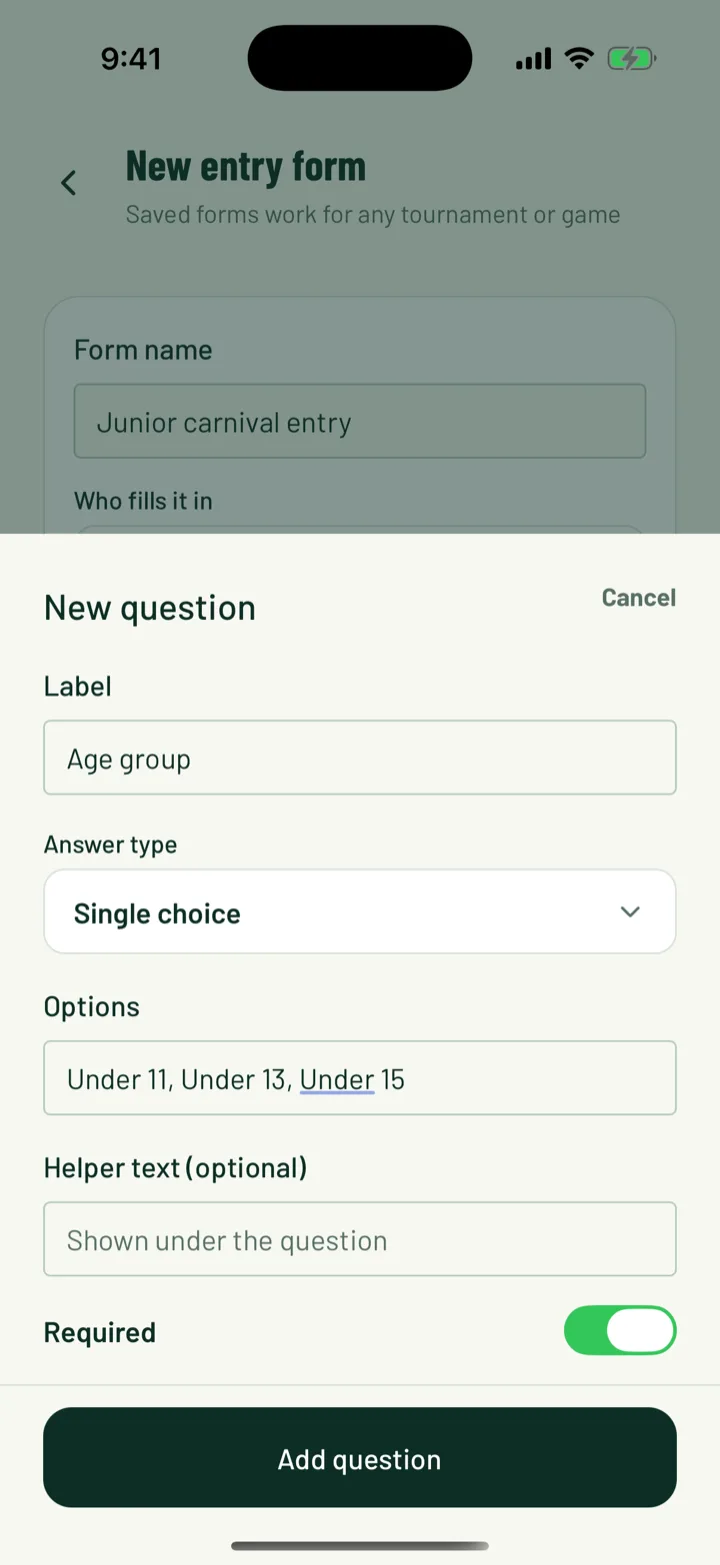
In the app, open the Club tab, tap Entry forms, then +. On the web, click Entry forms in the sidebar, then New form.
- Enter a Form name, such as Standard team entry.
- Choose Who fills it in: Teams, Players or Players and teams.
- Add an Intro (optional), shown above the questions.
On the web, a new form starts with two questions you can change: Team contact name and Contact phone.
In the app, tap Add question. Fill in the Label, pick an Answer type and add Options for choice questions, separated by commas. Add Helper text (optional) and turn on Required if needed. Tap Add question at the bottom of the sheet.
The answer types are the same as the signup form. Save with Save form.
App: Club › Entry forms › + · Web: Entry forms › New form
6Manage your saved forms
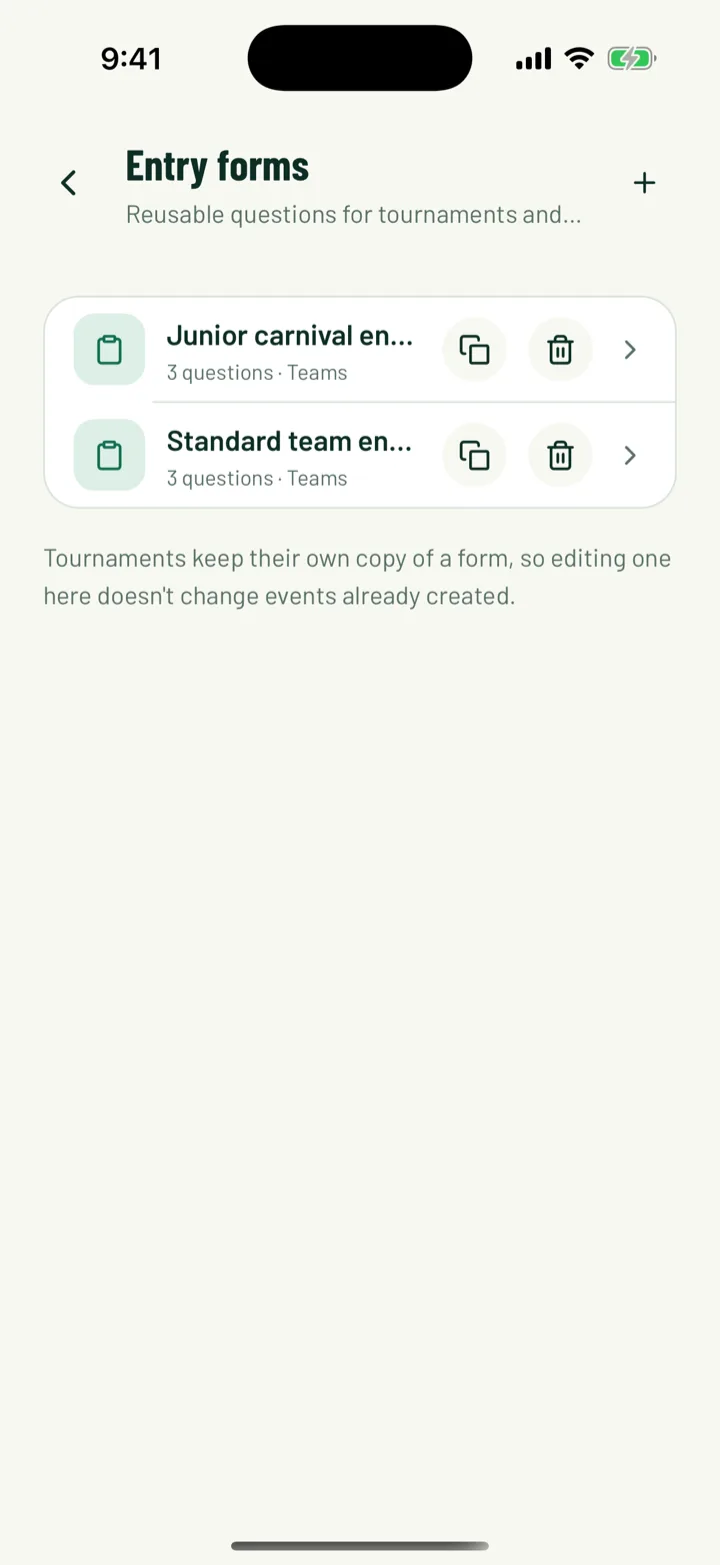
Your forms are listed with how many questions they have and who fills them in.
- Tap the form in the app, or click the pencil on the web, to edit it. Save with Save changes.
- Use the copy icon to duplicate a form, for example to make a junior version.
- Use the bin to delete a form.
Tournaments and games keep their own copy of a form. Editing or deleting a saved form doesn't change events you've already created.
7Attach a form to a tournament
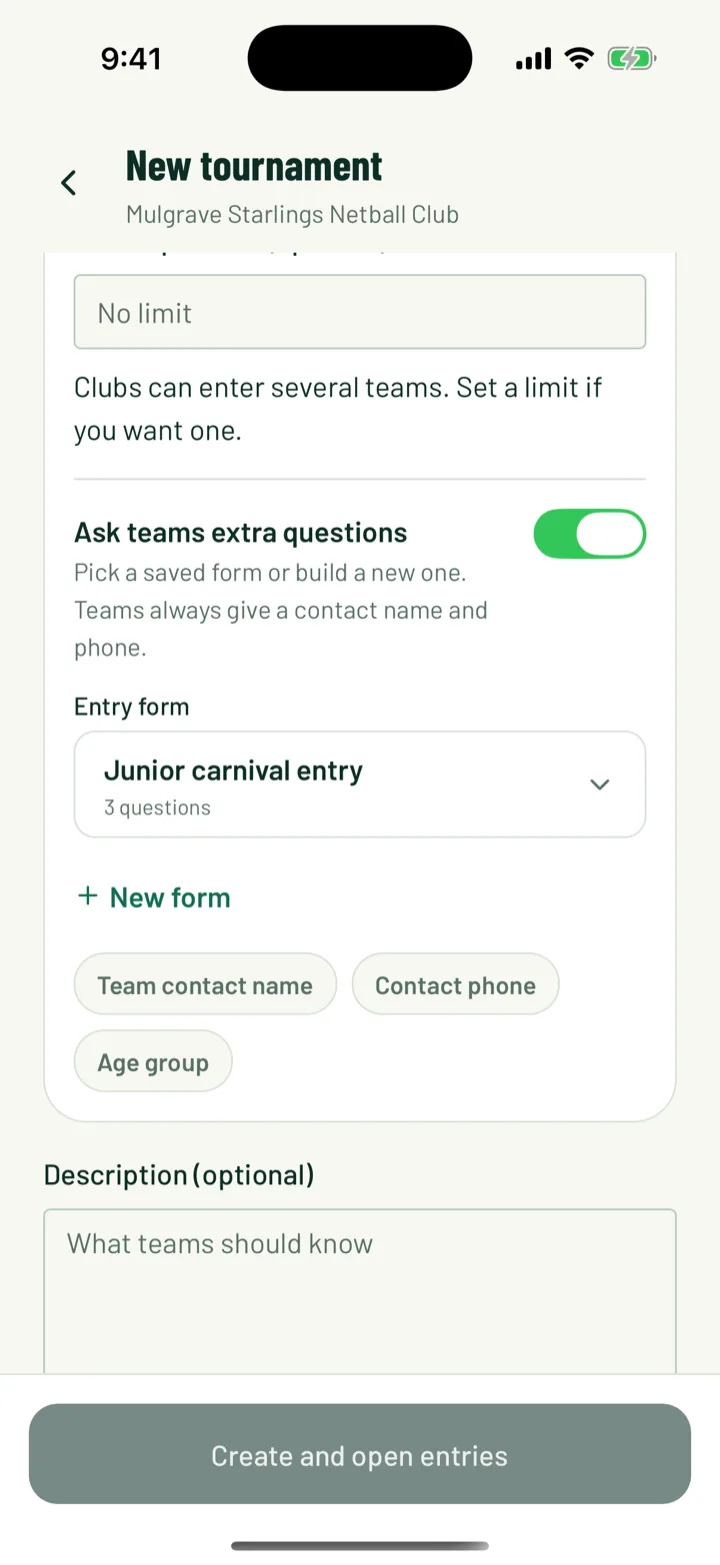
When you create a tournament and let teams enter, turn on Ask teams extra questions. The wording follows who enters, so it might read Ask people extra questions instead.
- Pick one of your forms from Choose a saved form.
- Or tap or click New form to build one on the spot.
Teams always give a contact name and phone, whether or not you attach a form. For more on tournaments, see Run your first tournament.
8Questions for game and program registrations
Games, tournaments, tryouts and programs can also take registrations with their own questions. On the web, open the event and find the Registration card. Programs call it Sign-up.
- Turn on Enabled to take registrations. Programs don't have this switch, as sign-ups open with the program.
- Under Questions, click Add question to build them here.
- Use Load a saved form… to copy in the questions from one of your entry forms.
- Click Save as reusable form to keep this event's questions as a new entry form.
Save with Save registration, or Save sign-up settings for a program.
Web: Games › game › Registration
Still stuck?
Ask us