Help › Getting started
Set up your club
Create your club, add a crest, teams and venues, share your join link and give helpers admin access.
Watch it first
A short recording from the app, with the waiting cut out. The steps below go through it slowly.
This guide takes you from a blank account to a club your members can join. You can do most of it in the app or on the web dashboard.
1Create the club
In the app, open the Club tab and tap Create your club. If you already belong to a club, open the menu, tap Switch club, then Create a new club.
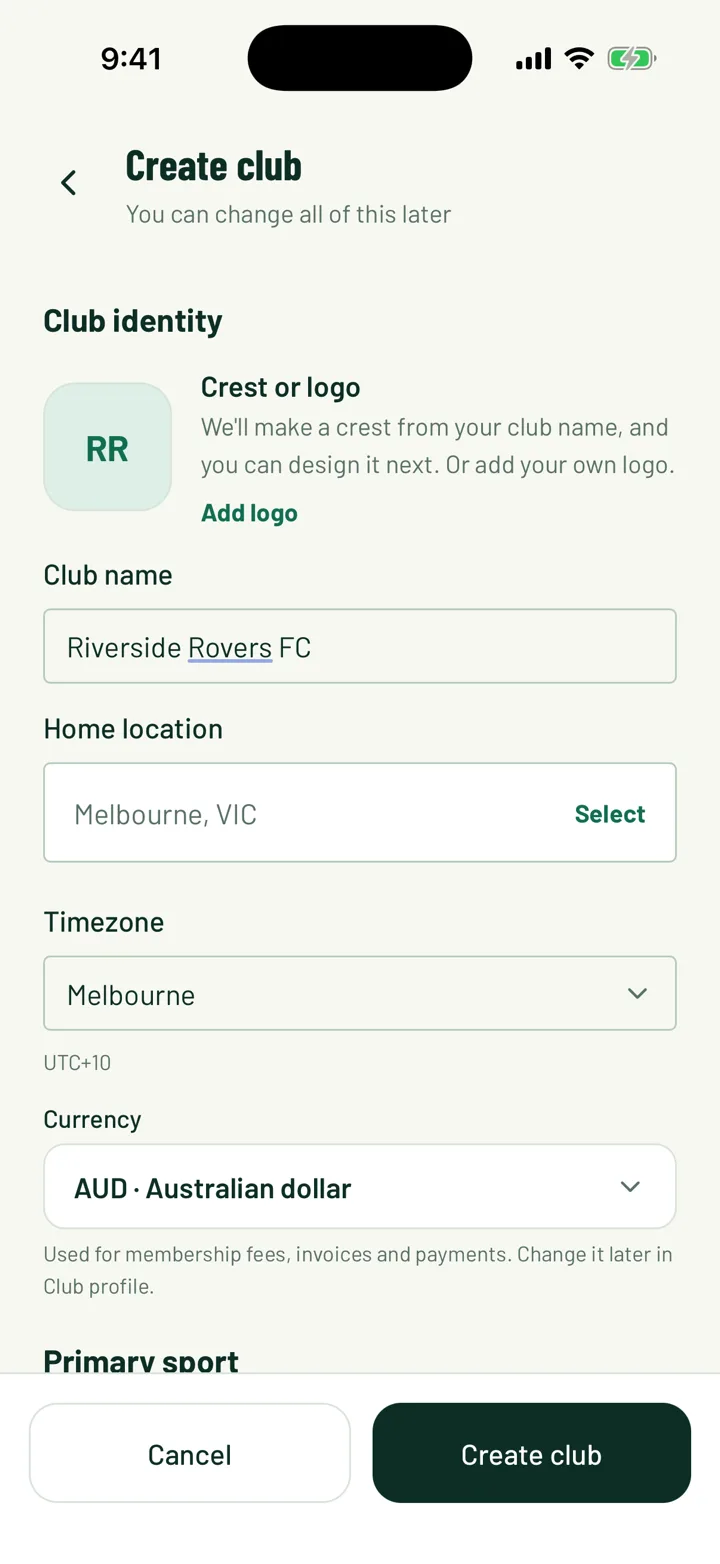
Fill in the Create club screen:
- Club name and Home location
- Timezone, used for your schedule
- Currency, used for membership fees, invoices and payments
- Primary sport, which sets the default sport for teams, games and Discover
- Under Access, turn on List publicly to show the club in Discover, and Allow free join if new members don't need approval
Tap Create club when you're done. You can change all of this later in Club profile.
On the web, choose Create a Club, enter the Club Name and Sport, then click Create Club. The Club Setup page opens next. Under Club details, pick your Default currency, then click Save & continue →.
App: Club › Create your club · Web: Dashboard › Create a Club
2Design your crest
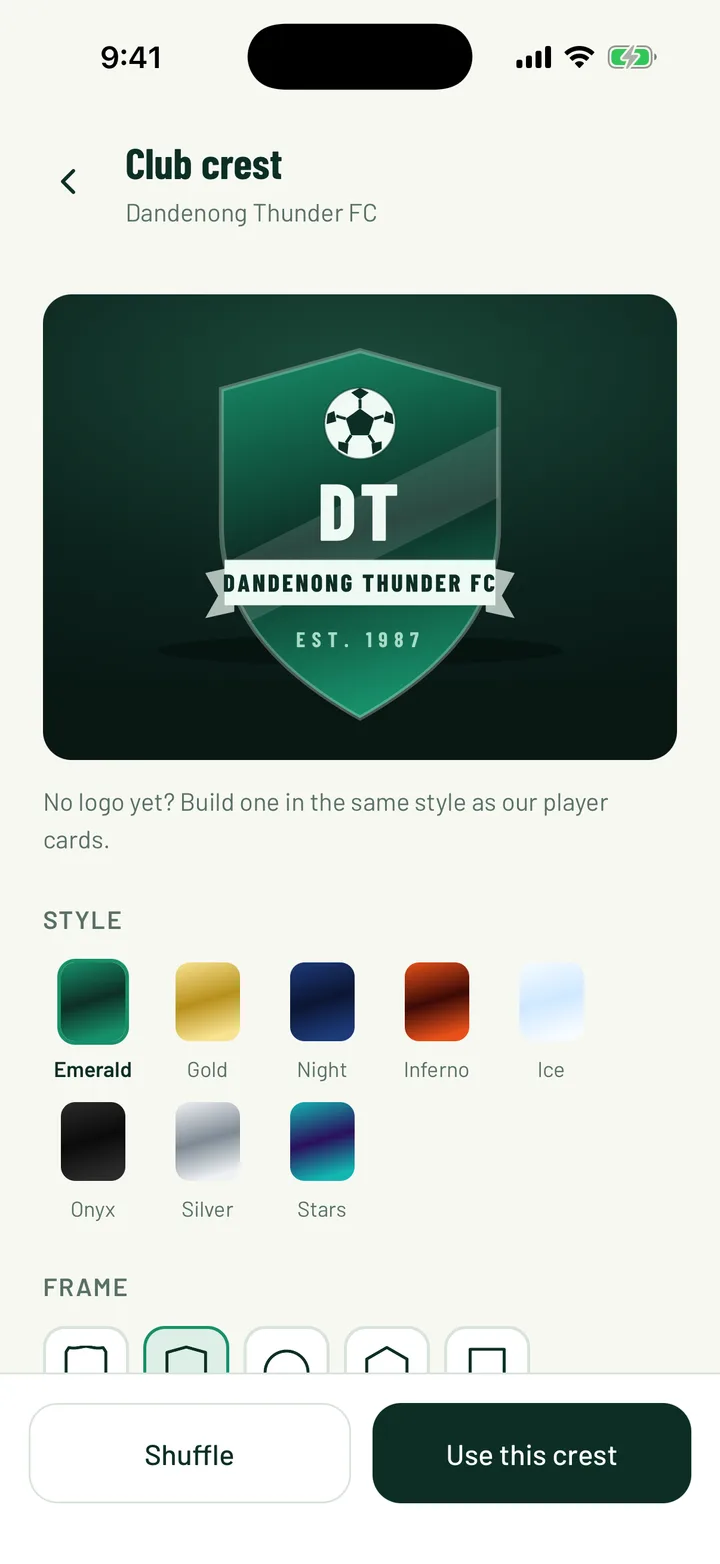
If you didn't add a logo when you created the club, the app opens the crest builder for you. It starts with a crest made from your club name.
- Style sets the colours, such as Emerald, Gold or Night
- Frame sets the shape, such as Shield, Round or Badge
- Sport adds your sport's icon, or a star
- Finish adds Sheen, Rays, Stripes or Plain
- Letters takes up to three letters, and Founded adds your year
Tap Shuffle for a new idea, then Use this crest. To use your own image instead, tap Or upload your own logo.
App: Club › Club profile › Customise crest · Web: Settings › General › Club Logo › Customise crest
3Add your venue
Add the grounds, courts or halls your club uses. Games and your club page point people to them.
- Enter a Name and pick a Type, such as Home ground or Training ground
- Set the Address
- Turn on Set as primary venue in the app, or Primary venue on the web, for your main ground
Playing spaces sets what the venue's spaces are called: Pitches, Courts, Fields, Ovals or Areas. Leave it unset and it follows your club's sport.
On the web, the Club Setup page also has an Add your first venue step.
App: Club › Venues › + · Web: Settings › General › Venues › Add venue
4Add pitches, courts and splits
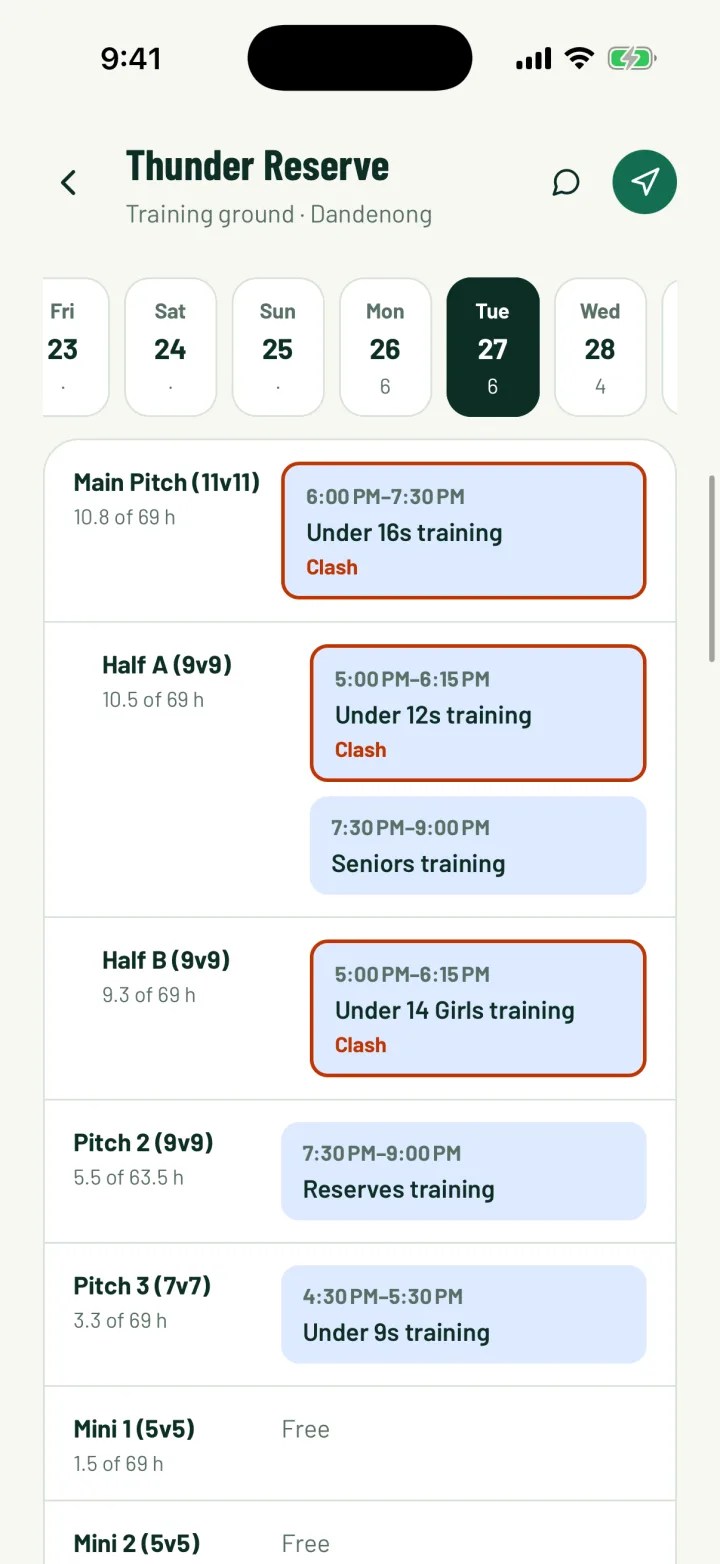
Once the venue exists, add each space so Sportdify can spot clashes.
- In the app, tap the venue's … menu, then Pitches and hours. The wording follows your spaces, so you might see Courts and hours or Ovals and hours.
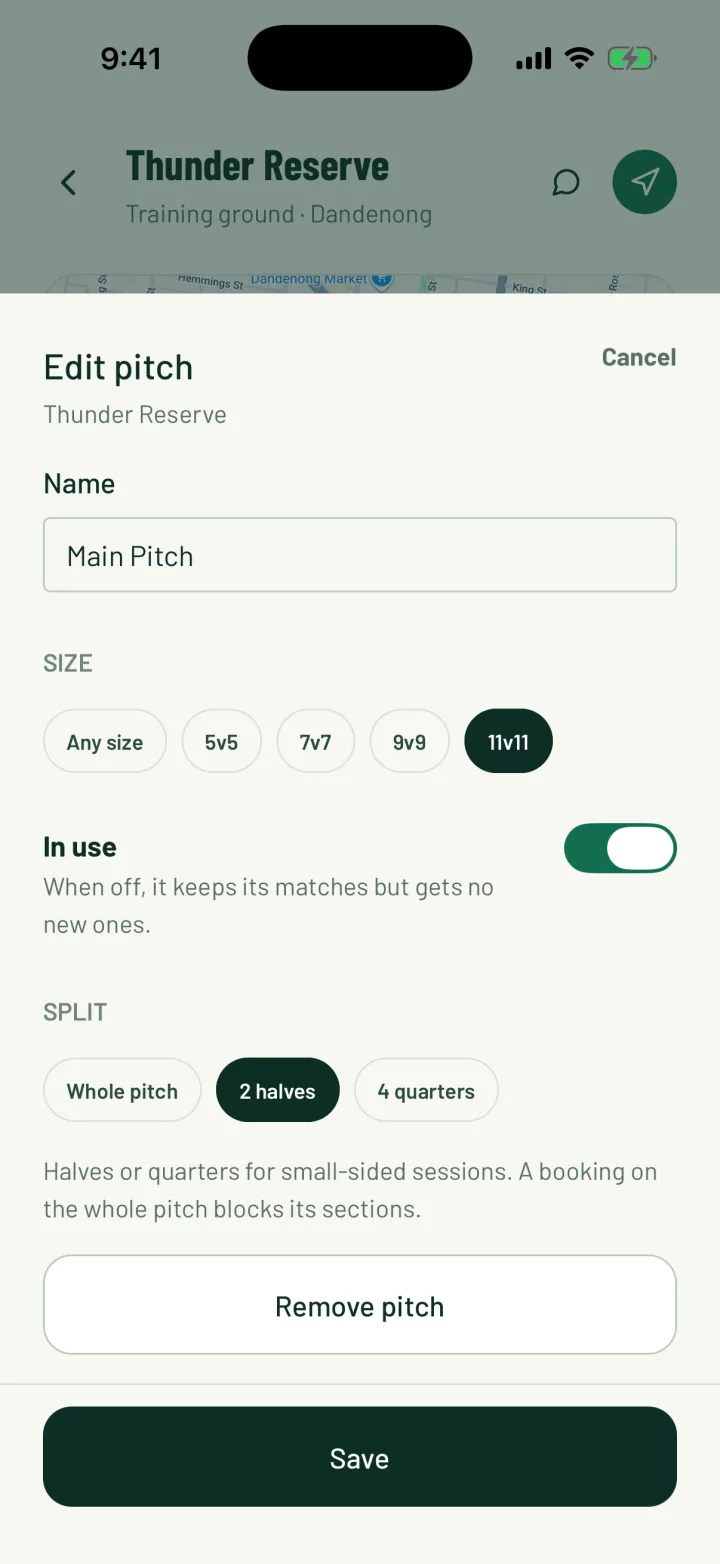
- Tap Add pitch (or Add court, Add oval and so on) and give it a Name.
- Use Split to choose Whole pitch, 2 halves or 4 quarters. A booking on the whole pitch blocks its sections.
- Turn off In use to stop new bookings on a space. It keeps the sessions it already has.
On the web, click the pencil to edit the venue. The spaces section sits at the bottom of the form.
The same screen in the app has Hours and closures. Set Opening hours and use Add closure for days the ground is shut.
App: Club › Venues › … › Pitches and hours · Web: Settings › General › Venues › Edit venue
5Create your teams
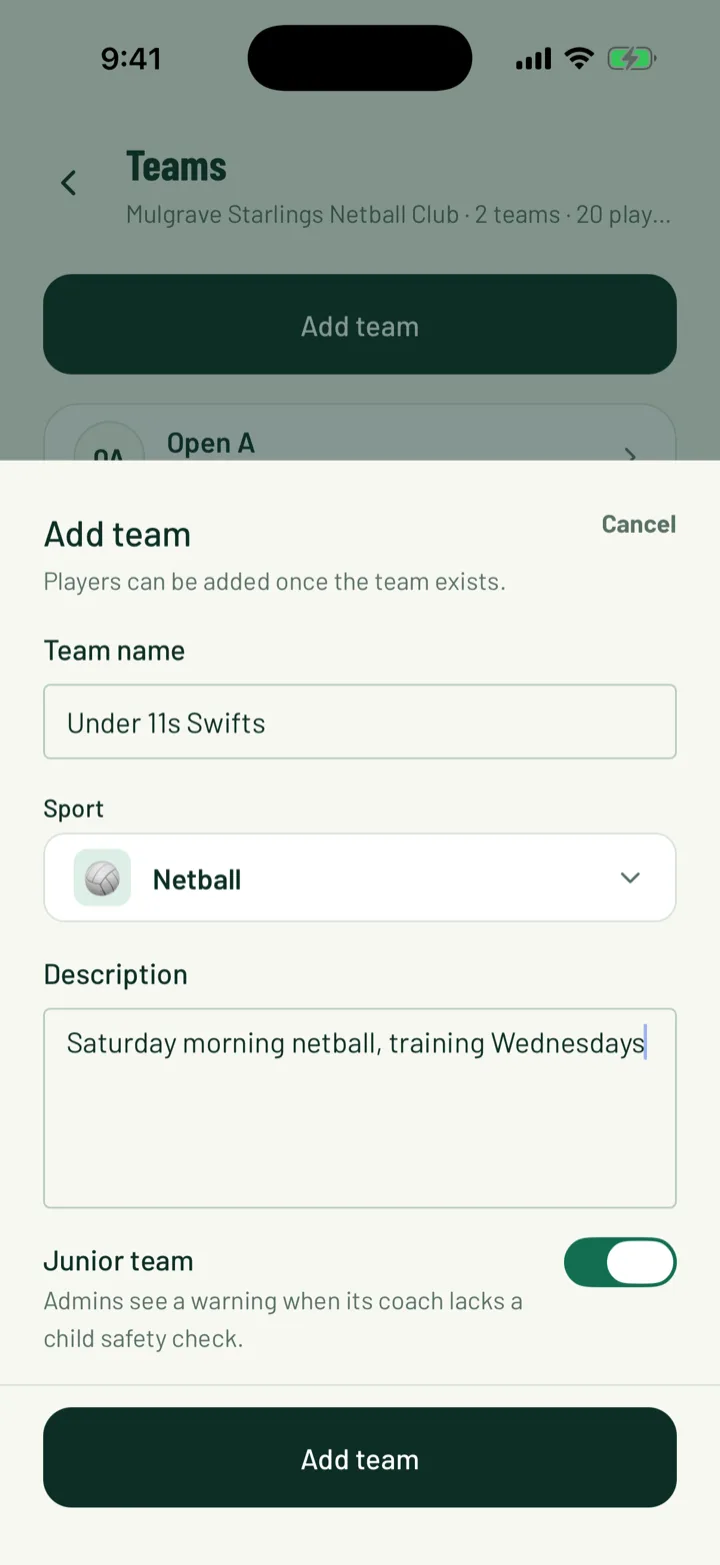
In the app, open Teams and tap Add team. On the web, click New team.
- Enter a Team name, such as Seniors or Under 12s
- Add a Description if you like
- Turn on Junior team for junior sides. Admins then see a warning if a coach lacks a child safety check.
Put the age group in the name, like U9 or Under 9. Sportdify reads it to suggest the right pitch size.
Players are added once they've joined the club. In the app, open the team and tap Add players. On the web, click View roster on the team, then Add member.
Each person on a team has a Role: Player, Coach, Admin or Referee. In the app, tap a player on the roster to change it. The app calls the admin role Team admin.
App: Club › Teams › Add team · Web: Teams › New team
6Share your join link
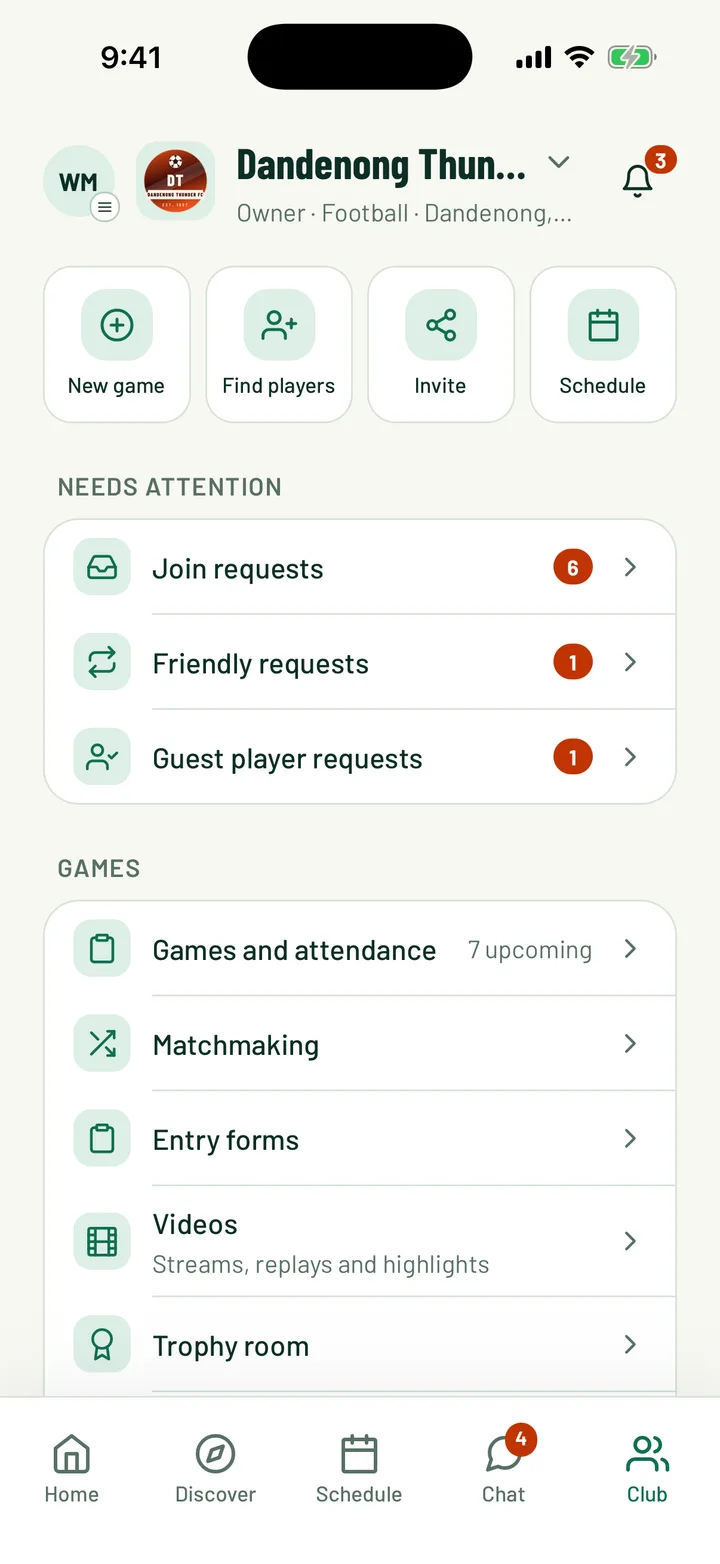
On the Club tab, tap Invite. Your phone's share sheet opens with your club's join link. Send it by text, email or your team chat.
People with the Sportdify app go straight to the join screen in the app. Everyone else gets your club's page on the website, ready to sign in and join.
On the web, open Public Profile and click Copy link. This copies your public club page, where people can click Request to join.
To invite someone by email instead, go to Settings › Members on the web. Use the Invite Member card, then click Send Invite.
App: Club › Invite
7Let members in
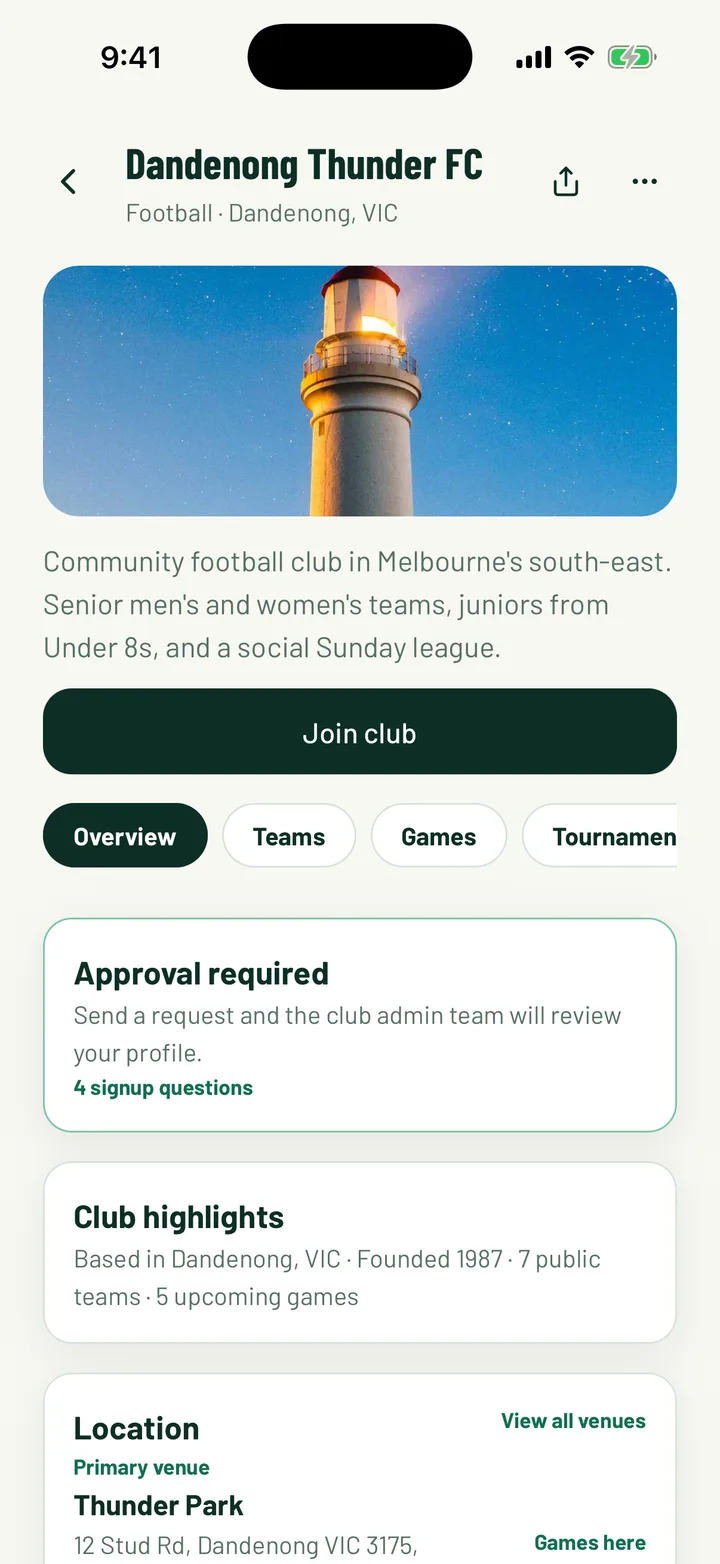
Members tap Join club on your club's page. They choose a profile, pick a membership, answer any signup questions and accept your waiver. Then they tap Send join request.
- If Allow free join is on and the club is listed publicly, they become a member straight away.
- Otherwise the request waits for you. In the app, open Join requests under Needs attention and tap Approve or Reject.
- On the web, pending members show on the Members page with Accept and Reject.
App: Club › Join requests · Web: Members
8Give others admin roles
Share the work with your committee. Changing club roles is only on the web dashboard.
- Open Settings › Members. Each person in Active Members has a role menu: Owner, Admin or Member.
- Only the club owner can make someone an Admin.
- For narrower jobs, leave them as Member and click Club roles. Tick roles like Treasurer, Registrar or Fixtures coordinator.
Team roles such as Coach are set on each team, in the app or on the web.
Web: Settings › Members
Still stuck?
Ask us