Help › Training and games
Schedule your first week
Set up a repeating training session, ask players to RSVP, share a lineup for game day and mark who turned up.
Watch it first
A short recording from the app, with the waiting cut out. The steps below go through it slowly.
Set up training once and it repeats each week. This guide also covers RSVPs, sharing a lineup and taking attendance.
1Create a training session
In the app, tap New game on the Club tab, or + on the Schedule tab. On the web, open Games and click New game.
- Choose Training. Pick Friendly or Competitive for a match instead.
- Set the Date and time in the app, or When? on the web.
- Pick the Team. On the web, leave it as Whole club for a club-wide session.
- Choose the Venue in the app, or Where? on the web.
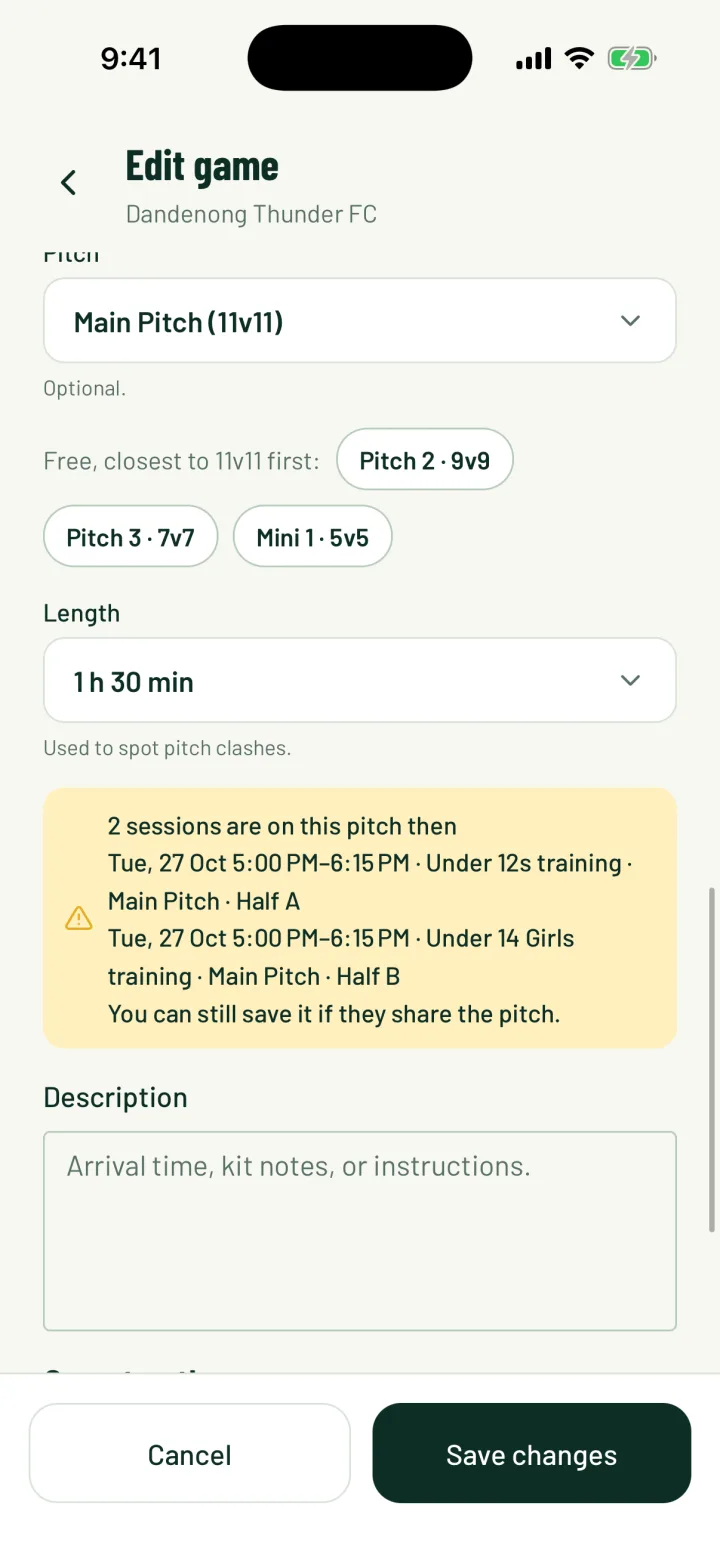
- If the venue has playing spaces, pick the Pitch. It's called Court, Field, Oval or Area for some venues.
- Set the Length. Sportdify uses it to spot clashes.
If another session is on that pitch, or it's closed, you'll see a warning. You can still save if you're happy to share.
App: Club › New game · Web: Games › New game
2Make it repeat
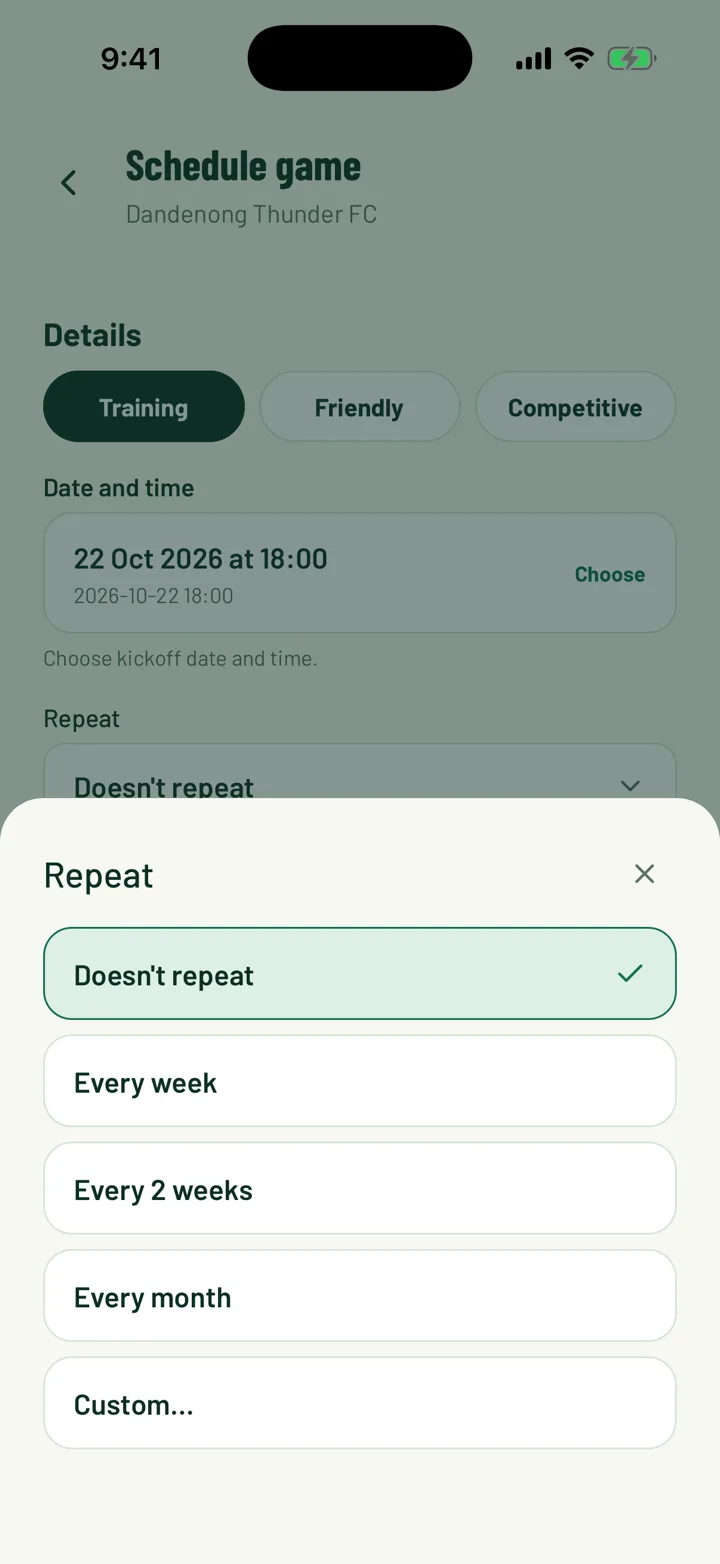
Use Repeat to turn one session into a weekly one. You can only set this when you create the session.
- In the app, choose Every week, Every 2 weeks, Every month or Custom…. Then set Ends to Keep going (next 12 months), After 10 sessions, After 20 sessions or On a date.
- On the web, choose Every week on your session's weekday, or another option. Use Custom… to set an end date or a number of sessions.
- On the web, sessions are created up to 12 months ahead, with a maximum of 100.
When you later edit one session in the series, Apply changes to lets you change Only this game or This and all later games. The web calls these Only this event and This and future events.
3Choose who's asked to RSVP
Who should RSVP decides who gets asked. When you pick a team, it's that team's players. With no team, it's any club member.
- Players of plus your team's name asks that team's players
- Any club member opens it to the whole club
- Only players I invite asks nobody until you invite them
Set Spots (optional) to cap numbers. Once it's full, later answers join a waiting list and move up as spots free.
When you save, players get one push asking Can you make it?. A repeating session sends one push for the whole series. Nobody is notified when you edit a session.
Need more people? Open the session and use Invite players to add a whole team or pick individuals.
4Players answer
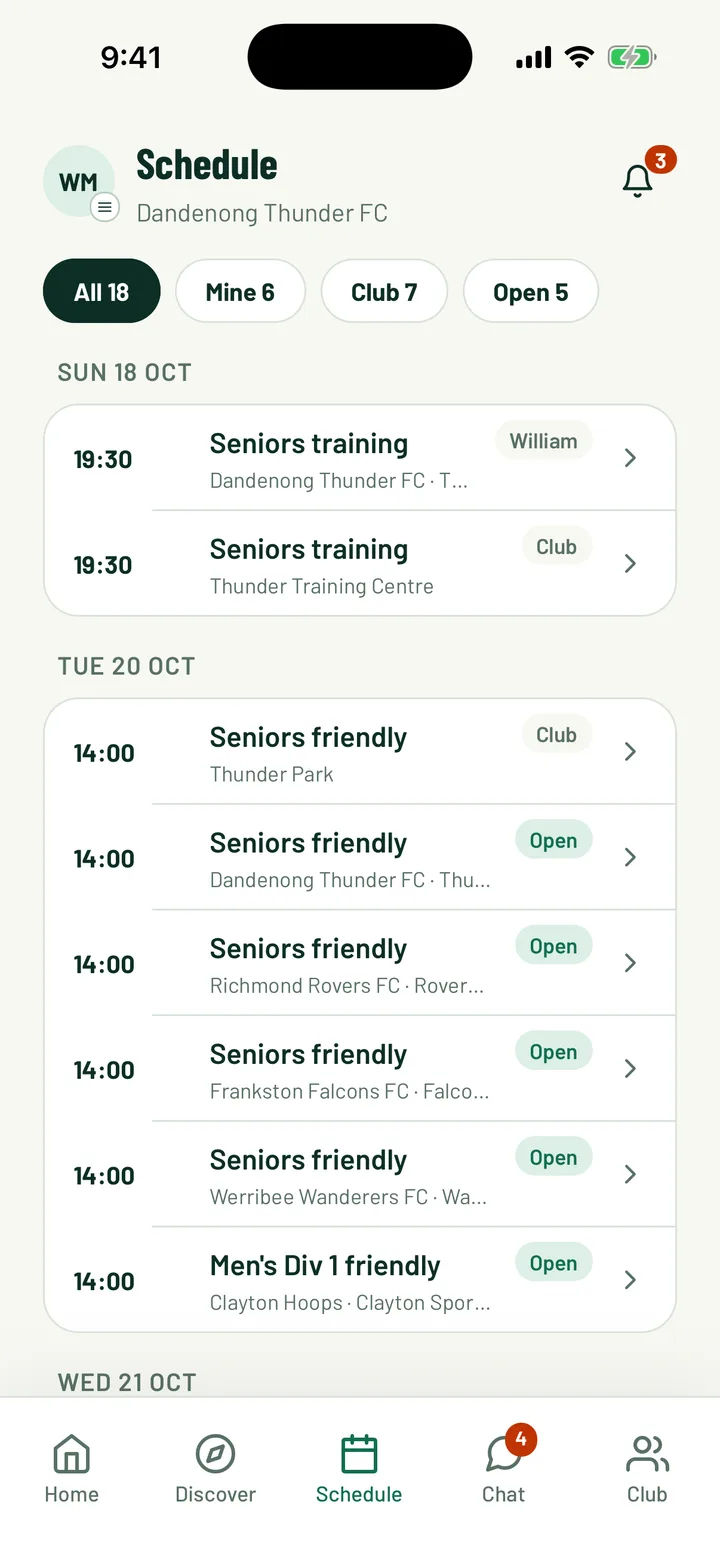
Players open the session from the push, the Home tab or the Schedule tab. Under Are you in? they tap I'm in or Can't make it. Tapping the same answer again undoes it.
If the session is full, they see Join waiting list instead. They get a notification when a spot opens up.
On the web, players answer from My Games in the Can you make it? card.
As a coach, you can see the answers on the session. In the app, the Game operations card counts who's invited, going and not going. On the web, the Availability card shows who's In, Out or has No answer.
5Pick the lineup for game day
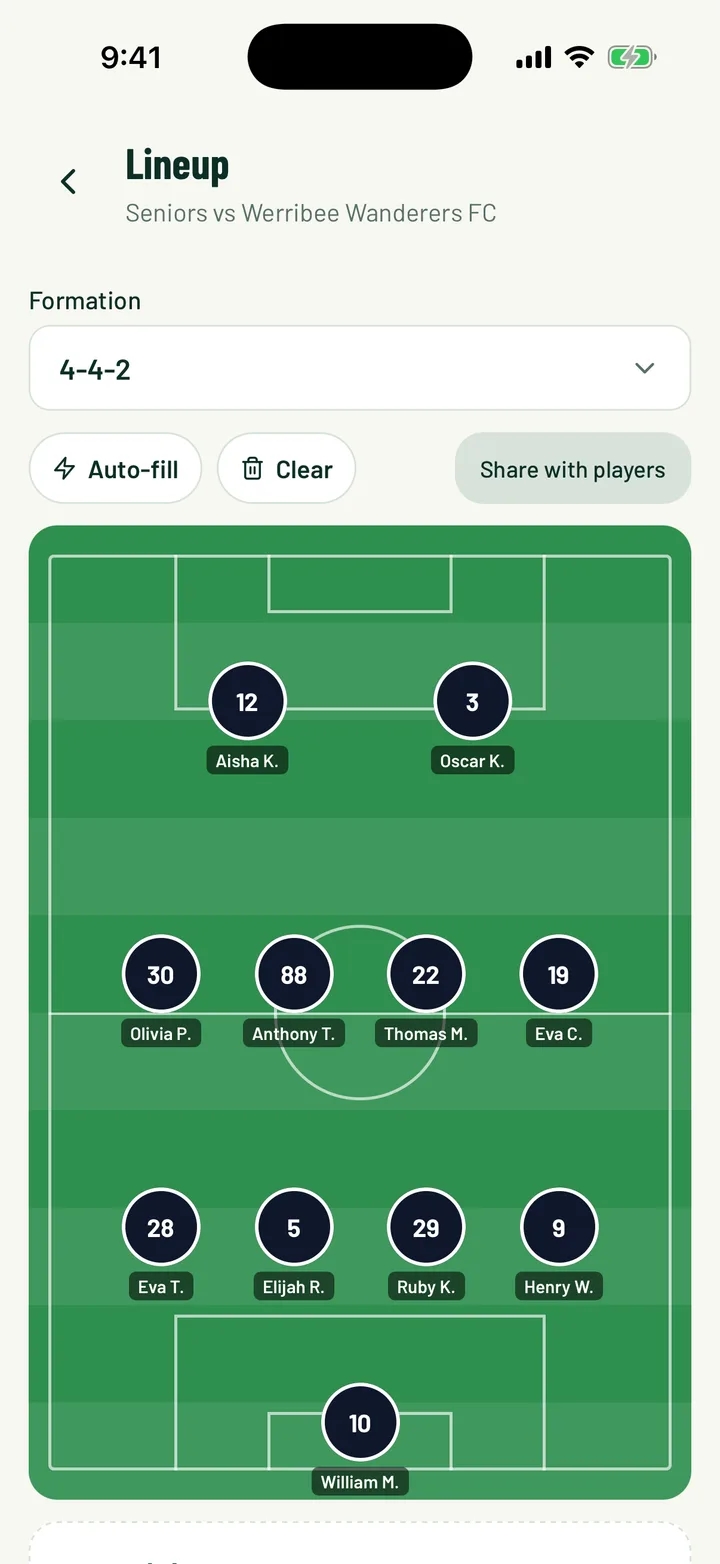
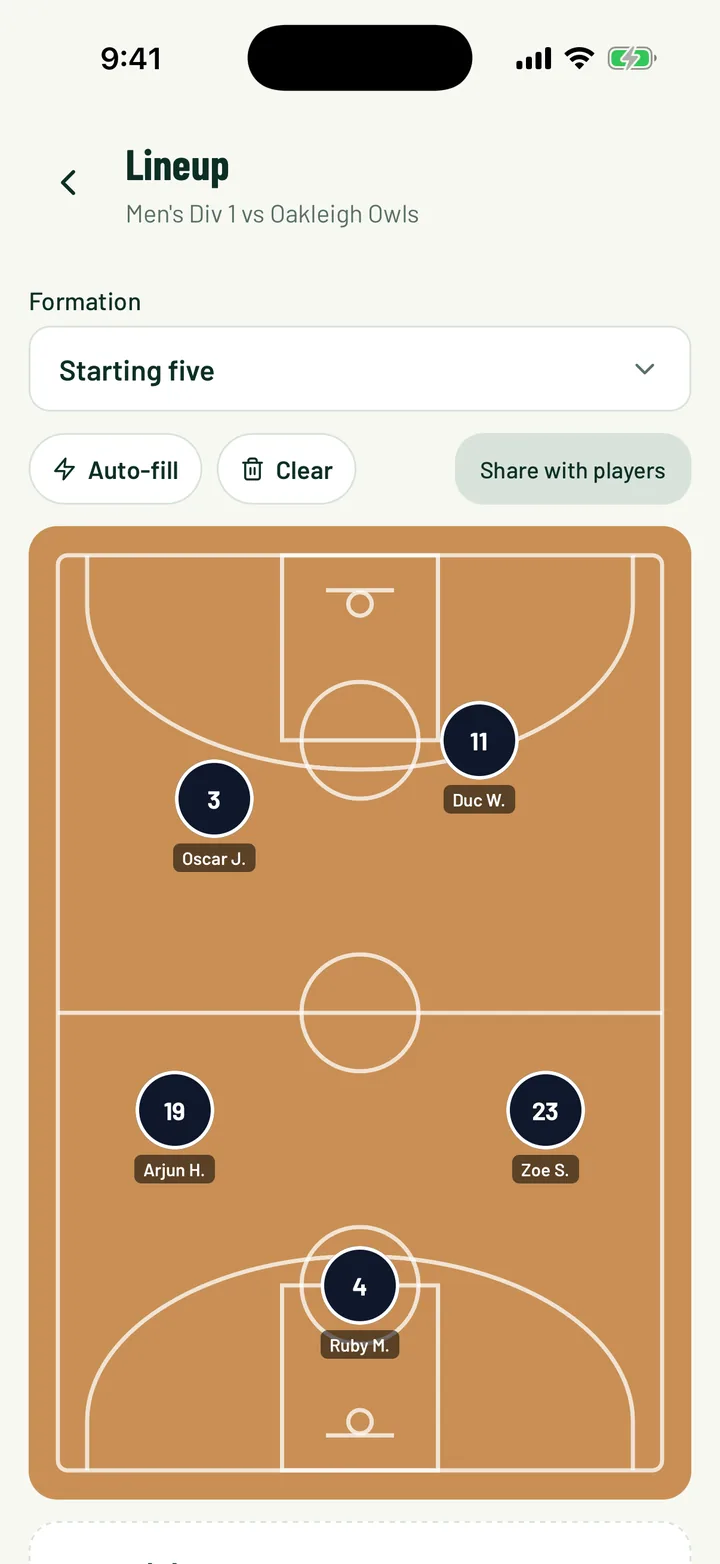
Lineups work on any game that has a team. Open the game and tap Manage lineup in the app, or Lineup editor on the web.
- Choose a Formation. The first one listed is the default for your sport.
- Tap Auto-fill to fill the spots, or place players yourself.
- In the app, tap a player then a spot, or hold and drag them onto the pitch.
- Players sit in Starting, Bench or Not selected. Use Clear to start again.
App: game › Game operations › Manage lineup · Web: Games › game › Lineup editor
6Share the lineup
Tap Share with players when you're happy. Each player on the sheet gets a push saying the lineup is out. It tells them whether they're starting or on the bench.
- Players left in Not selected aren't notified.
- After you share, the button changes to Share again. Use it if you make changes.
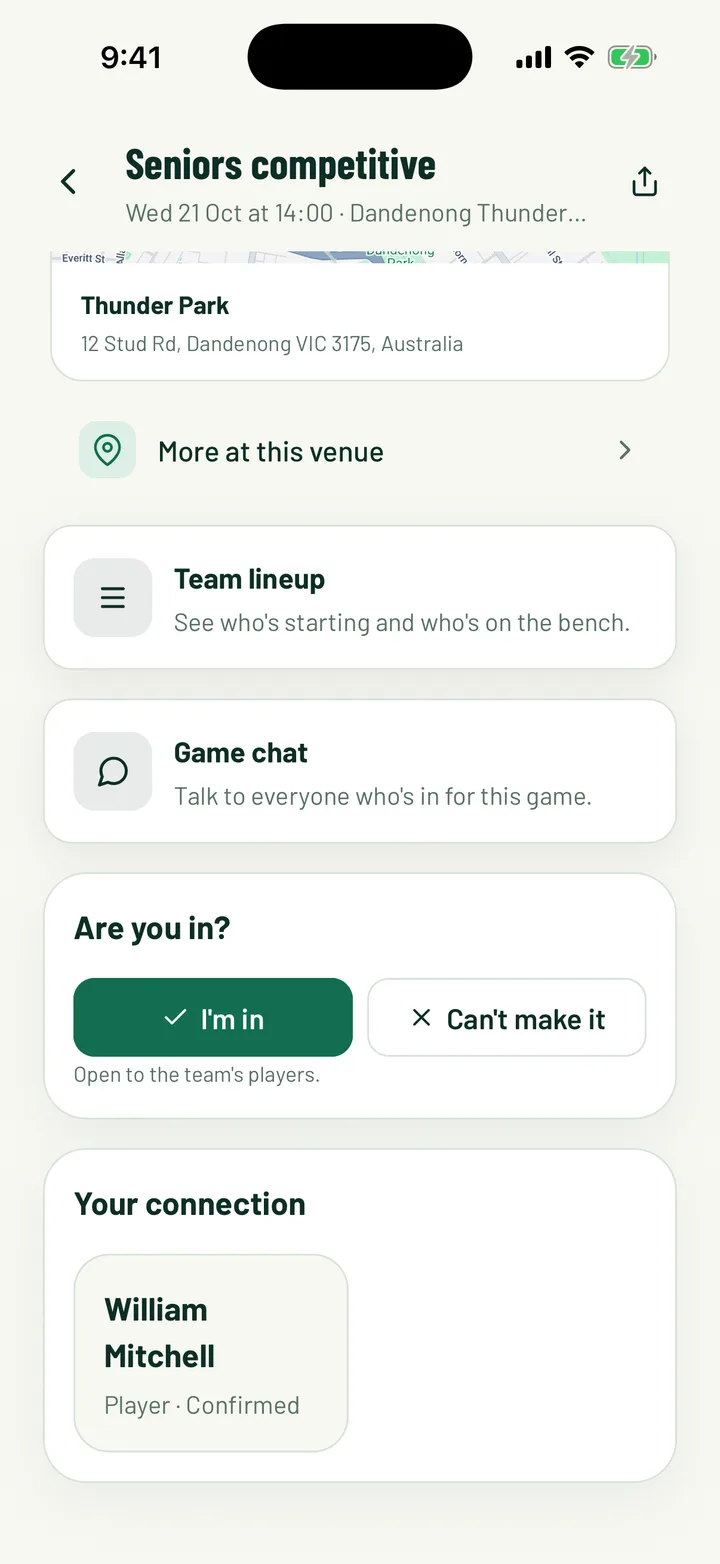
- Players see the lineup on the game page under Team lineup.
7Mark attendance
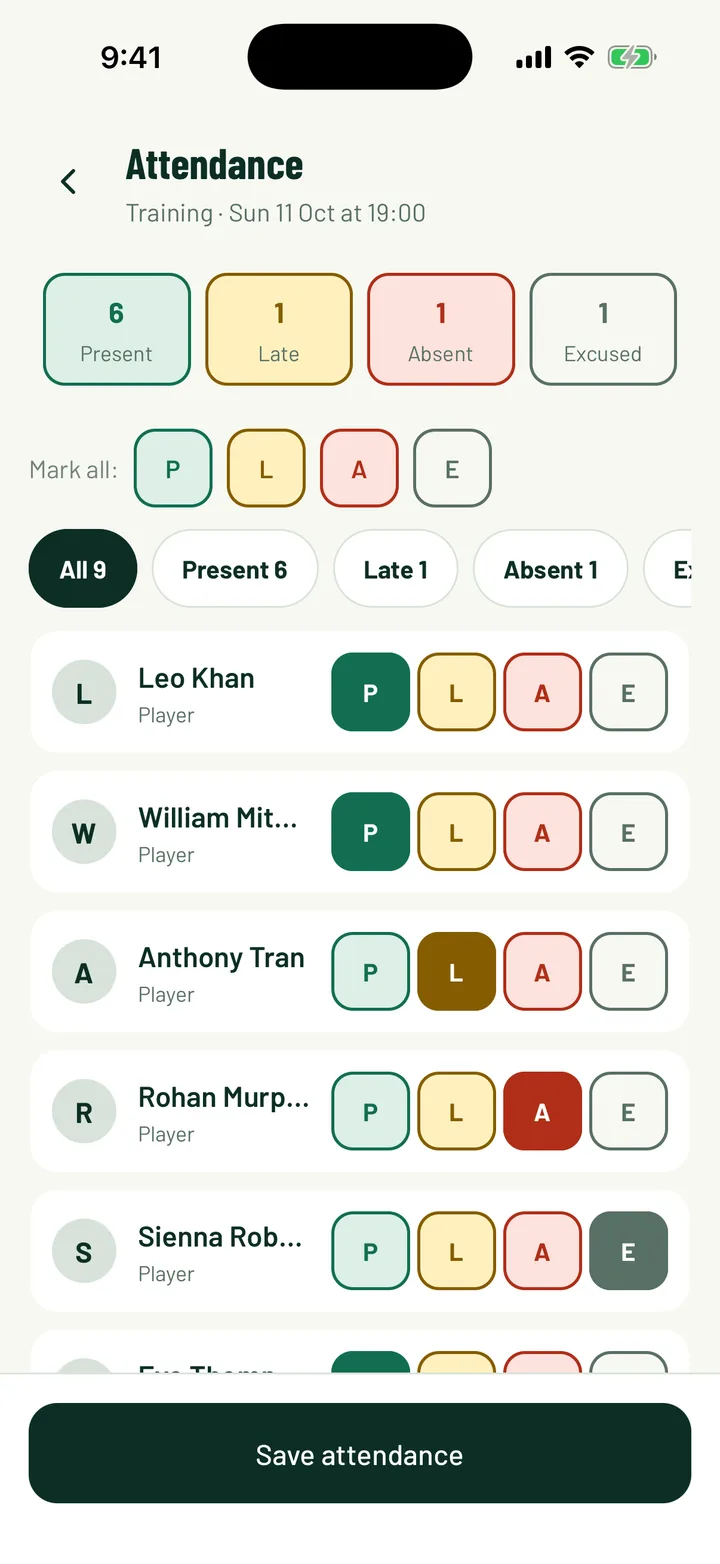
After the session, record who came. Each player can be Present, Late, Absent or Excused.
- In the app, open the session and tap Mark attendance. Everyone starts as Absent. Use Mark all: to set everyone at once, then change the few who differ.
- Tap Save attendance when you're done.
- On the web, open Attendance and click Take Attendance. Pick the date, then choose Training/general or Game roster. Everyone starts as Present.
- Click Save Session when you're done.
The Insights tab on the web shows attendance trends across the club.
App: game › Game operations › Mark attendance · Web: Attendance › Take Attendance
Still stuck?
Ask us