Help › Training and games
Drills and session plans
Find drills in the library, write your club's own, plan a training session block by block, share it with players and run it from the sideline.
Watch it first
A short recording from the app, with the waiting cut out. The steps below go through it slowly.
The Training hub has a drill library and a plan for each training session. You build the plan from drills, breaks and notes, then run it in the app with a timer for each block.
Coaches and team admins can plan their own team's sessions. Owners, admins and the Fixtures coordinator can plan any session. Training sessions come from your schedule, so create them first. See Schedule your first week.
1Browse the drill library
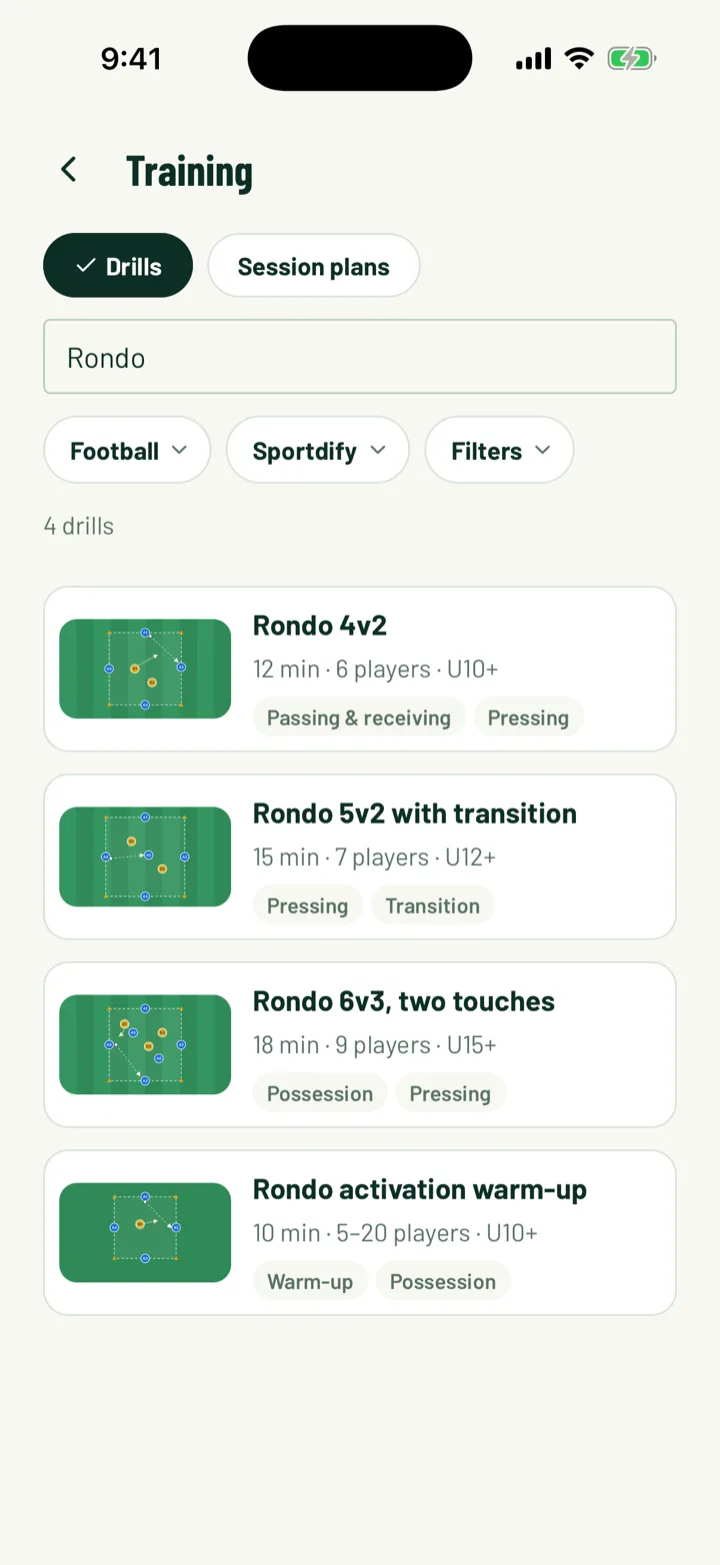
In the app, open the menu and tap Training. If you have a club role, it's also on the Club tab. On the web, open Training, where the library starts on the sport of the first team you coach.
- Choose a shelf: Sportdify for the built-in library, Club for your club's own drills, or Saved. The web calls the club shelf Club drills and adds Mine for drills you wrote.
- Search for things like rondo, first touch or warm-up.
- Open Filters to narrow by Sport, Skill, Length, Player age and Players.
If a team you coach has a focus set, the web shows a banner like For U12s with its skills. Click Show these to see the drills that match.
App: Menu › Training › Drills · Web: Training
2Read a drill
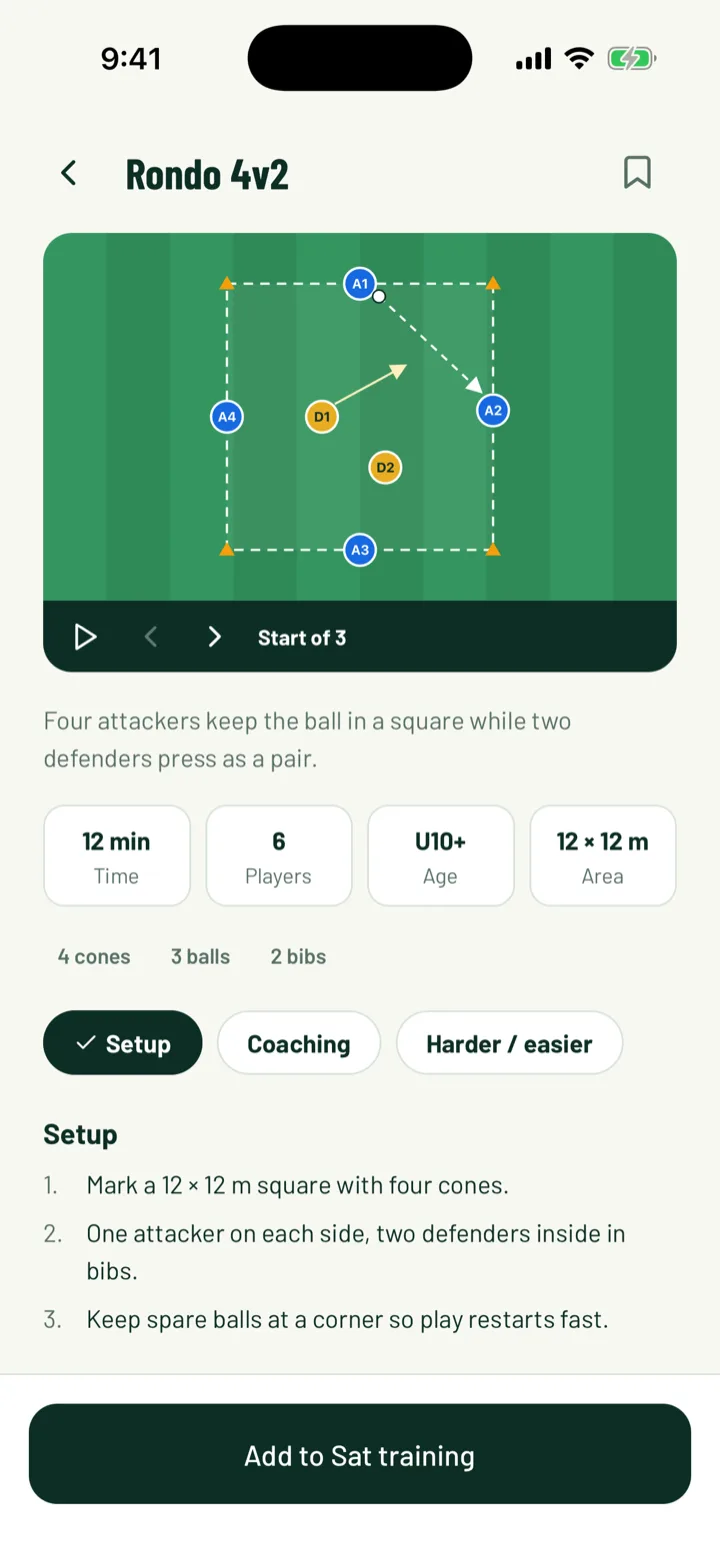
Open a drill to see how long it runs, how many players it needs and the area. The page has:
- Setup, How it runs, Coaching points and Common mistakes
- Make it harder and Make it easier
- A diagram. In the app, tap Watch it run or Play the steps to see it move.
To keep a drill on your Saved shelf, tap Save drill in the app, or click the bookmark on the web.
3Write your club's own drills
Club drills are written on the web. Only your club sees them.
- To start from a Sportdify drill, open it and click Copy to club drills. Then change anything you like.
- To start from scratch, click New drill. Fill in the Title, One-line summary, Sport, Level, Intensity, players, ages and Area.
- Add a Cue to say (run mode shows it). This short line shows on the sideline when you run the session.
- Fill in Equipment, Setup, How it runs, Coaching points, Common mistakes, Make it harder and Make it easier, one item per line.
- Click Add drill.
On a club drill's page, use Draw diagram to draw it, and Upload a video or add a YouTube or Vimeo link. To retire a drill, click Archive. Plans that already use it keep it.
Web: Training › New drill
4Pick the session to plan
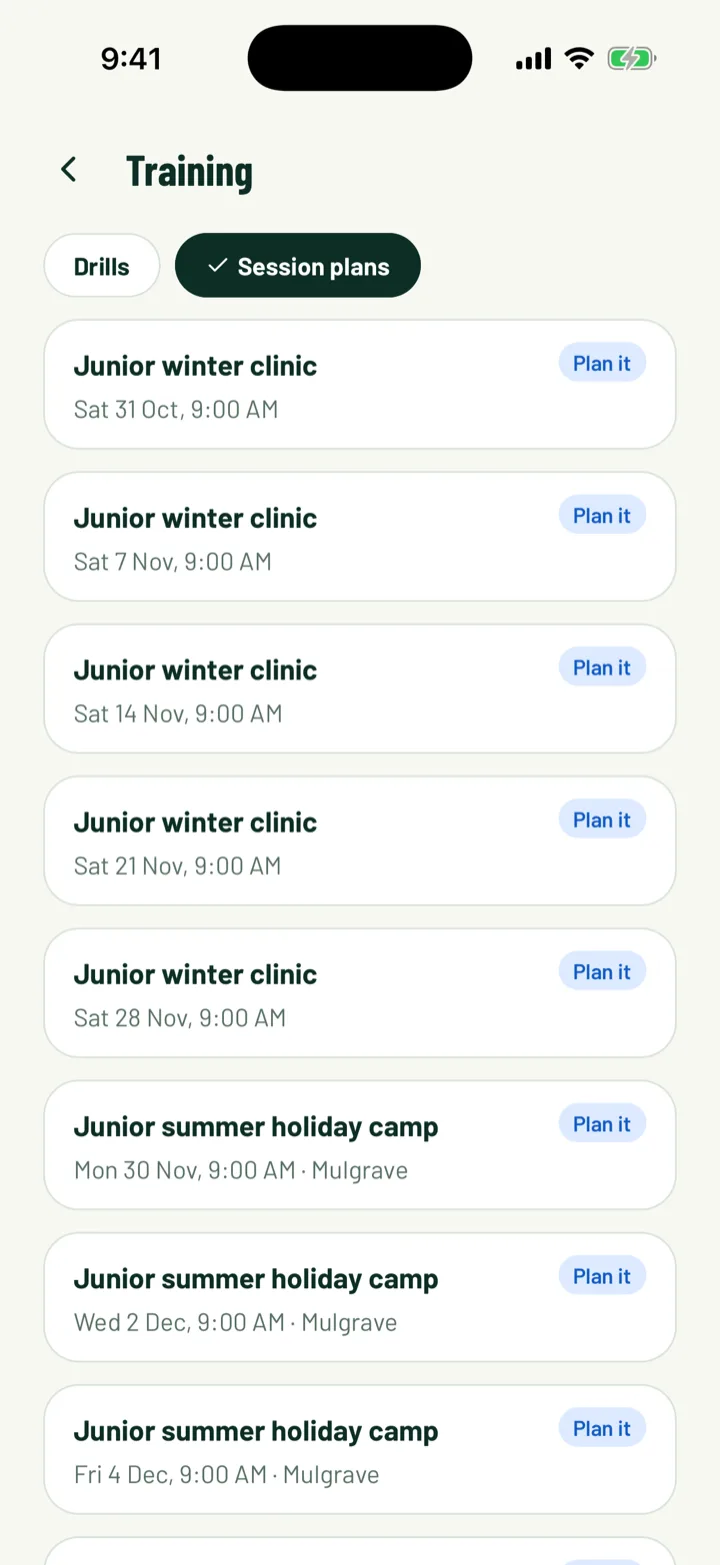
In the app, tap the Session plans tab. On the web, click Plan a session. Both list the upcoming training for the teams you coach.
- In the app, tap a session tagged Plan it. On the web, click Plan this session.
- You can also open a training session from the schedule. Tap Open the session plan in the app, or click Session plan on the web.
From any drill, you can add it straight to your next session. In the app, tap the button like Add to Thu training. On the web, click Add to session plan and pick the session.
App: Menu › Training › Session plans · Web: Training › Plan a session
5Build the plan
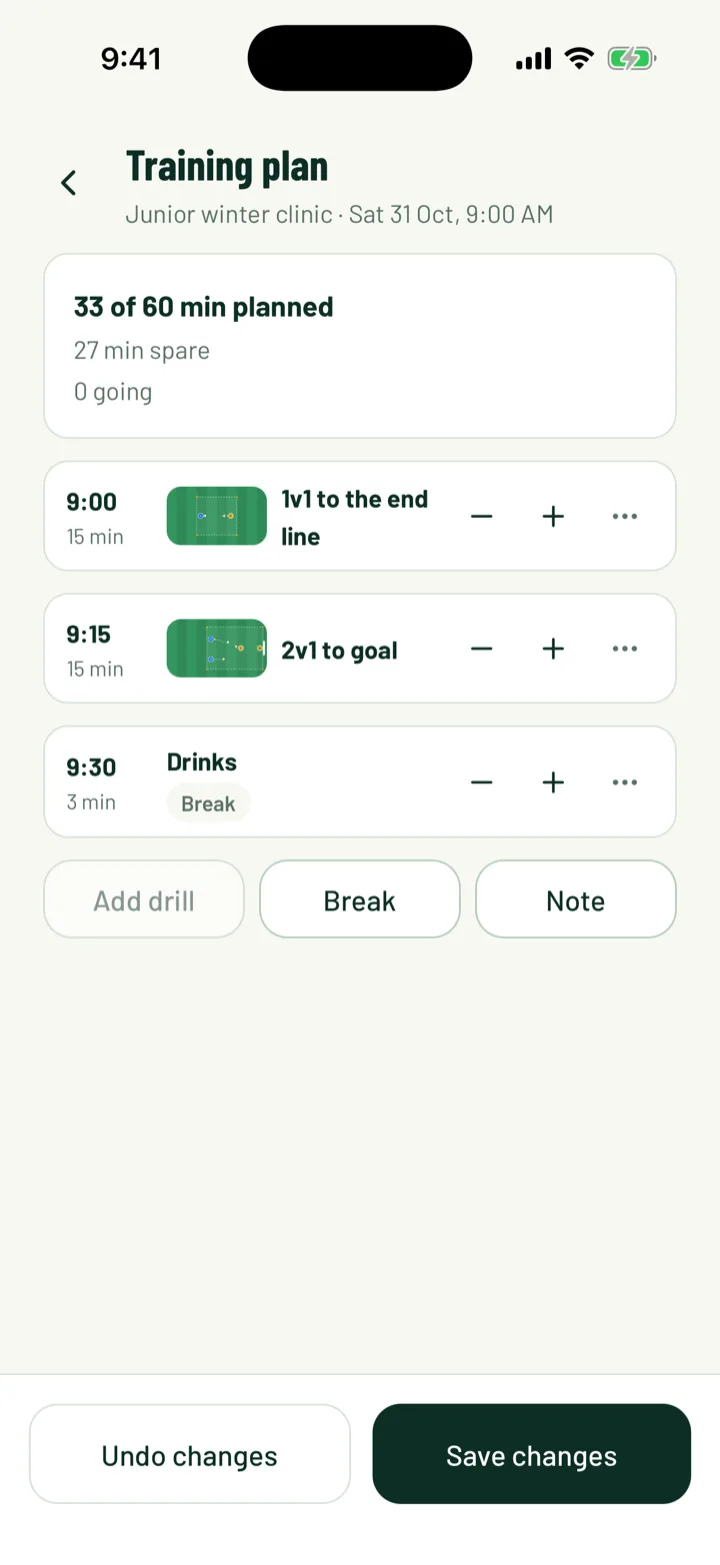
A plan is a list of blocks. Each block is a drill, a break or a note. The top shows the time used, like 55 of 60 min planned, and how many minutes are spare or over.
On the web:
- Give it a Plan name.
- Use Add drills on the side to search the Sportdify, club and saved drills. Last time with this team shows what you ran before.
- Set the Minutes for each block and add a Note (optional). Use the arrows to move blocks up or down.
- Add Break for drinks, or Note to players.
- Write Coach notes (only coaches see these).
- Click Save plan.
In the app, tap Add drill, Break or Note. Use the minus and plus to change a block by a minute. More actions lets you Move up, Move down, View drill or Remove block. Tap Save changes when you're done.
Team focus on the web sets the skills a team is working on. It powers the library banner, and suggests skills From this season's games.
App: Menu › Training › Session plans › session · Web: Training › Session plans › session
6Reuse a plan as a template
On the web, once a plan is saved, click Save as template and give it a name. For an empty session, pick one under Or start from a template. In the app, tap Start from a template on an empty plan.
Your templates are listed under Templates on the Session plans page on the web, where you can delete them.
7Share the plan with players
On the web, turn on Players can see the plan, then save. Players open the training session in the app and tap Open the session plan.
Until you share it, players see No plan shared yet. Coach notes stay hidden from players.
Web: Training › Session plans › session
8Run the session
At training, open the plan in the app and tap Run session. Save any changes first.
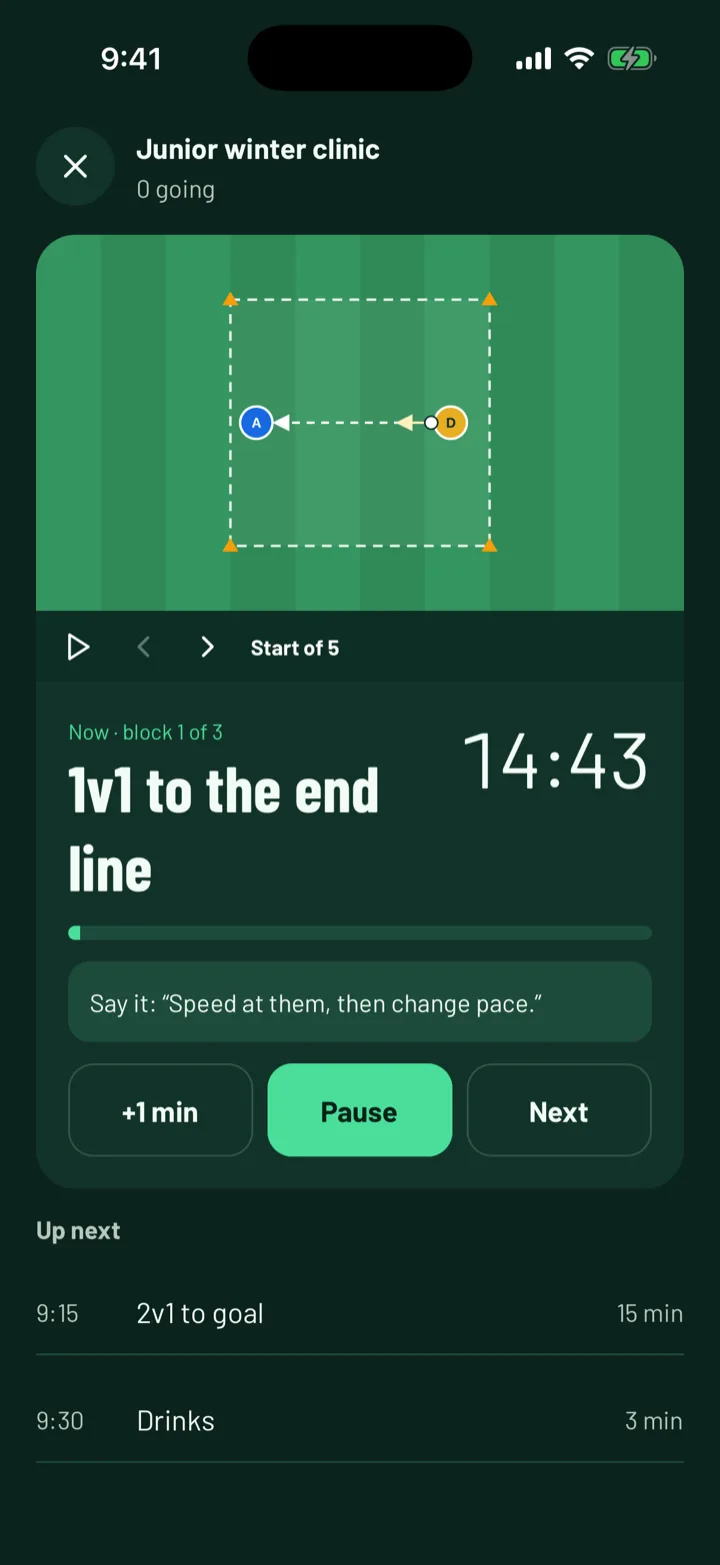
- The screen shows the block you're on, like Now · block 2 of 6, with a countdown.
- A drill's cue shows as Say it, so you know what to tell the players.
- Tap +1 min to add time, Pause and Resume to stop the clock, or Next to move on.
- Up next shows the following block. Your phone vibrates when a block ends.
After the last block you'll see Session done. Tap Close session to leave.
App: Menu › Training › Session plans › session › Run session
Still stuck?
Ask us