Help › Club and venues
Club roles and permissions
What owners, admins and members can do, how club roles like Treasurer share the work, and what coaches and team admins can do for their own team.
Watch it first
A short recording from the app, with the waiting cut out. The steps below go through it slowly.
Everyone in a club has one membership role: Owner, Admin or Member. Members can also hold club roles, like Treasurer, for one part of the club, and team roles, like Coach, for one team. This guide explains what each one can do and where to set it. To add your first admins, see Set up your club.
1Know the three membership roles
Open Settings › Members on the web. The Active Members tab lists everyone, with their role next to their name.
- Owner can do everything. Only the owner can make someone an admin or owner, invite an admin, or remove an admin. Only the owner manages the club's Sportdify plan, add-ons and credits, and where club money is paid out.
- Admin can do everything else: club settings, members, teams, games, money, tournaments, messages, media, shop, sponsors and volunteers. Admins see Subscription and Credits but can't change them.
- Member can see the club's schedule, answer RSVPs, pay their invoices and take volunteer slots. A member gets more only through club roles or team roles.
Web: Settings › Members
2Make someone an admin
Only the owner can do this, and only on the web.
- In Active Members, open the role menu next to the person and choose Admin. Choose Member to take it away.
- To invite someone straight in as an admin, use the Invite Member card. Enter their Email address, pick a Role, then click Send Invite.
- To remove someone, open the … menu on their row and click Remove member. Admins can remove members, but only the owner can remove an admin.
- To leave a club yourself, open the … menu on your own row and click Leave organization.
Web: Settings › Members
3Give out club roles
Club roles let a member run one part of the club without being a full admin. Owners and admins can give them out.
- In Active Members, find the person. They must be a Member. Admins already have every club role.
- Click Club roles and tick one or more roles. The button then shows how many they have, like 2 roles.
- Their roles show under their name in the list. Untick a role to take it away.
Club roles are only set on the web. Changes apply to the app as well.
Web: Settings › Members › Club roles
4Pick the right club role
Each club role opens the matching parts of the app and the web dashboard:
- Treasurer: invoices, payments, game fees and finance reports.
- Registrar: members, memberships, join requests, forms and teams.
- Fixtures coordinator: games, fixtures, venues, guest players, friendlies and tournaments. This includes lineups, scoring and attendance for every team.
- Communications: club emails, announcements and chat moderation.
- Media: livestreams, recordings and replays.
- Shop manager: the club shop.
- Sponsorship manager: sponsors, packages and sponsor invoices.
- Volunteer coordinator: volunteers, staff and safety checks.
A person can hold as many club roles as they need. No club role can change admins, club settings, the Sportdify plan or payouts.
5Set team roles
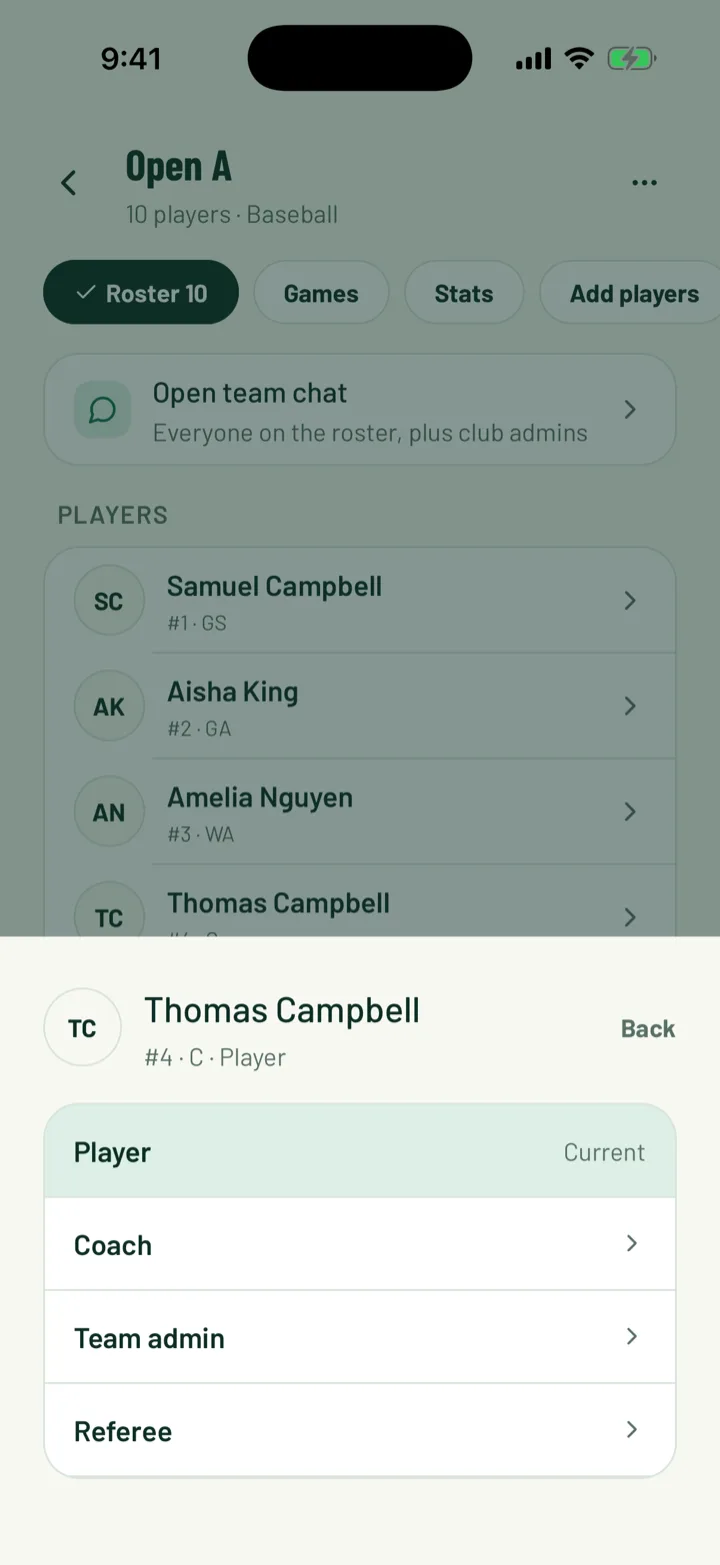
Team roles only apply to one team. Each person on a team has a Role: Player, Coach, Admin or Referee.
- In the app, open the team's roster and tap a player. Tap Role and pick one. The app calls the admin role Team admin.
- On the web, click View roster on the team. Open the … menu on the person's row, then Role.
- Staff and checks lists team admins as Team manager.
Coaches and team admins can do these things for their own team only:
- Add, remove and edit players on the roster
- Create and edit the team's games, lineups and live scoring
- Mark attendance
- Accept or decline guest players for the team's games
- Email the team's members, with Email members on the web
- Plan training sessions and write club drills
To give someone these rights for every team, make them Fixtures coordinator for games and attendance, or Registrar for rosters.
App: Club › Teams › team › player › Role · Web: Teams › View roster › … › Role
6Check what people will see
Sportdify only shows people what their roles let them use.
- On the web, the dashboard menu hides pages they can't use. A Treasurer sees Invoices and Finance, but not Shop or Volunteers.
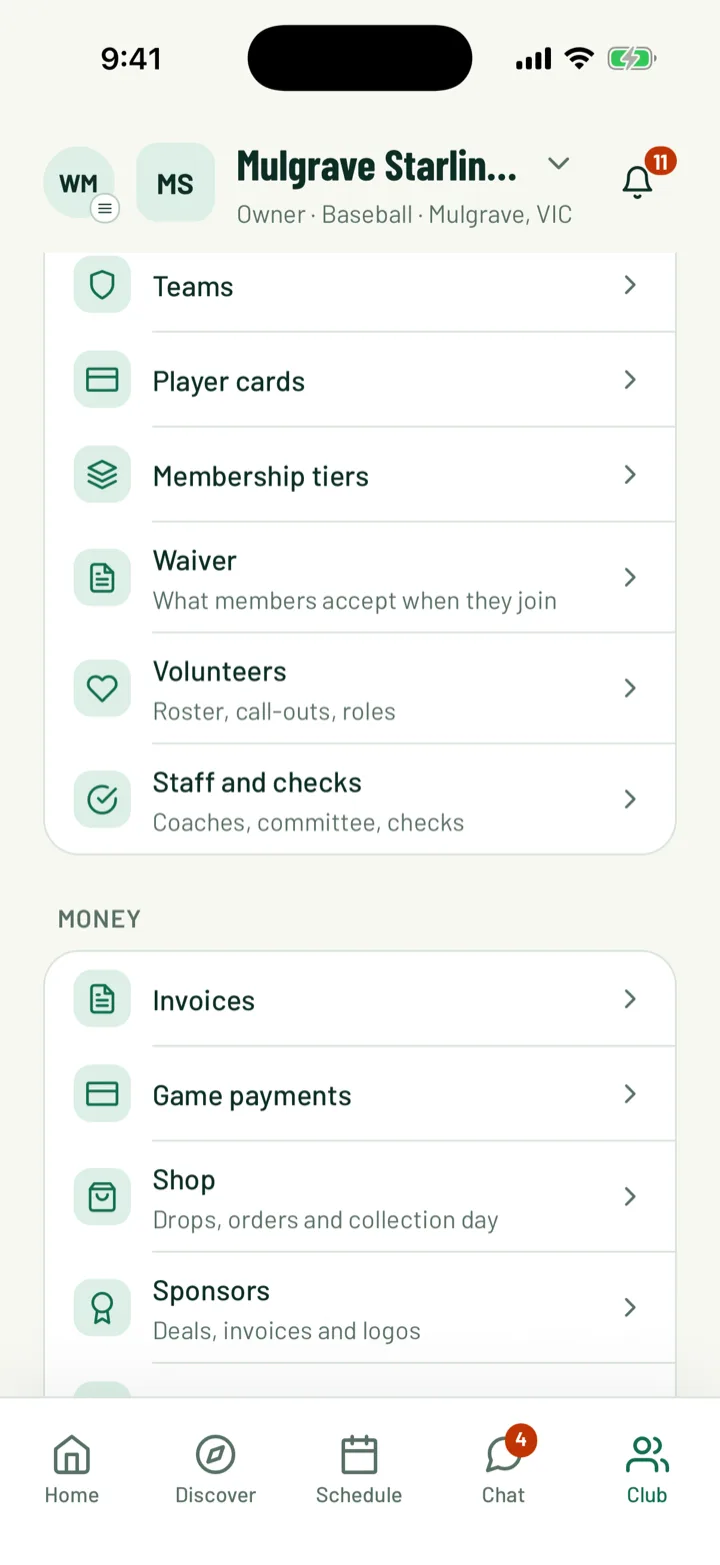
- In the app, the Club tab shows the admin sections, like Needs attention, Money and People, to anyone with a club role or admin role. Each row only appears if their roles cover it.
- A coach with no club role sees the member view of the Club tab. On Home, they get Your teams' games, with Take attendance and Set the lineup for the next game.
If someone can't find a page, check their roles in Settings › Members.
7Add committee titles
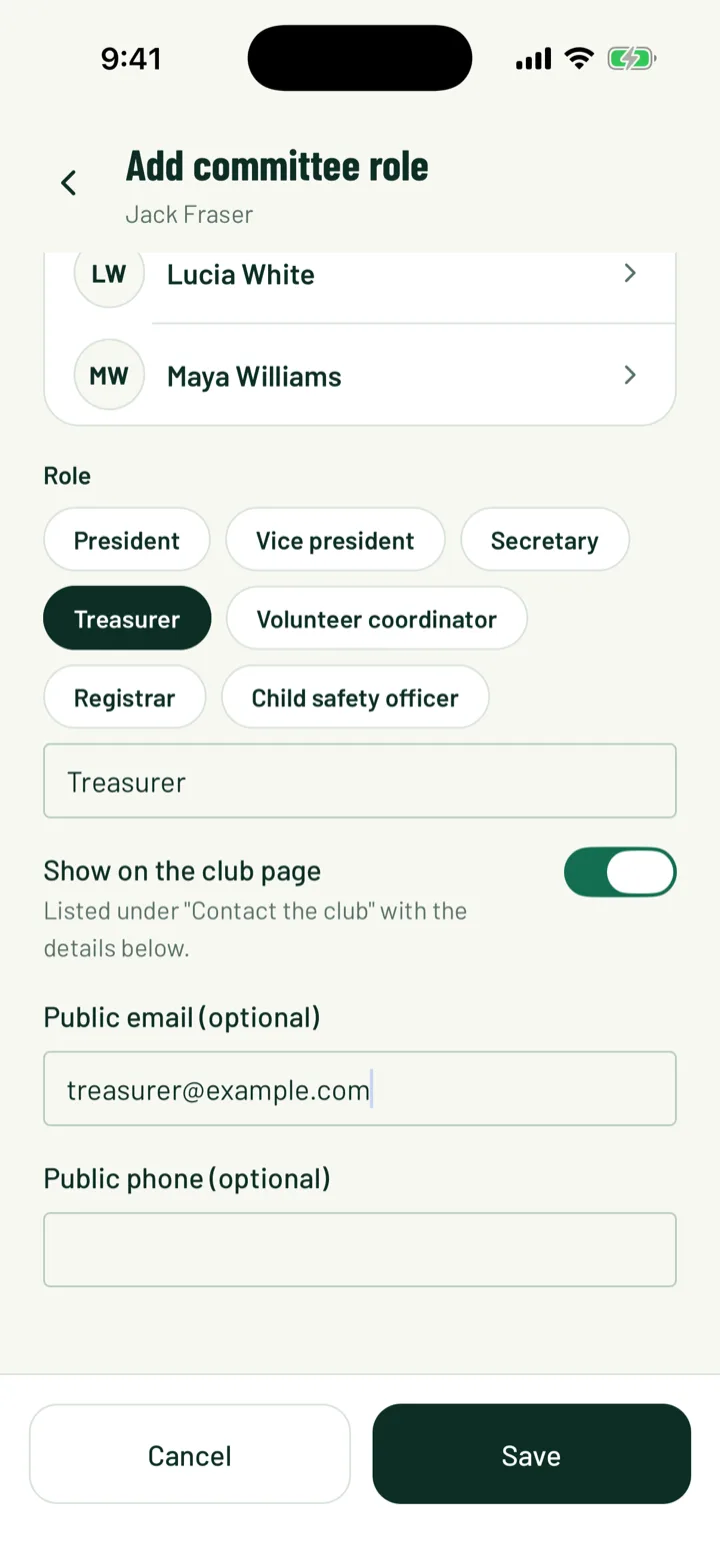
Committee titles like President, Secretary or Child safety officer are names, not permissions. Add them so people know who does what.
- Pick the Person and the Role. You can type your own title.
- Turn on Show on the club page in the app, or tick Show on the club page under "Contact the club" on the web. Then add a public email or phone if you like.
A committee title doesn't give any access. If your Treasurer needs to send invoices, also give them the Treasurer club role. People with a committee title are asked for your club's checks. See Waivers and safety checks.
App: Club › Staff and checks › + · Web: Staff and checks › Add committee role
Still stuck?
Ask us