Help › Club and venues
Waivers and safety checks
Ask members to accept your club's waiver, and keep track of child safety checks, first aid and coaching qualifications for your coaches and committee.
Watch it first
A short recording from the app, with the waiting cut out. The steps below go through it slowly.
A waiver is the text every member accepts when they join. Safety checks are the certificates your coaches, team admins and committee hold, like a child safety check or first aid. Sportdify keeps both in one place and shows you who's missing what.
Owners, admins and the Registrar manage the waiver. Owners, admins and the Volunteer coordinator manage checks. See Club roles and permissions.
1Write your waiver
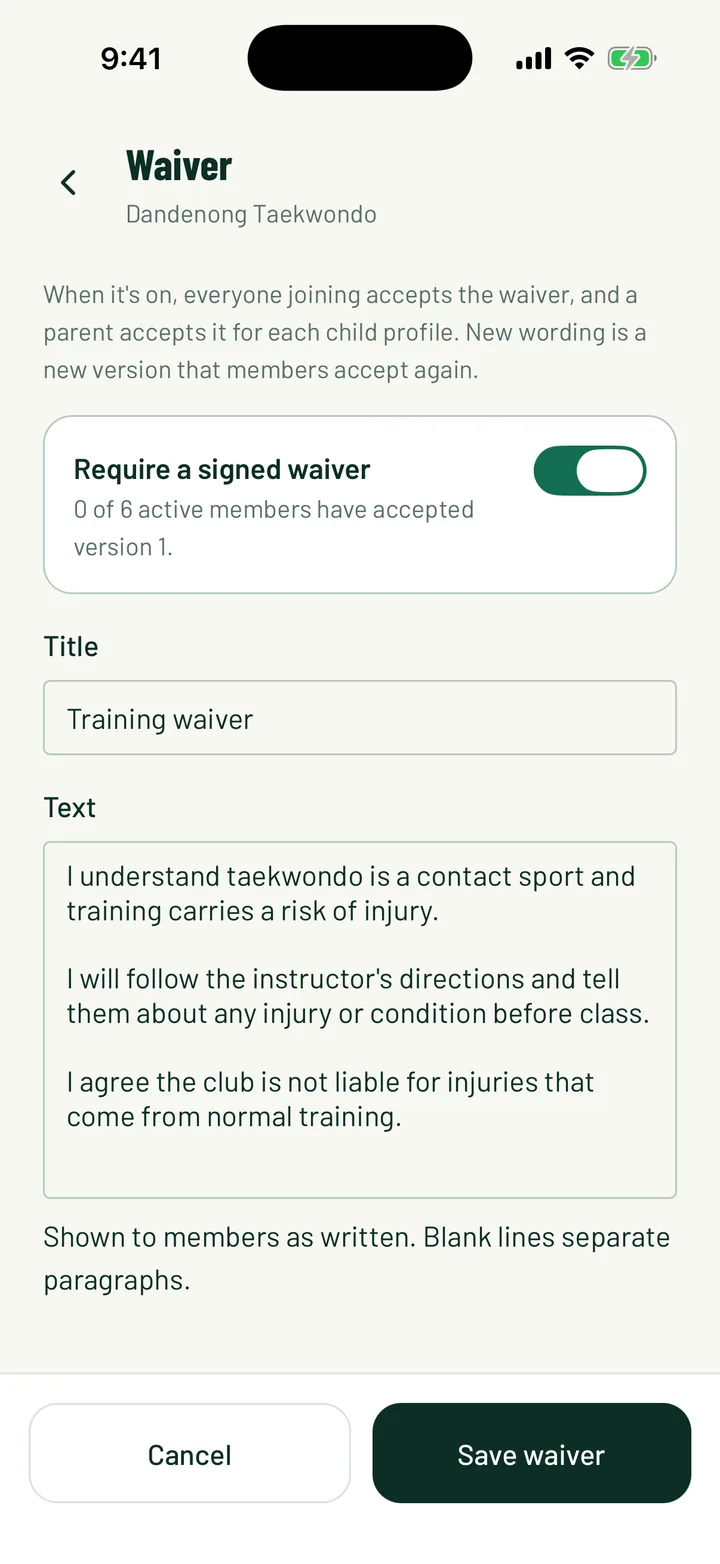
In the app, open the Club tab and tap Waiver under People. On the web, open Settings, then the Signup form tab. The Waiver card is below the signup form.
- Turn on Require a signed waiver.
- Give it a Title, such as Training waiver.
- Write the Text. Blank lines separate paragraphs. You can use # headings, **bold**, *italic*, links and - lists.
- Check Preview, as members will see it.
- Tap or click Save waiver.
With the waiver on, everyone joining accepts it. A parent accepts it for each child profile.
App: Club › Waiver · Web: Settings › General › Signup form
2Change the wording
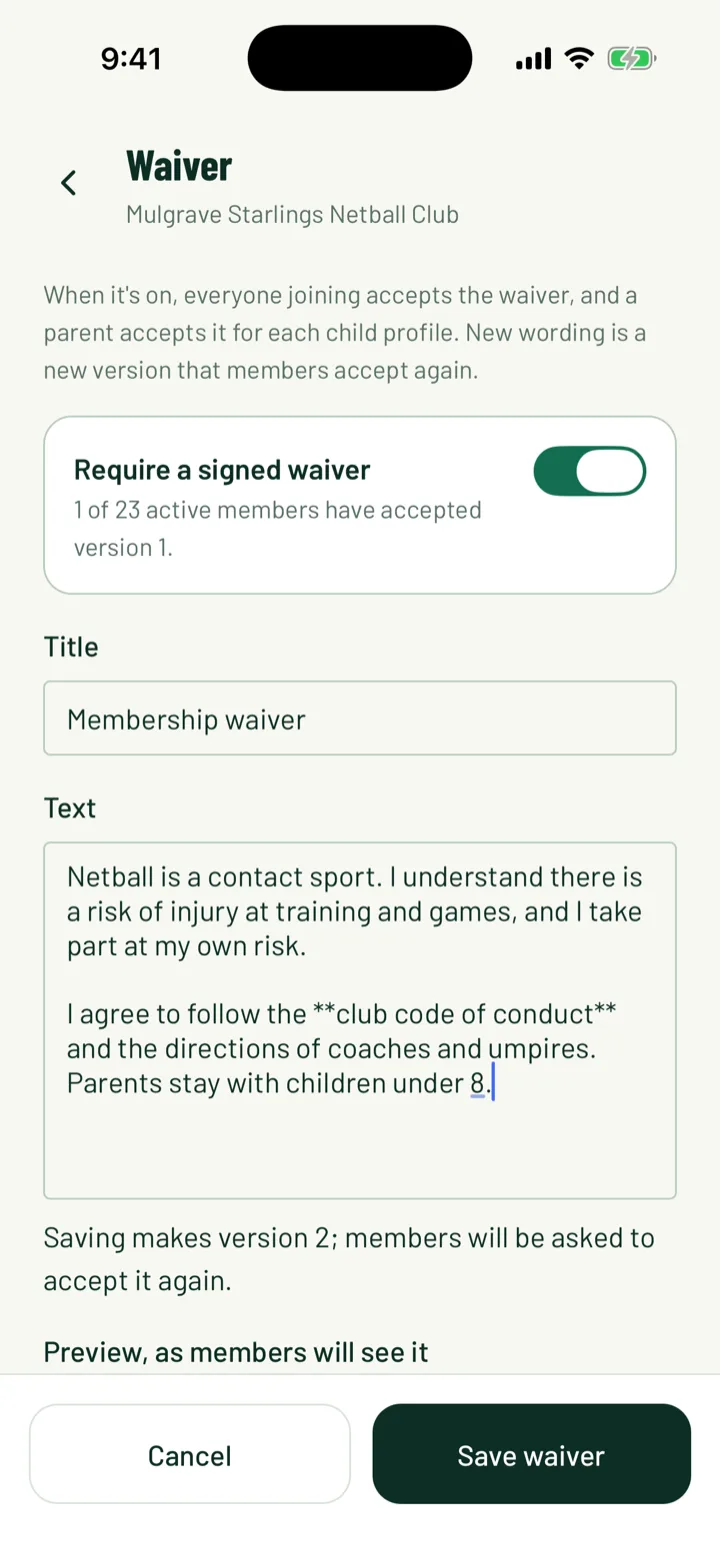
Edit the Title or Text and save. This makes a new version, and every member is asked to accept it again. Before you save, you'll see a line like Saving makes version 2; members will be asked to accept it again.
Turning Require a signed waiver on or off doesn't make a new version.
Sportdify doesn't send a notification when the wording changes. Members see the new version next time they open the app or the web dashboard.
3How members accept it
New members accept the waiver when they join. In the app, they tick I have read and accept it, or I have read and accept it for a child's name, before they can tap Send join request. On the web, they tick I have read and accept the waiver, using its title. Program sign-ups also ask for it if someone hasn't accepted it yet.
Existing members are asked too:
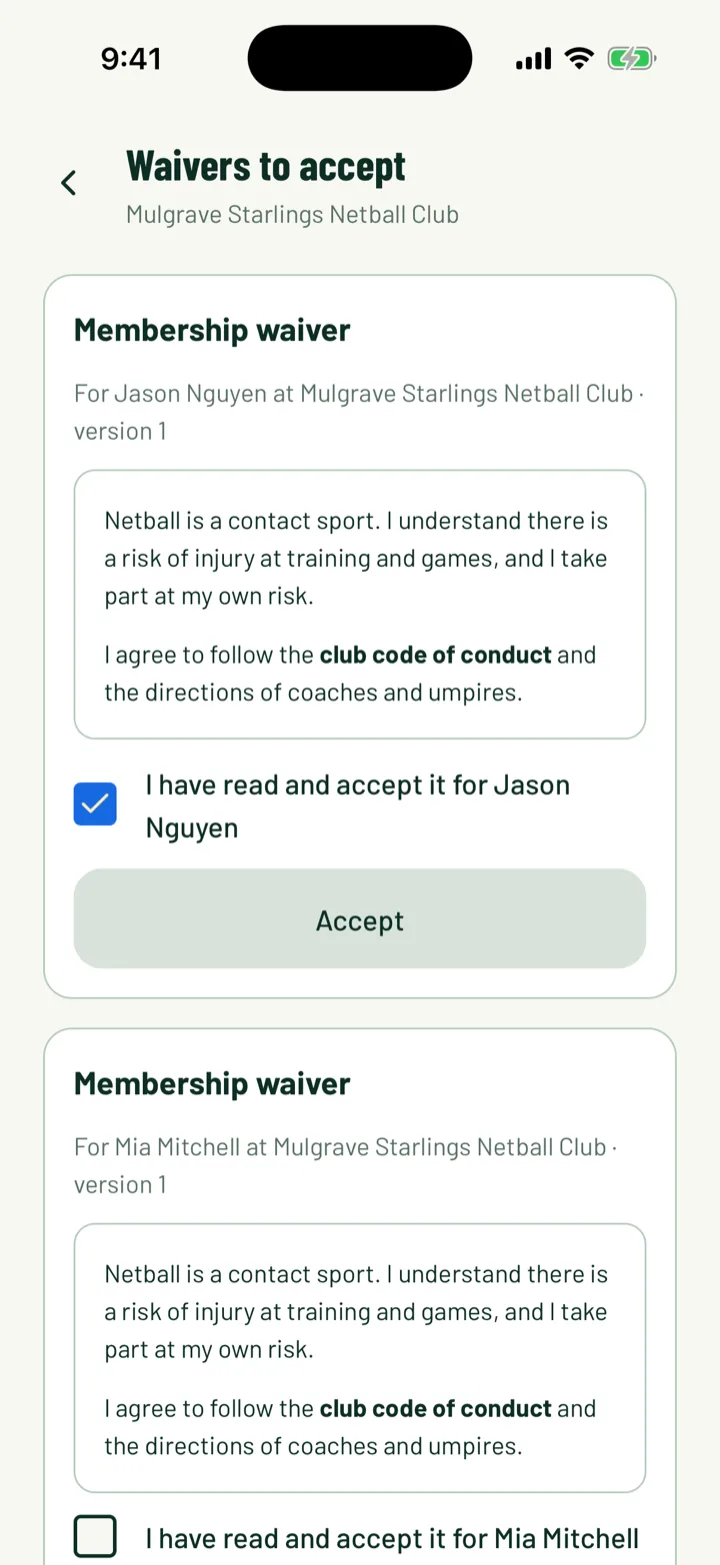
- In the app, the Club tab shows a notice with Read and accept. It opens Waivers to accept. They tick the box for each profile and tap Accept.
- On the web, a Waivers to accept card shows on My Sportdify and My Clubs. They tick I have read and accept it for each person, then click Accept.
4See who has accepted
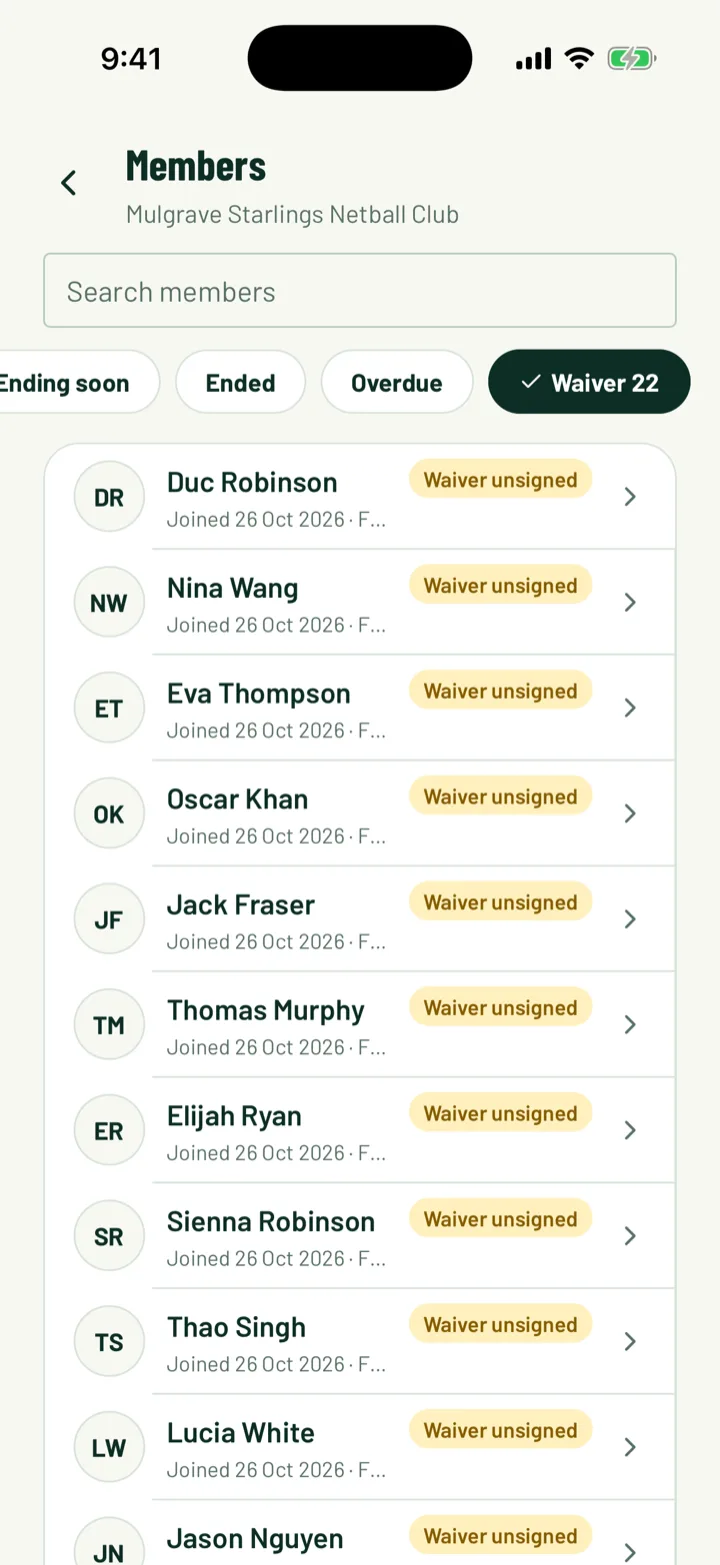
The Require a signed waiver switch shows how many active members have accepted the current version.
- In the app, open Members and tap the Waiver filter. It lists everyone who hasn't accepted the current version.
- On the web, open Members and choose the Waiver unsigned filter. People who haven't accepted are tagged Waiver unsigned.
- Open a member to see the details, like Accepted v2 on a date, or Signed v1; v2 not yet accepted.
App: Club › Members · Web: Members
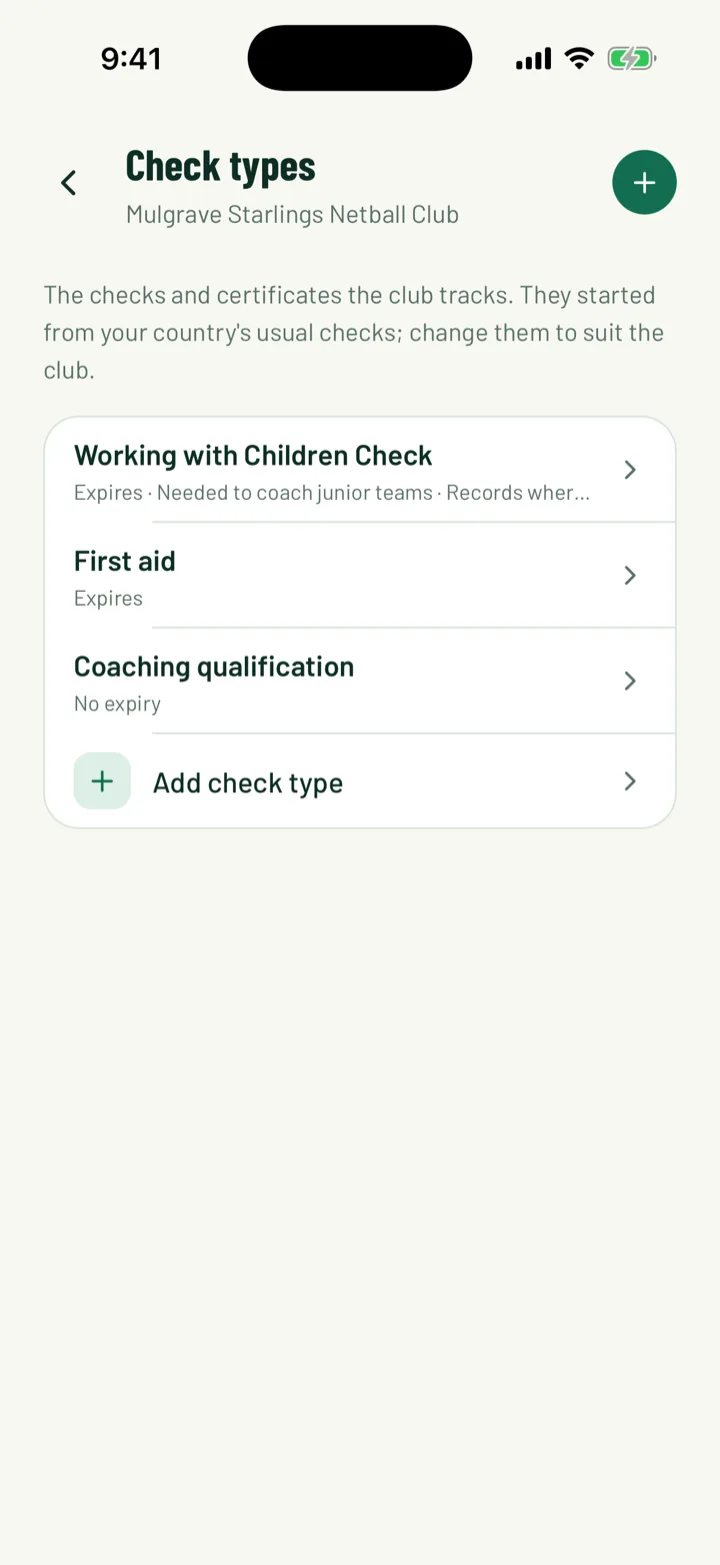
5Choose the checks your club tracks
Sportdify starts you with the usual checks for your country:
- A child safety check: Working with Children Check in Australia, Police vet in New Zealand, DBS check in the UK, or Background check in the US and Canada. It expires and is needed to coach junior teams. In Australia it also records the issuing state.
- First aid, which expires.
- Coaching qualification, with no expiry.
Use Add check type to add your own. Give it a Name, then choose:
- It expires
- Needed to coach junior teams
- Record the state or region that issued it
Removing a check type also removes everyone's records of it.
App: Club › Staff and checks › Check types · Web: Staff and checks › Check types
6Mark your junior teams
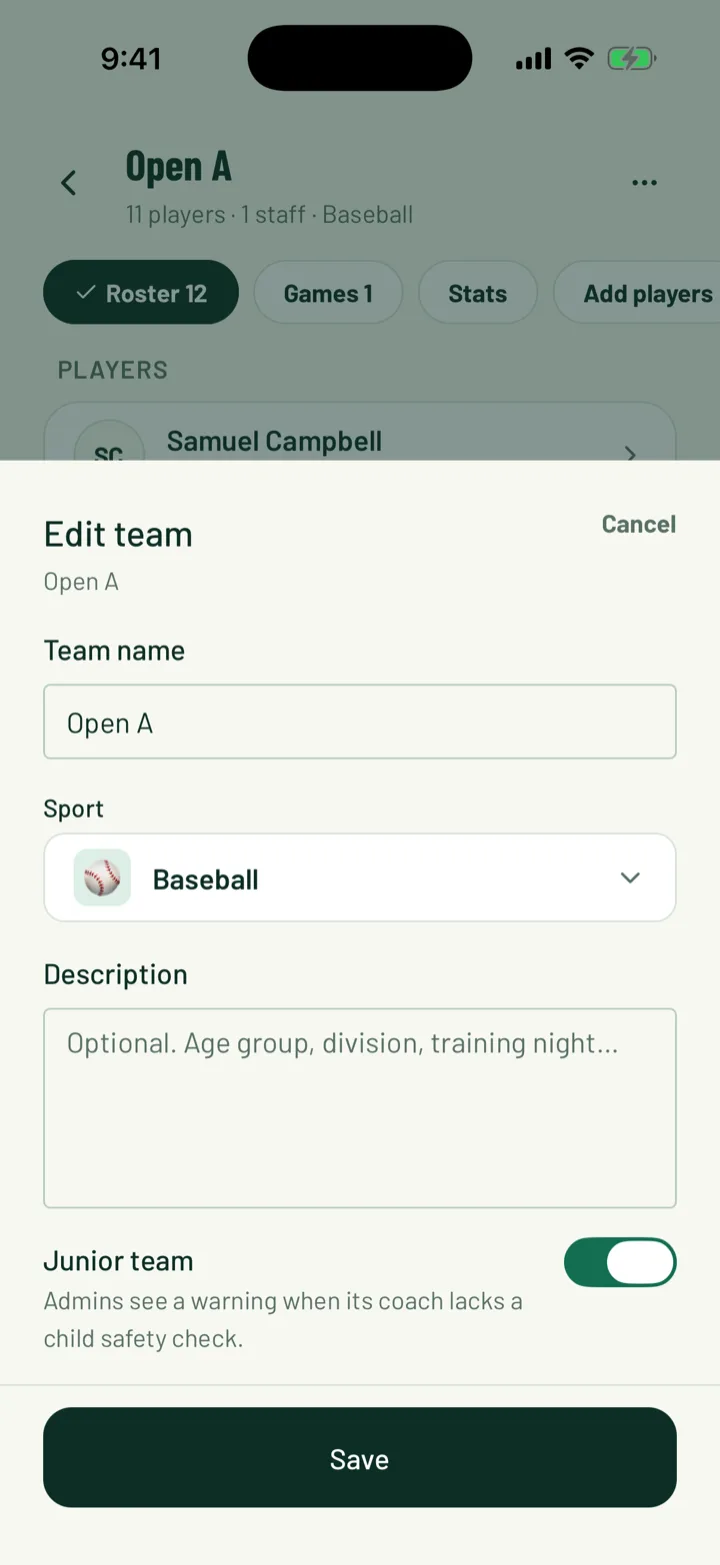
Turn on Junior team when you create or edit a team. If a junior team's coach has no valid check that's Needed to coach junior teams, admins see a warning. Nobody is blocked.
App: Club › Teams · Web: Teams
7Review your staff
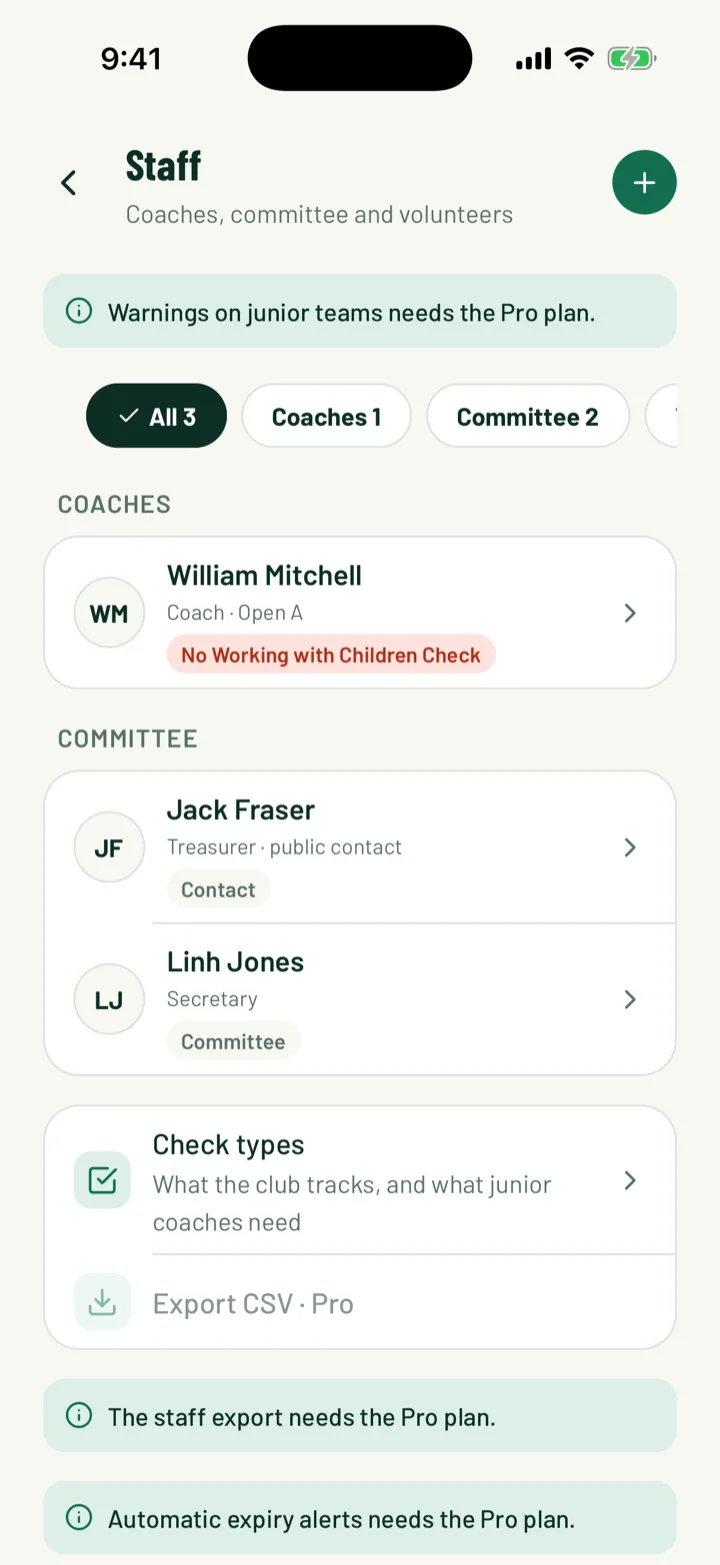
The Staff list shows coaches and team managers from their teams, your committee, and volunteers who took a slot this season.
- Filter by All, Coaches, Committee, Volunteers or Needs action.
- Each person has a tag, such as No followed by the check name, Expires with a date, or the check name with a tick.
- Add committee roles here too, with Add committee role on the web or + in the app.
These need the Pro plan: warnings on junior teams, Export CSV, and automatic expiry alerts 30 days ahead and on the day.
App: Club › Staff and checks · Web: Staff and checks
8Record or verify someone's check
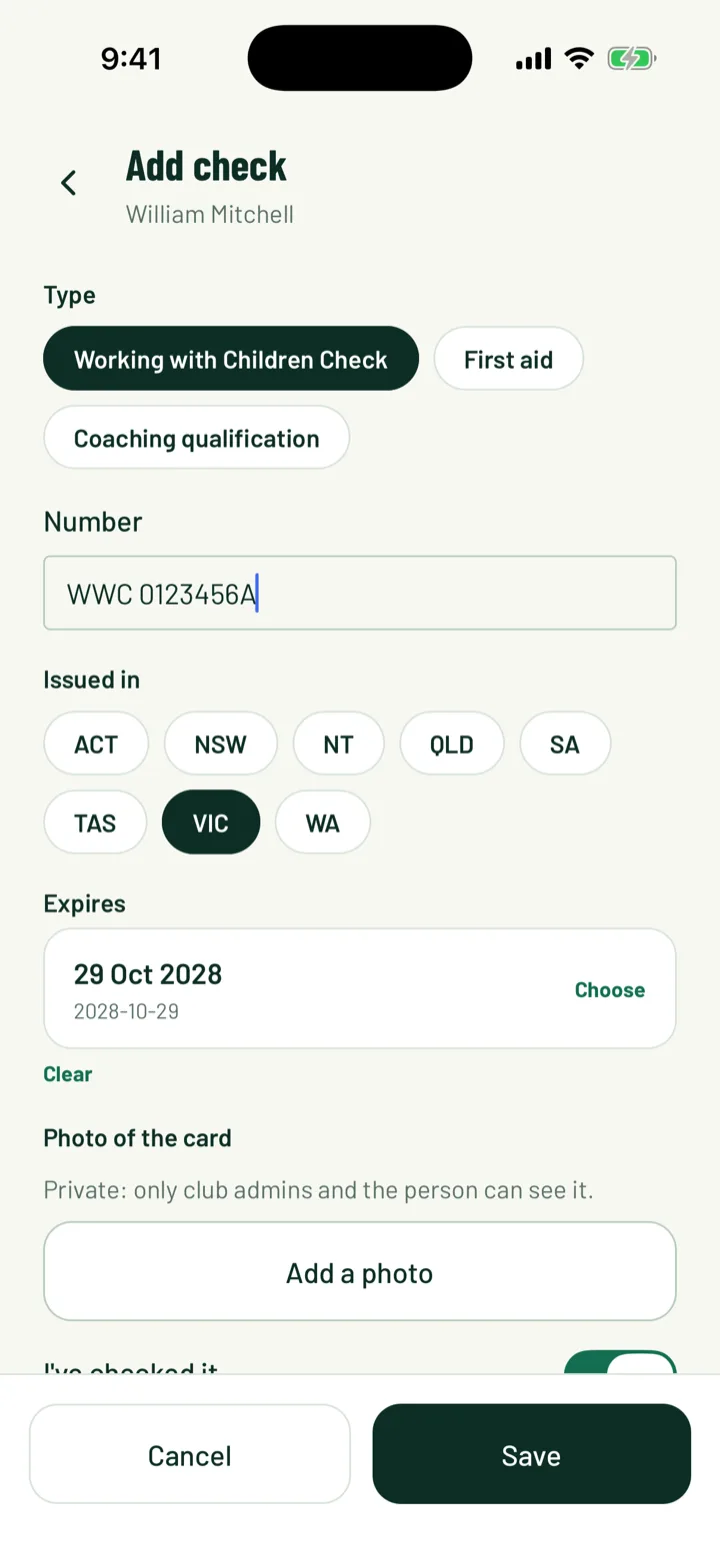
Open a person from the Staff list. Under Checks and certificates, use Add on the web or + Add in the app.
- Pick the Type and fill in the Number, Issued in and Expires.
- Add a Photo of the card if you like. Only club admins and the person can see it.
- If you've seen the card, tick I've checked it (mark as verified) on the web, or I've checked it in the app.
To verify a check the person added, click Verify on the web. In the app, tap the check and choose Mark verified.
With Pro, you can send a reminder from the person's page, such as Ask Sam to update their First aid. They get a notification with a link to add the new one.
9Add your own checks
Coaches, team admins and committee members can keep their own checks up to date.
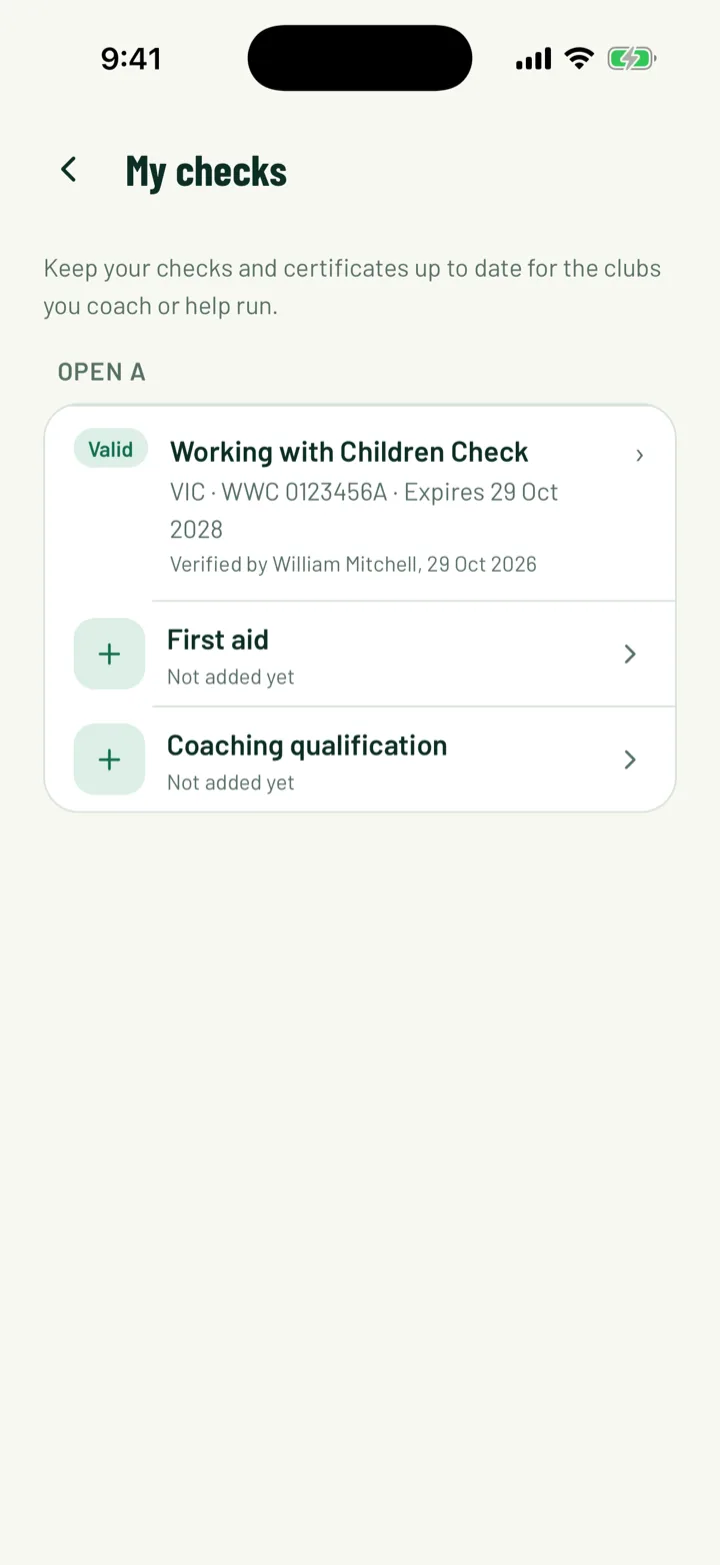
- In the app, open the menu, tap Account settings, then My checks. On the web, open My checks.
- Each club you coach or help run lists its checks. One you haven't added shows Not added yet in the app. On the web it shows Missing if it's needed to coach junior teams, or Not added if not.
- Tap Add a check in the app, or Add on the web. Fill in the details and add a photo of the card.
Your club then verifies it. Until then, the web shows Waiting for the club to verify. If you later change the type, number, expiry or photo, the club verifies it again.
App: Menu › Account settings › My checks · Web: My checks
Still stuck?
Ask us