Help › Training and games
RSVPs and attendance
Invite players to games and training, answer for yourself or your kids, see who's coming, chase missing answers and track attendance over the season.
Watch it first
A short recording from the app, with the waiting cut out. The steps below go through it slowly.
Every game and training session can ask players if they're coming. Afterwards, coaches record who turned up. This guide goes further than Schedule your first week, which covers Who should RSVP, Spots (optional) and the waiting list.
Coaches and team admins can do this for their own team's games. Owners, admins and the Fixtures coordinator can do it for every game.
1Invite players after you save
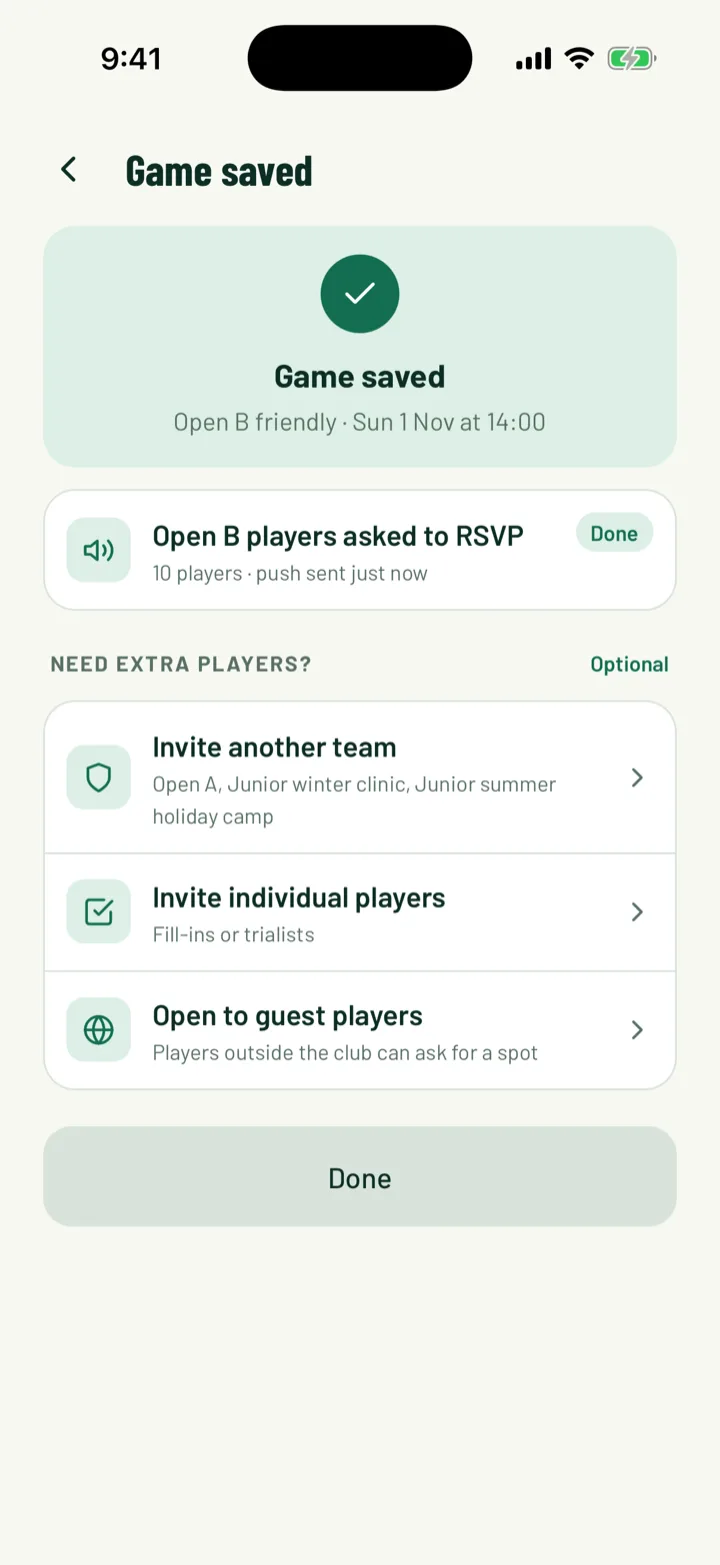
In the app, the Game saved screen opens after you create a game. It shows who has been asked, then asks Who's playing? or Need extra players?
- Same players as last training or game invites the same group again in one tap.
- A whole team, or Invite another team, adds a team's players.
- Pick players, or Invite individual players, lets you search members.
- Tap Skip for now to leave it. If Who should RSVP is Only players I invite, nobody can answer until you invite them.
Later, open the game and tap Invite players under Game operations. On the web, click Invite players in the game's Availability card. Tick a team or pick people, then Send invites.
Everyone you pick gets one push. People already invited are marked Already invited. In the app, inviting players to a repeating session invites them to every session in the series.
App: Club › New game · Web: Games › game › Invite players
2Answer for yourself or your kids
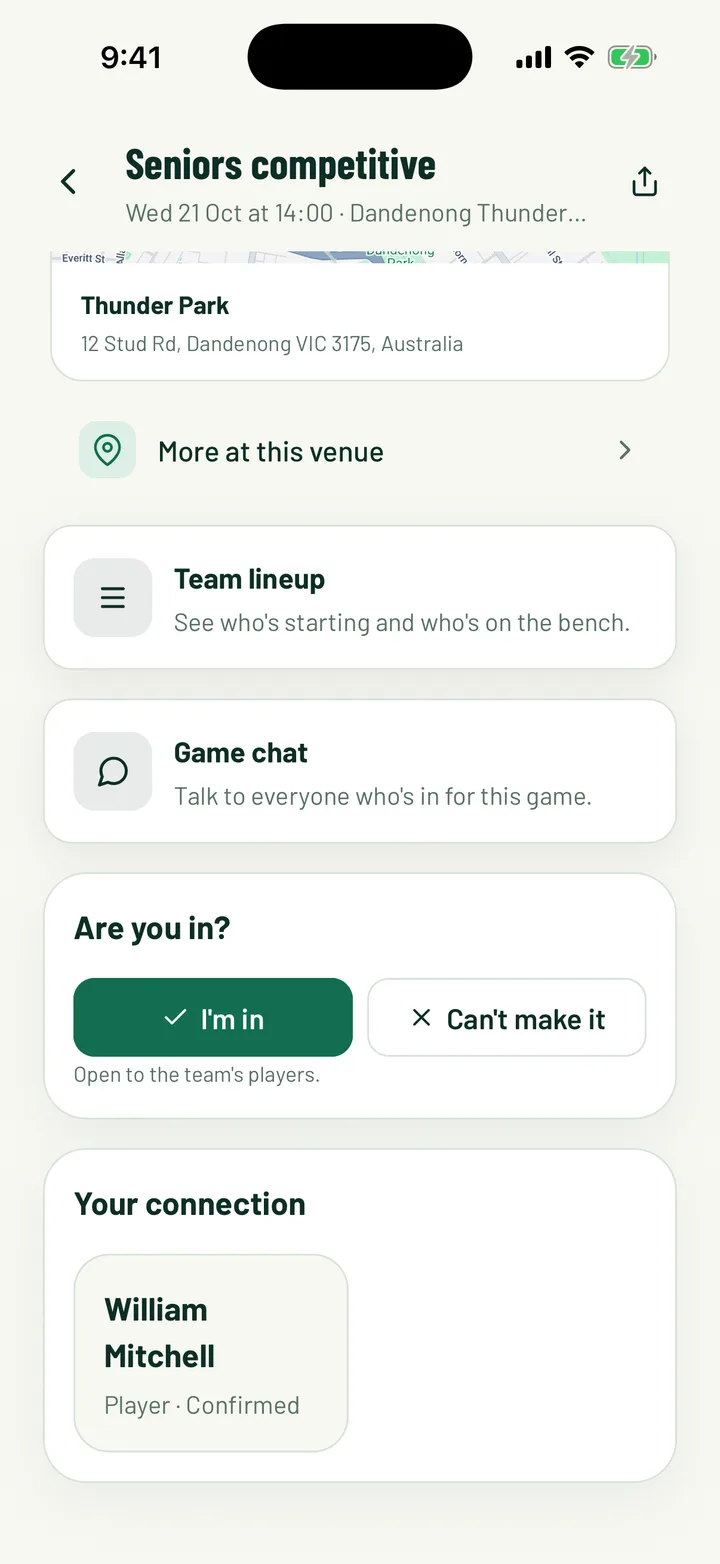
Players answer on the game page in the app, under Are you in? If you manage more than one profile, like your children, each profile gets its own I'm in and Can't make it.
On the web, open My Games:
- Can you make it? lists sessions opened to your team or the whole club. Each profile has I'm in and Can't make it.
- RSVP and availability lists games you've been invited to. Click Available or Unavailable. Calendar downloads the game for your calendar.
If someone who's in drops out of a full session, the first person on the waiting list gets the spot and a notification saying A spot opened up.
3See who's coming
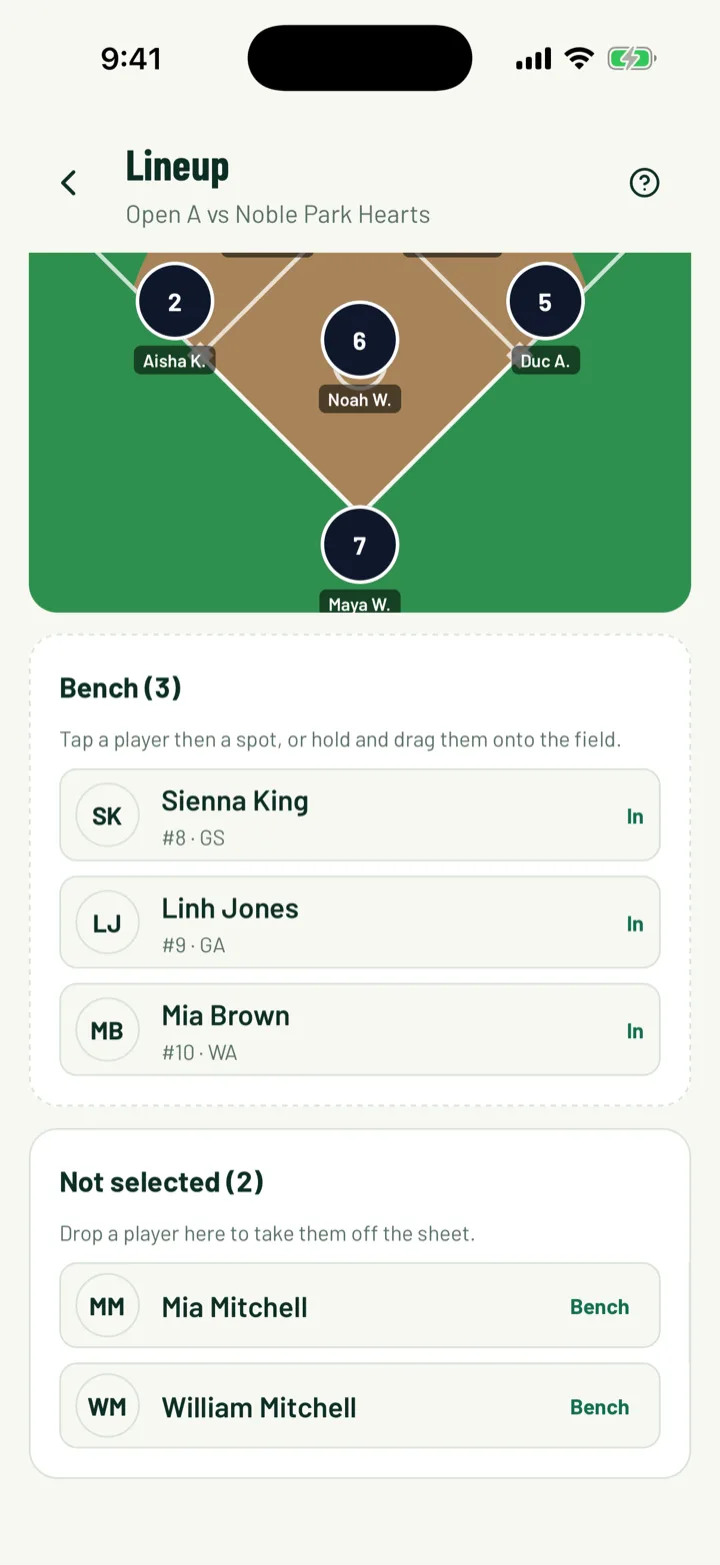
In the app, the Game operations card shows a count, like 12 invited · 9 going · 1 not going. To see each player's answer, tap Manage lineup. Every player is tagged In, Invited or Out.
On the web, open the game. The Availability card shows:
- How many can answer and the percentage available
- In, No answer and Out counts
- Each player with their status
The Game checklist on the same page ticks off Availability reviewed once everyone has answered.
App: game › Game operations · Web: Games › game › Availability
4Chase missing answers
Sportdify doesn't send automatic RSVP reminders, and inviting someone again doesn't send another push. To nudge people, send an email:
- On the web, open Email members.
- Under Audience, choose Game participants and pick the game. This reaches everyone invited to it. For a team-wide session, choose Team instead.
- Write a Subject and Message, then click Send.
Coaches and team admins can email their own team's members. Owners, admins and the Communications club role can email anyone.
Web: Email members
5Mark attendance quickly
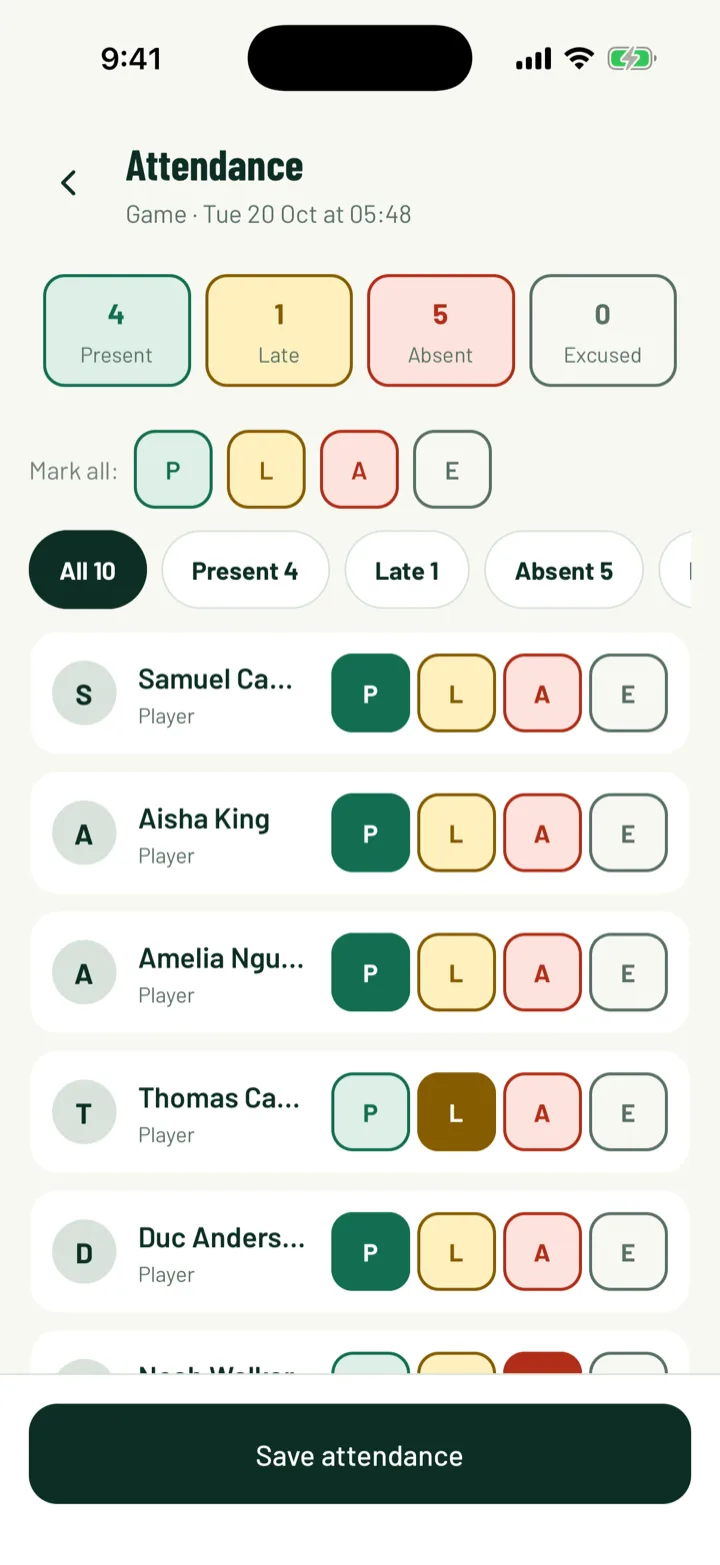
How to mark attendance is covered in Schedule your first week. These shortcuts help on game day:
- Coaches see Your teams' games on the app's Home tab. Take attendance opens the next game's attendance straight away.
- Owners, admins and the Fixtures coordinator can find every game under Club › Games and attendance in the app.
- On the web, choose Game roster to mark the players on a game. Choose Training/general to log a date for all active members.
An RSVP doesn't fill in attendance. The app starts everyone as Absent and the web starts everyone as Present, so check each player before you save.
App: Home › Take attendance · Web: Attendance › Take Attendance
6Spot trends across the season
On the web, open Attendance and click the Insights tab.
- Attendance rate, Sessions logged, Low attendance for members below 70%, and Missing game logs for completed games with no attendance
- Status breakdown counts Present, Late, Absent and Excused
- Attendance alerts lists members with low attendance, members with no records, and games still missing attendance
- Recent sessions shows each session's rate
To see one person's record, open them from Members. The app shows Recent attendance on their profile.
Web: Attendance › Insights
7Players check their own record
Players and parents can see what the club recorded. On the web, open My Sportdify and click the Attendance tab. Attendance history lists recent sessions and each status.
Web: My Sportdify › Attendance
Still stuck?
Ask us