Help › Friendlies and guests
Guest players
Open a friendly to players from outside your club, review their requests and profiles, and take any game fee.
Watch it first
A short recording from the app, with the waiting cut out. The steps below go through it slowly.
Short of players for a friendly? Open the game to guest players. Players from outside your club find it in Discover and ask for a spot, and you choose who to accept. This guide covers both sides: the club asking for players, and the player asking to join.
1Open a game to guest players
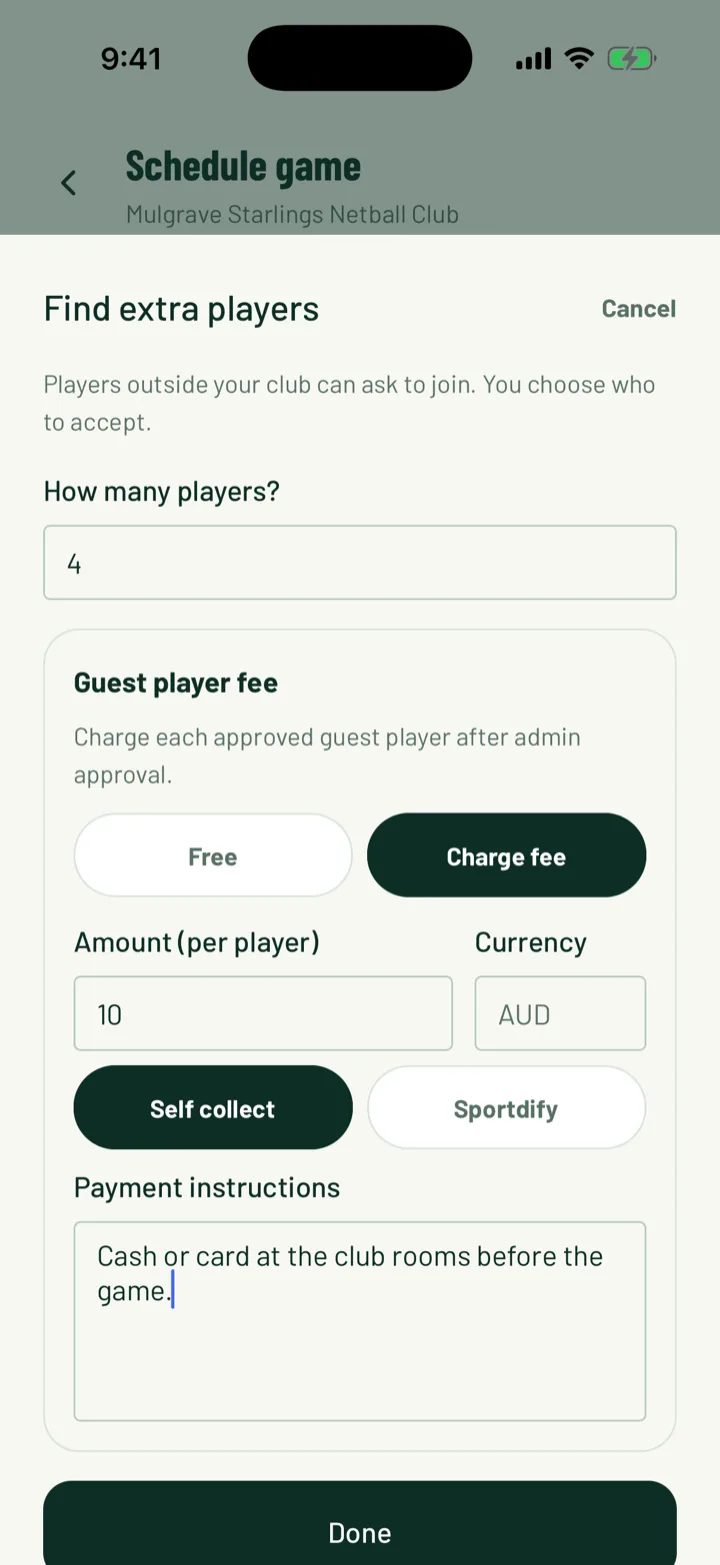
Guest spots are for friendlies. In the app, tap Find players on the Club tab. A new friendly opens with 4 guest spots already on. For any other friendly, turn on Find extra players under Open to others in the game form.
Tap Find extra players to set the details:
- How many players? sets the number of guest spots.
- Under Guest player fee, leave it Free or choose Charge fee. Enter the Amount per player.
- Choose Sportdify to have players pay by card in the app, or Self collect and add Payment instructions.
Tap Done, then save the game.
You can also open Discover, tap +, then Find players.
On the web, click New game, choose Friendly, then open Share outside your club. Turn on Find extra players and fill in How many?, Positions, Skill level and Message to players.
App: Club › Find players · Web: Games › New game
2How players find the game
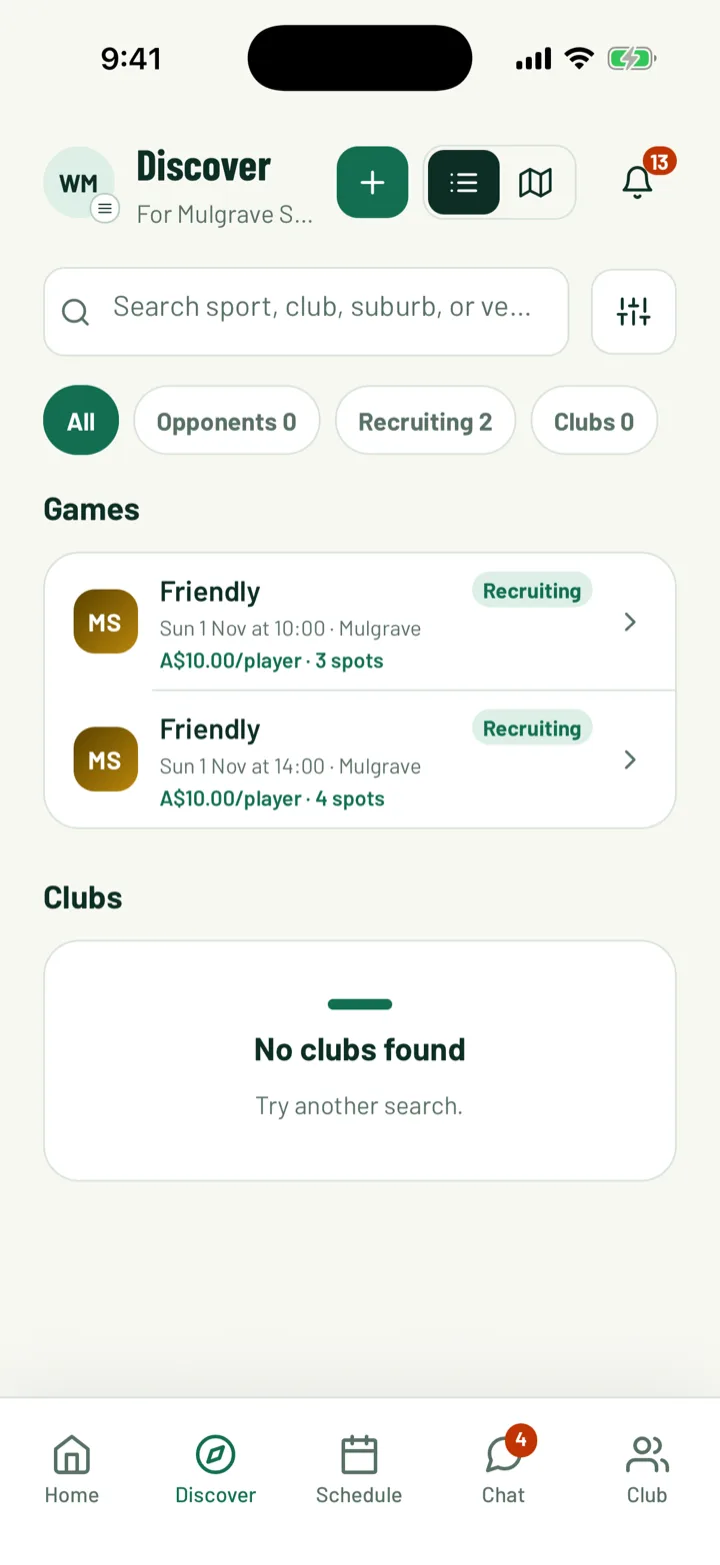
Open games show in Discover under Games, tagged Open spots. Your own members can tap Guest-player games on the Club tab to get there. Club admins see their own open games tagged Recruiting.
On the website, the game's public page shows the guest spots, with a Request to play button.
3Ask for a spot
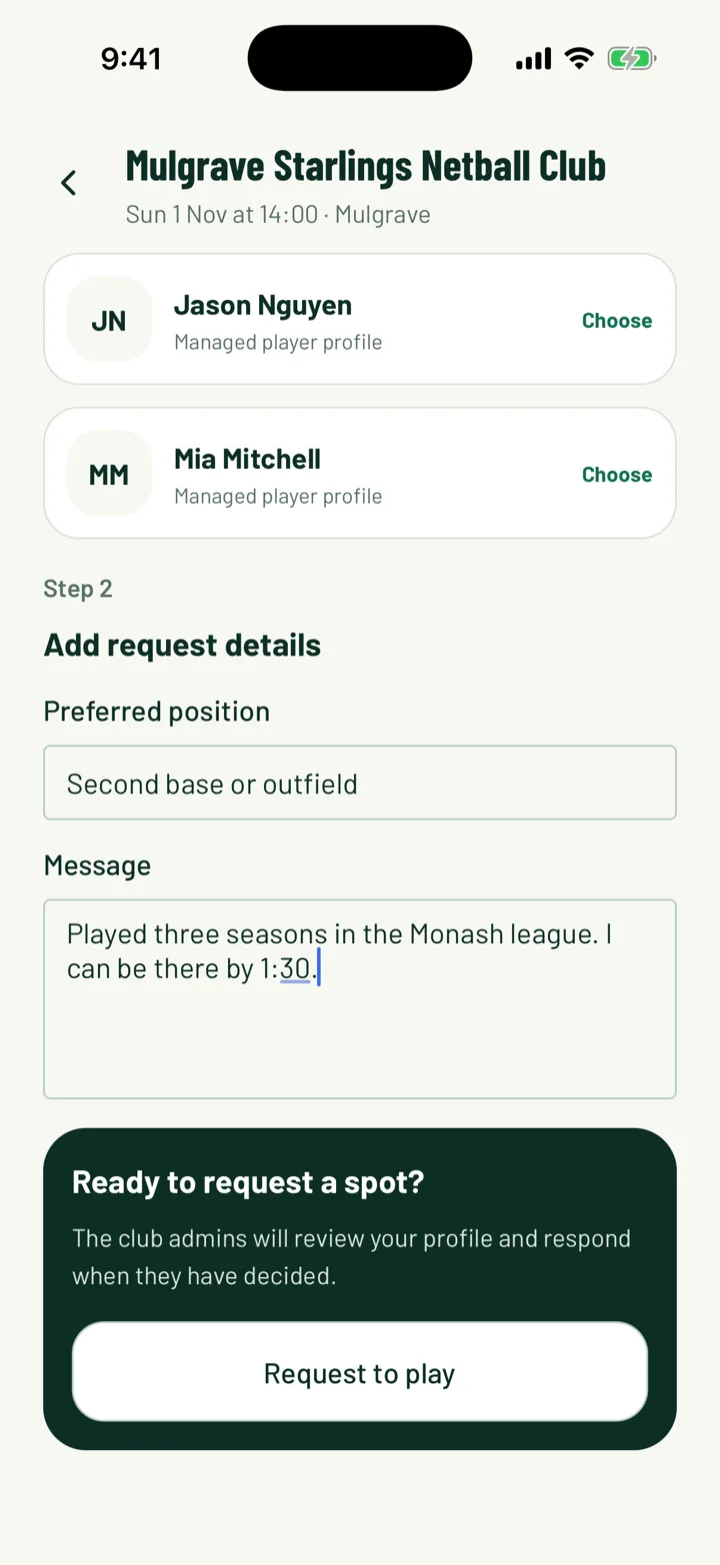
This step is for the player. In the app, tap the game in Discover. You can also tap Request guest-player spot on the game page. You need to sign in first.
- Under Choose profile, pick Who's playing?. Parents can pick a child's profile.
- Under Add request details, add a Preferred position and a Message, such as your experience or when you can arrive.
- Tap Request to play.
On the website, click Request to play. Under Who's playing?, choose a player, or pick Someone else is playing (e.g. your child) and type their name. Add a Position and Message, then click Request to play.
App: Discover › game · Web: Game page › Request to play
4Review requests
New requests show on the Club tab under Needs attention as Guest player requests. Tap it to see your games, then open the game. Admins see a Requests tab with how many are pending.
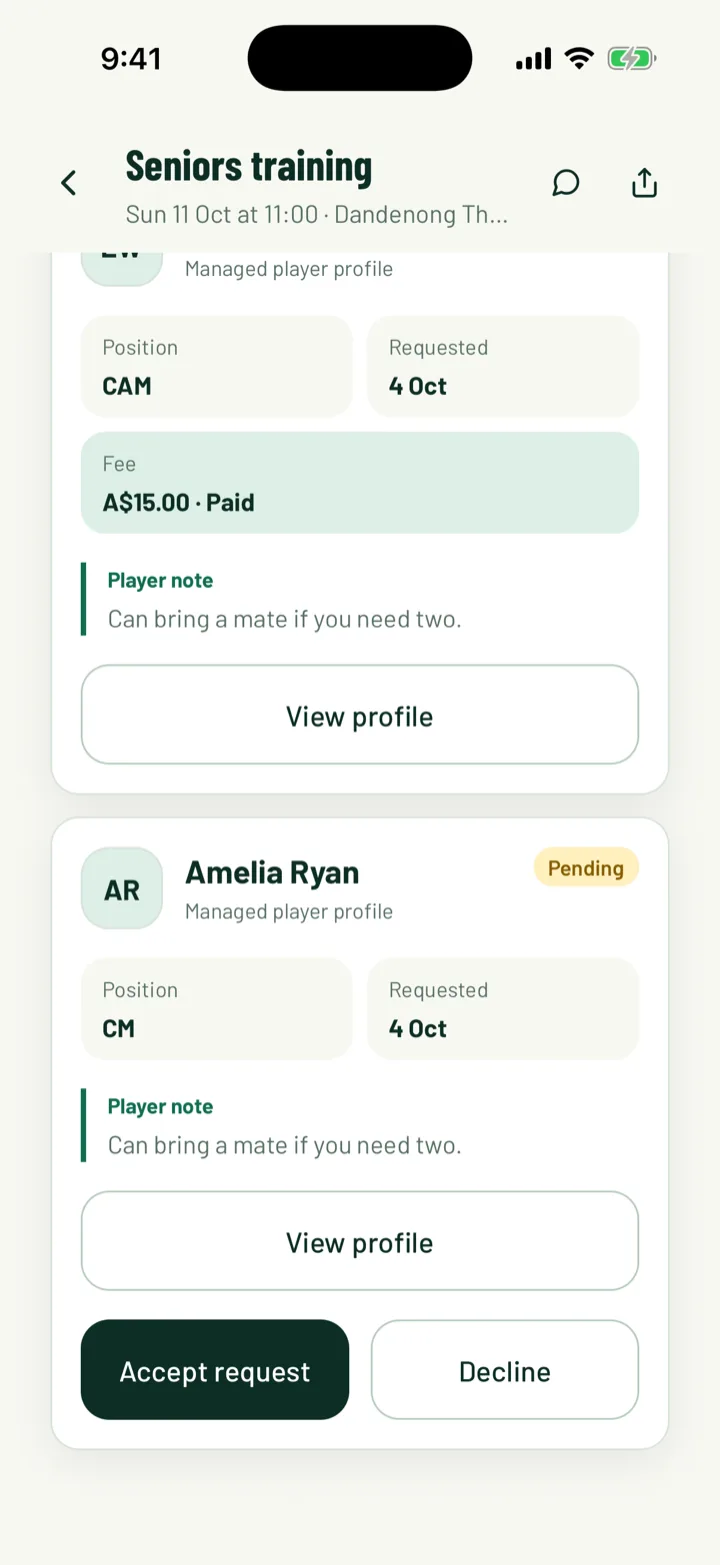
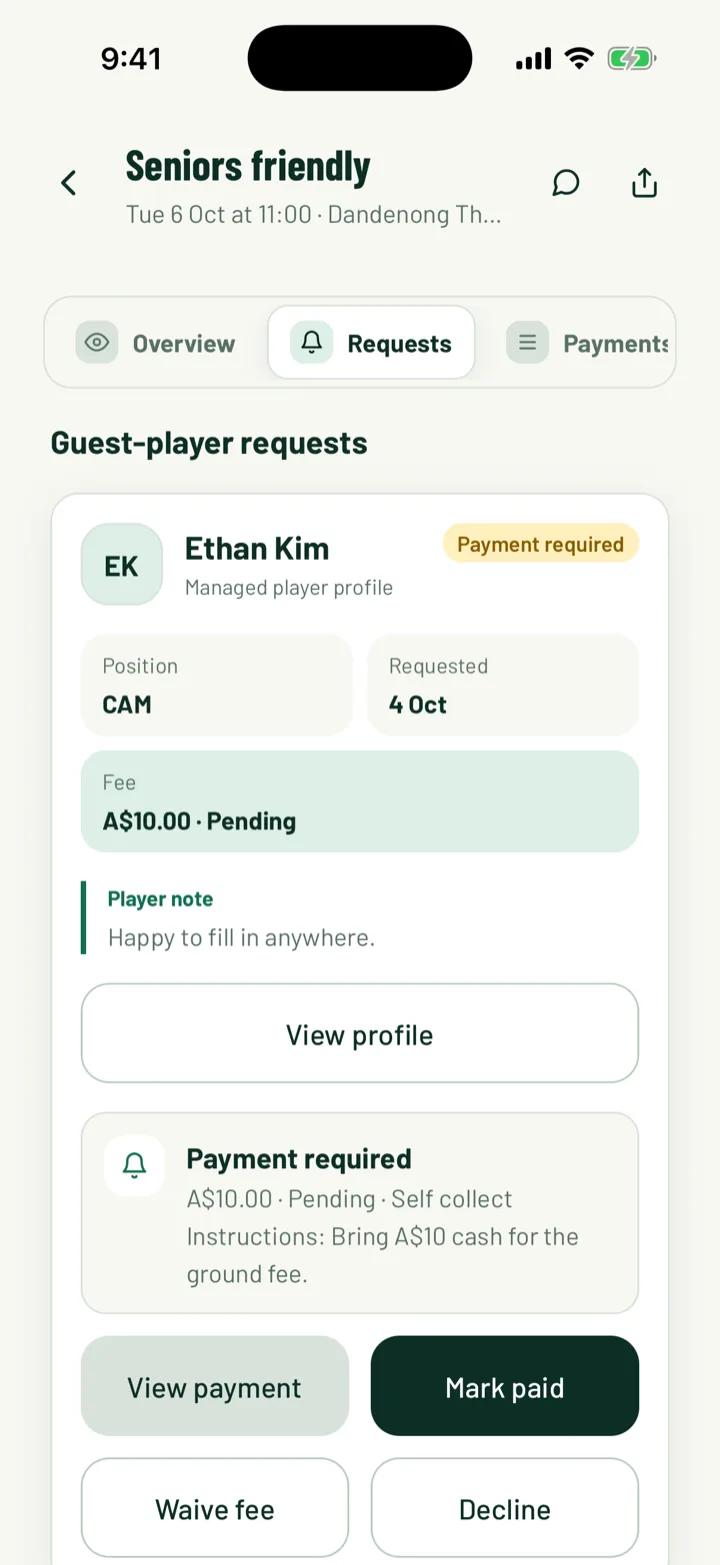
Each request in Guest-player requests shows the player's Position, when they Requested, the Fee and their Player note. Tap View profile to see their Guest profile.
- Tap Accept request to take them.
- Tap Decline to turn them down. Pick a quick reason, like Our roster is full for this game, or write your own under Reason (optional). Then tap Decline request. They're told by email and notification.
On the web, open the game from Games. The Guest player requests card has Accept and Decline on each request.
App: Club › Needs attention › Guest player requests · Web: Games › game › Guest player requests
5Take the game fee
If the game has a guest player fee, accepting a request moves it to Payment required. The player's spot is confirmed once the fee is paid.
- Players paying by card tap Pay in Sportdify on their request.
- For a fee you collect yourself, the player sees your Payment instructions. Tap Mark paid once you have it.
- Tap Waive fee to let them play for free.
Tap View payment to see a payment's details. All game fees are listed in Game payments, under Money on the Club tab.
App: Game › Requests · Web: Games › game
6Follow your request
Players see where their request is up to on the game's request screen:
- Request pending while the club decides. Tap Cancel request to withdraw it.
- Request accepted when you're in.
- Payment required when a fee is due. If you've paid and it hasn't updated, tap Refresh status.
- Request declined, with the club's note if they left one.
On the website, your requests are under My Requests.
App: Discover › game · Web: My Requests
7Close the spots
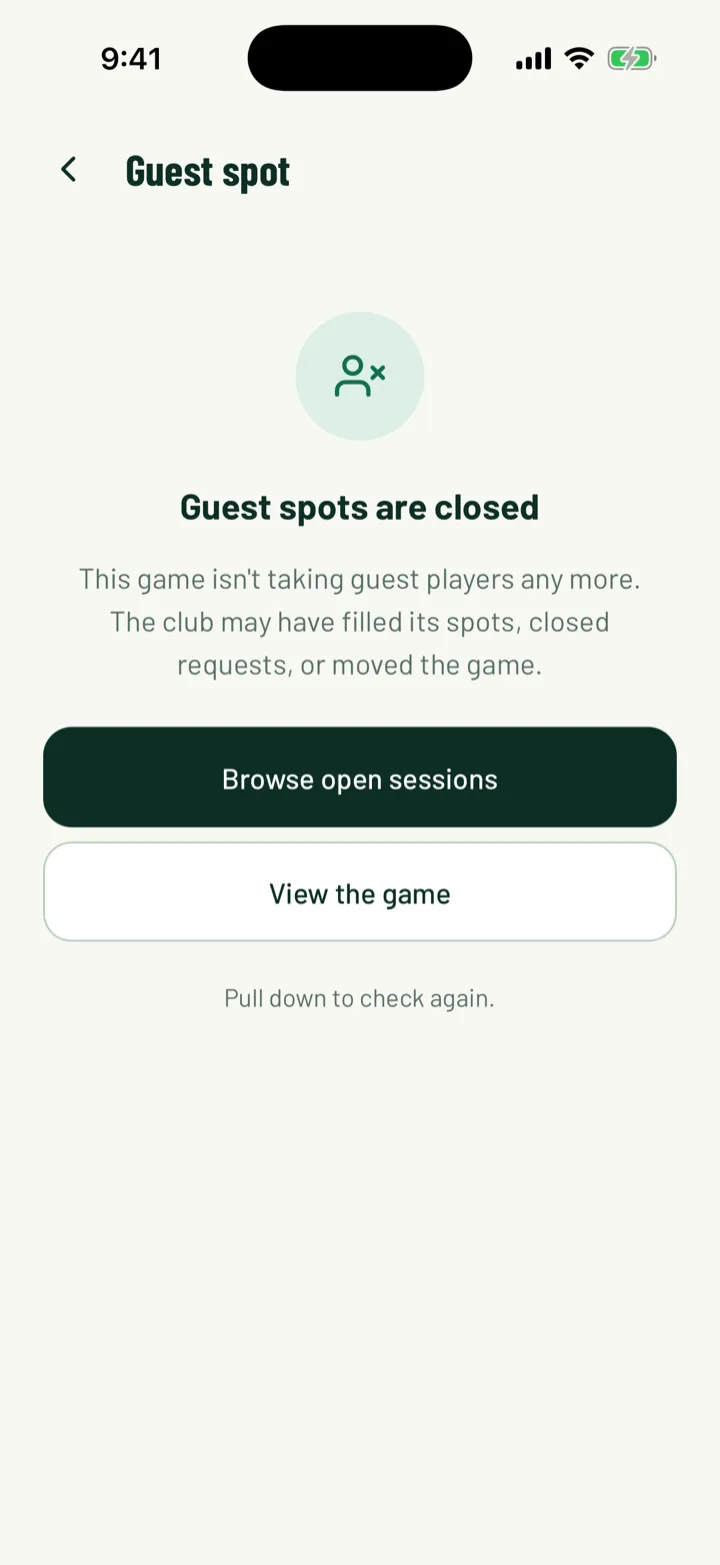
When the spots are full, the game stops taking requests. Players then see Guest spots are closed.
To close them early, edit the game and turn off Find extra players, then tap Save changes.
Still stuck?
Ask us