Help › Members and fees
Get paid with Stripe
Choose how members pay your club, connect your own Stripe account, decide who covers fees and turn on bank debit.
Watch it first
A short recording from the app, with the waiting cut out. The steps below go through it slowly.
Sportdify can take card payments for membership fees, invoices, program sign-ups and game fees. The money goes into your club's own Stripe account, and Stripe pays it out to your bank. If you'd rather not take cards, you can collect money yourself and record payments as they come in.
1Open billing settings
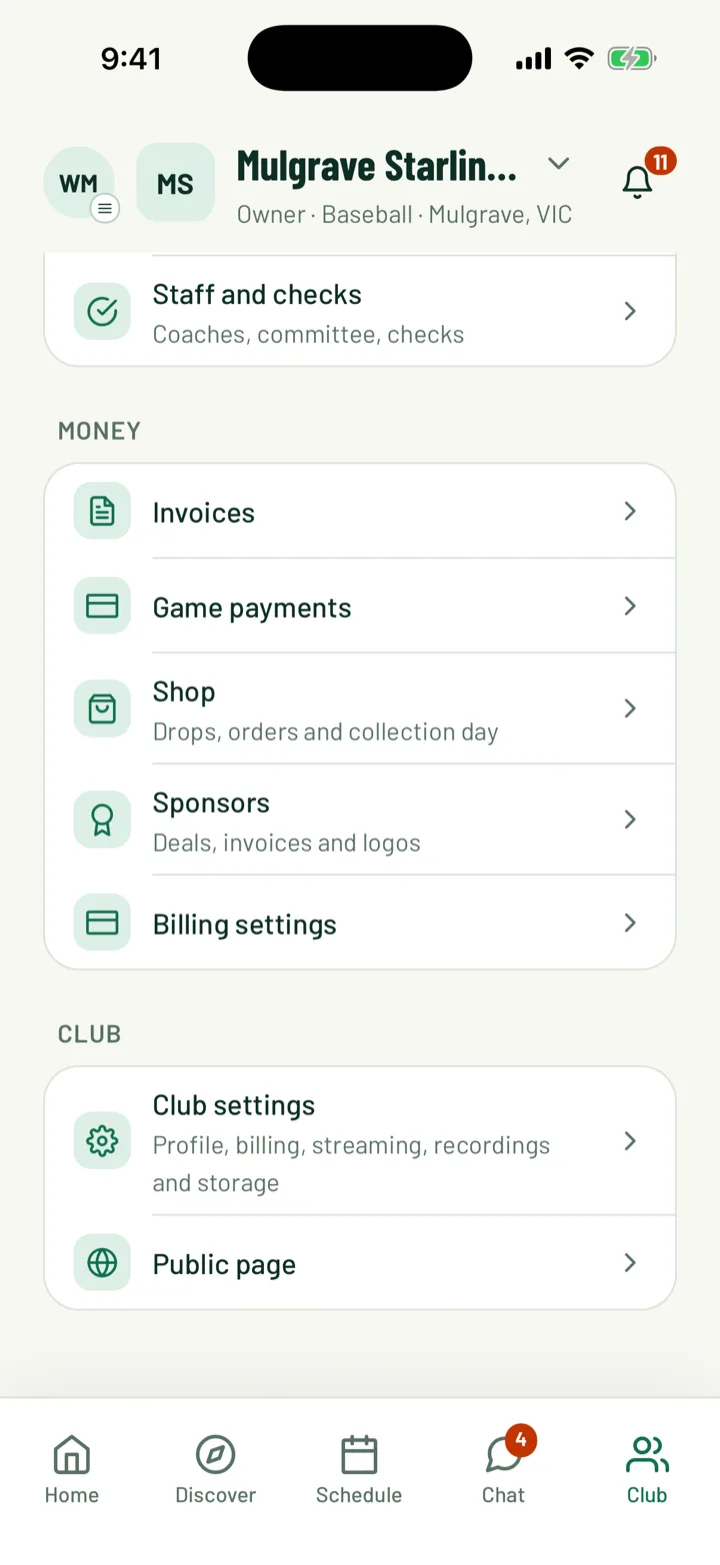
In the app, open the Club tab and tap Billing settings in the Money section. The screen is called Billing. On the web, click Payments under Settings in the sidebar.
The club owner and admins can open these settings. Only the owner can change how money is collected, connect Stripe, or change fees and bank debit.
App: Club › Billing settings · Web: Settings › Payments
2Choose how members pay
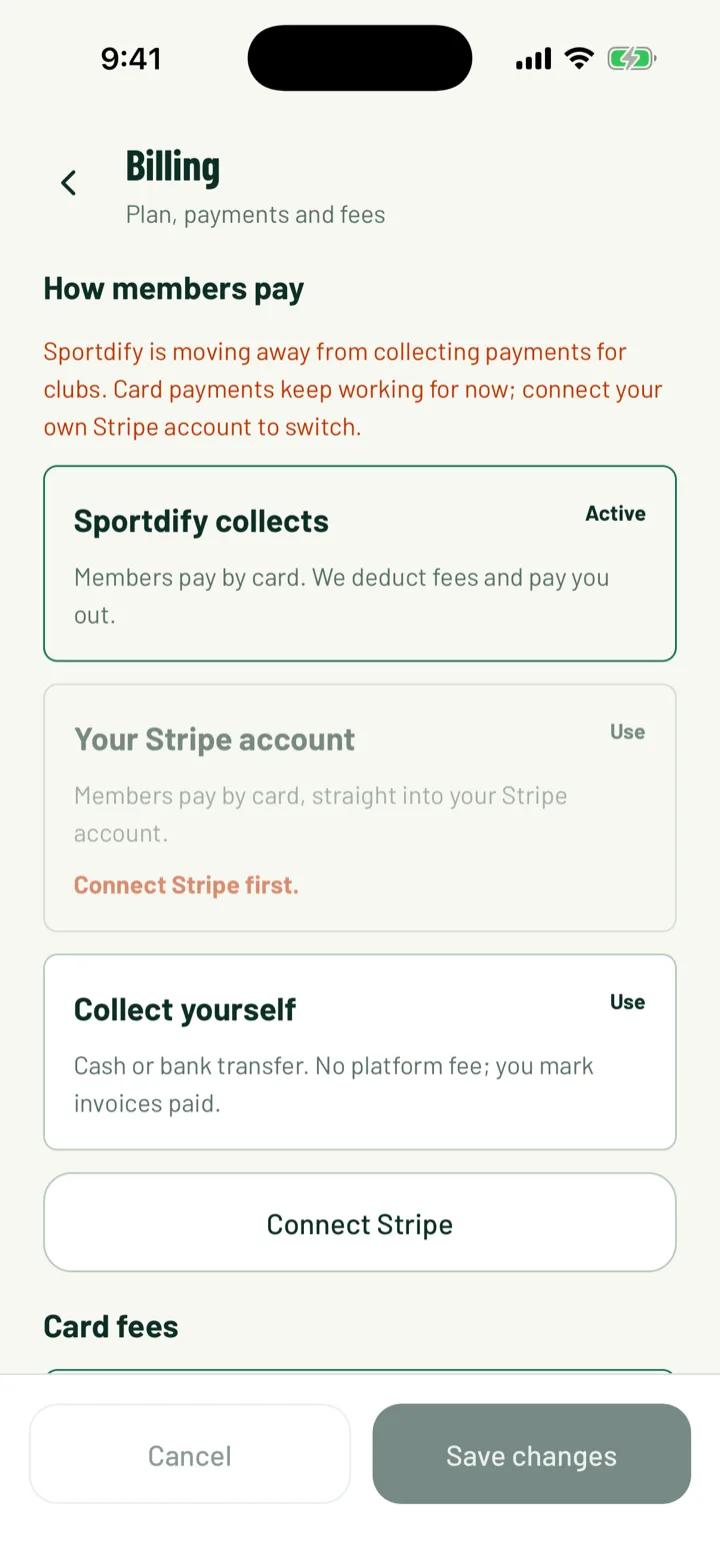
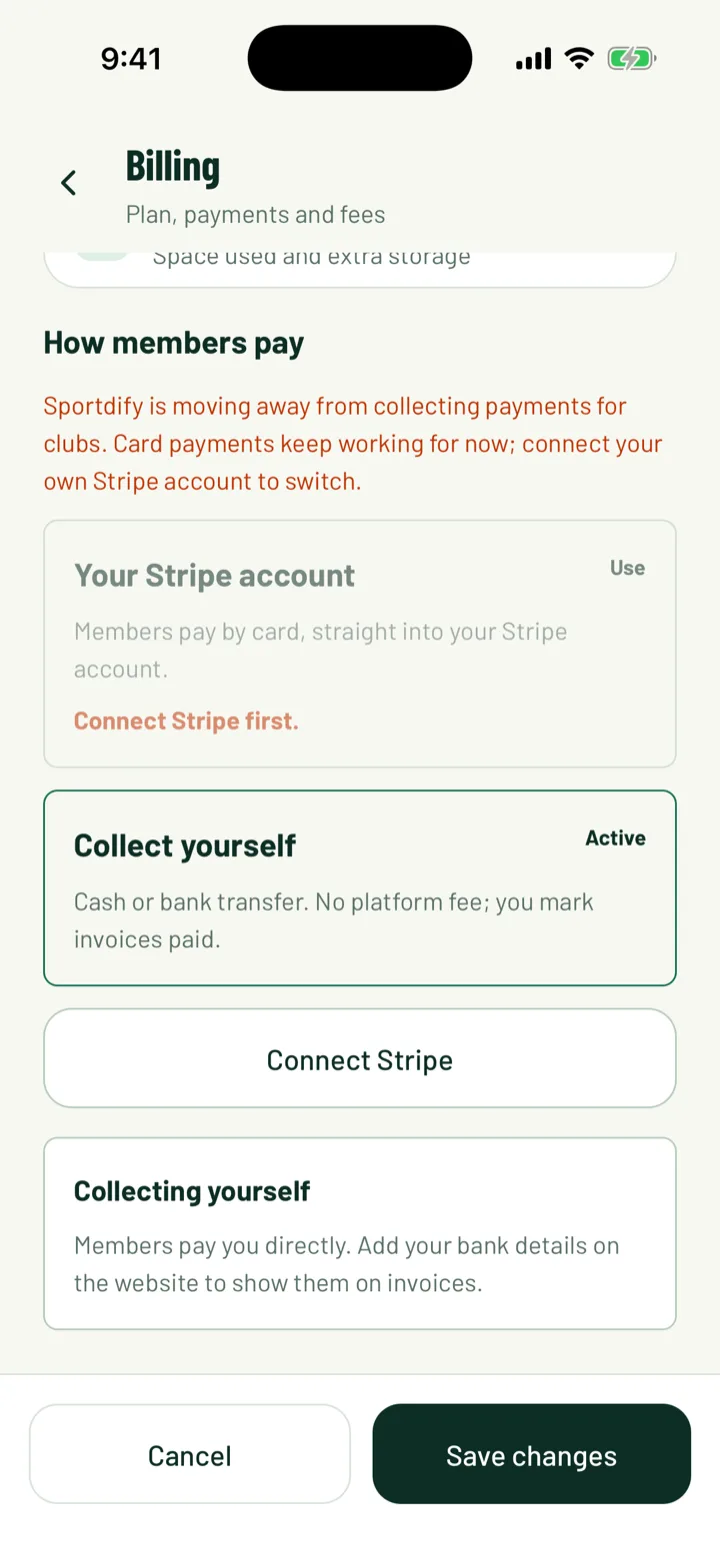
Pick one way of collecting. In the app it's under How members pay. On the web it's the Payment collection card.
- Your Stripe account in the app, or Club's Stripe account on the web. Members pay by card in Sportdify and the money goes straight to your club's Stripe account.
- Collect yourself in the app, or Collect it yourself on the web. Members pay you by cash, bank transfer or your own system. There are no card payments in Sportdify and no platform fee. You mark invoices paid.
In the app, tap Use on the option you want, then Save changes. On the web, click the option, then Save billing settings.
You can't pick your Stripe account until Stripe has finished checking it. The next step covers connecting it.
3Connect your Stripe account
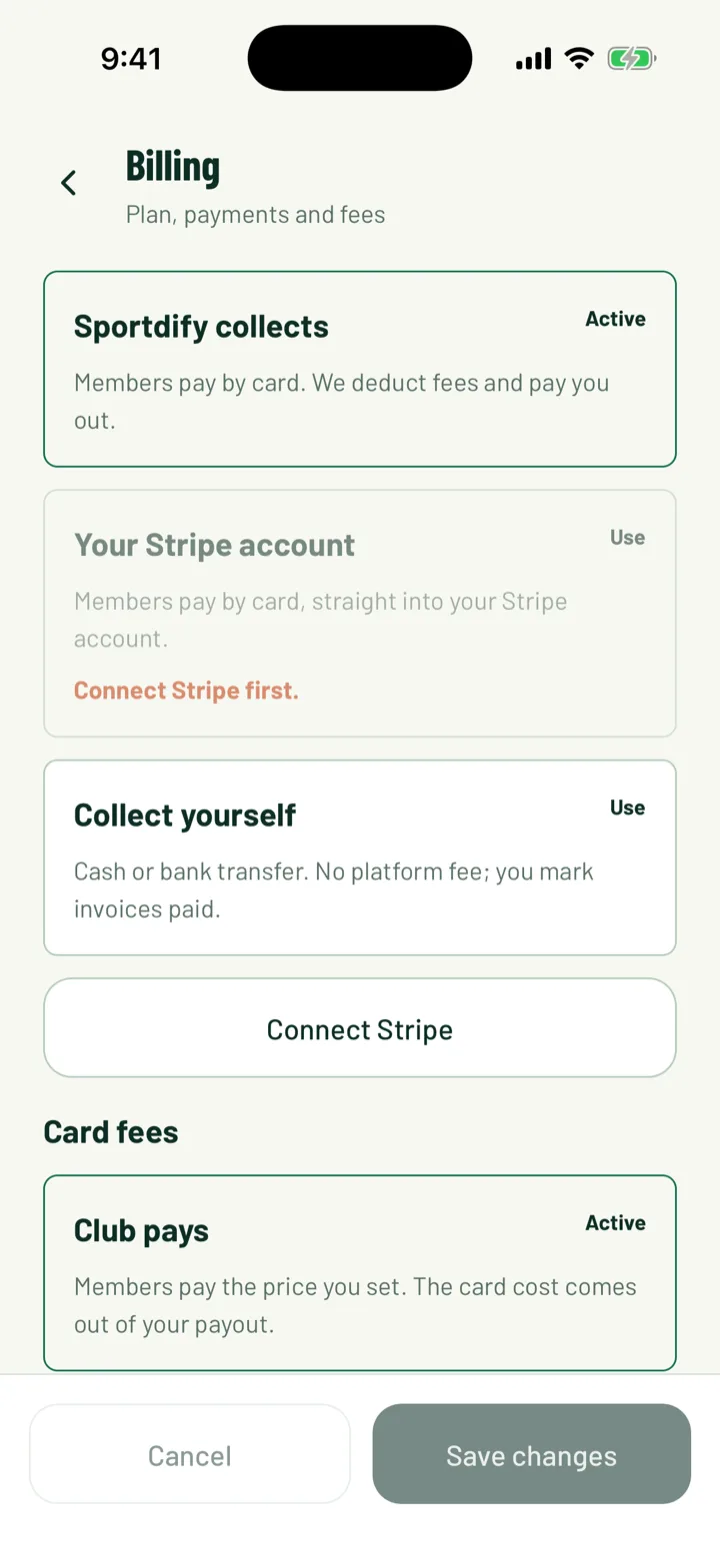
In the app, tap Connect Stripe under How members pay. On the web, find the Stripe Connect card and click Connect Stripe account. The same card is on the Club Setup page.
Stripe opens and asks for your club's details and the bank account for payouts. When you finish, you come back to Sportdify.
- On the web, the card shows Connected with ticks for Card charges, Payouts and Onboarding.
- Stripe can take 1 to 2 business days to finish checking. Until then, the app shows Stripe is still verifying your account.
- If you stopped part way, tap Finish Stripe setup in the app, or click Connect Stripe account again on the web.
- To change your details later, click Update Stripe account on the web.
Once card charges are on, go back and choose your Stripe account as the way members pay. Save your change.
App: Billing settings › Connect Stripe · Web: Settings › Payments › Stripe Connect
4Understand the fees
Each card payment has two costs: Stripe's processing fee, and a Sportdify platform fee that depends on your plan.
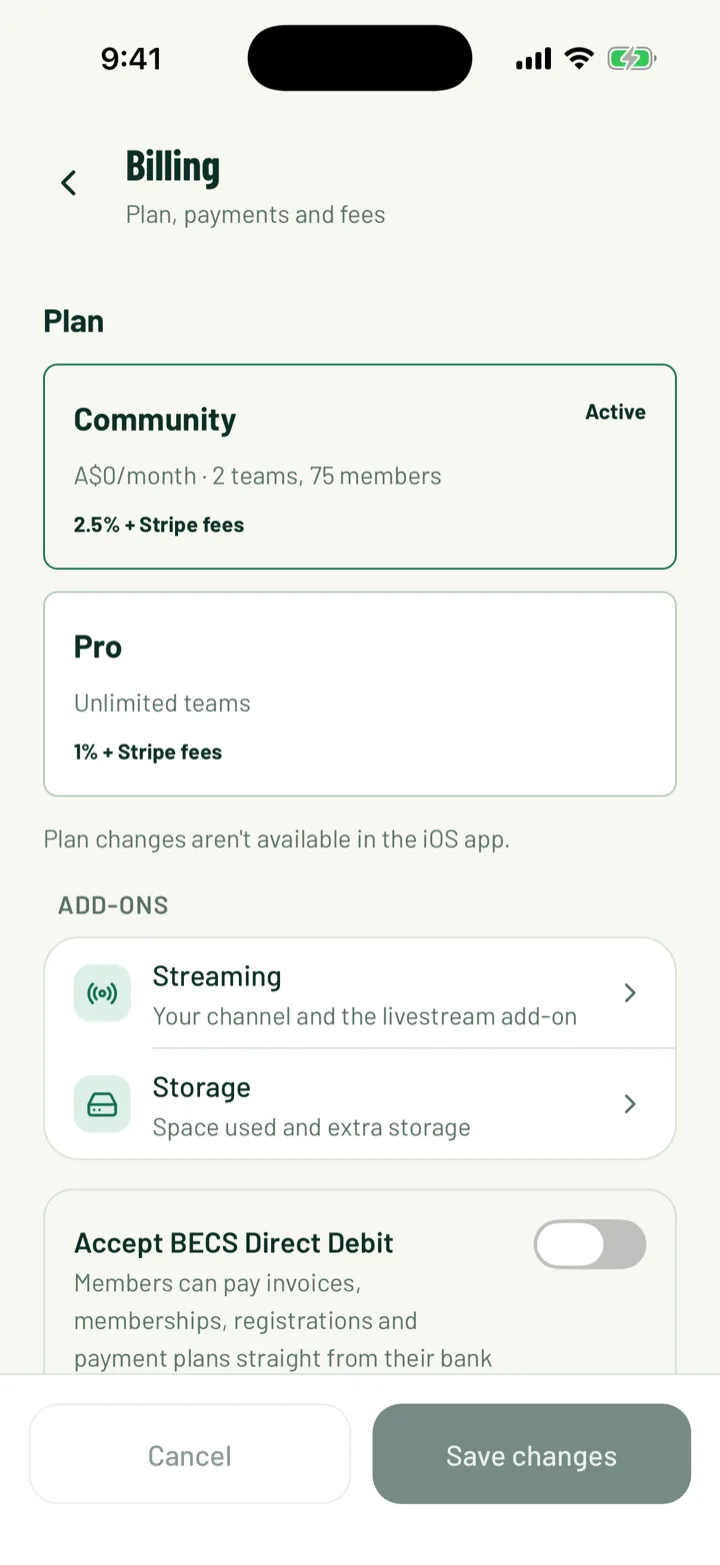
- Community charges 2.5% plus Stripe's fees.
- Pro charges 1% plus Stripe's fees.
Your plan is shown at the top of billing settings, under Plan in the app or Club plan on the web. Collecting payments yourself has no platform fee.
5Choose who covers card fees
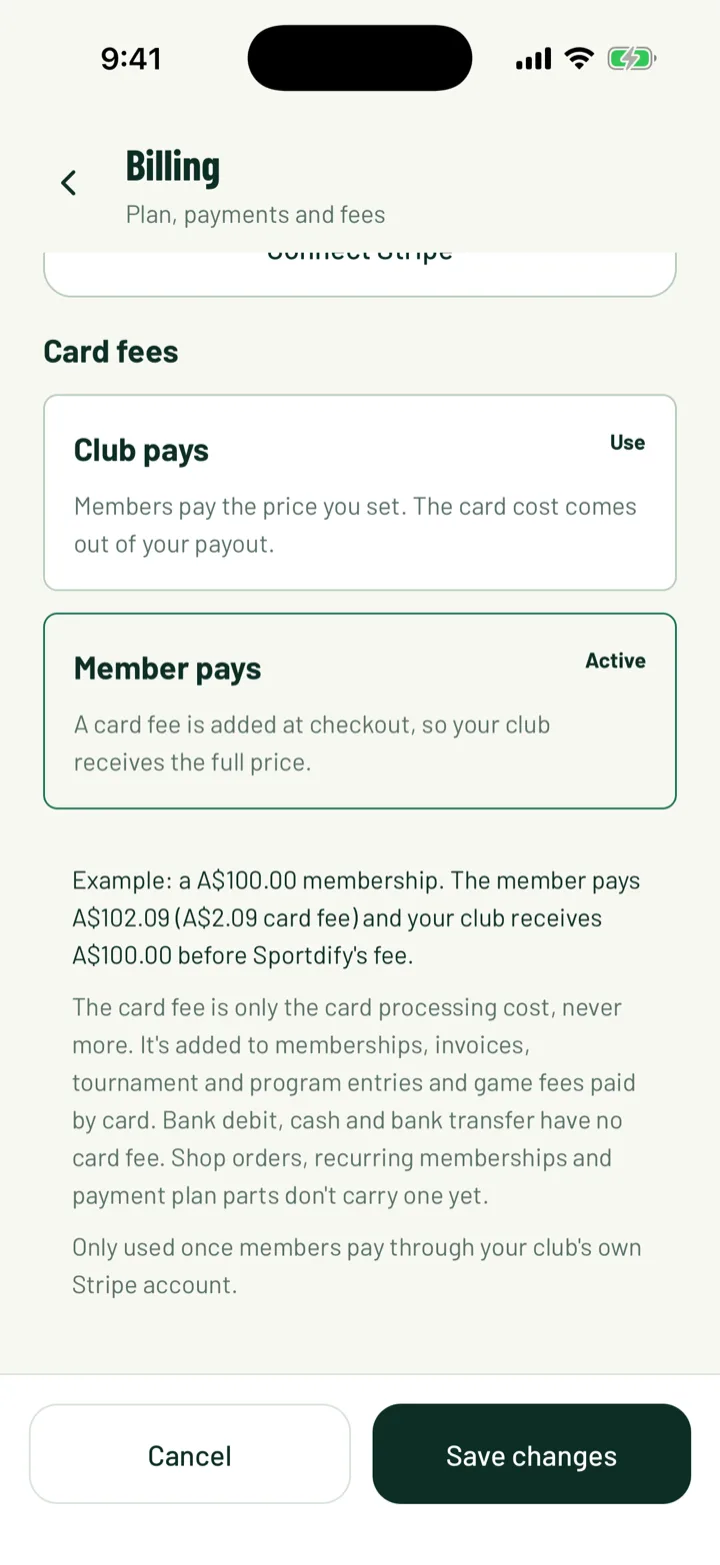
When members pay by card, Stripe takes a processing fee. Under Card fees, choose who covers it.
- Club pays: members pay the price you set, and the card cost comes out of your payout.
- Member pays: a card fee is added when a member pays by card, so your club receives the full price.
With Member pays, the settings show a worked example. For a A$100.00 membership, the member pays A$102.09, including a A$2.09 card fee, and your club receives A$100.00 before Sportdify's fee.
- The card fee is only the card processing cost, never more. Sportdify's own fee still comes from the club.
- Members see the fee before they pay. If your club takes bank debit, they can pay the price by bank debit with no card fee instead.
- It's added to memberships, invoices, tournament and program entries and game fees paid by card. Shop orders, recurring memberships and payment plan parts don't carry one yet.
- It only applies once members pay through your club's own Stripe account.
- On invoices, a payment shows the card fee the member paid on top of the price.
This section is hidden when your club collects payments itself.
App: Billing settings › Card fees · Web: Settings › Payments › Card fees
6Pass on the app fee (Pro only)
On Pro, your club pays Sportdify for each active member. You can add this to members' membership invoices.
- In the app, under App fee, choose Club pays or Members pay.
- On the web, turn on Add the app fee to member invoices.
With Members pay chosen, the app fee is added to each new membership invoice as a separate line. The settings show the monthly and yearly amount for your currency. The club keeps it to cover its Sportdify charges.
7Accept bank debit
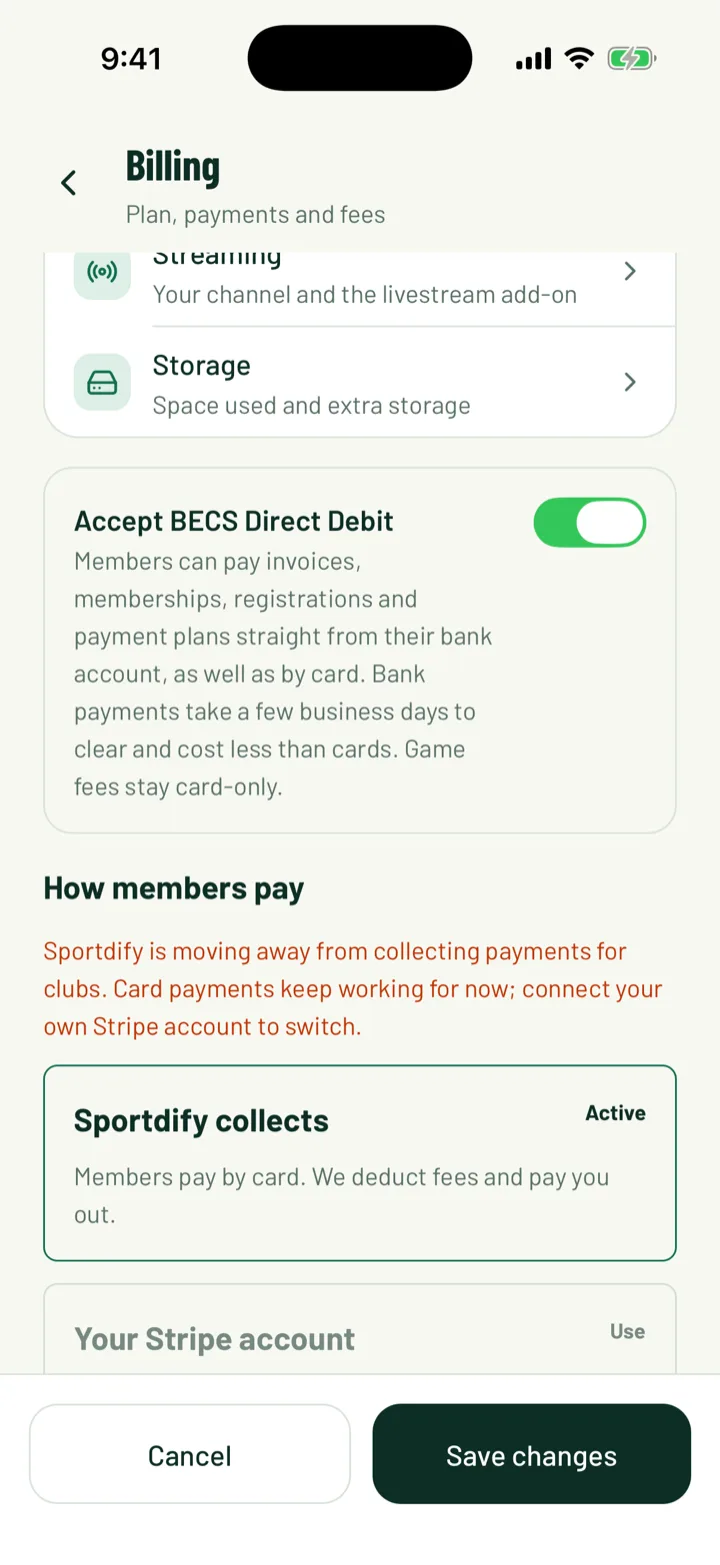
Members can pay straight from their bank account as well as by card. This option shows when your club's currency is one of these:
- Australian dollars: Accept BECS Direct Debit
- British pounds: Accept Bacs Direct Debit
- US dollars: Accept ACH bank transfer
- Euros: Accept SEPA Direct Debit
Turn it on and save. Bank debit works for invoices, memberships, registrations and payment plans. Game fees stay card-only.
Bank payments cost less than cards but take a few business days to clear. While a payment clears, the member sees that it's processing, and the invoice doesn't go overdue or send reminders.
With your own Stripe account, Stripe may ask your club for a few more details before bank payments show to members.
The option is hidden when your club collects payments itself.
8If you collect payments yourself
Tell members how to pay you. On the web, fill in How members pay you with your bank details, PayID or where to hand over cash. Members see it on every invoice. Then click Save billing settings.
In the app, this field isn't available. Add your bank details on the website.
When money comes in, record it on the member's invoice. See Send invoices and track payments.
Before you can switch to collecting yourself, change any active Stripe membership tiers to Manual. Any game fees still waiting for card payment also need to be marked paid or waived.
9See what's come in
Open Finance on the web to see money across the club. It has tabs for Transactions, Payouts and Statements.
Card payments to your own Stripe account settle through Stripe, so check your Stripe dashboard for when they reach your bank. The Payouts tab is for payments Sportdify collected for you.
You need to be the owner, an admin, or have the Treasurer club role to see Finance.
Web: Finance
Still stuck?
Ask us