Help › Members and fees
Payment plans
Let families split a program fee into two, three or four monthly parts, charged automatically to their saved card.
Watch it first
A short recording from the app, with the waiting cut out. The steps below go through it slowly.
A payment plan lets a family pay a bigger fee in monthly parts instead of all at once. They pay the first part when they sign up, and the rest is charged to their card on the same day each month. Payment plans are part of programs, such as a term of training, a clinic or a holiday camp.
1Check you can take card payments
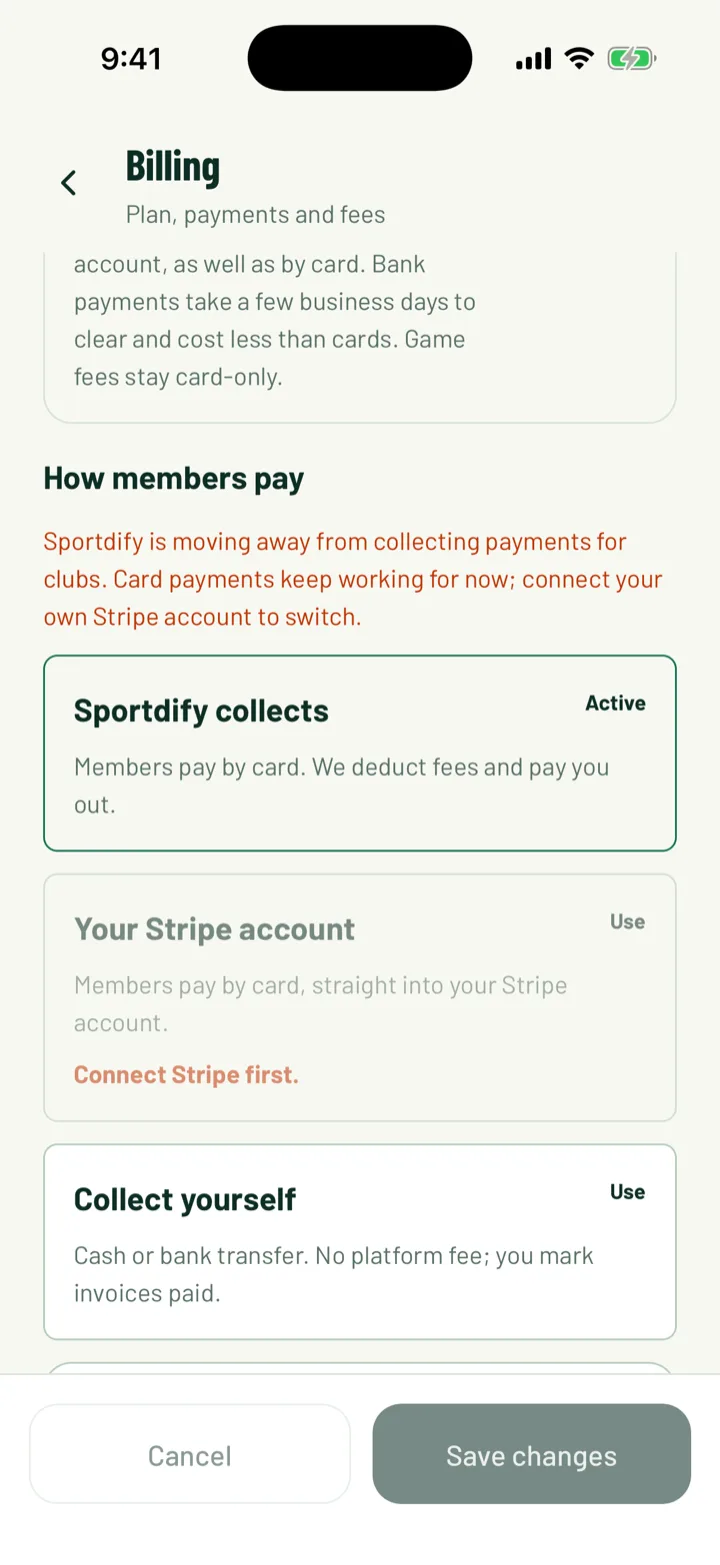
Each part is charged through Stripe, so your club needs to take card payments in Sportdify. A club that collects payments itself, by cash or bank transfer, should set this up first.
See Get paid with Stripe to connect your club's Stripe account.
App: Club › Billing settings · Web: Settings › Payments
2Open the program's sign-up settings
Turning on a payment plan is only on the web dashboard.
Open Programs in the sidebar and choose your program. Scroll to the Sign-up card.
You need to be the club owner, an admin, or have the Fixtures coordinator club role to run programs.
New to programs? See Run a program first.
Web: Programs › program › Sign-up
3Turn on paying in parts
In the Sign-up card:
- Set the Price per player.
- Set Collection to Card, in the app. The payment plan options only show with this choice.
- Under Pay in parts, choose 2 monthly parts, 3 monthly parts or 4 monthly parts. Choose Off to turn it off.
- Use For totals from to only offer parts on bigger totals. For example, enter 150 so a family paying less than that pays in full.
Click Save sign-up settings.
Each part has to be at least 10 in most currencies, such as A$10 or £10, or a similar amount in yen, Hong Kong dollars, ringgit or baht. If a family's total is too small to split that many ways, they simply pay in full.
4What families see
Families sign up and pay in the Sportdify app.
- The program page shows Or pay in 3 monthly parts under the price. On the website, the program page says they can pay in parts in the app.
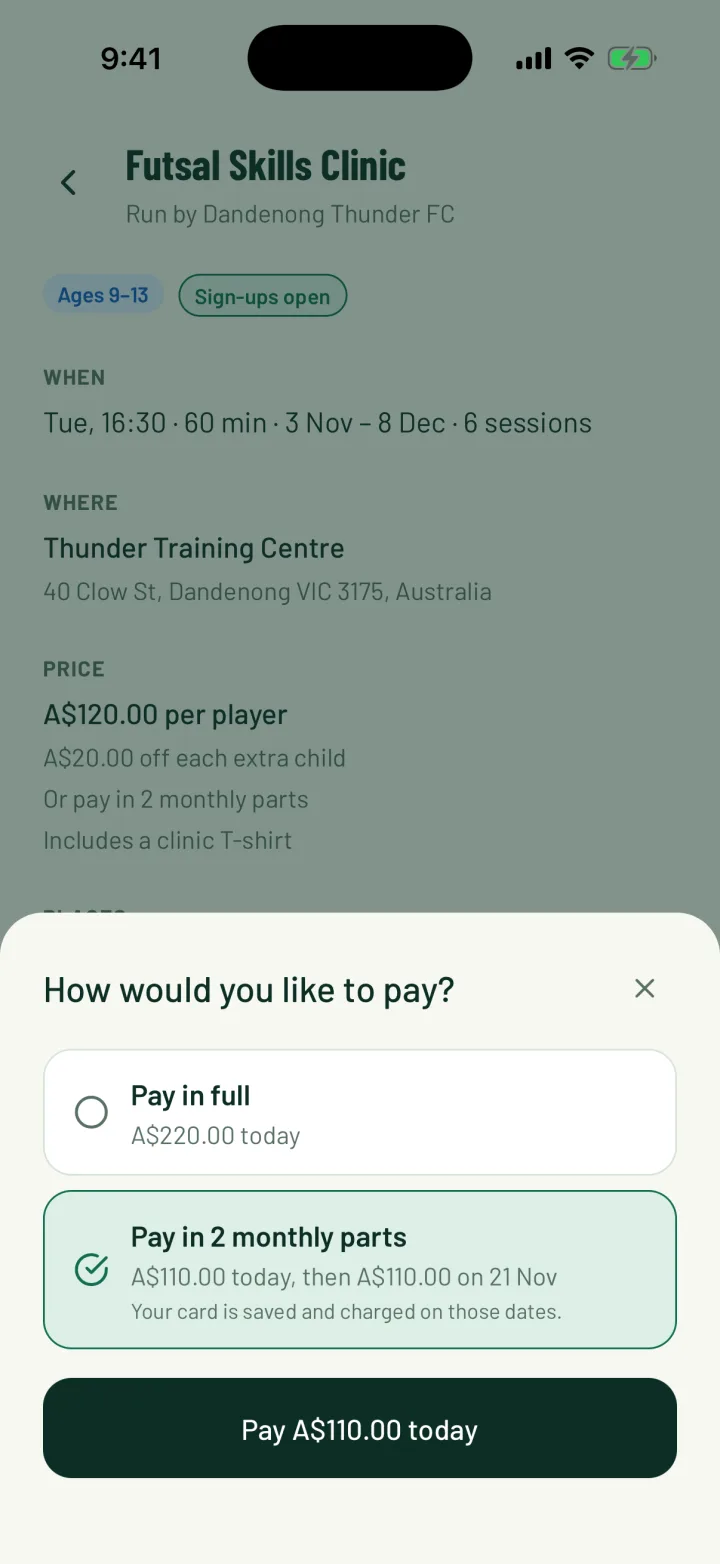
- When they pay, the app asks How would you like to pay? They choose Pay in full or Pay in 3 monthly parts.
- The parts option shows what they pay today and the dates of the later parts. It notes that their card is saved and charged on those dates.
- They finish with the Pay … today button, which shows the first part's amount.
The plan covers the family's whole total, after any sibling discount. The total is split evenly, and any odd cents go on the first part.
If your club accepts bank debit, families can pay from their bank account instead of a card. The bank account is saved for the later parts in the same way.
5The place is confirmed
The child's place is confirmed once the first part is paid. The program's sessions go into the family's schedule straight away.
Later parts are charged on the same day each month. If that day doesn't exist in a month, like the 31st, the part is charged on the last day of the month.
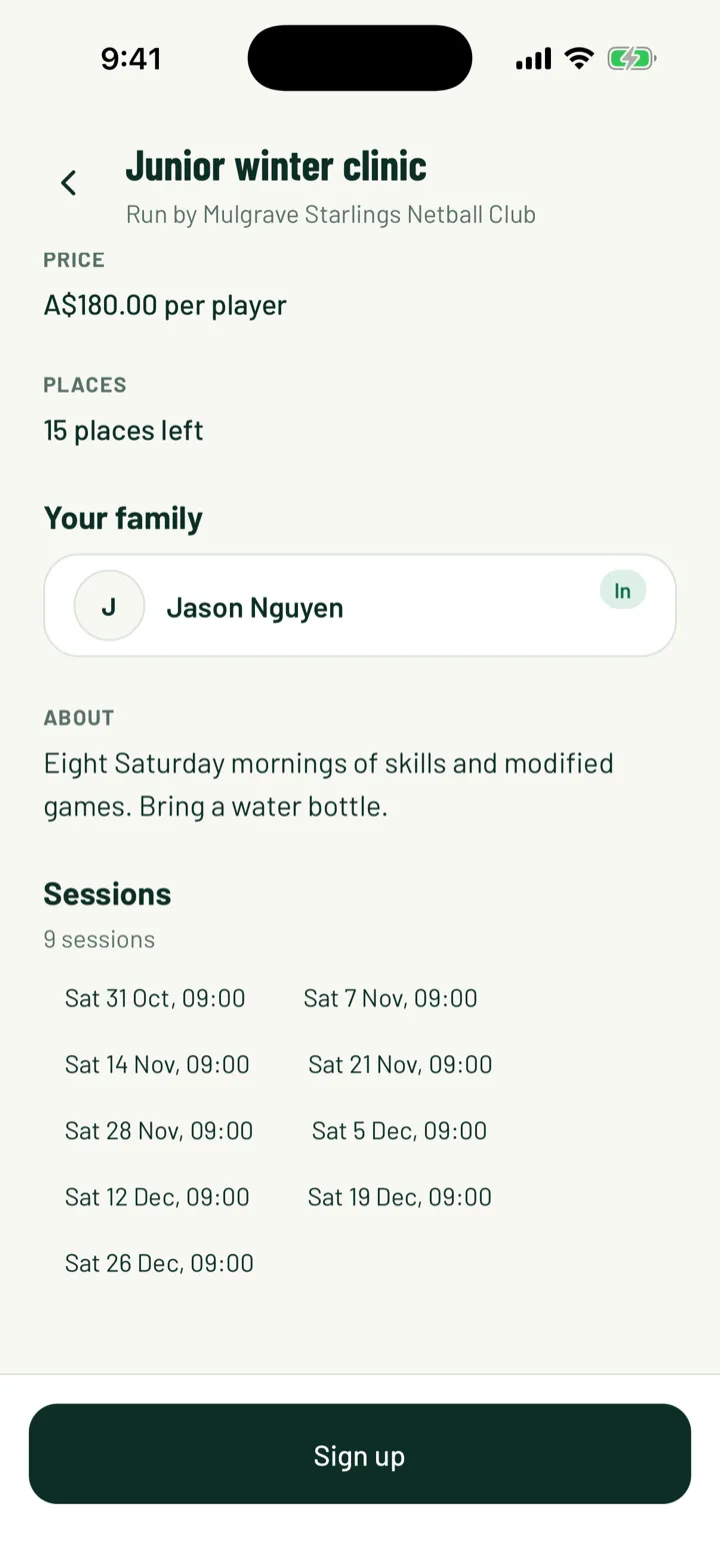
In the app, families see their progress on the program page, such as 1 of 3 parts paid · next with the amount and date.
6Keep track of plans
The Entries card on the web shows each child on a plan.
- The fee badge reads paid once every part is in, or part paid while parts are still to come.
- A line under the child shows how many parts are paid and when the next one is due, for example: Paying in 3 parts · 1 paid · next A$40.00 on 21 Nov.
Each part also shows on the Finance page as Registration (part payment).
Web: Programs › program › Entries
7When a payment fails
If a part can't be charged, for example because the card has expired, the family gets a push and an email.
In the app, the program page shows that the payment didn't go through, with a button to pay that amount. Paying it keeps their place.
Sportdify doesn't keep retrying the failed part. If it's still unpaid a week later, the entry shows a Payment overdue badge in the Entries card. It's then up to you to follow up with the family.
8Taking a child out of the program
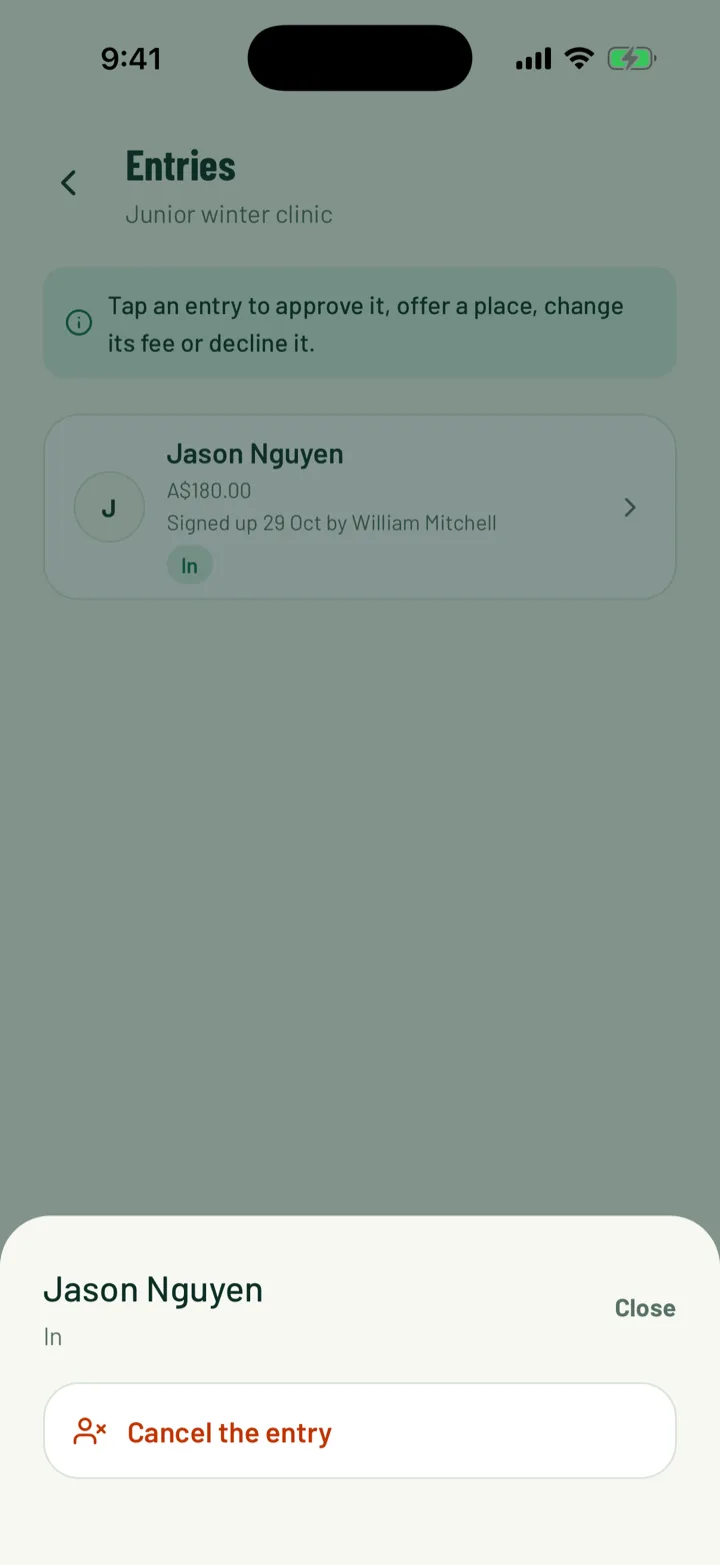
If you decline an entry, or remove a child with Remove on the web, their remaining parts are cancelled and won't be charged. In the app, the same action is Cancel the entry.
Talk to the family about any parts they've already paid.
Still stuck?
Ask us