Help › Programs
Run a program
Set up a clinic, holiday camp or term, add its sessions, take sign-ups and payments, then share it with families.
Watch it first
A short recording from the app, with the waiting cut out. The steps below go through it slowly.
A program is a run of sessions that families sign up for once, like a holiday camp, a skills clinic or a term of modified games. You can run one from the app or the web dashboard. A few settings are only on the web, and we point those out below.
1Create the program
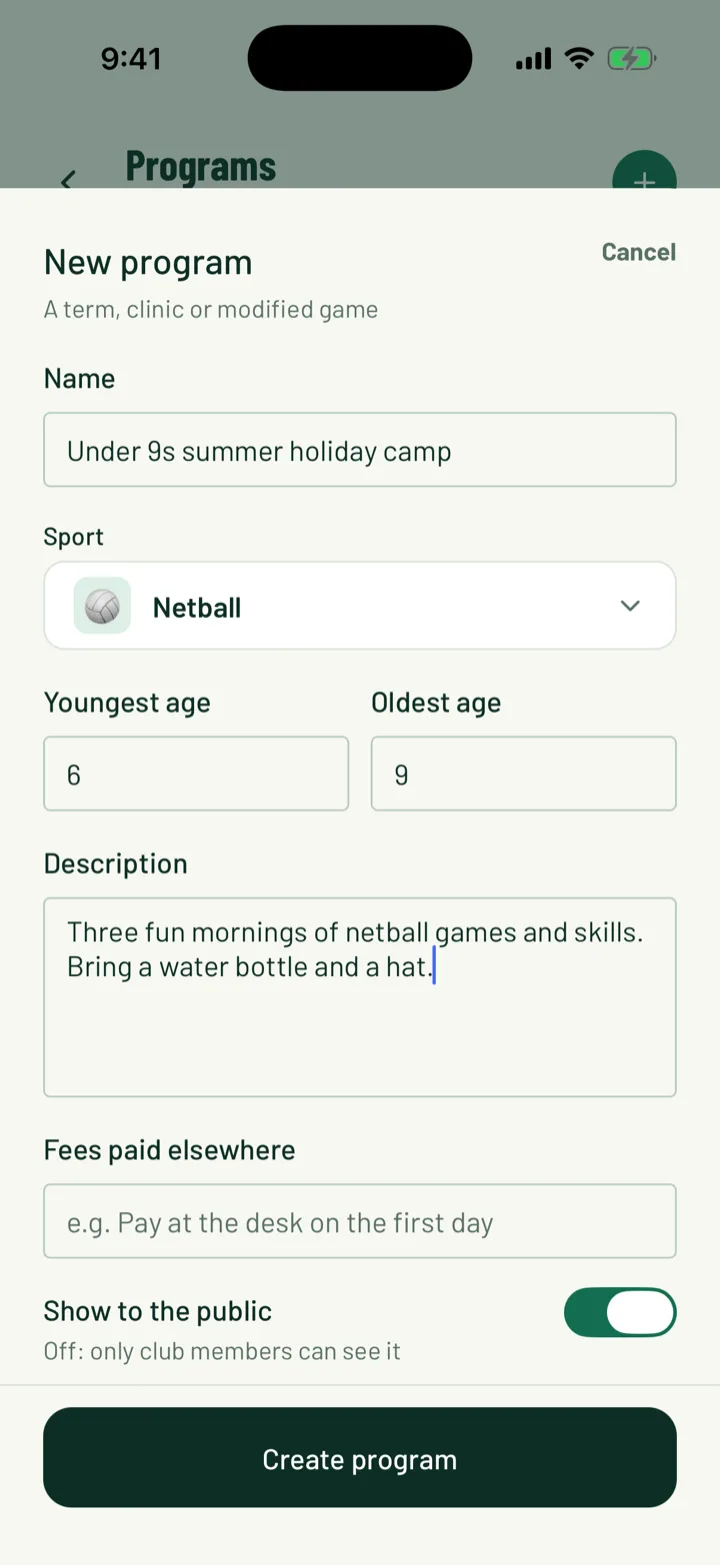
In the app, open the Club tab and tap Programs under Games. Then tap +. On the web, open Programs and click New program.
- Enter a Name, such as Under 7s Saturday clinic, and a Description for families.
- Check the Sport. It starts as your club's sport.
- Set the Youngest age and Oldest age, or leave them as Any.
- Use Fees paid elsewhere for costs you don't collect, like a state association fee.
- Leave Show to the public on to list it on your club page and in Discover. Turn it off for a members-only program.
Tap or click Create program.
The web form has a few extra fields: Usual venue, Age measured on and Link for that fee. Leave Age measured on empty to measure ages on the first session.
The program starts as a draft. Families can't see it until you open sign-ups.
App: Club › Programs › + · Web: Programs › New program
2Add the sessions
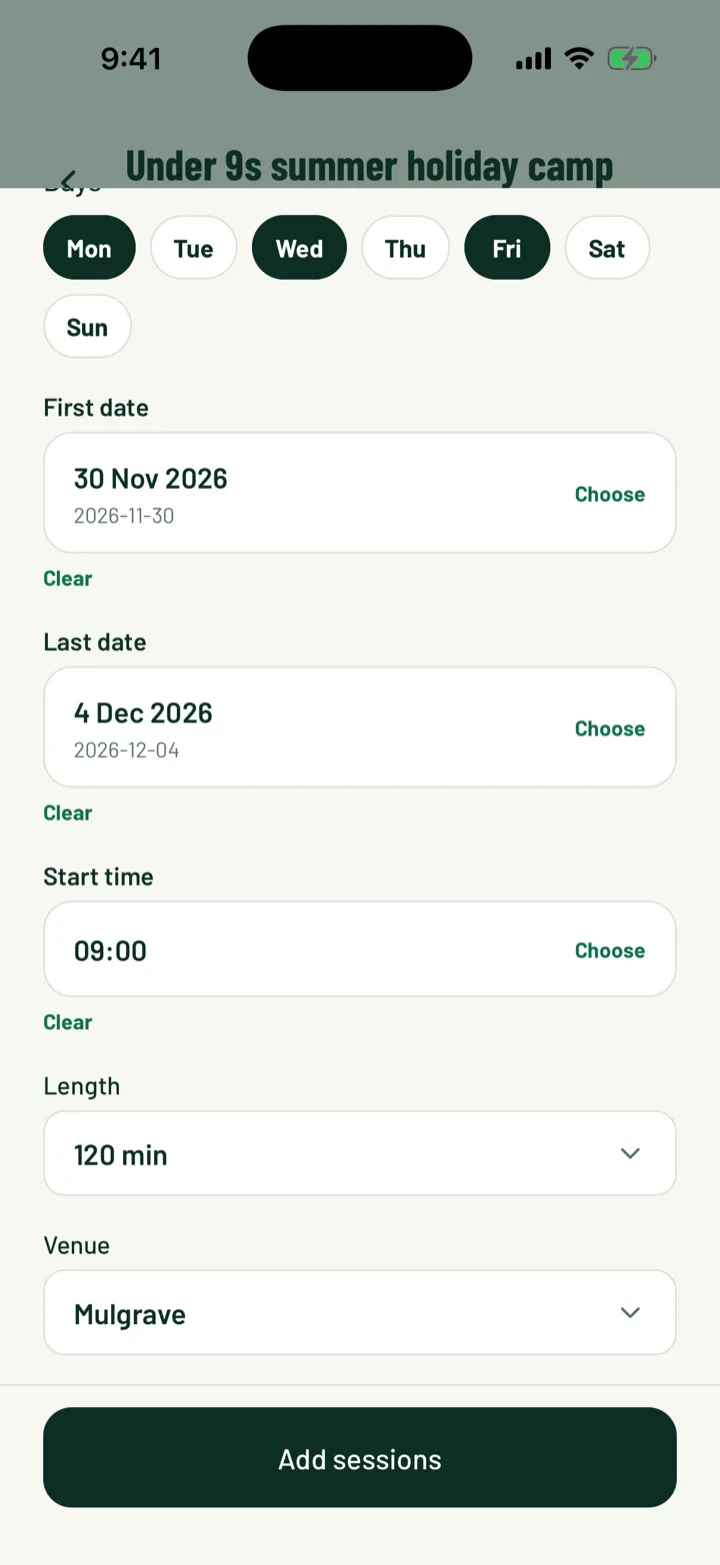
Sessions are added in blocks of weekly sessions between two dates.
- Pick the Days.
- Set the First date, Last date and Start time.
- Set the Length of each session and choose the Venue.
Tap or click Add sessions. You'll see how many sessions were added.
On the web you can also pick a pitch or court at the venue, and add Dates to skip with Skip this date, such as a public holiday. Use two blocks for a longer break, like the summer holidays. Cancel block cancels a block's upcoming sessions and keeps the past ones.
Players who sign up go on a team named after the program. Attendance, replies and team chat work the same as for any team.
App: Programs › program › Add sessions · Web: Programs › program › Sessions › Add a block
3Set the price and places
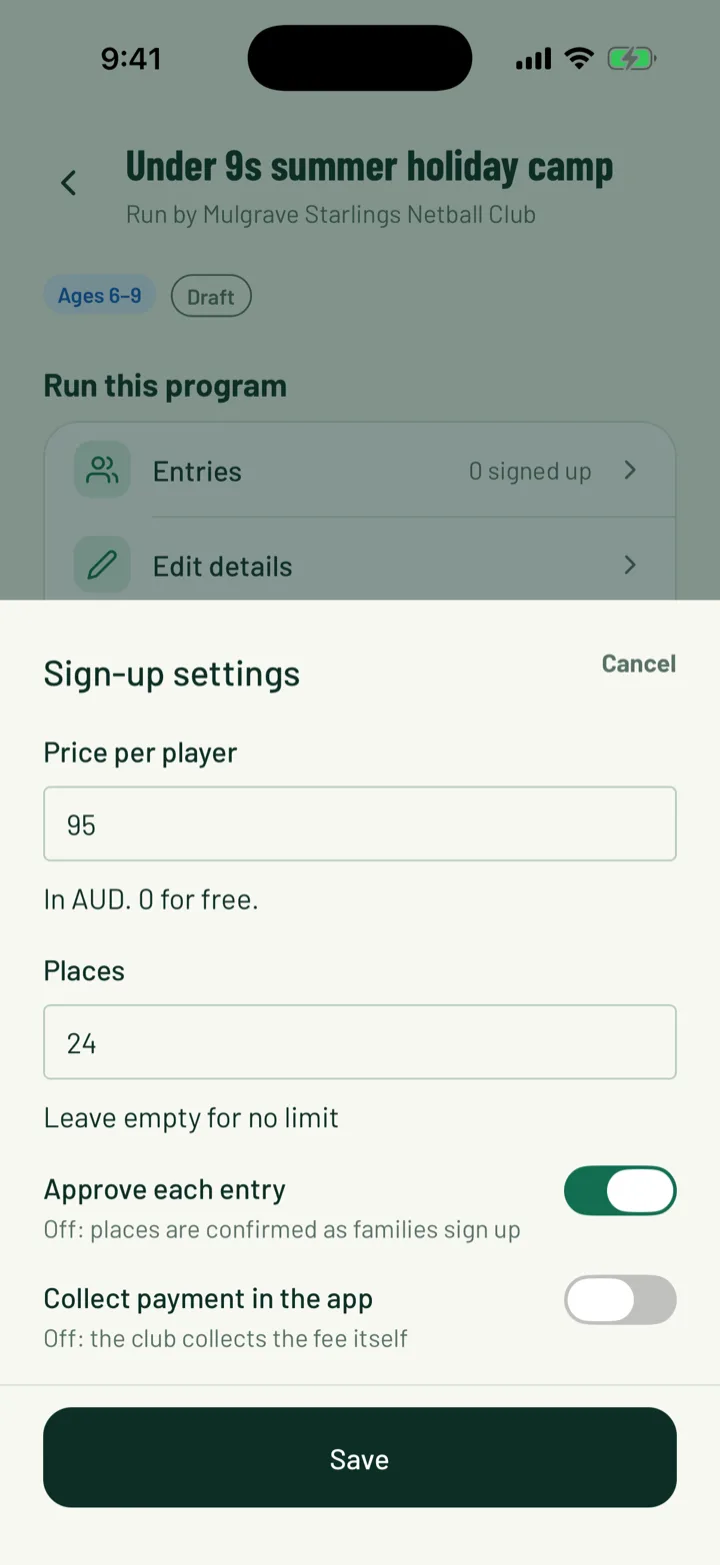
In the app, tap Sign-up settings:
- Price per player. Enter 0 for a free program.
- Places. Leave it empty for no limit.
- Approve each entry. When it's off, places are confirmed as families sign up.
- Collect payment in the app. When it's off, the club collects the fee itself.
Tap Save.
The web Sign-up card has more options:
- Sign-ups close sets a closing date.
- Collection is Manual or Card, in the app.
- Sibling discount takes Amount off or Percentage off each extra child.
- Pay in parts lets families pay in 2, 3 or 4 monthly parts. Set For totals from to only offer it on bigger totals. It only shows when Collection is set to card.
- Require organiser approval works like Approve each entry in the app.
- Questions adds your own sign-up questions. You can load a saved form.
Click Save sign-up settings when you're done.
App: Programs › program › Sign-up settings · Web: Programs › program › Sign-up
4Open sign-ups
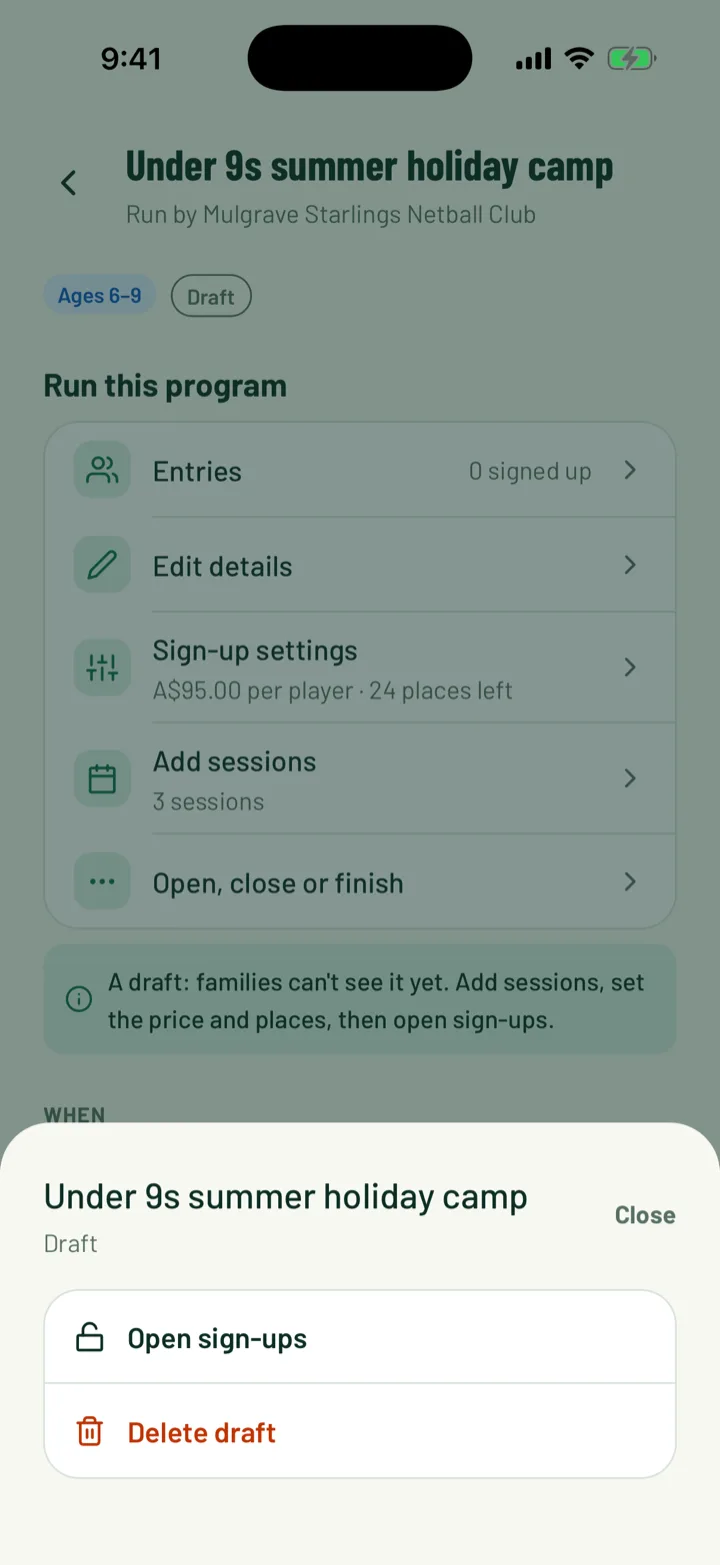
In the app, tap Open, close or finish, then Open sign-ups. On the web, click Open sign-ups. The web needs at least one upcoming session first.
Not ready yet? On the web, click Show as coming soon. The program goes public with a Notify me button. People leave their email and get one email when you open sign-ups. You'll see them in the Notify me list card.
App: Programs › program › Open, close or finish › Open sign-ups · Web: Programs › program › Open sign-ups
5Share the program
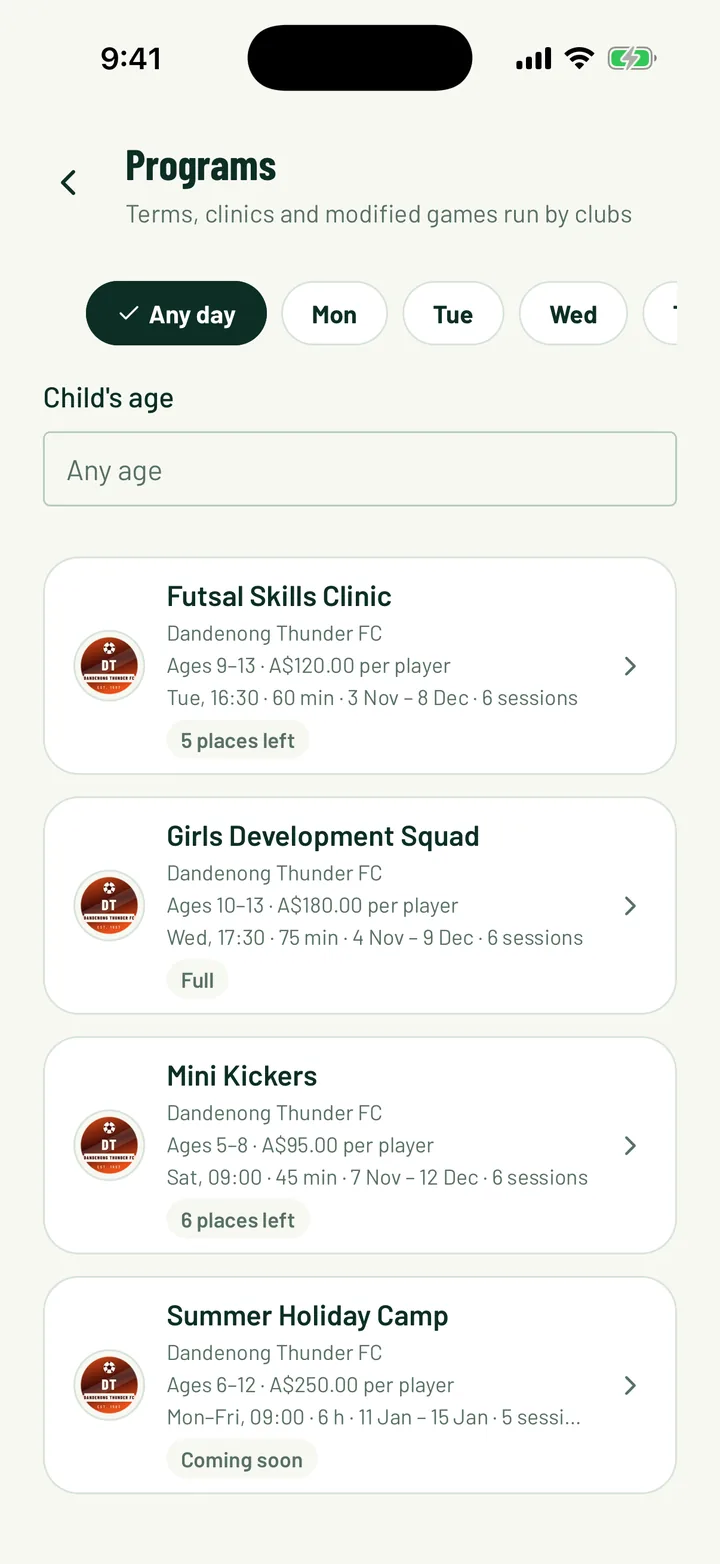
Public programs show on your club page under Programs. They're also in the Programs list, where families filter by day and their child's age. In the app, it's on the Home tab.
To send the link yourself, click Public page on the program in the web dashboard. The public page opens. Click Share to share it or copy the link.
A program with Show to the public turned off shows Members only on the web. Only your club members can see it.
6How families sign up
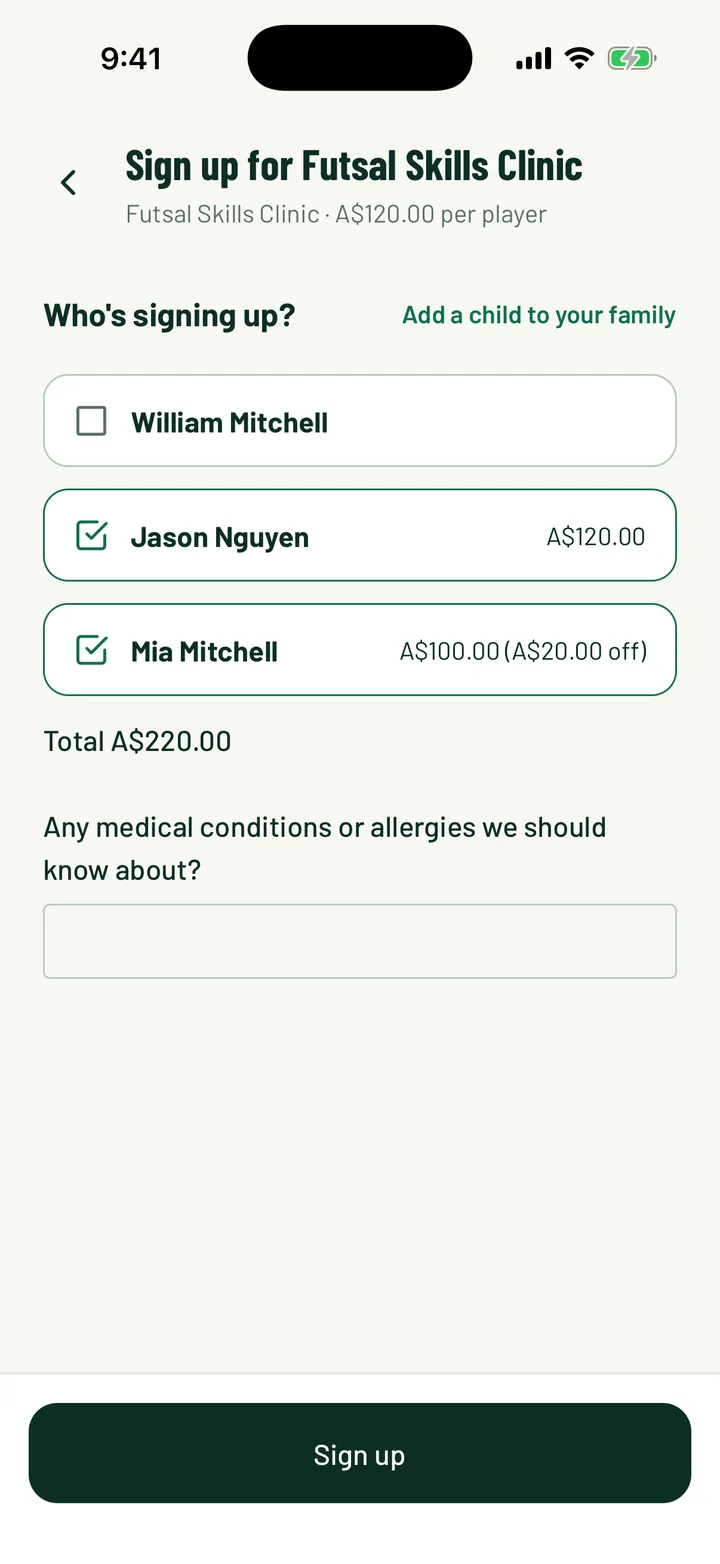
Families tap Sign up on the program. If it's full, the button reads Join the waiting list.
- Under Who's signing up?, they tick each child. Add a child to your family adds a new one.
- Each child needs a date of birth if the program has an age range.
- They answer your questions and accept your waiver, then tap Sign up.
If you collect payment in the app, they tap the pay button on the program, such as Pay A$120.00 for Mia. When you offer monthly parts, they choose Pay in full or the monthly option. The sessions then show in their schedule.
7Manage entries
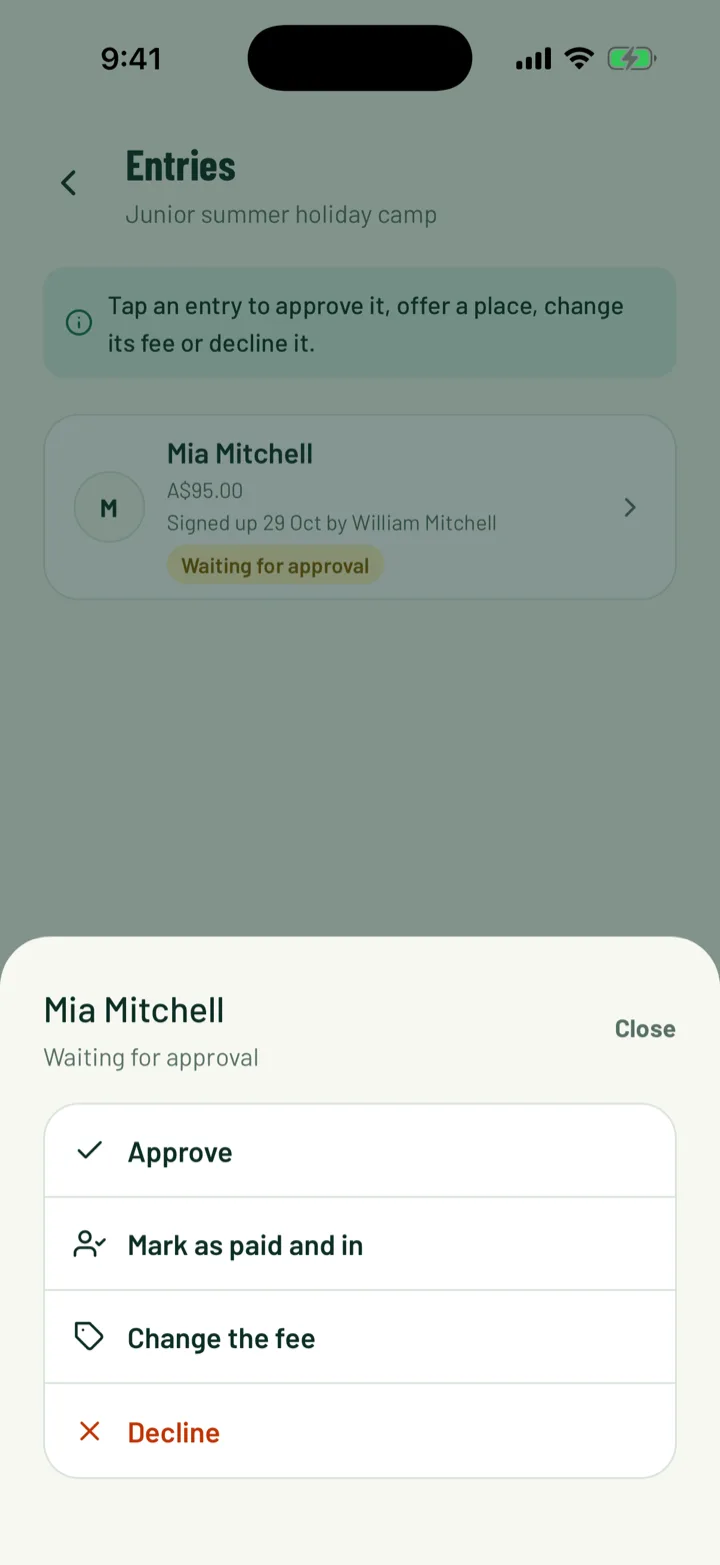
In the app, tap Entries, then tap an entry. On the web, use the buttons on each entry in the Entries card.
- Approve a pending entry.
- Mark as paid and in in the app, or Mark as paid on the web, when a family pays the club directly.
- Offer a place to someone on the waiting list. They have 48 hours to take it.
- Change the fee in the app, or Change fee on the web, for a concession or voucher. Enter the New fee and pick a Reason: Concession, Hardship, Voucher, Volunteer or Other. Then Save fee.
- Decline an entry that hasn't been confirmed.
- Cancel the entry in the app, or Remove on the web, takes a confirmed player out of the program.
App: Programs › program › Entries · Web: Programs › program › Entries
8Close or finish the program
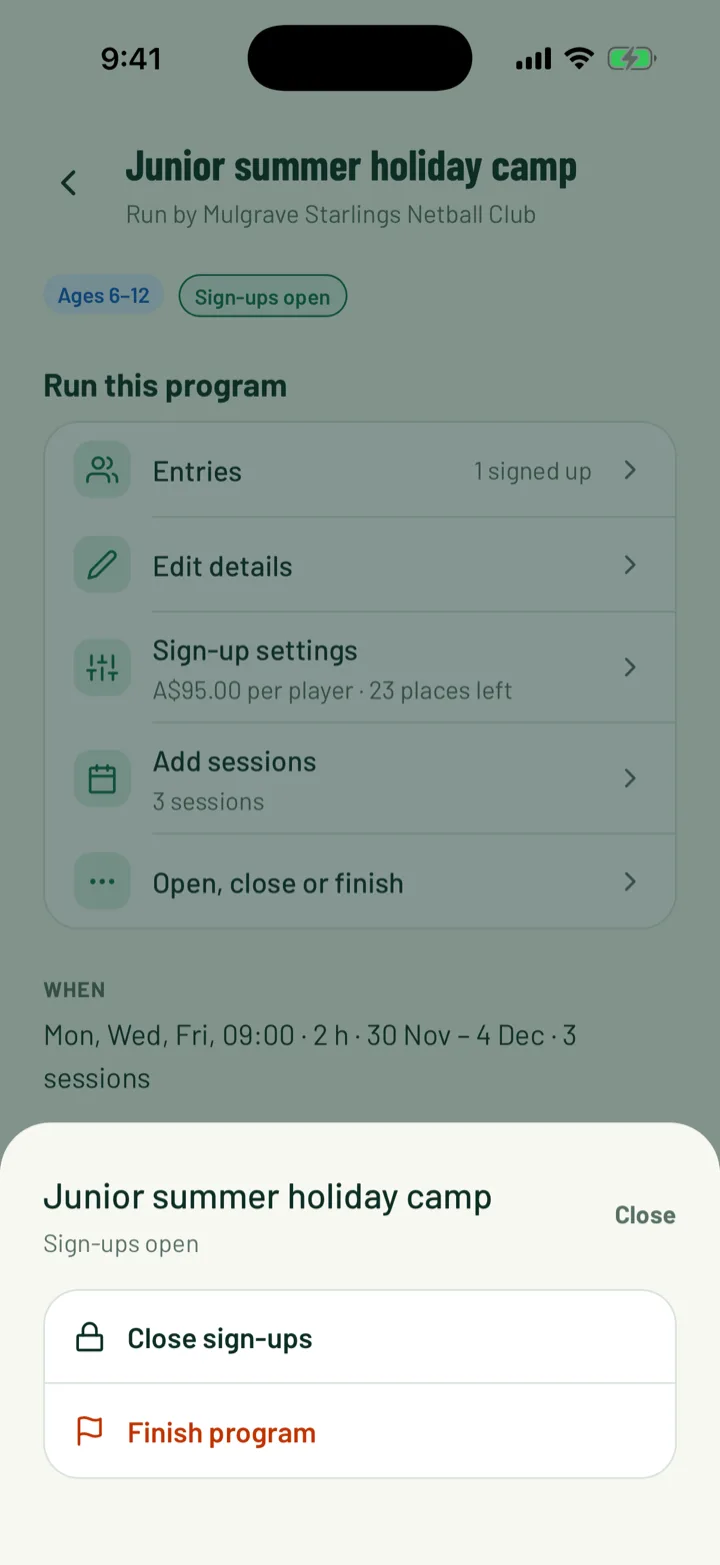
- Close sign-ups stops new sign-ups. You can open them again later.
- Finish program in the app, or Finish on the web, ends it. Players come off its team and sign-ups close for good.
- Delete draft removes a program that never opened, along with its sessions.
App: Programs › program › Open, close or finish · Web: Programs › program
Still stuck?
Ask us