Help › Your account
Profiles and family
Manage your own profile and your children's from one account, then join clubs, answer RSVPs and pay fees for each of them.
Watch it first
A short recording from the app, with the waiting cut out. The steps below go through it slowly.
One Sportdify account can hold several profiles: one for you, and one for each child or other person you sign up for clubs and games. You don't switch between them. You see everything for every profile, and Sportdify asks which one you mean when it matters.
1Open your profiles
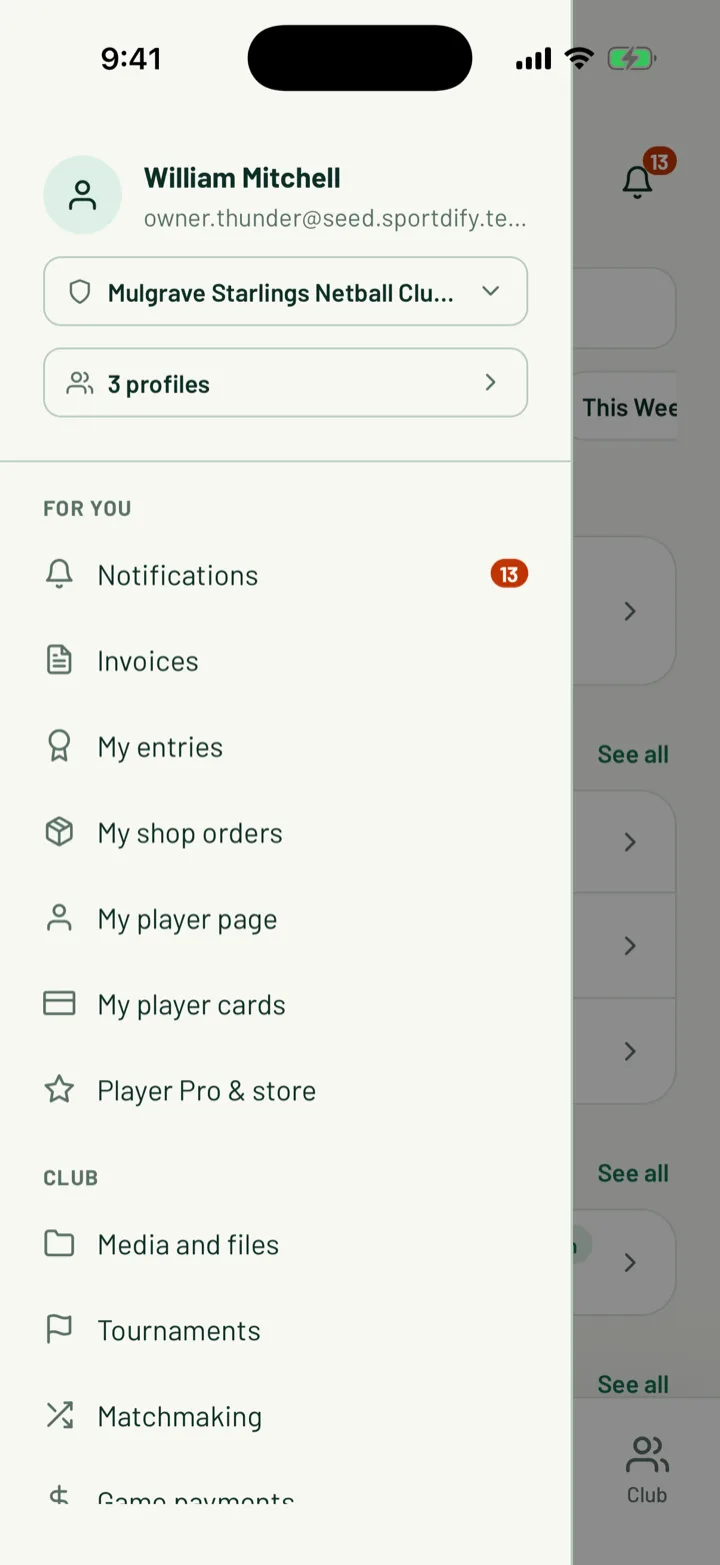
In the app, open the menu and tap the profiles line under your name, such as 2 profiles. You can also go to Account settings and tap Profiles. Members also have My profiles on the Club tab.
On the web, click My Profiles in the sidebar.
The app lists your own profile under You, and the people you manage under Family.
App: Menu › Account settings › Profiles · Web: My Profiles
2Add a profile for your child
Tap or click Add profile.
- Enter their First name and Last name.
- Add the Date of birth. It's optional, but clubs use it for age groups.
- Leave Public profile off unless you want club admins to find this profile by name and add it to their club.
Save with Add profile. In the app, you can add a photo once the profile is created. Tap the profile again and choose Add photo.
To change a profile later, tap it in the app, or click Edit on the web.
App: Profiles › Add profile · Web: My Profiles › Add profile
3Choose your default profile
Your default profile is the one Sportdify picks first when you ask to join a club. It's usually you.
- In the app, open a profile and tap Set as default.
- On the web, use the profile's menu and click Set as default, or turn on Default profile when you edit it.
You can't delete the default profile. Set another as default first, then use Delete profile in the app, or Delete on the web. Deleting a profile removes it from all its clubs.
4Join a club for your child
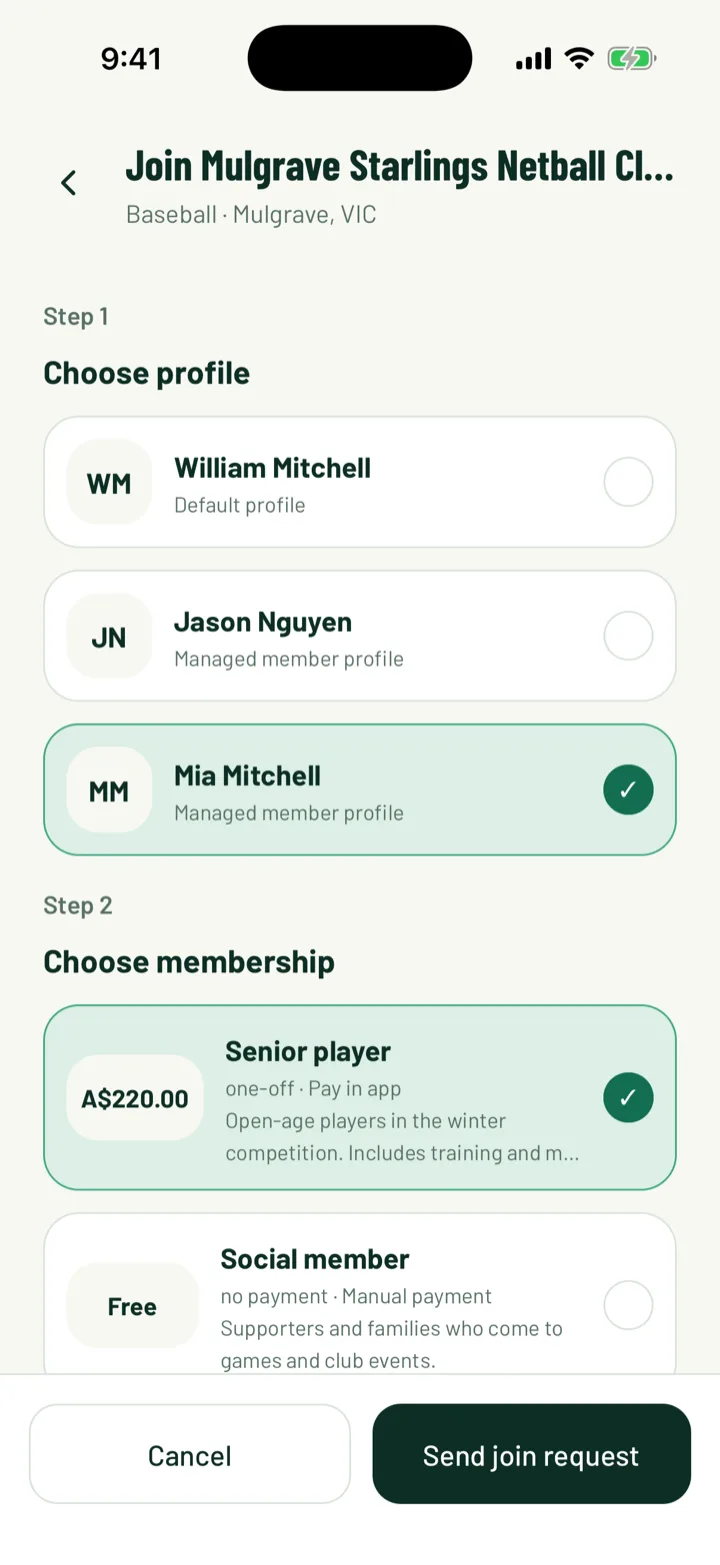
Each profile joins a club on its own. When you tap Join club on a club's page, the first step is Choose profile. Pick your child, choose a membership and answer the club's questions.
If the club has a waiver, you accept it on your child's behalf. Then send the request. Do this again for each child who's joining.
Once your child is on a team, you're added to the team chats for them. Other members see you listed as being there for your child.
5Answer RSVPs for your child
When a session asks your child to RSVP, it shows on your Home and Schedule tabs, and you get a push.
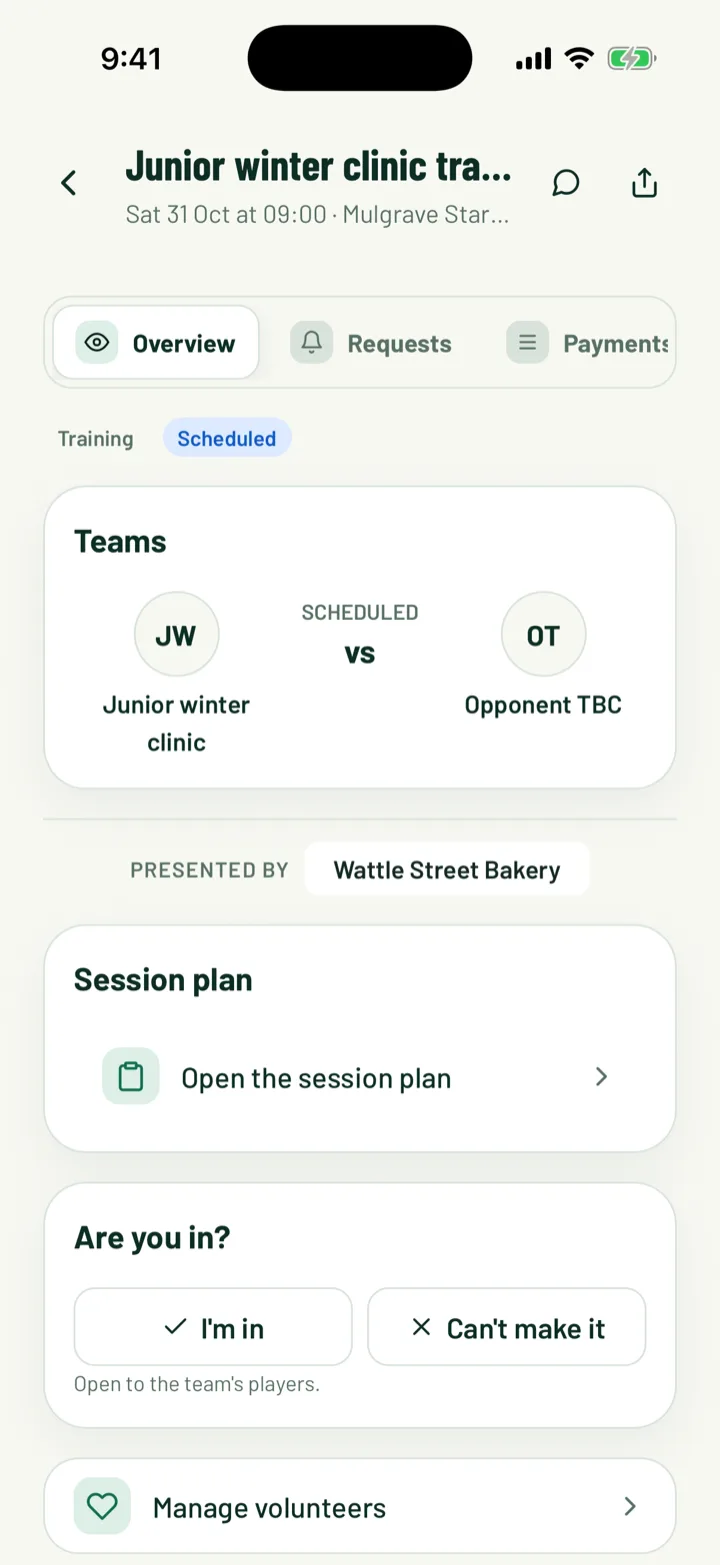
Open the game. Under Are you in?, each profile that's asked has its own row with its name. Tap I'm in or Can't make it for each child. Tapping the same answer again undoes it.
On the web, open My Games. The Can you make it? card has the same buttons for each profile.
To see one child's games in the app, open the Schedule tab and choose Mine. Then tap your child's name. Everyone shows the whole family again.
App: game › Are you in? · Web: My Games › Can you make it?
6Pay your child's fees
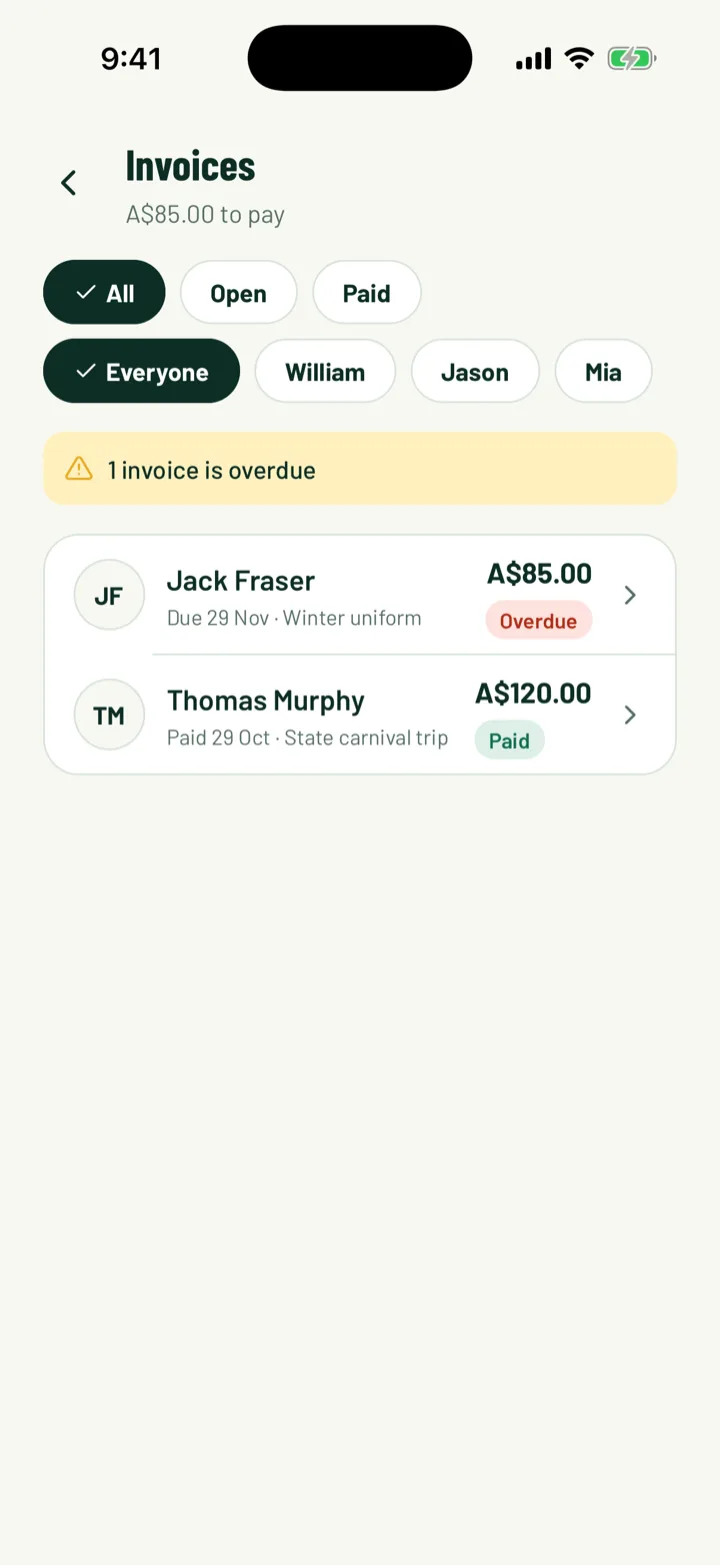
Club fees for every profile come to you. In the app, open My invoices on the Club tab, or from the menu. On the web, click My Invoices.
With more than one profile, the app shows a chip for each name. Tap one to see just that child's invoices, or Everyone for the lot. Open an invoice to pay it.
App: Club › My invoices · Web: My Invoices
7Turn on a player page
A player page shows a profile's clubs, player cards and trophies to anyone with the link.
- Turn on Public profile, then choose a Handle. It becomes part of the page's link. Old links keep working if you change it.
- Turn on Public player page. In the app, tap View page to see it.
Player pages for under-18s are off by default. When you turn one on, it shows only the first name and last initial.
To open your own page in the app, tap My player page in the menu.
App: Profiles › profile › Public player page · Web: My Profiles › Edit
8Create player cards
Every profile can have a player card for each of its clubs. In the app, tap My player cards in the menu. On the web, click My Cards.
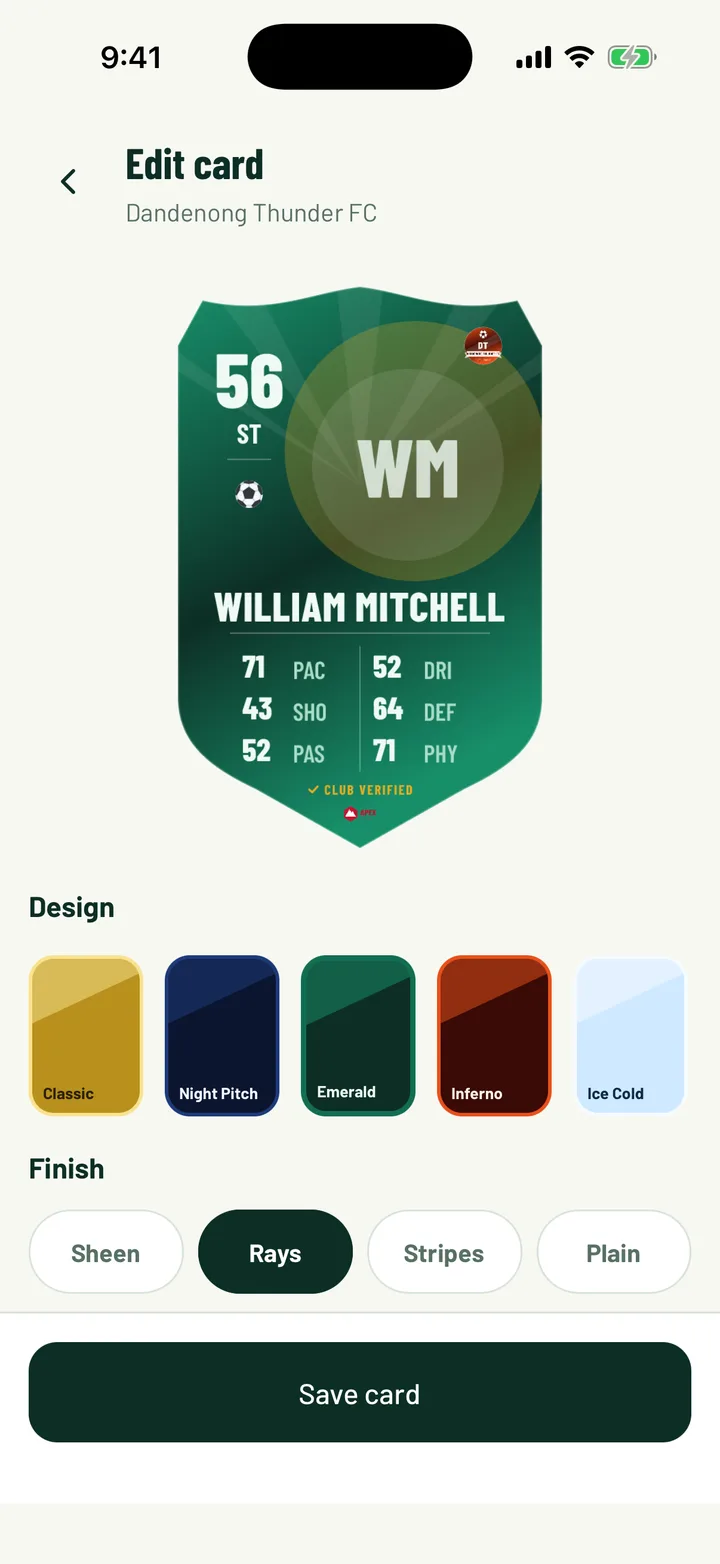
The My cards screen has a section for each profile. Tap Create card under a club, pick a Design and fill in the card. Then tap Save card.
- Cards need Player Pro or a card design. Tap See plans if you see Unlock to create. Player Pro covers you and the players you manage.
- Who can see it sets the card to Public, Club or Private. Public isn't available for players under 18.
App: Menu › My player cards · Web: My Cards
Still stuck?
Ask us