Help › Your account
Notifications and switching clubs
Manage push and in-app notifications, switch between clubs or just you, block people and delete your account.
Watch it first
A short recording from the app, with the waiting cut out. The steps below go through it slowly.
This guide covers the account side of Sportdify: the notifications you get, which club the app is showing, and what to do when you want to stop hearing from someone or leave for good.
1Turn on push notifications
The app asks to send notifications after you sign in. Allow it to hear about things like RSVP requests, lineups, chat messages, shop orders and volunteer reminders.
If you said no, turn them on in your phone's settings, under Notifications for Sportdify. Do the same to turn them off. Sportdify doesn't have its own on and off switches for each kind of notification.
Tapping a push opens the right screen. If it's about another club, the app switches to that club for you.
2Catch up on notifications
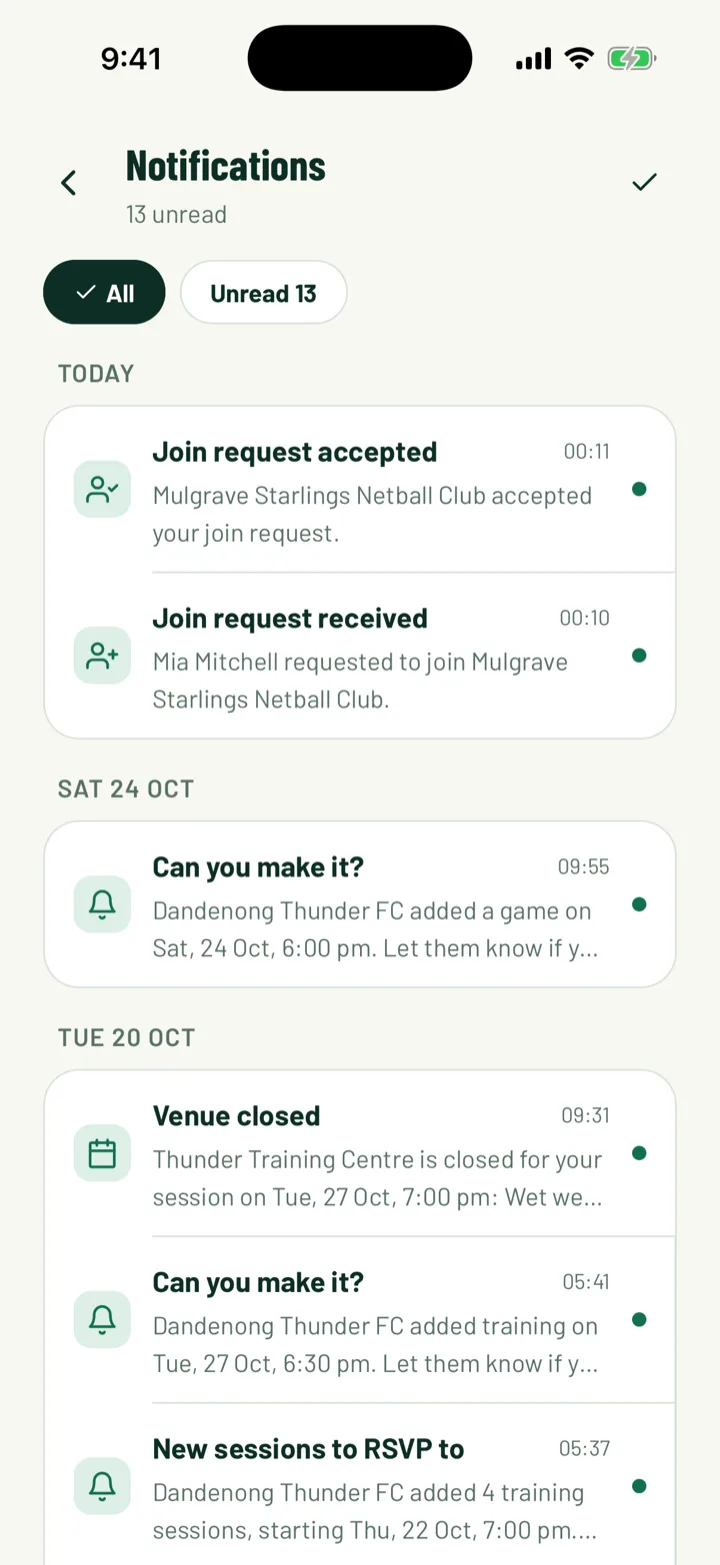
In the app, tap the bell at the top right of any main tab, such as Home or Club. Its badge shows how many are unread. You can also tap Notifications in the menu.
- Switch between All and Unread.
- Tap a notification to open what it's about. It's marked read.
- Tap the tick at the top to Mark all read.
On the web, click Notifications in the sidebar, or the Notifications tab on My Sportdify. Click Open on a notification, or Mark all read.
App: bell · Web: Notifications
3Mute a chat
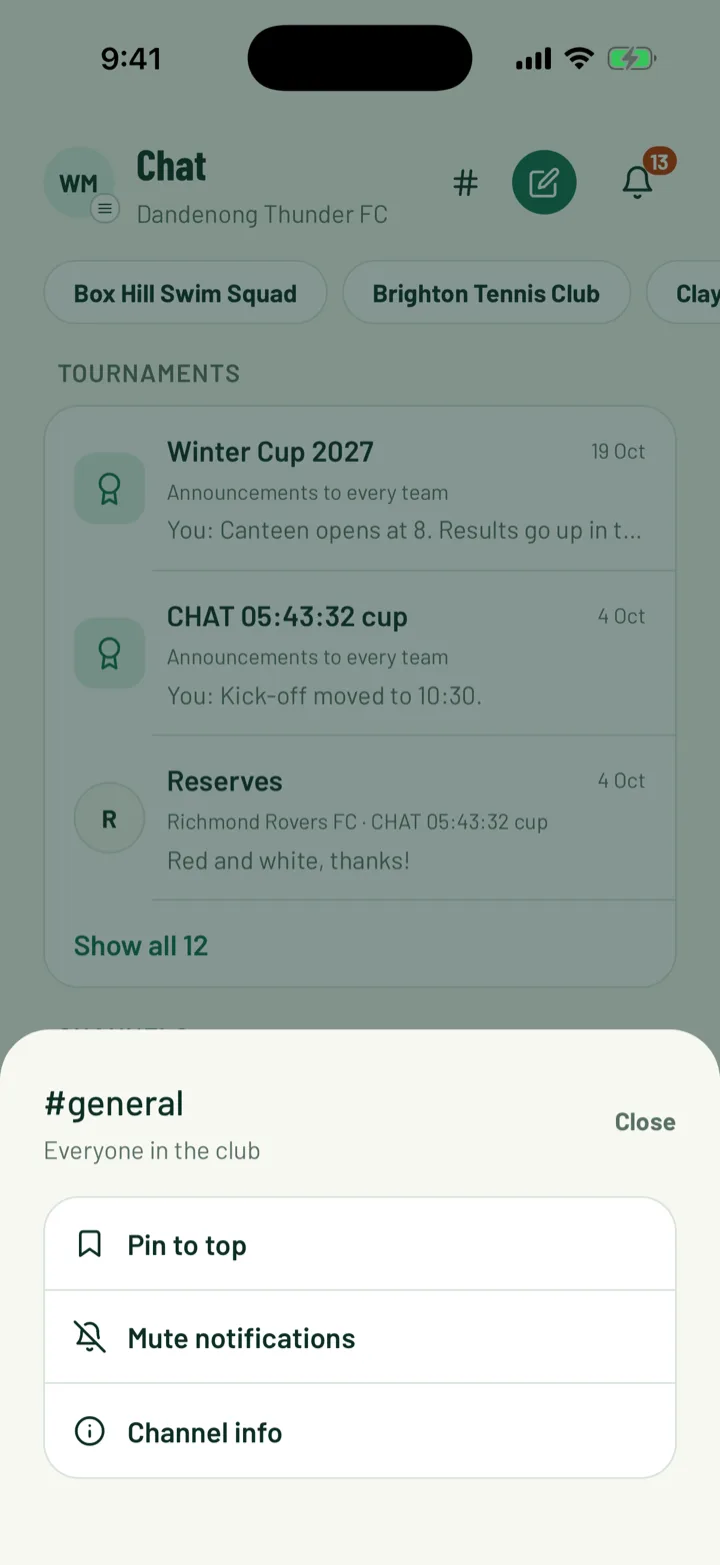
A busy team chat can send a lot of pushes. To quieten one, open the Chat tab and hold your finger on the conversation. Tap Mute notifications.
You can also open the chat, tap its name at the top and turn on Mute notifications. Use Unmute notifications to hear from it again.
App: Chat › hold a conversation
4Switch clubs
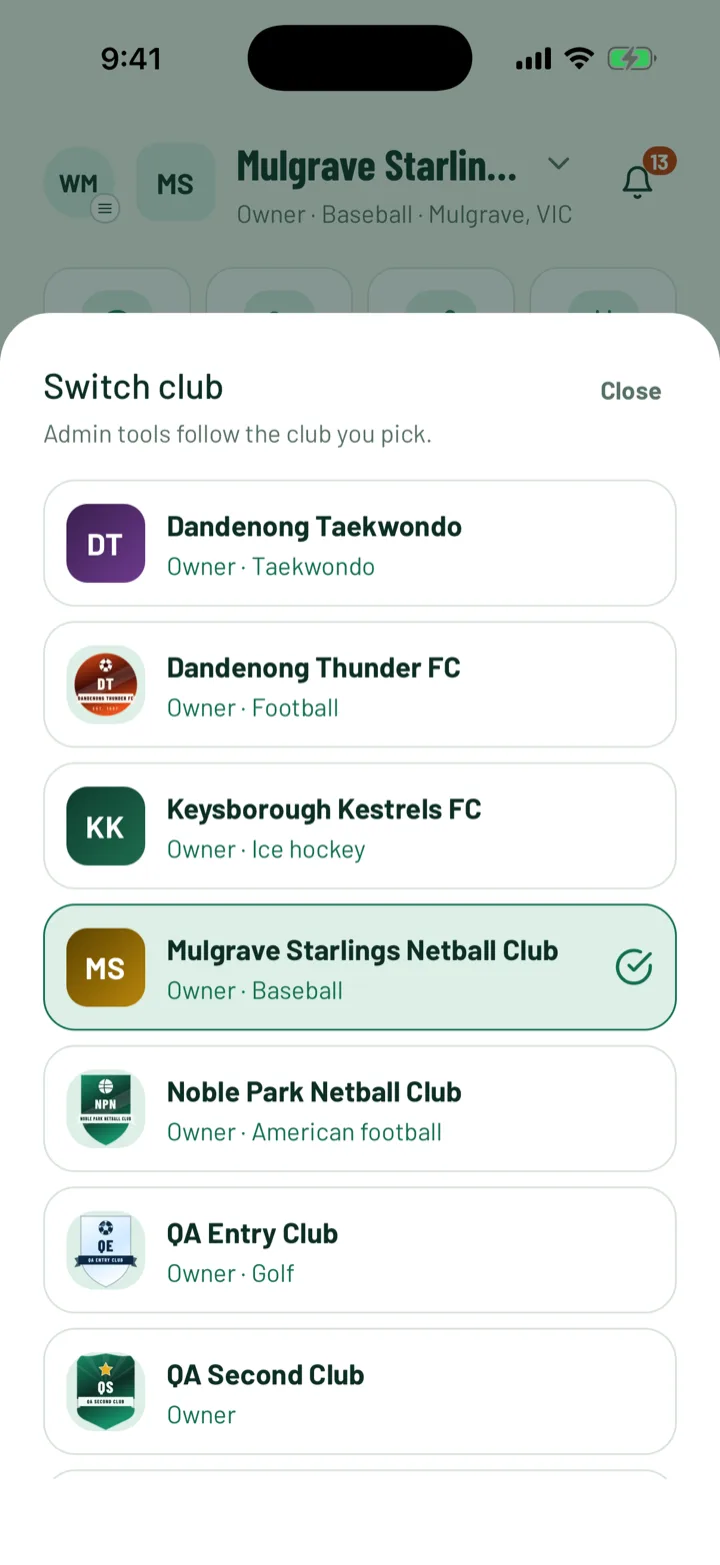
If you belong to more than one club, the app shows one at a time. Club games, admin tools and the Club tab follow the club you pick.
- In the app, open the Club tab and tap the club's name at the top. The Switch club sheet lists your clubs. Tap one to switch.
- You can also open the menu and tap the club under your name.
On the web, click the switcher at the top of the sidebar. It shows your club's name, or Personal. Pick a club under Your Clubs, or choose Create a Club.
App: Club › club name · Web: club switcher
5Use Sportdify as just you
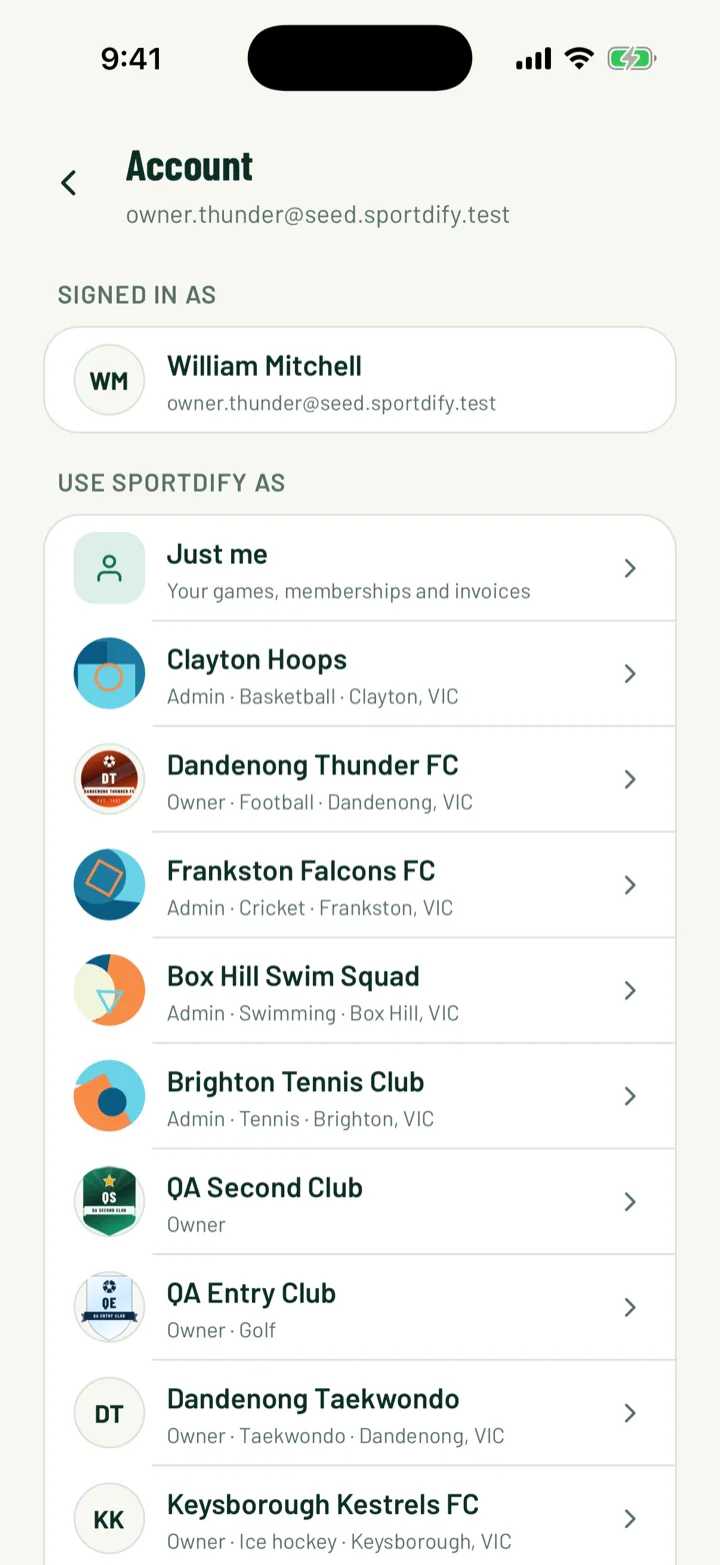
You don't have to have a club picked. In the app, open the menu, tap Account settings, and look under Use Sportdify as.
- Just me shows your own games, memberships and invoices, without a club's admin tools.
- Each club is listed below it. The one you're using says Active.
On the web, choose Personal in the club switcher.
App: Menu › Account settings › Use Sportdify as · Web: club switcher › Personal
6Leave a club
There isn't a Leave button for members. To leave a club, ask one of its admins to remove you, or your child's profile, from their members list.
Club admins on the web can leave the club's staff themselves. Open Settings › Members, open the menu at the end of your own row and choose Leave organization.
7Block someone
Blocking is in the app. You won't see the person's messages, and neither of you can message the other directly.
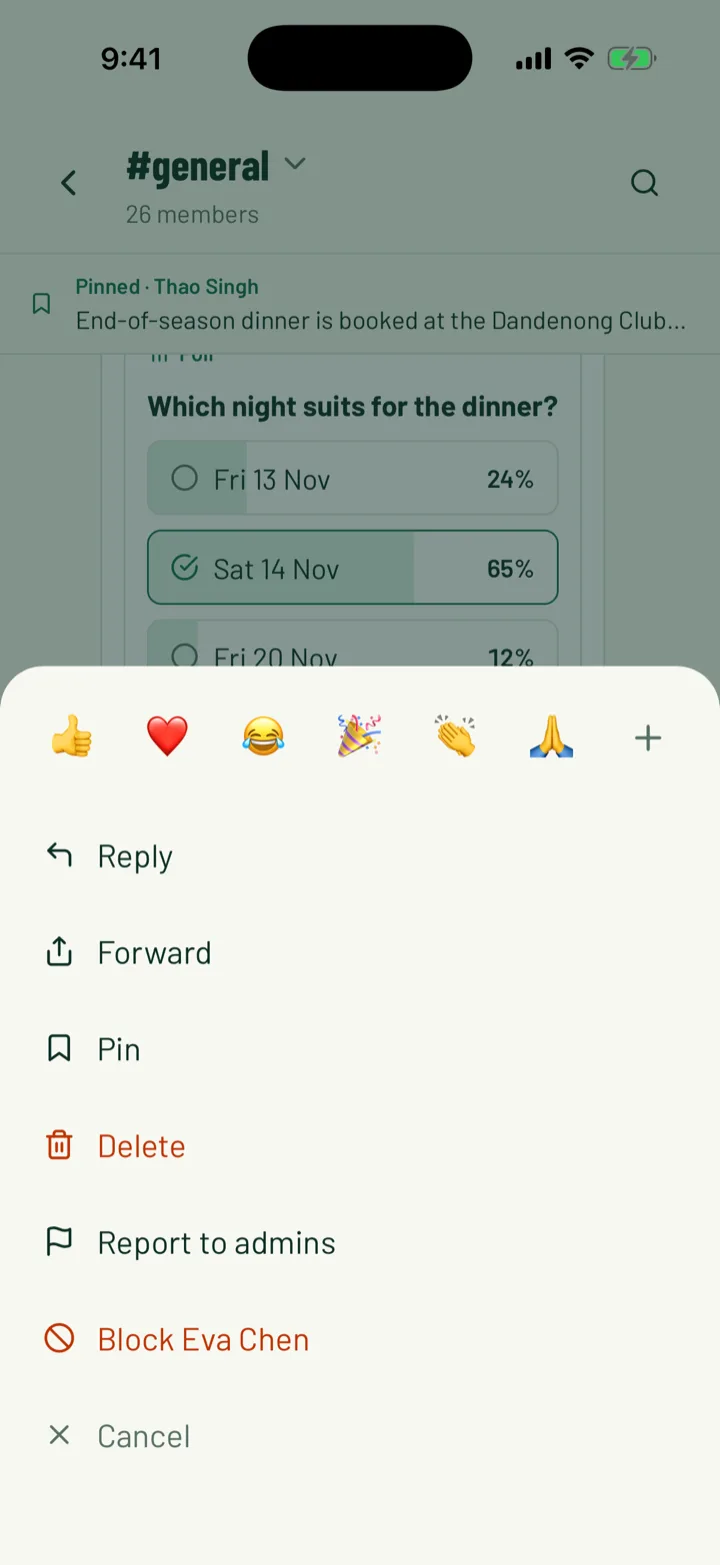
- In a chat, hold your finger on one of their messages and tap Block followed by their name.
- In a direct message, tap the name at the top, then Block followed by their name.
Confirm with Block. You can report someone from the same places. In a direct message, Sportdify reviews the report within 24 hours.
To unblock someone, open Account settings. Under Blocked people, tap the unlock button next to their name, then Unblock.
App: Chat
8Delete your account
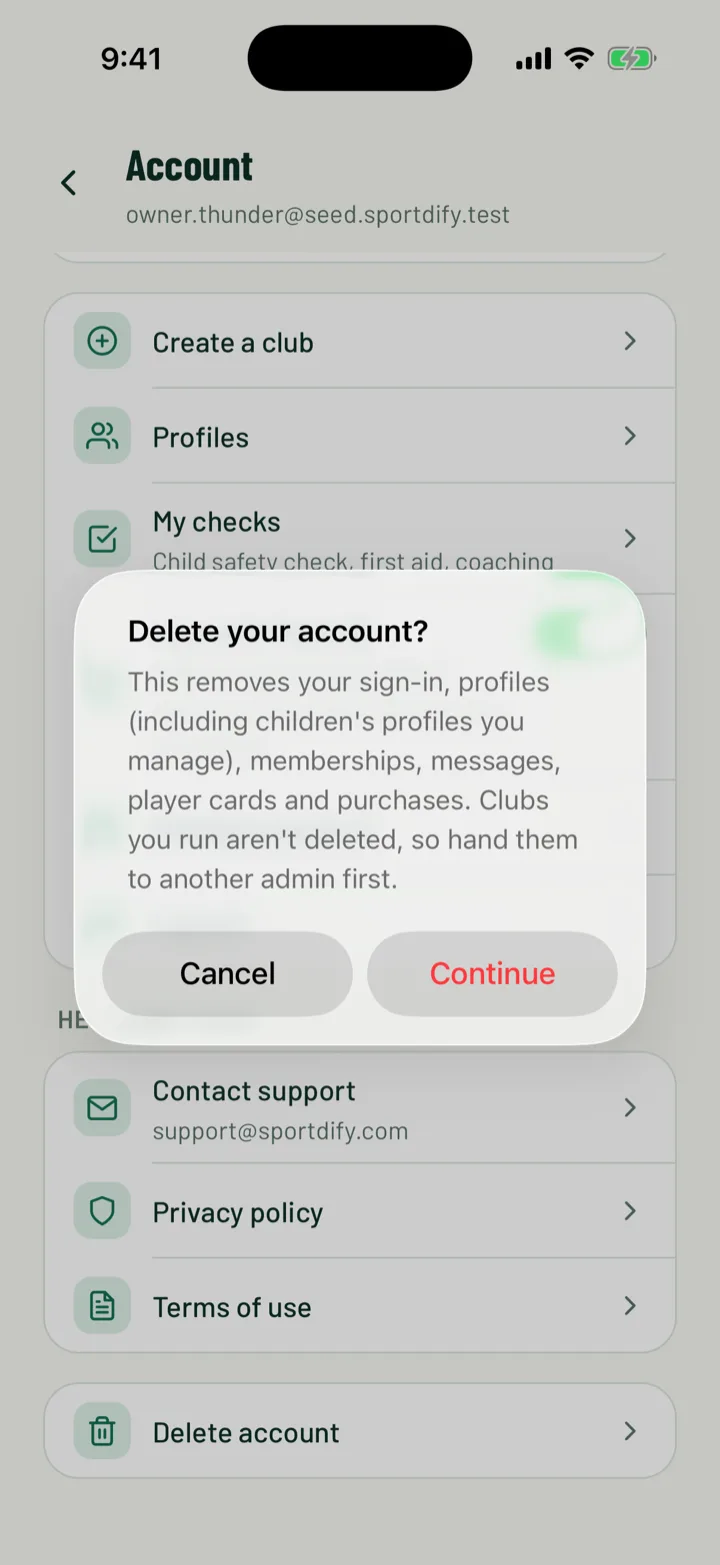
Deleting your account removes your sign-in, your profiles, including children's profiles you manage, memberships, messages, player cards and purchases. It can't be undone.
Clubs you run aren't deleted. Hand them to another admin first.
- In the app, open Account settings and tap Delete account at the bottom. Tap Continue, then Delete account again to confirm.
- On the web, open Settings › Profile. Under Danger Zone, click Delete your Account and confirm.
App: Menu › Account settings › Delete account · Web: Settings › Profile › Danger Zone
Still stuck?
Ask us