Help › Members and fees
Send invoices and track payments
Raise invoices for members, see who has paid, chase overdue fees and record payments made in cash or by transfer.
Watch it first
A short recording from the app, with the waiting cut out. The steps below go through it slowly.
Sportdify raises membership invoices for you from your tiers. You can also create an invoice for anything else a member owes, such as a uniform or a trip. This guide covers both, and how to keep track of who has paid.
1Know which invoices are raised for you
You don't need to invoice membership fees by hand. Sportdify raises an invoice when:
- You approve someone on a paid tier, or add a member to a paid Manual tier
- A recurring tier with Manual collection reaches its next billing date
- You renew a membership and choose Send an invoice for its price
These invoices are sent straight away. If your club is on Pro and passes the app fee to members, the invoice includes it as a separate app fee line.
2Open your invoices
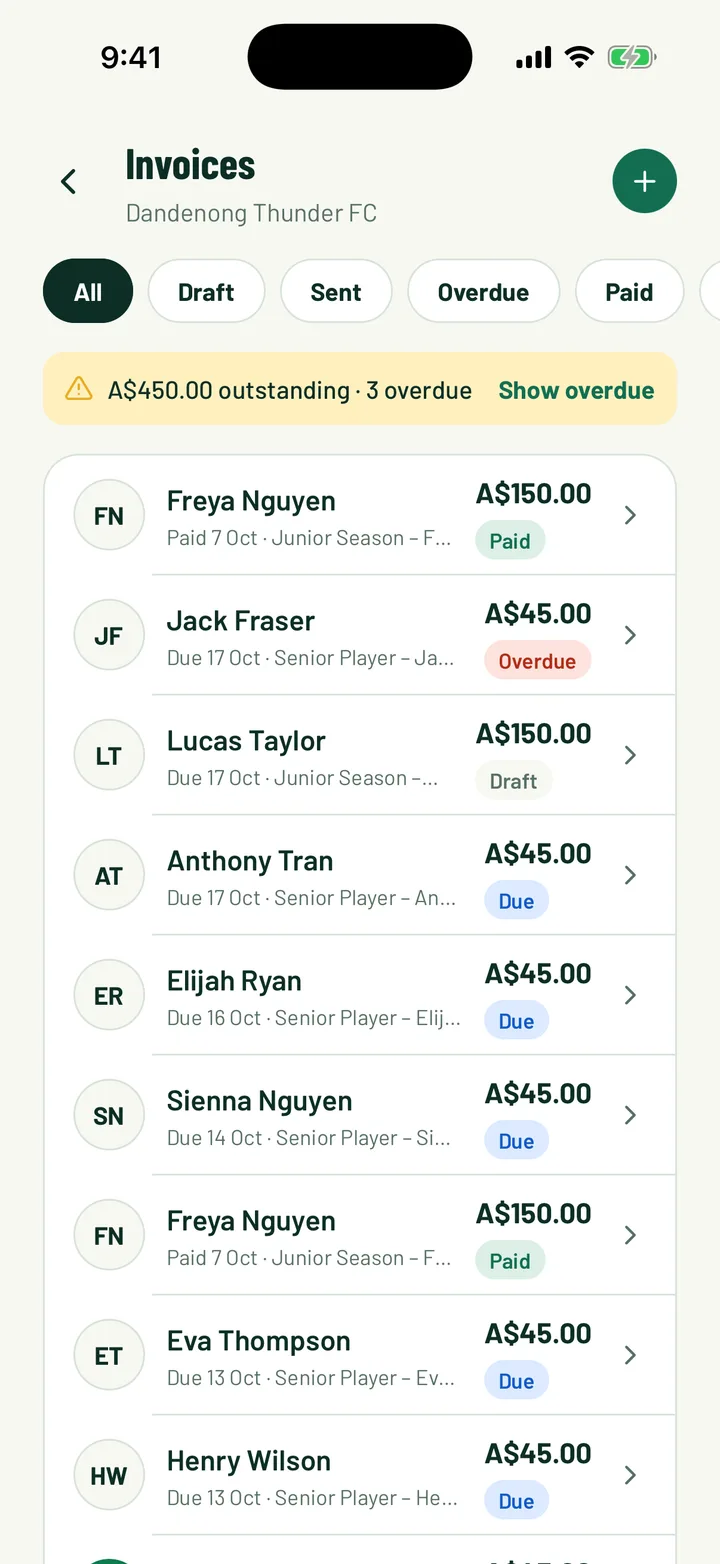
In the app, open the Club tab and tap Invoices. On the web, click Invoices in the sidebar.
You need to be the club owner, an admin, or have the Treasurer club role.
- In the app, filter by All, Draft, Sent, Overdue, Paid or Cancelled. Sent invoices are tagged Due.
- The banner shows how much is outstanding and how many invoices are overdue. Tap Show overdue to see just those.
- On the web, the table shows each invoice's Member, Amount, Status and Due date.
App: Club › Invoices · Web: Invoices
3Create an invoice
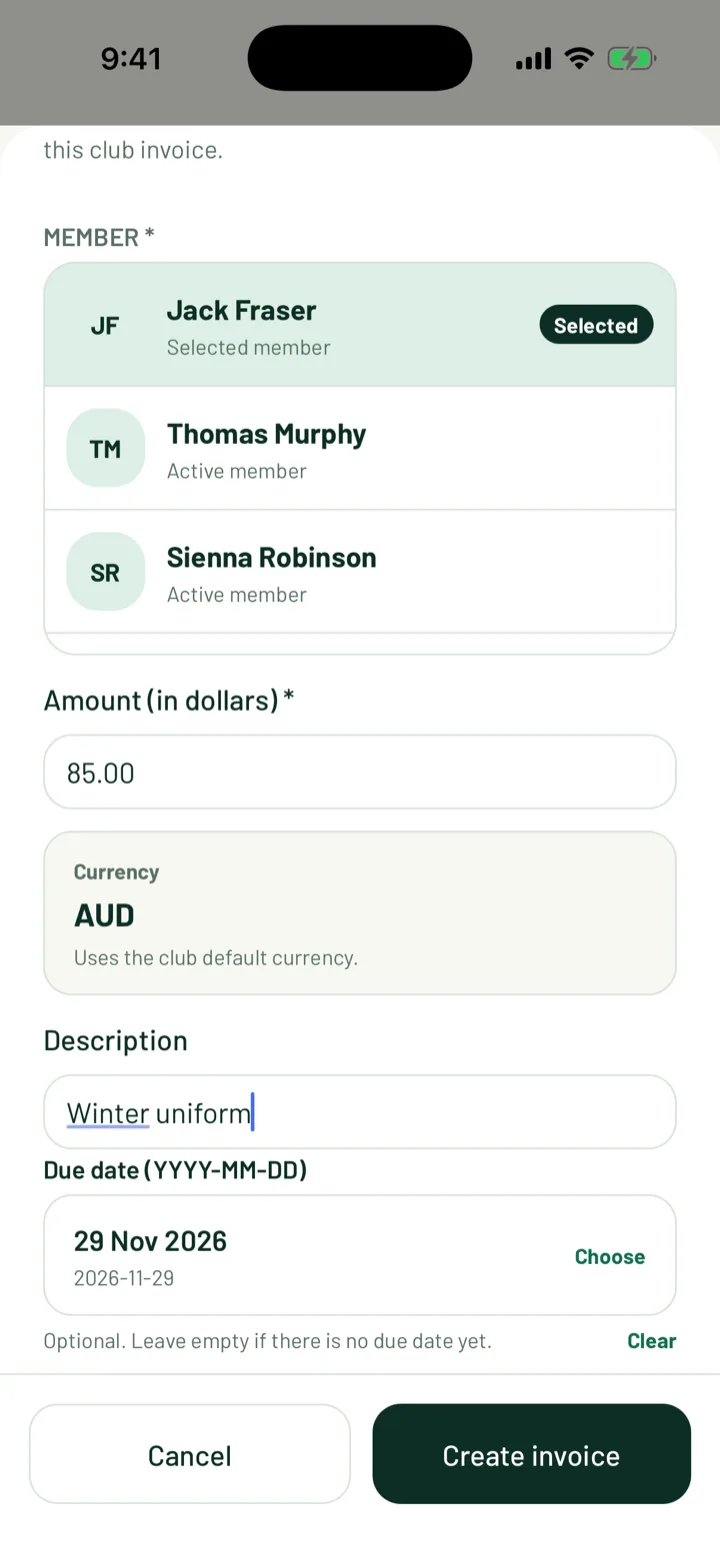
In the app, tap +. On the web, click New invoice.
- Choose the Member. Only active members are listed.
- Enter the amount. The app labels it Amount (in dollars) and the web labels it Amount.
- Add a Description, like Winter uniform.
- Set a due date if there is one. In the app, tap Choose next to Due date (YYYY-MM-DD) and pick the date.
The invoice uses your club's default currency. Save with Create invoice.
App: Invoices › + · Web: Invoices › New invoice
4Mark it as sent
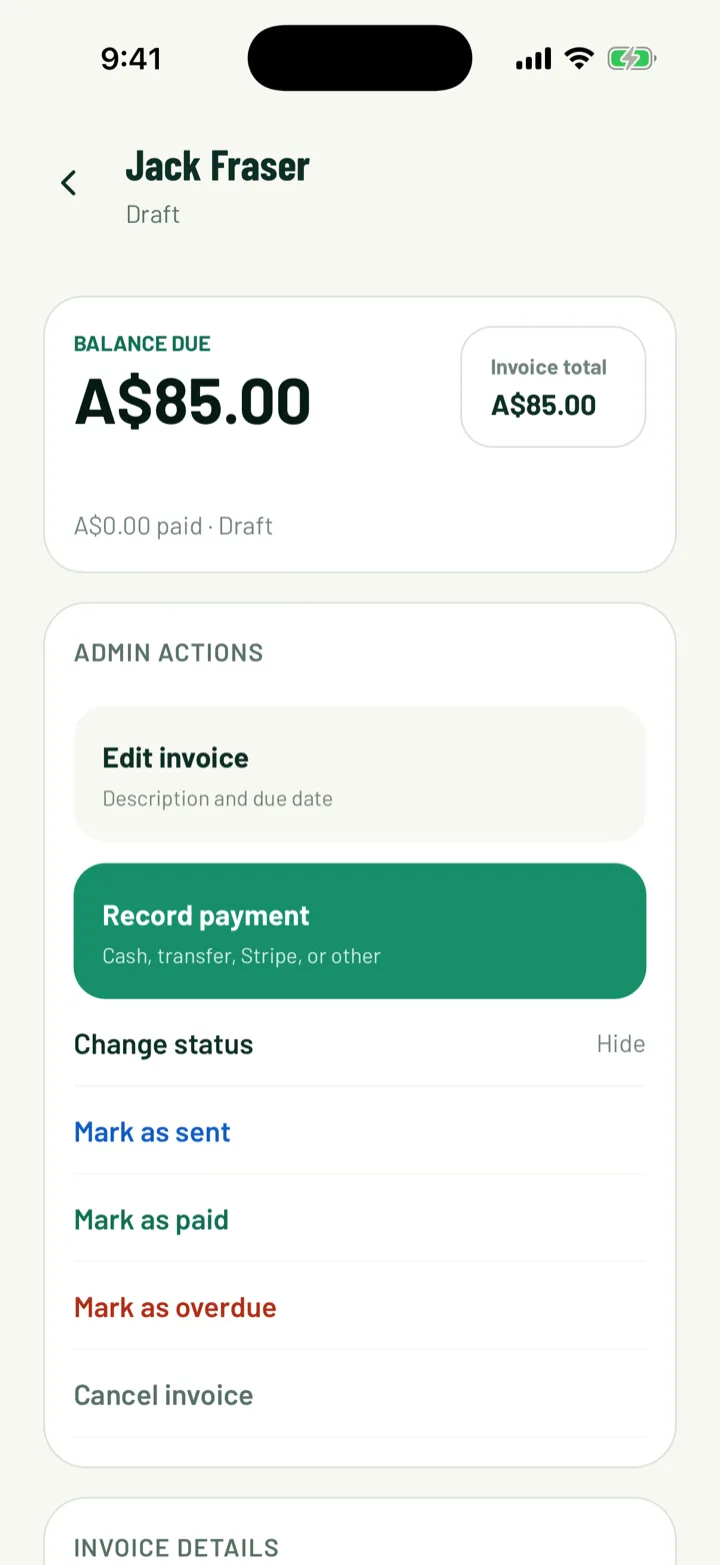
New invoices start as Draft. A draft doesn't count as owing, so it never goes overdue and nobody is reminded about it.
In the app, open the invoice and tap Change status, then Mark as sent. On the web, click Mark as sent on the invoice's row.
App: Invoices › invoice › Change status · Web: Invoices › Mark as sent
5How members pay
Members find their invoices under My invoices. In the app, it's on the Club tab, and in the menu as Invoices. On the web, it's My Invoices.
- For a membership invoice on a Stripe tier, members tap Pay now in the app, or click Pay with Stripe on the web.
- If your club accepts bank debit, they can pay from their bank account too. The invoice then shows that the bank payment is processing. It usually clears in about 3 business days, and it doesn't go overdue while it clears.
- If a card or bank payment fails, the invoice says so and the member can pay again.
Card and bank payments are recorded on the invoice for you, and it moves to Paid.
6Record a cash or bank transfer payment
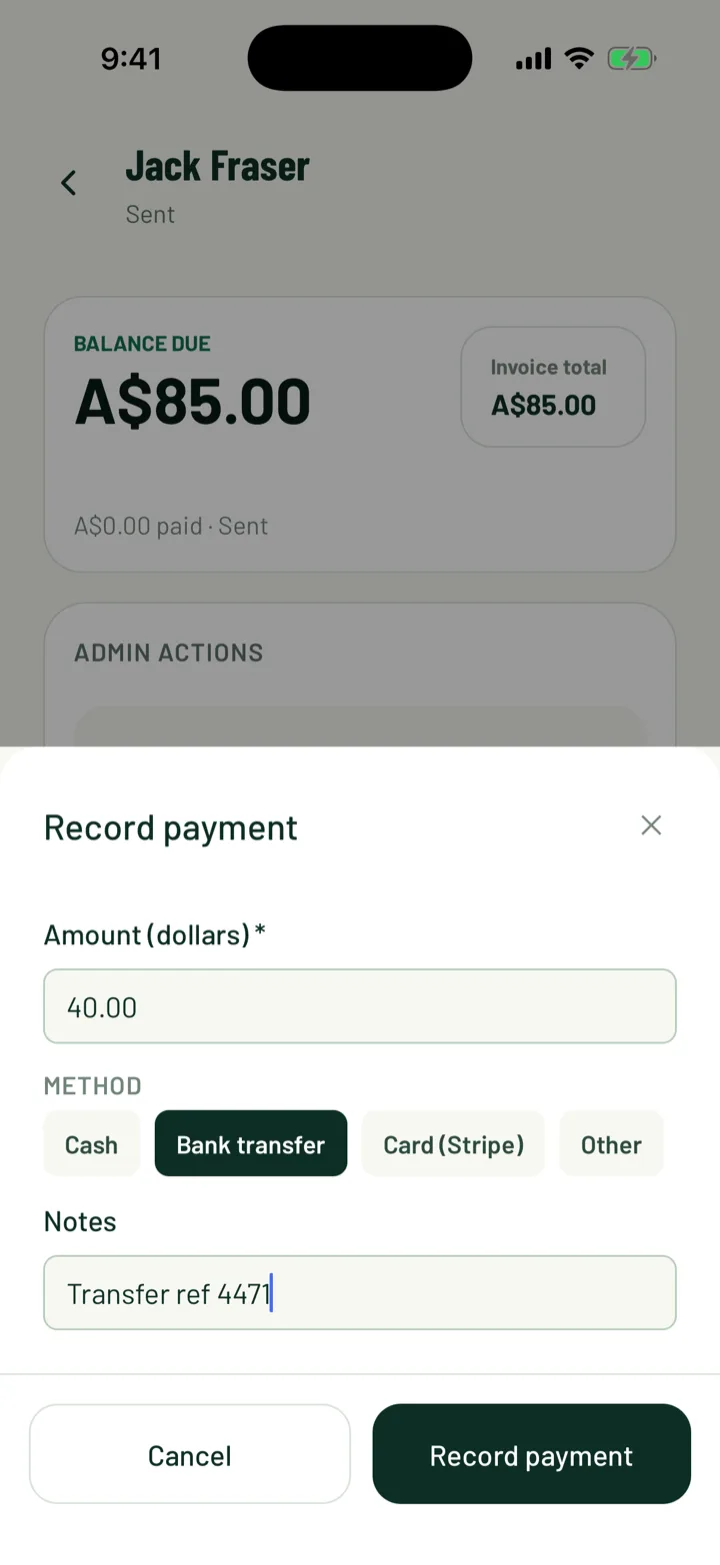
When a member pays you directly, record it on their invoice.
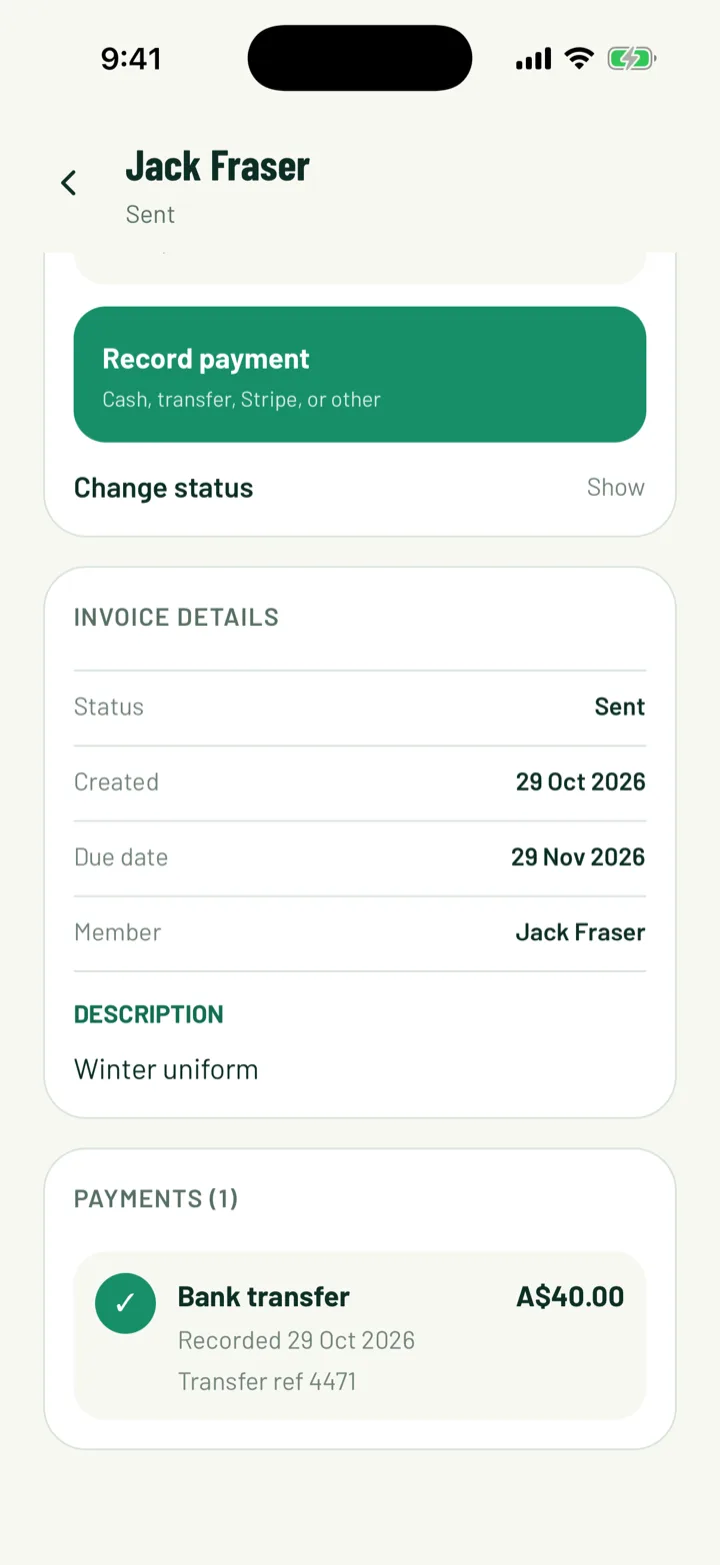
- In the app, open the invoice and tap Record payment. Enter the Amount (dollars), pick a Method (Cash, Bank transfer, Card (Stripe) or Other), and add Notes if you like. Tap Record payment.
- On the web, click Record payment on the invoice's row. Check the Amount paid, which starts at what's still owed. Choose the Payment method, add Notes like a reference number, and click Record payment.
A part payment keeps the invoice open. It turns Paid once its payments add up to the full amount. On the web, the amount column shows how much is paid and how much is left. If you delete a payment, the invoice opens again.
In the app you can also tap Mark as paid under Change status. This doesn't add a payment record, so use Record payment if you want the history.
App: Invoices › invoice › Record payment · Web: Invoices › Record payment
7See who has paid
Each invoice's status tells you where it's at: Draft, Sent, Overdue, Paid or Cancelled.
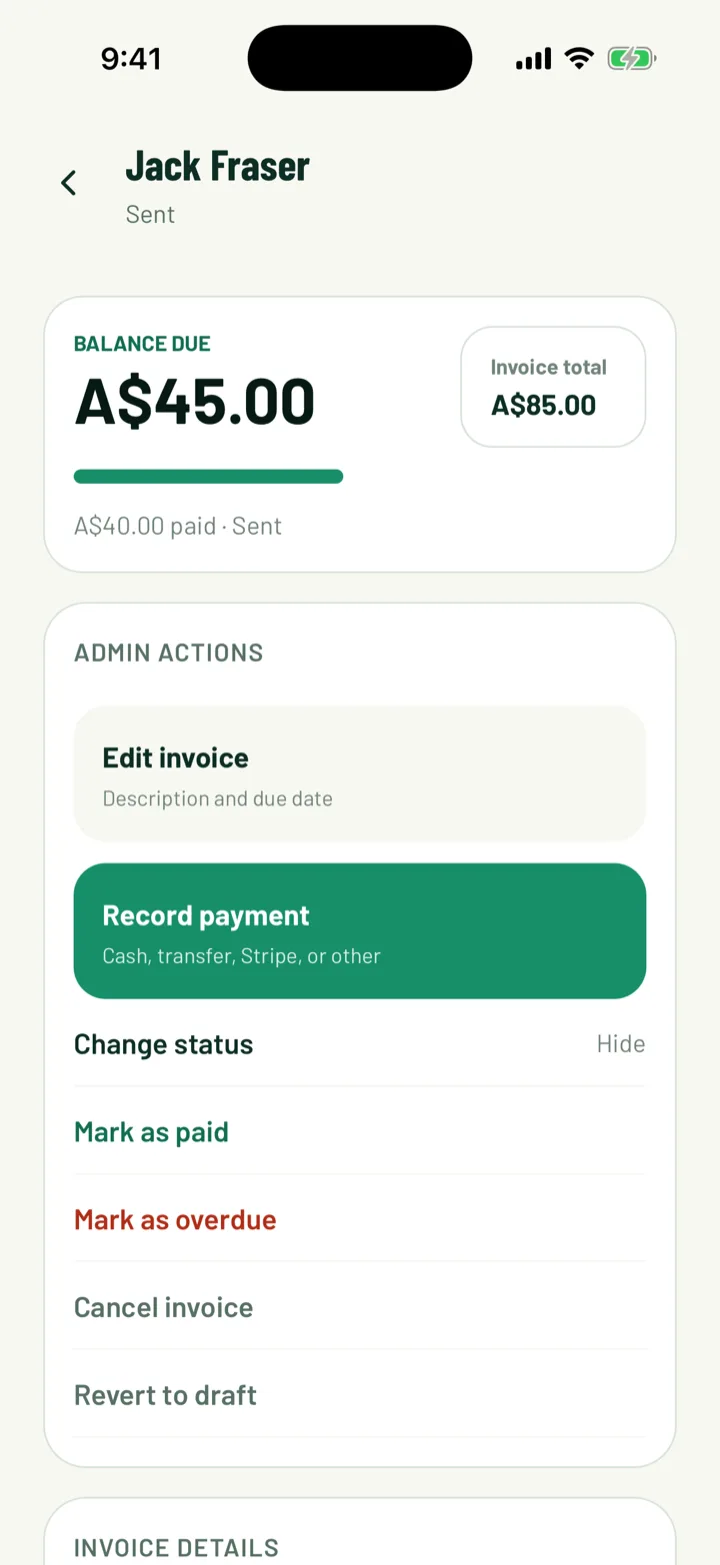
- In the app, open an invoice to see the Balance due, its Invoice details and every payment under Payments.
- On the web, click the arrow next to an invoice to see its payments. Click the bin next to a payment to delete it. The invoice goes back to sent.
- Members can download a Receipt for each payment from My Invoices on the web.
For totals across the club, open Finance on the web. It has tabs for Transactions, Payouts and Statements.
8Chase overdue invoices
A sent invoice with a due date turns Overdue automatically the day after it's due.
Members get automatic reminders by email and push 1, 7 and 14 days after the due date. After that, it's up to you.
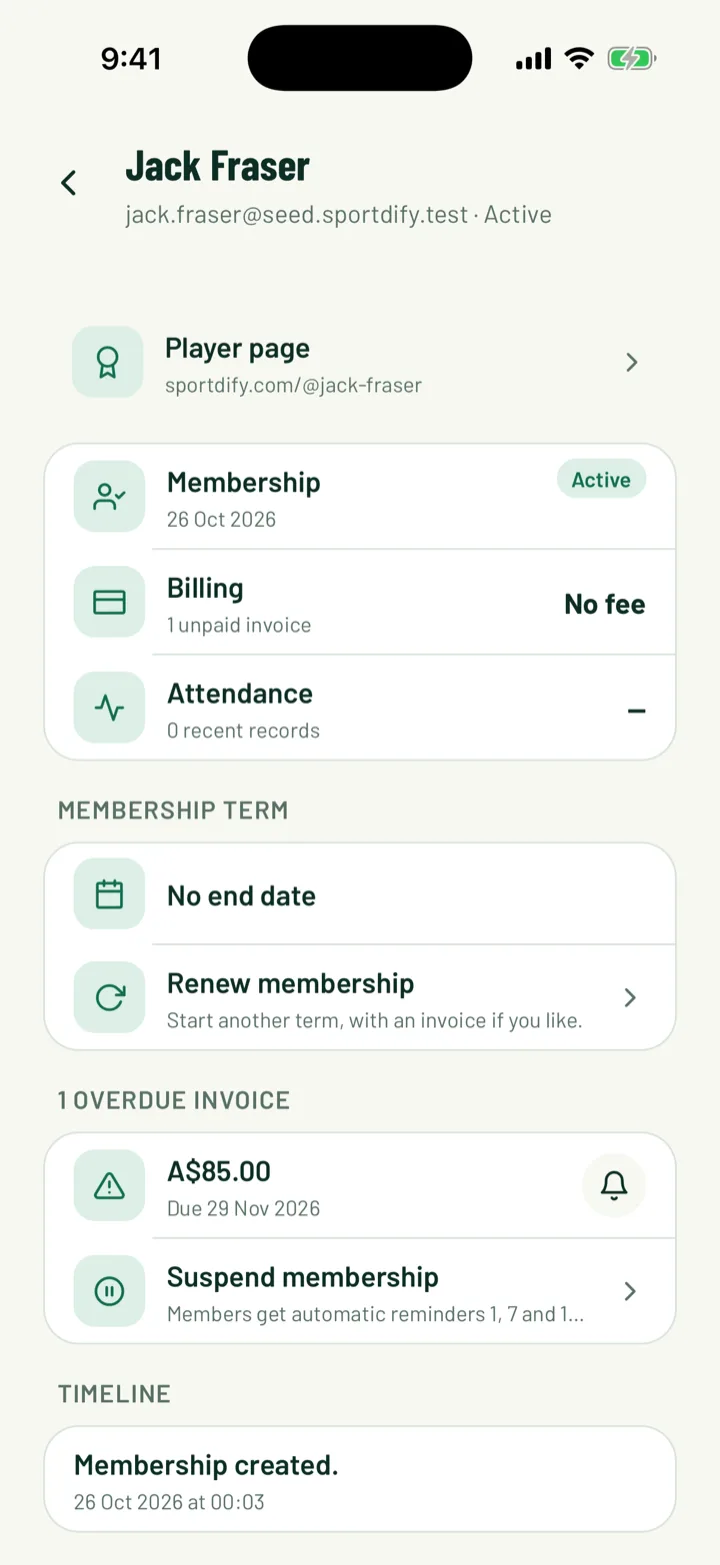
To send another reminder, open the member's page. On the web, the Membership term card lists their overdue invoices. In the app, they're in their own section below Membership term, such as 1 overdue invoice.
- On the web, click Remind next to the invoice.
- In the app, tap the bell next to the invoice.
You can remind a member about the same invoice once every 24 hours. Only overdue invoices can be reminded. You need to be the owner or an admin, or have the Registrar or Treasurer club role.
If they still don't pay, Suspend membership is in the same place.
App: Club › Members › member · Web: Members › member
9Edit or cancel an invoice
In the app, open the invoice.
- Tap Edit invoice to change the Description and due date, then Save changes.
- To call off an invoice, tap Change status, then Cancel invoice. Confirm with Cancel invoice. The invoice history stays.
- Revert to draft takes a sent invoice back to draft.
A paid invoice can't change status. Delete its payment first if it was recorded by mistake.
App: Invoices › invoice
Still stuck?
Ask us