Help › Friendlies and guests
Game fees
Charge guest players and visiting clubs a fee for a friendly, let them pay by card or pay you directly, and track every payment in Game payments.
Watch it first
A short recording from the app, with the waiting cut out. The steps below go through it slowly.
A game fee is what someone outside your club pays to play in one of your friendlies. You can charge each guest player you accept, or the club whose team you play. Players pay in the app or on the web, and your treasurer tracks it all in one list.
Game fees are set in the app. Owners, admins and the Treasurer club role can see and manage the payments.
1Charge guest players
Open a friendly and tap Edit game, or start a new one with New game and choose Friendly. Guest players are only for friendlies.
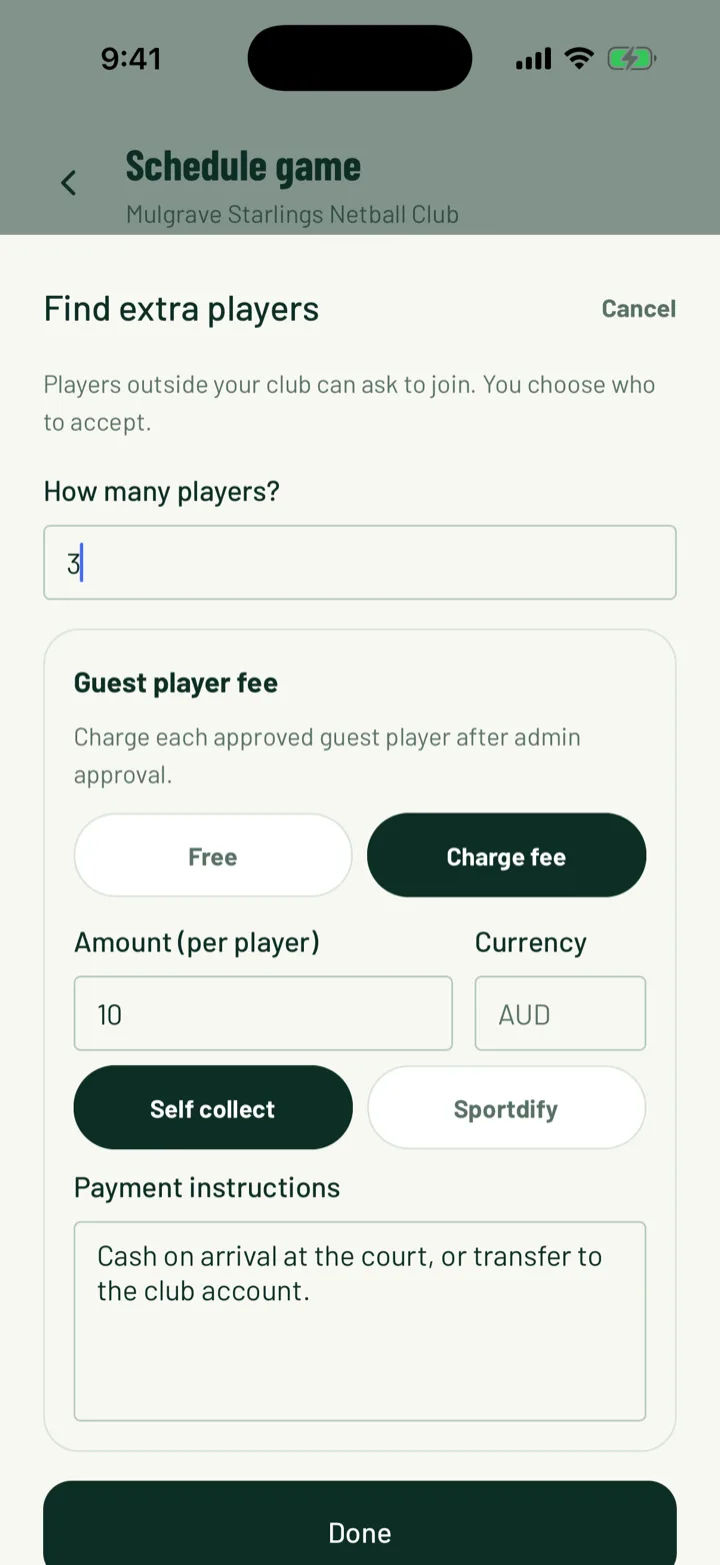
- Under Open to others, turn on Find extra players. A sheet opens.
- Set How many players?
- Under Guest player fee, choose Charge fee. Leave it on Free for no fee.
- Enter the Amount. It's per player, in your club's currency.
- Choose how you're paid: Sportdify for card payments in the app, or Self collect to collect it yourself.
- For Self collect, add Payment instructions, such as cash on arrival or your bank details.
- Tap Done, then save the game.
You can also open guest spots from the Game saved screen with Open to guest players.
If your club is set up to collect all payments itself, there's no choice. You'll see The club collects this fee itself. Add how to pay below.
App: game › Game operations › Edit game
2Charge a visiting club
To charge the club you play, list the game so other clubs can ask to play you.
- Choose Friendly, then tap Opponent and pick Find me an opponent.
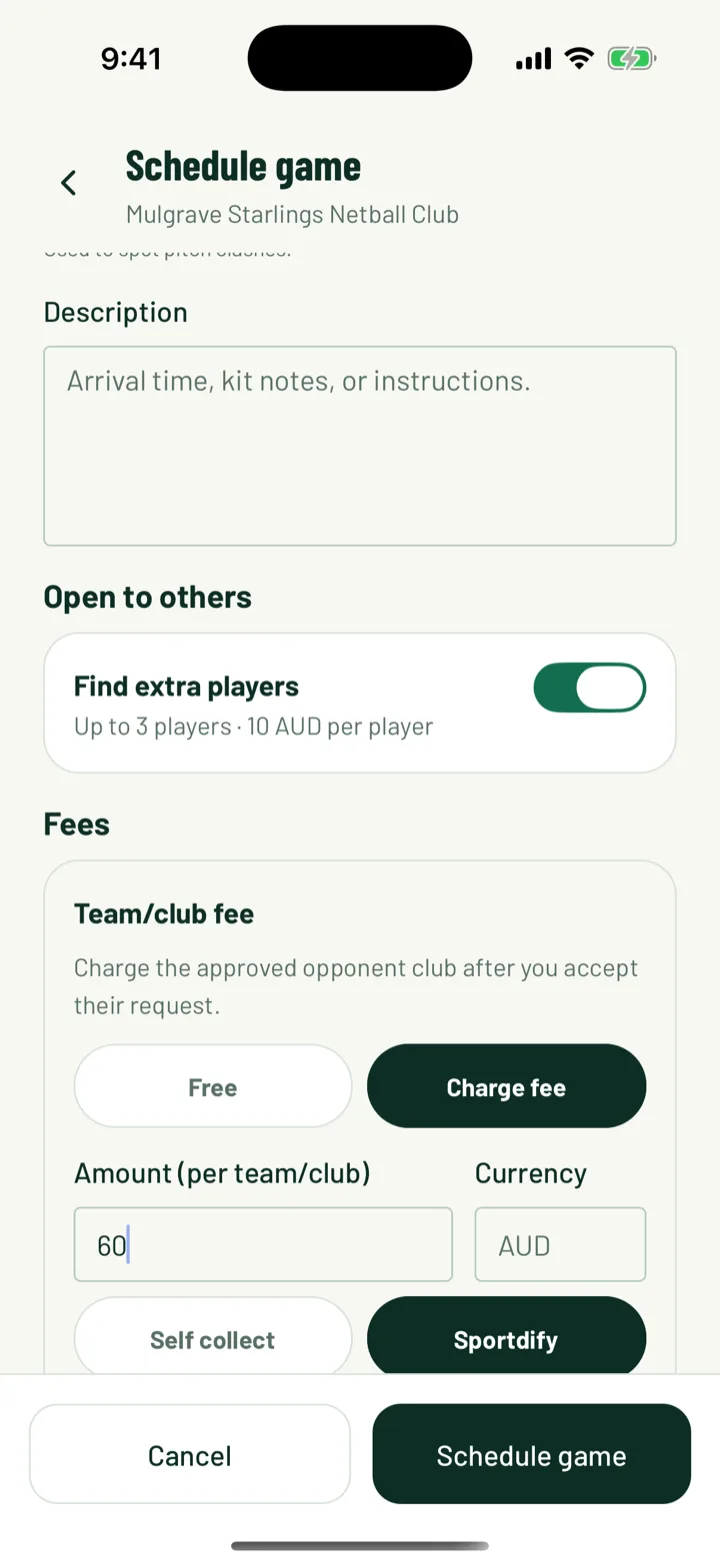
- A Fees section appears. Under Team/club fee, choose Charge fee.
- Enter the Amount, per team or club, and choose Sportdify or Self collect as above.
The fee is charged to the club you accept, after you accept their request.
App: Club › New game › Opponent
3Accept a request that has a fee
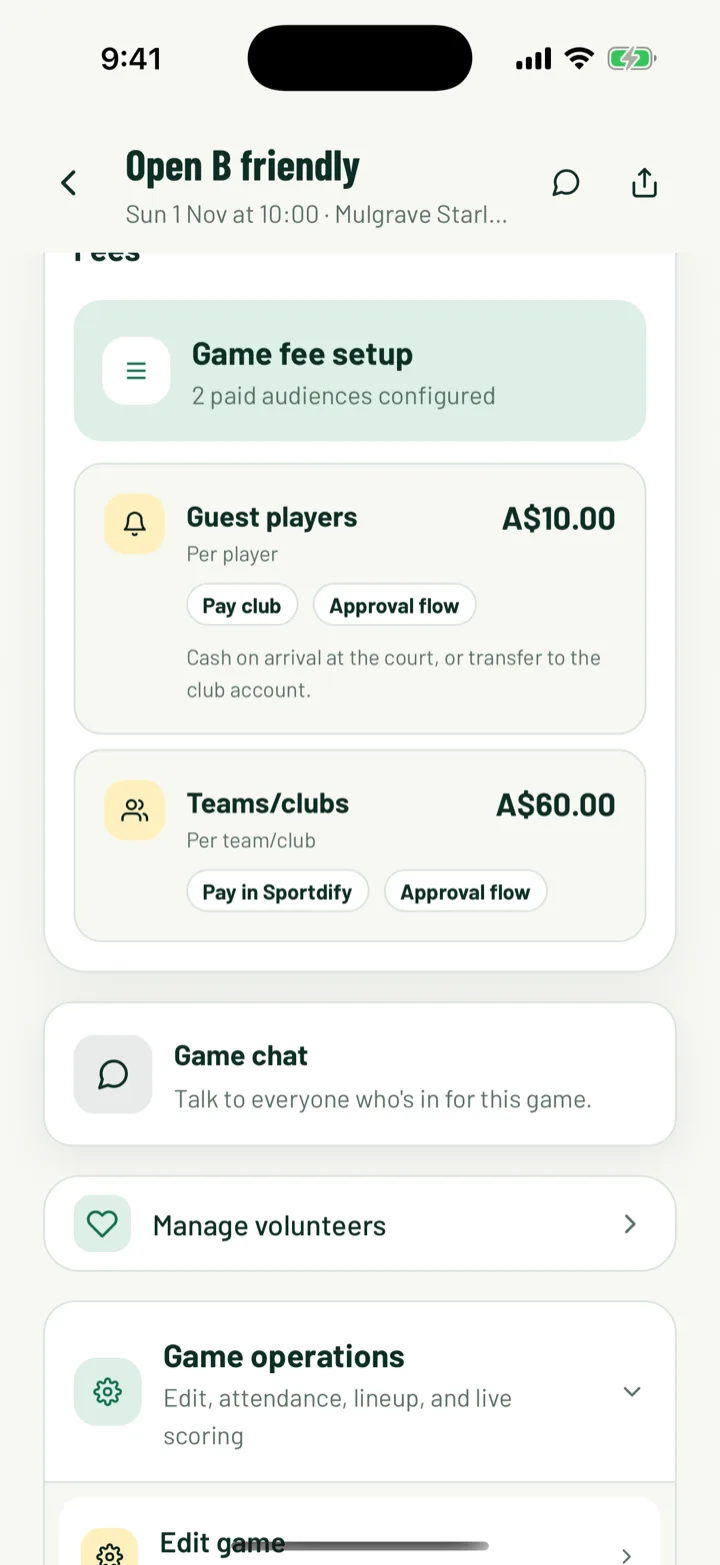
When you accept a guest player or a club, their request becomes Payment required. Their spot isn't confirmed until the fee is settled.
- With Sportdify, they pay by card and the spot confirms itself.
- With Self collect, they see your instructions and pay you directly. You then mark it paid.
Guest-player requests show on the game's Requests tab in the app. Club requests show in Matchmaking.
4How players and clubs pay
A guest player sees Pay to confirm next to the game on their app's Home tab.
- In the app, they open the request. Under Payment required, they tap Pay in Sportdify, or View payment instructions for a self-collected fee. Refresh status checks for the payment if it doesn't update.
- On the web, they open My Requests, choose the request and click Pay with Stripe.
A visiting club's admin opens Matchmaking in the app, then Requests, and taps Pay fee on the request.
Game fees are paid by card only, even if your club accepts bank payments for invoices.
5Track game payments
In the app, open the Club tab and tap Game payments under Money. It's also in the menu.
- Filter by All, Pending, Paid, Manual or Sportdify.
- Each charge shows the payer, the game and its status.
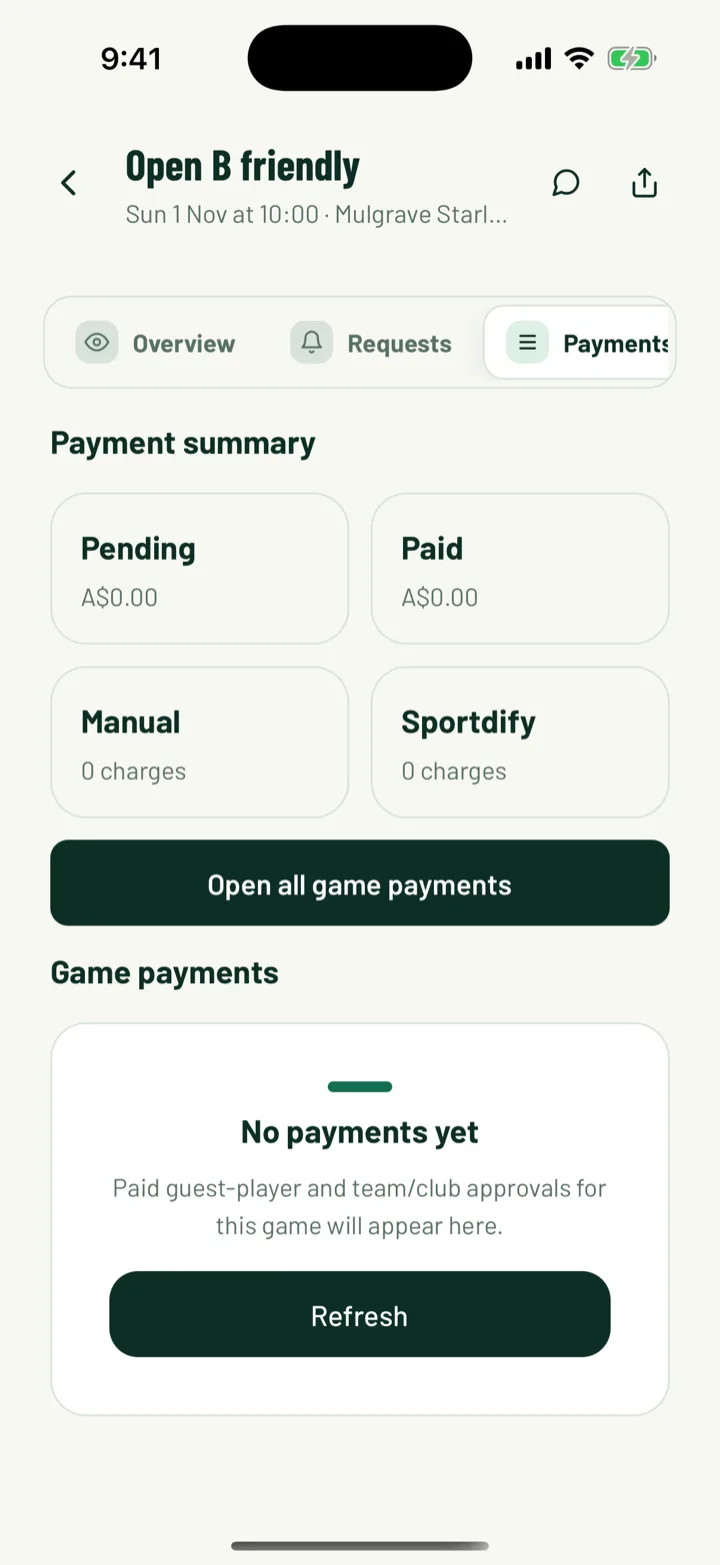
For one game, open it and tap the Payments tab. Payment summary counts pending, paid and manual charges. Open all game payments takes you to the full list.
On the web, card payments for game fees show in Finance under Transactions, marked Game fee.
App: Club › Game payments · Web: Finance
6Mark paid, waive or undo a charge
Tap a charge to open Payment detail. Under Admin actions:
- Mark paid confirms you received a self-collected payment, which confirms their spot. It's only for Self collect fees.
- Waive fee drops the fee and accepts the request.
- Cancel approval cancels the charge and puts the request back to pending.
- Refresh Stripe status checks a card payment that hasn't updated.
For a visiting club, you can also tap Waive fee or Mark paid on their request in Matchmaking.
The Payout section shows the Gross, Stripe fee, Platform fee and Net payable for card payments.
7Cancel a game with paid fees
If you cancel or delete a game, Sportdify pays back fees that were paid by card, in full. Each payer gets a notification saying Game fee refunded. It can take 5 to 10 days to show.
Fees paid by hand aren't refunded for you. Pay those back yourself.
On the web, the Cancel game? message tells you how many fees will be refunded to cards, and how many you need to pay back.
Still stuck?
Ask us