Help › Friendlies and guests
Find a friendly
Post an open friendly for other clubs to ask for, find another club's open slot, and send, accept or decline friendly requests.
Watch it first
A short recording from the app, with the waiting cut out. The steps below go through it slowly.
Matchmaking helps clubs on Sportdify find each other for friendlies. You can post a game and let other clubs ask to play you, or ask to play someone else's. Club admins arrange friendlies. Other members see Friendlies between clubs are arranged by club admins.
1Post an open friendly
An open friendly is a game with no opponent yet. Other clubs see it and ask to play you.
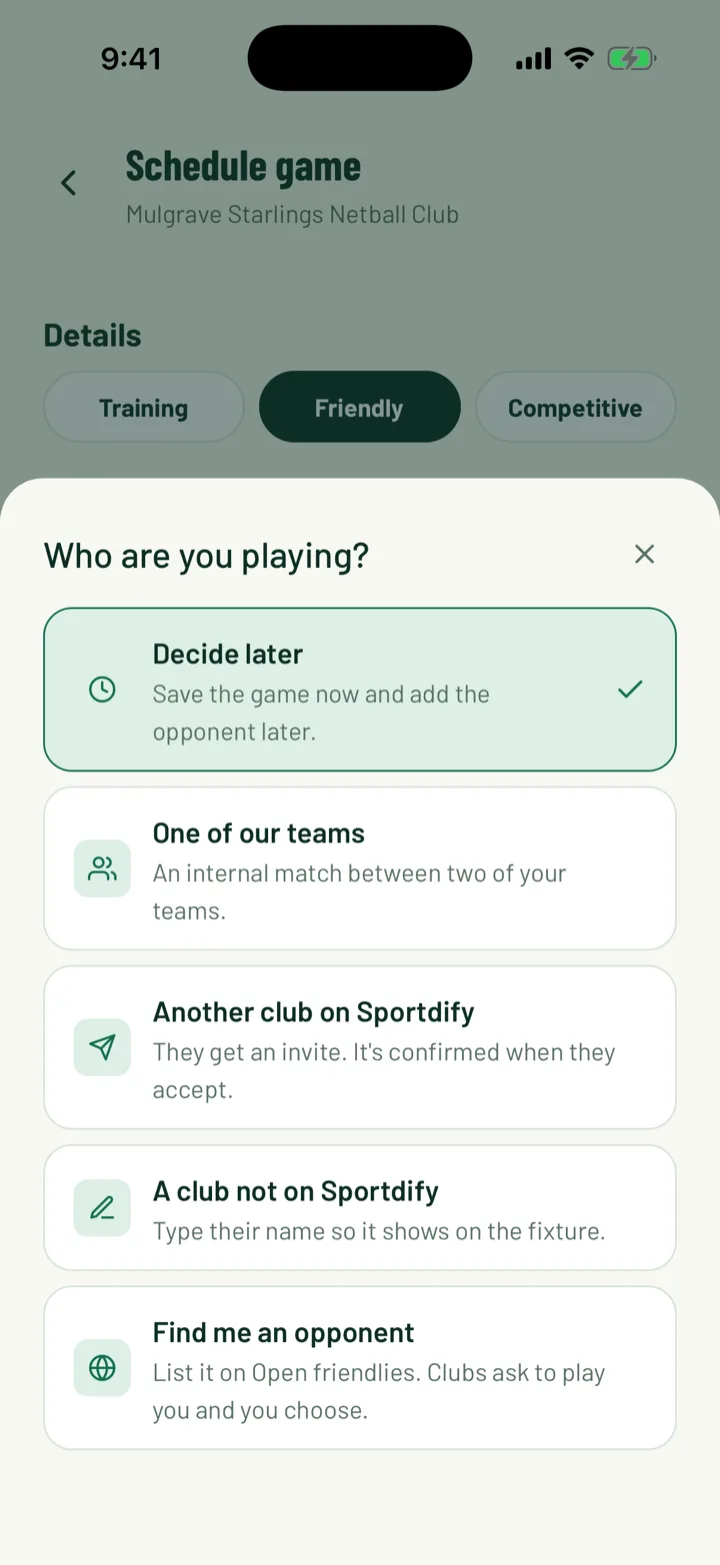
In the app, tap New game on the Club tab. Choose Friendly, then tap Opponent and pick Find me an opponent. It's listed on open friendlies, clubs ask to play you, and you choose.
You can also start from Discover. Tap +, then Find opponent.
On the web, click New game and choose Friendly. Under Opponent, pick Open slot — other clubs can ask to play you. This option is only for one-off friendlies, not repeating ones.
Set the date, time and venue as for any game, then save.
App: Club › New game · Web: Games › New game
2Charge a fee (optional)
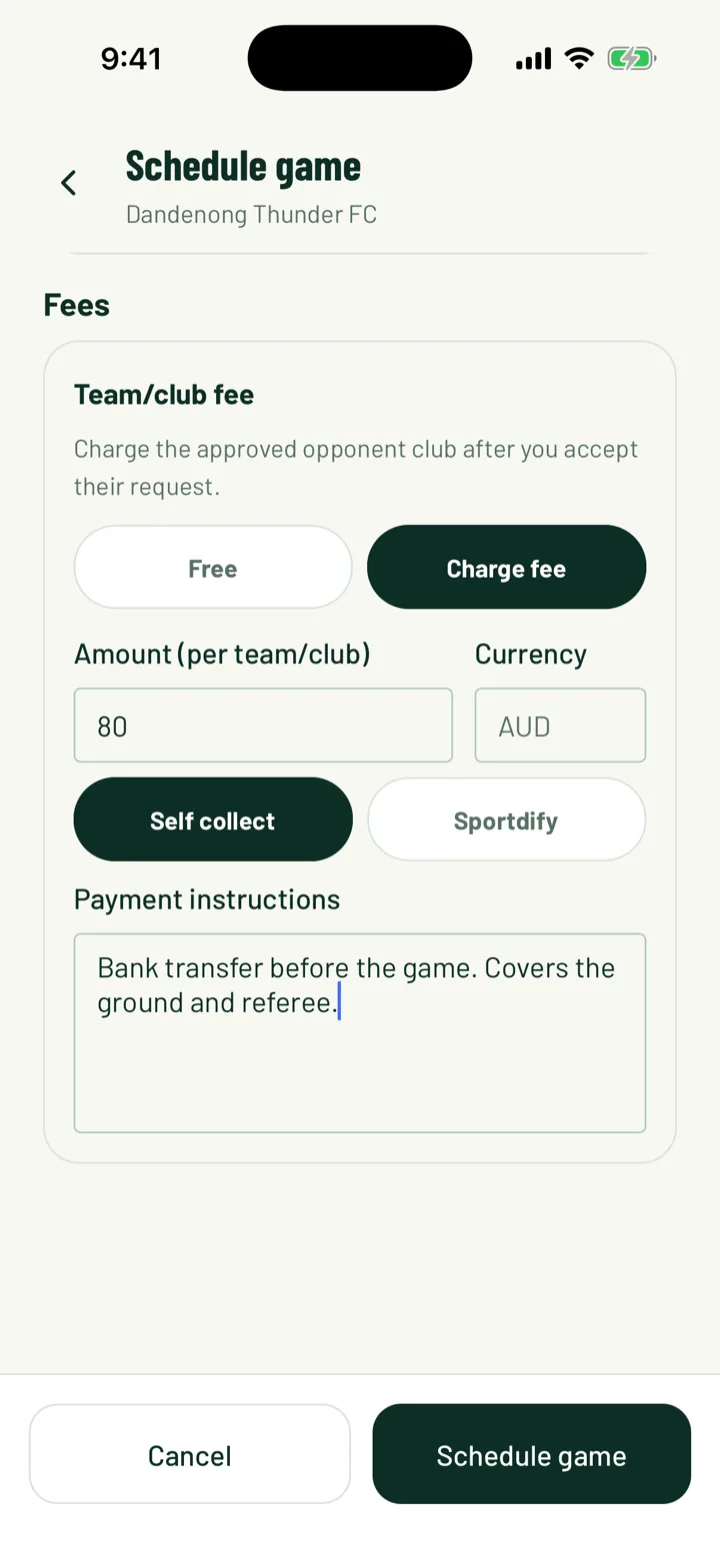
In the app, once you pick Find me an opponent, a Fees section appears with Team/club fee. You charge the other club after you accept their request.
- Leave it on Free, or choose Charge fee.
- Enter the Amount and check the Currency.
- Choose Sportdify to have them pay by card in the app, or Self collect to collect it yourself.
- For Self collect, add Payment instructions, such as bank transfer details.
App: Club › New game › Fees
3Find an open friendly
In the app, open the Club tab and tap Matchmaking under Games. It's also in the menu. Stay on Find friendlies.
- Open friendly slots lists other clubs' open games. Search with Search clubs or venues.
- Clubs you could play lists clubs that play your sport. Tap one to open its club page.
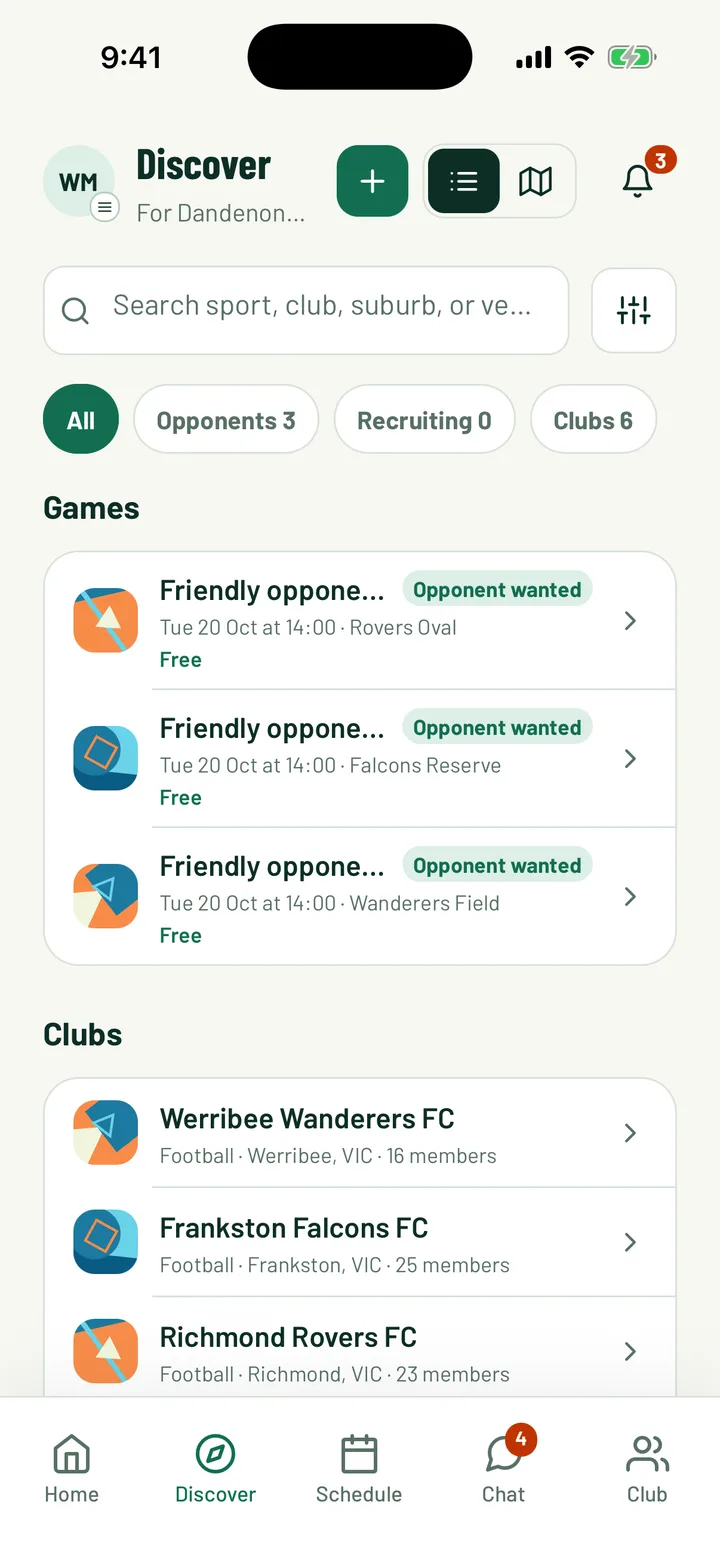
On Discover, admins also see the Opponents filter. Games looking for a club show Opponent wanted. Tapping one opens Matchmaking.
On the web, open Matchmaking. The Open friendlies tab lists open games. Browse clubs lists clubs.
App: Club › Matchmaking › Find friendlies · Web: Matchmaking › Open friendlies
4Ask to play
In the app, tap an open slot. Add a short message for the other club if you like, then tap Send request. The slot then shows Requested.
On the web, click Request to join on the slot. Add a Message if you like, then click Send request.
Your request shows in the other club's received requests.
App: Matchmaking › Find friendlies · Web: Matchmaking › Open friendlies › Request to join
5Invite a club directly
Already know who you want to play? Pick them as the opponent instead of posting an open slot.
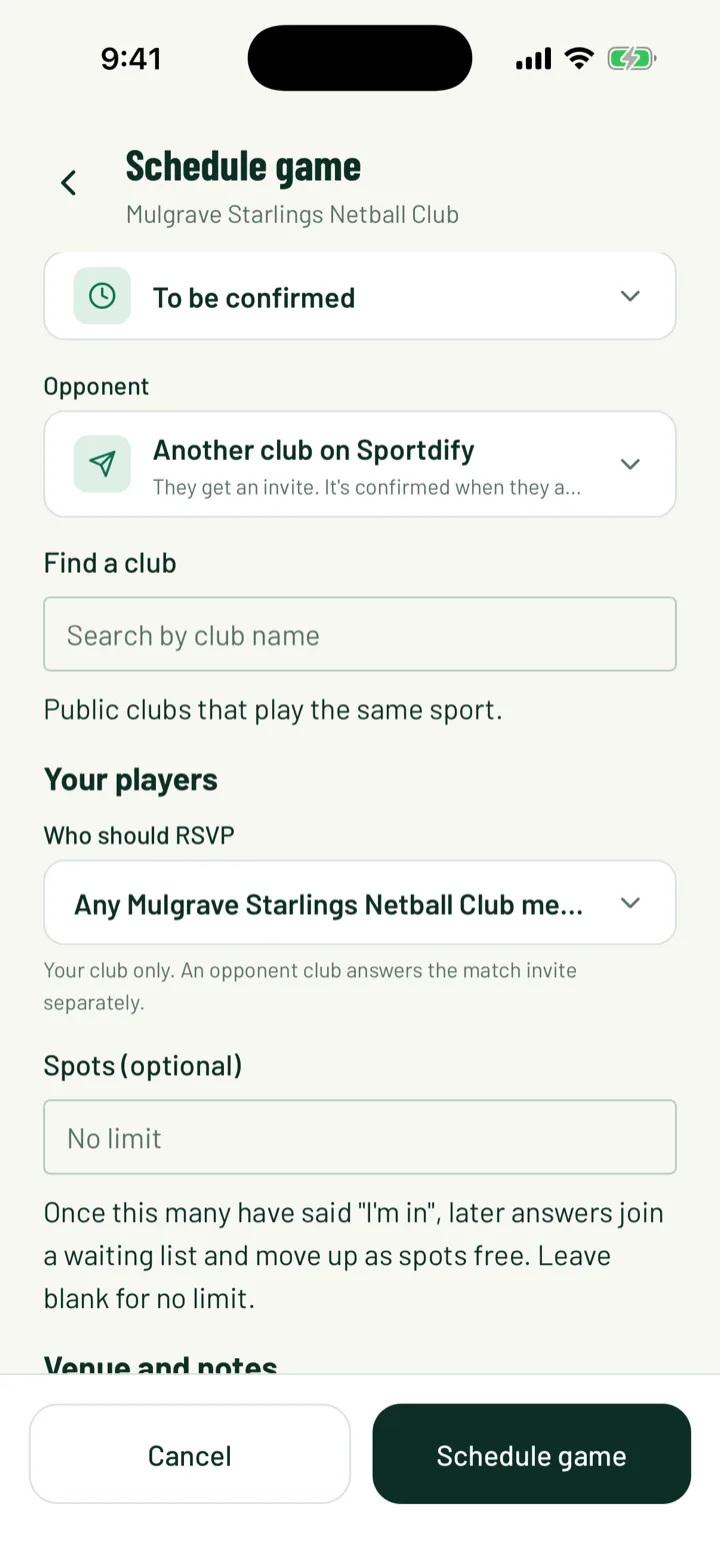
- In the app, choose Another club on Sportdify. They get an invite, and the game is confirmed when they accept. Use Find a club to search for them.
- On the web, choose A club on Sportdify — they get an invite.
The invite reaches the other club in their Matchmaking requests, where they accept or decline it.
App: Club › New game › Opponent · Web: Games › New game › Opponent
6Accept or decline requests
New requests show on the Club tab under Needs attention as Friendly requests. Tap it to open Matchmaking.
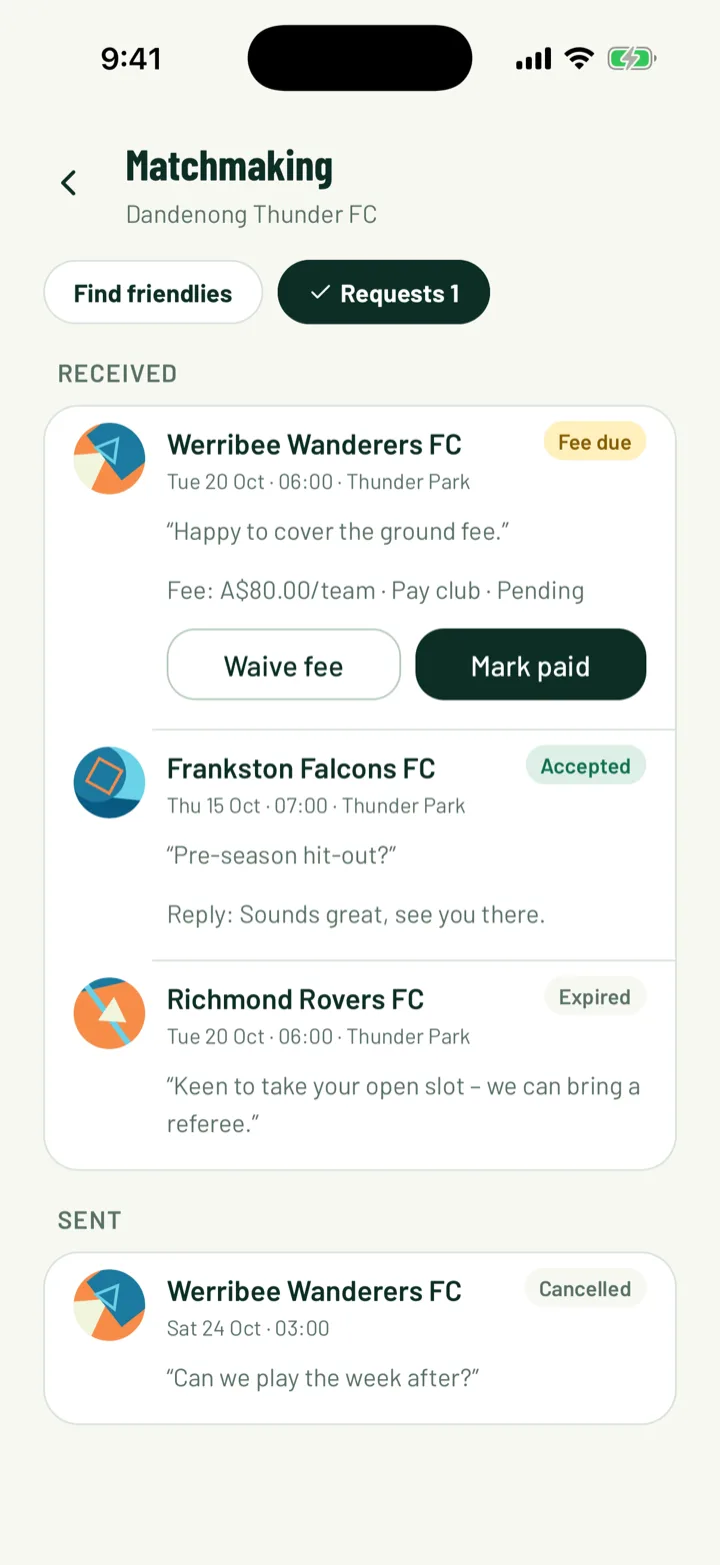
In the app, tap Requests. Requests from other clubs are under Received. Each one shows the club, date, venue and their message.
- Add a Reply (optional). The other club sees it.
- Tap Accept or Decline.
On the web, open the Received tab. Click Accept or Decline. When you accept, you can add a Response note. If the game has no venue yet, you'll be asked to choose one.
Once you accept, the slot is no longer open to other clubs. Both clubs get the game in their schedule, with each other as the opponent. If there's a fee, this happens once the fee is settled.
App: Club › Matchmaking › Requests · Web: Matchmaking › Received
7Settle the fee
If the friendly has a fee, an accepted request shows Fee due until it's paid.
- The club that asked taps Pay fee in Sent to pay by card.
- For a fee you collect yourself, the other club pays you directly. Tap Mark paid once you have it.
- Tap Waive fee to let them off.
App: Club › Matchmaking › Requests
8Track or cancel your requests
Sent lists the requests your club has made. Each shows a tag: Pending, Fee due, Accepted, Declined, Cancelled or Expired. The web shows Waiting for reply instead of Pending.
To withdraw a request, tap Cancel request in the app, or click Cancel on the web.
On the web, My open slots lists the open friendlies your club has posted.
App: Club › Matchmaking › Requests › Sent · Web: Matchmaking › Sent
Still stuck?
Ask us