Help › Lineups and live scoring
Build and share a lineup
Pick a formation, fill the starting side and bench, tell players where they stand, then make subs during the game.
Watch it first
A short recording from the app, with the waiting cut out. The steps below go through it slowly.
A lineup tells each player whether they're starting, on the bench or not selected. Build it before the game, share it, and the same lineup drives the Players view when you score live.
1Get the squad ready
The lineup lists the players on each team in the game. Set a few details on the roster first and the lineup does more of the work.
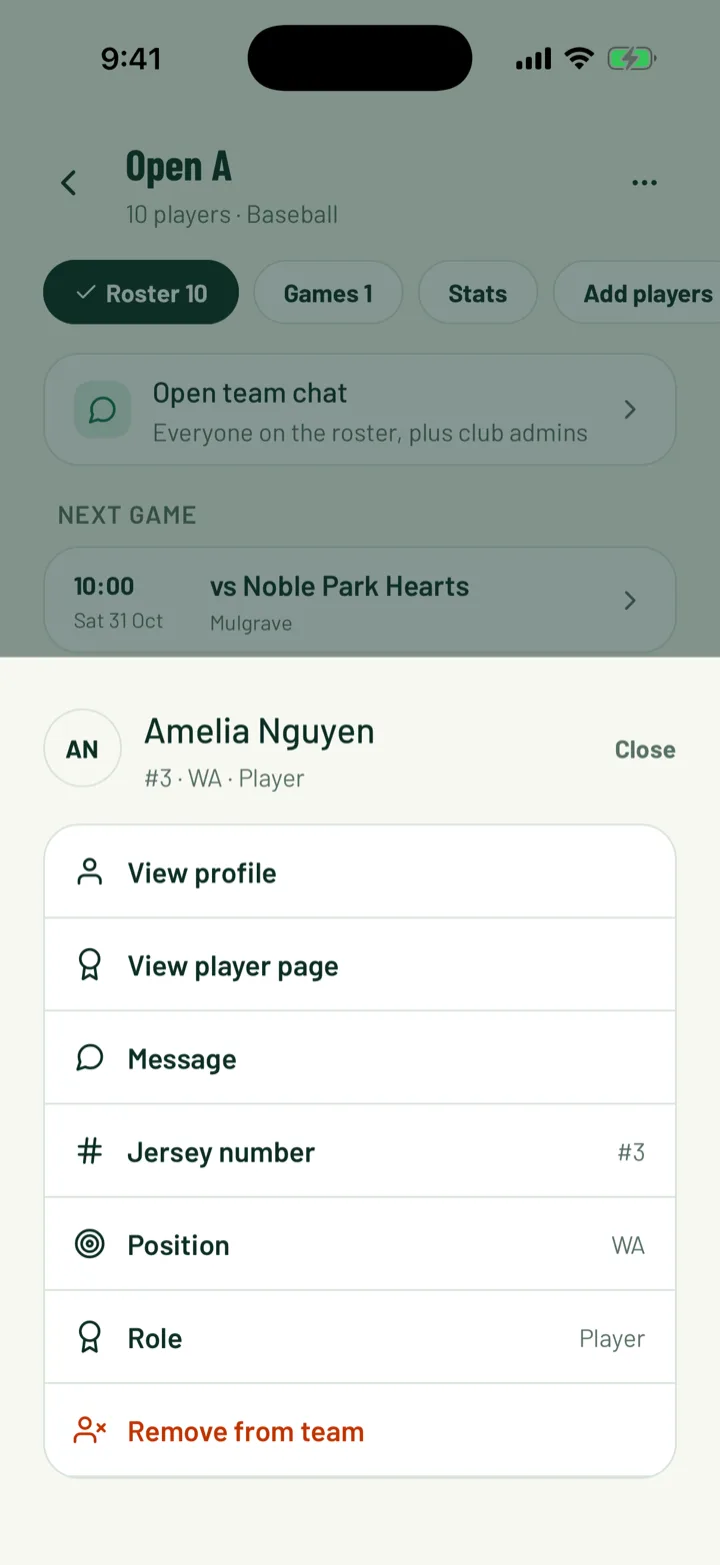
- In the app, open the team and tap a player on the roster. Set their Position and Jersey number.
- Auto-fill uses the position to put players in the right spot, and the number shows on their marker.
- Ask players to answer the RSVP. The lineup tags each player In, Invited or Out from their answer.
Lineups work on any game that has a team, including training. If neither side is one of your teams, you'll see No teams assigned.
App: Club › Teams › team
2Open the lineup
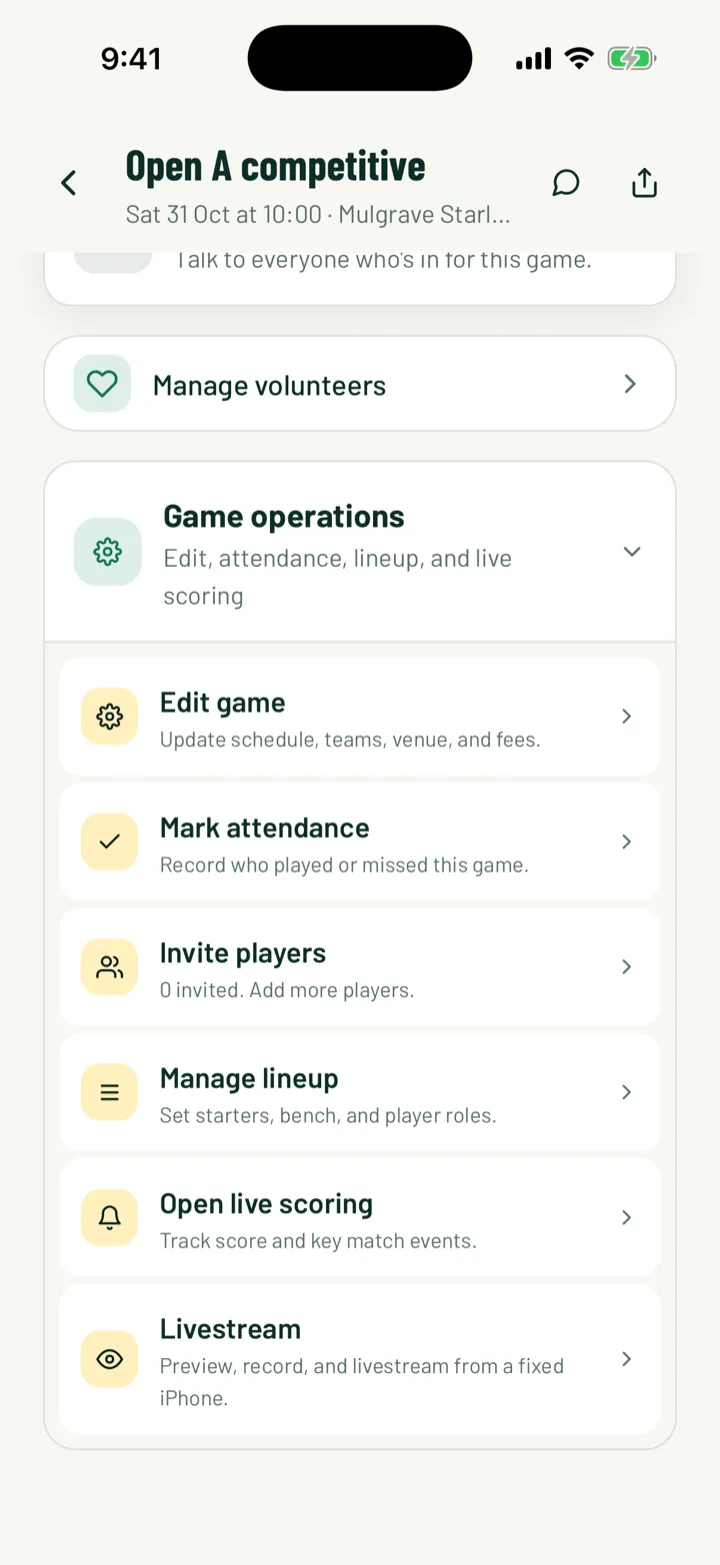
In the app, open the game, expand Game operations and tap Manage lineup. On the web, open the game and click Lineup editor.
If both teams in the game are yours, pick the team at the top. Each team has its own lineup.
Club staff who run games and the team's coaches can change the lineup.
App: game › Game operations › Manage lineup · Web: Games › game › Lineup editor
3Choose a formation
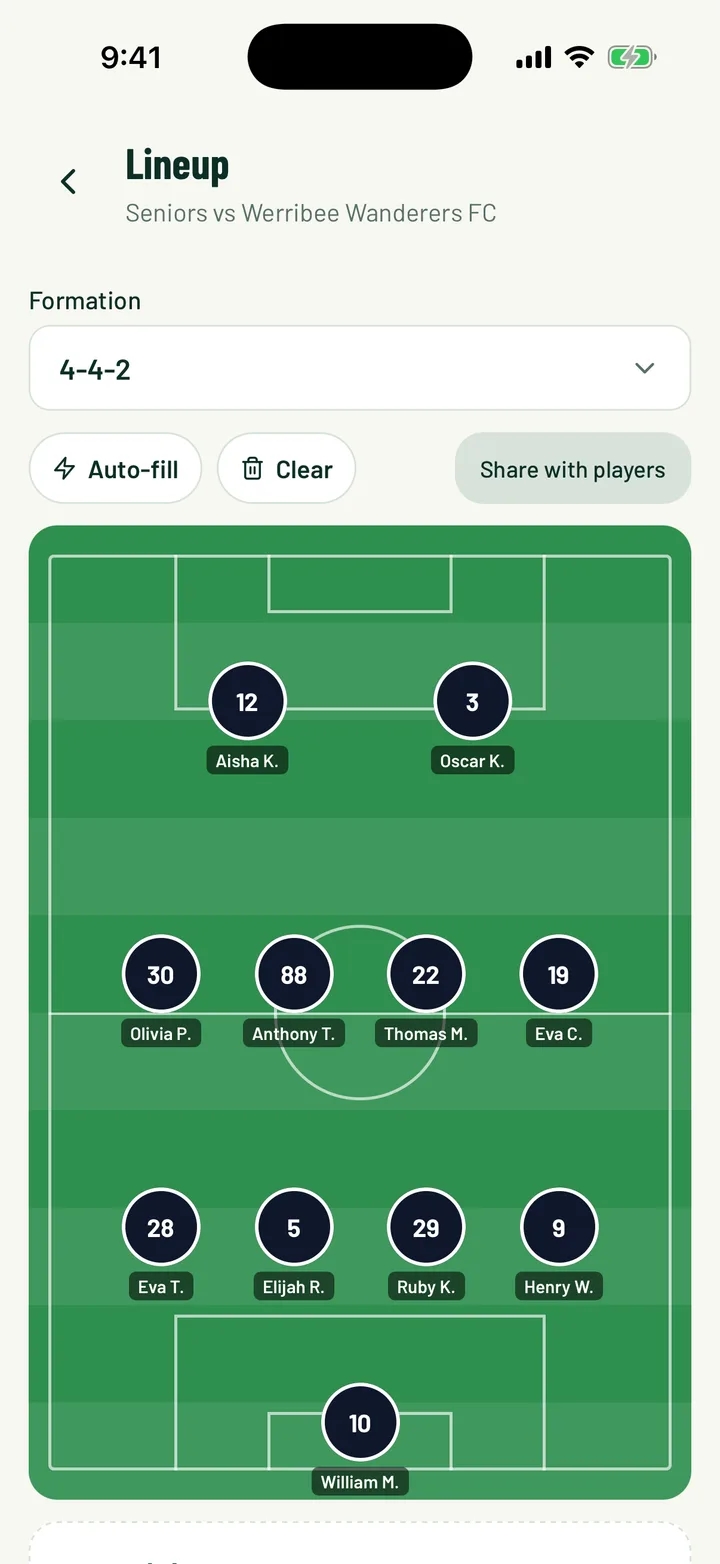
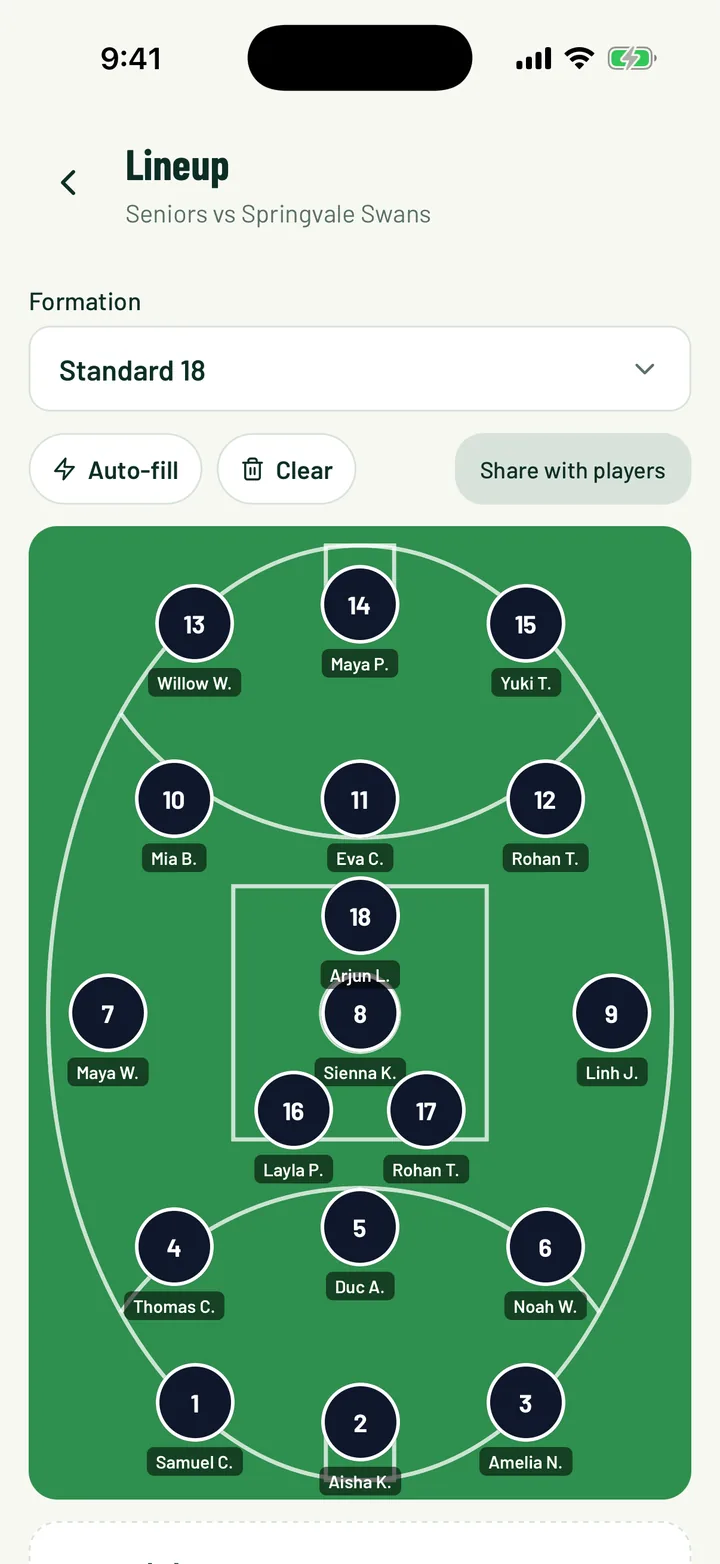
Open Formation and pick one. The first in the list is the default for your sport. Changing formation keeps your players on the sheet. Anyone in a spot the new shape doesn't have moves to the bench.
App: Lineup › Formation · Web: Lineup editor › Formation
4Let Auto-fill do a first pass
Tap Auto-fill to fill the empty spots. It works through the formation one spot at a time, starting with the keeper where there is one, and picks the best player for each:
- Players whose position suits the spot come first.
- Players who said they're in come before players who haven't answered.
- Players who said they can't make it are left out.
- Ties go to players who've started more games in the last 90 days.
Players you've already placed stay where they are. Everyone left over goes on the bench, best first.
Auto-fill only appears when your sport has a formation. Tap Clear to take everyone off the sheet and start again.
App: Lineup › Auto-fill · Web: Lineup editor › Auto-fill
5Place and move players
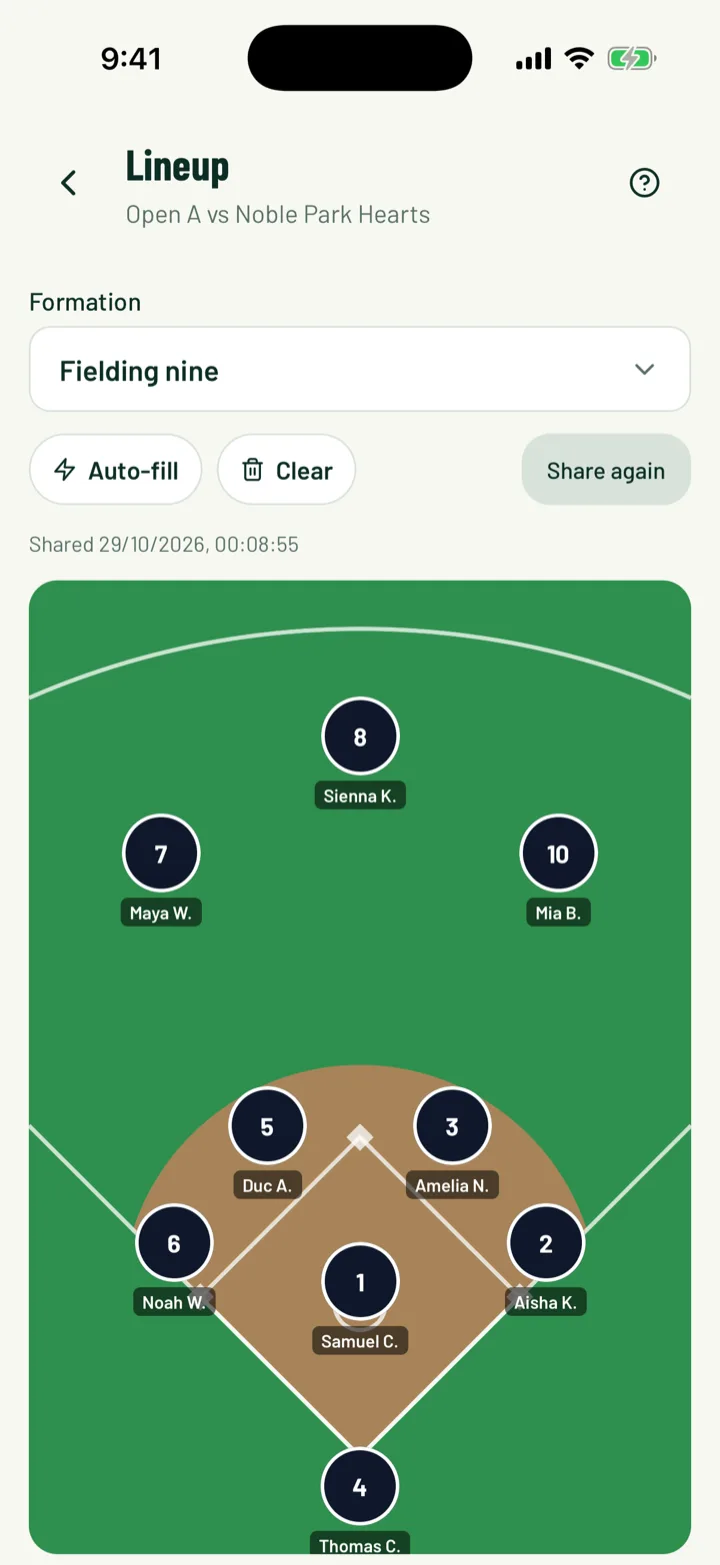
Below the pitch are three groups: the starting side, Bench and Not selected.
- In the app, tap a player then tap a spot. You can also hold and drag them onto the pitch.
- On the web, drag a player, or click them and then click a spot.
- Drop a player on a filled spot to swap. The player already there takes the mover's old place, or goes to the bench.
- Tap a player on the pitch to select them. The banner then offers Bench or Take off in the app, and To bench or Take off sheet on the web.
- Players in Not selected have a Bench button to add them as a sub.
For sports with no field map, use Start to move a bench player into the starting side.
App: Lineup · Web: Lineup editor
6Set your bench
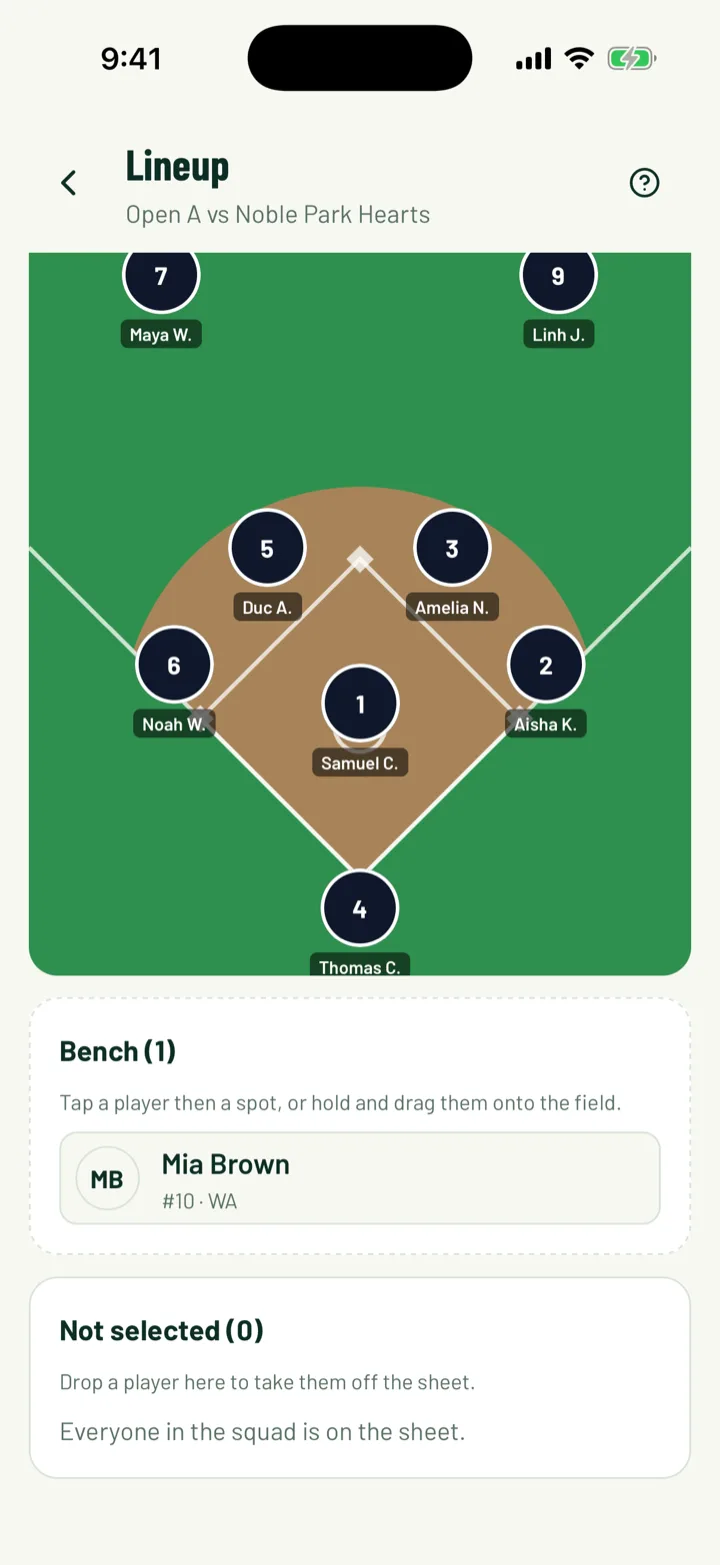
The bench is your list of subs for the day. Anyone on the bench is on the team sheet and is told they're on the bench when you share.
Drop a player on Not selected to take them off the sheet. They aren't notified, so let them know yourself if they're expecting a game.
If Not selected says Everyone in the squad is on the sheet., every player on the team is either starting or on the bench.
App: Lineup › Bench · Web: Lineup editor › Bench
7Share it with players
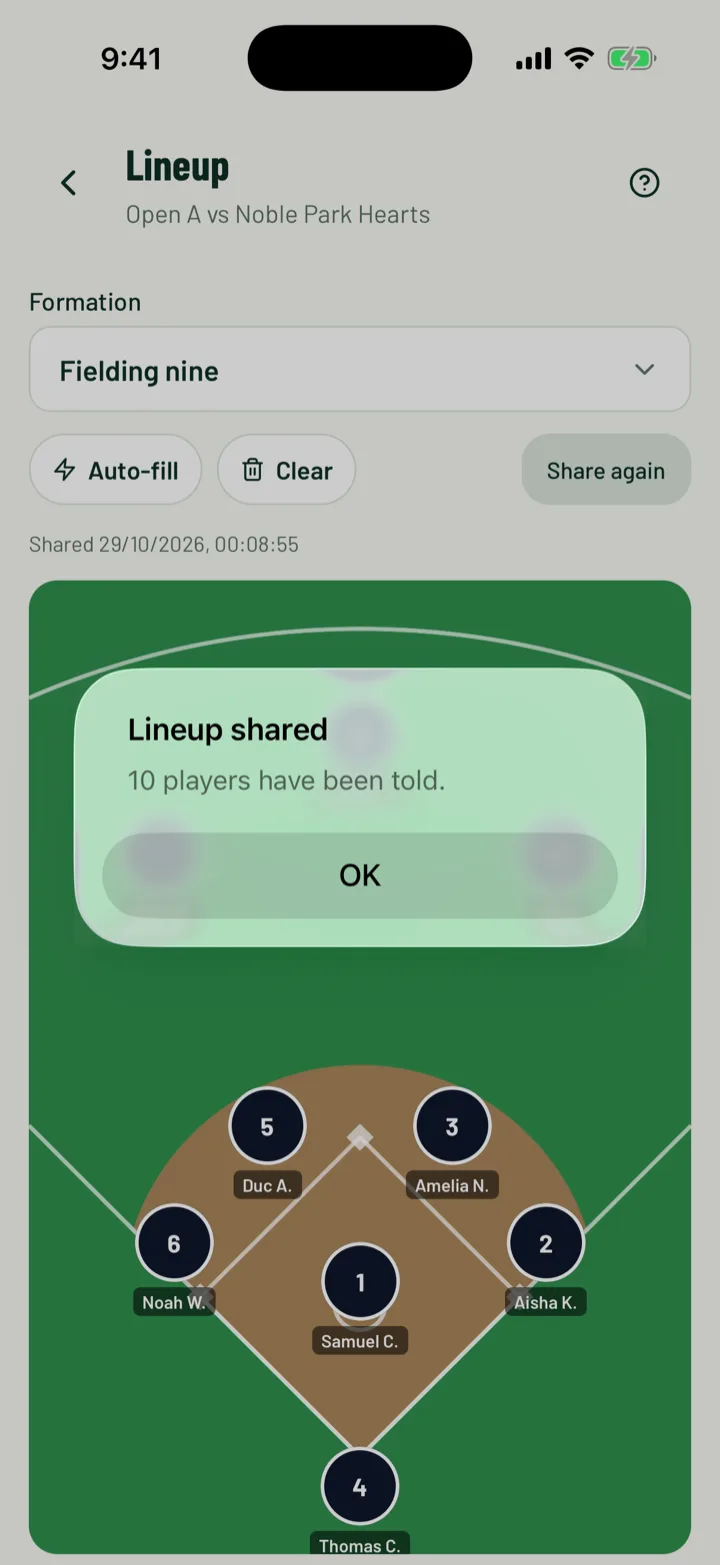
Tap Share with players. You'll see Lineup shared and how many players were told.
- Each player on the sheet gets a push saying the team's lineup is out. It tells them whether they're starting or on the bench, and names the opponent when there is one.
- A line under the buttons shows when you last shared it.
- Changed something? Tap Share again to send a fresh push to everyone on the sheet.
Players see the lineup on the game page under Team lineup. Once the game starts, the game page's Lineup tab shows the starters with the formation name, and the bench. Until you share, followers see Lineup not published.
App: Lineup › Share with players · Web: Lineup editor › Share with players
8Make subs during the game
Subs are recorded in live scoring, not in the lineup editor. Your shared lineup splits the Players view into the starting side and Bench.
- On the Players tab, tap a player on the field and choose Sub off. Then pick Who comes on?.
- Or tap a bench player, choose Sub on, then pick Who goes off?.
- The Sub button on the Events tab records a substitution for one player only. Use the Players tab when you want both sides of the swap.
The minute comes from the game clock. Followers see each player's on and off minute in the game's Lineup tab.
If you haven't shared a lineup, the Players tab lists everyone under Squad.
App: game › Game operations › Open live scoring › Players · Web: Games › game › Live panel › Players
Still stuck?
Ask us