Help › Tournaments
Run tournament check-in
Turn on check-in for a tournament, send players their codes, add helpers, then tick players in, scan codes and handle no-shows on the day.
Watch it first
A short recording from the app, with the waiting cut out. The steps below go through it slowly.
Check-in shows who has arrived and which entries are ready to play. Set it up before match day, then use the app or the web on the day. This guide assumes your tournament is already set up. If it isn't, start with Run your first tournament.
1Turn on check-in
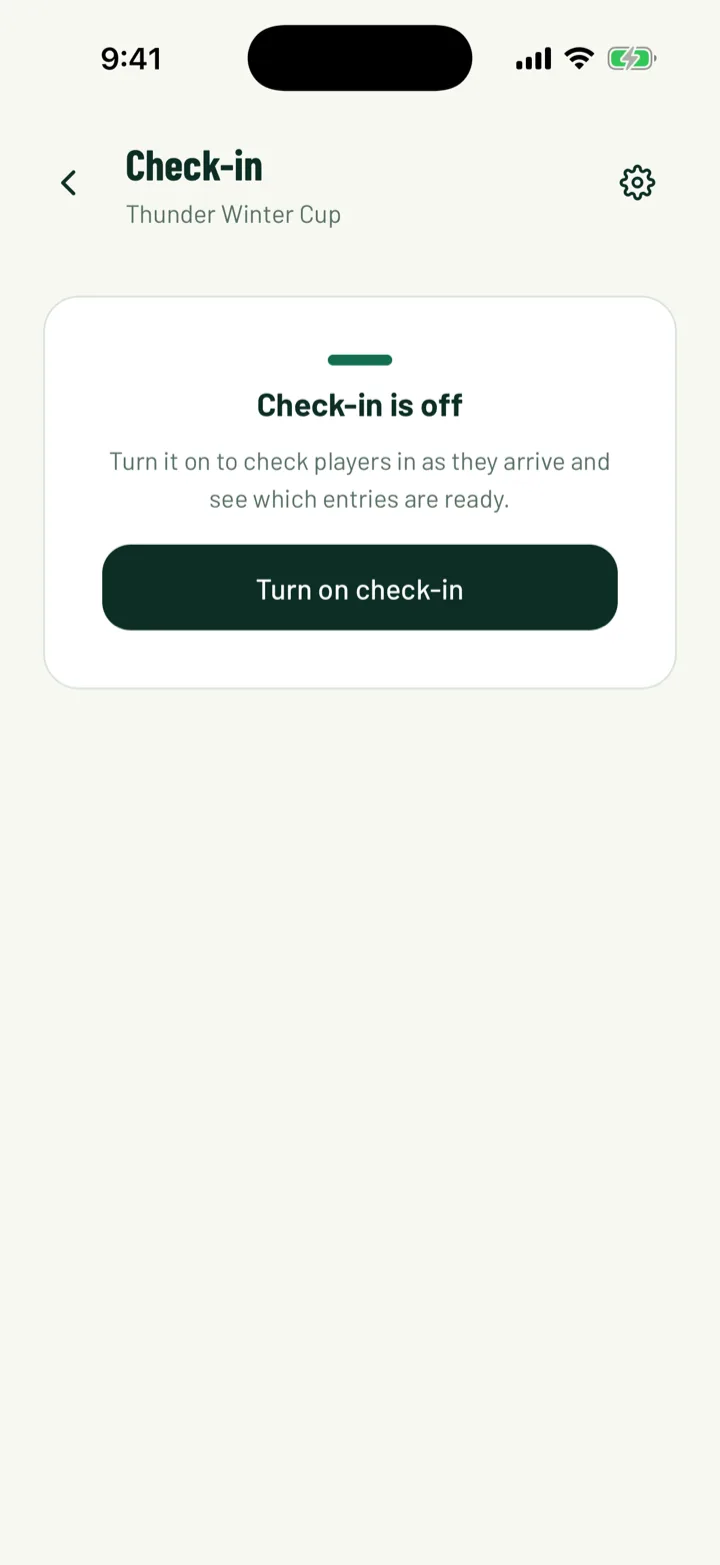
In the app, open the tournament, tap Manage tournament, then Check-in. You'll see Check-in is off. Tap Turn on check-in.
On the web, open the tournament and click Check-in. Turn on the Check-in switch at the top.
When check-in is off, there's no check-in list, no codes are emailed and fixtures show no check-in badges. Anyone already checked in stays recorded if you turn it back on.
App: Tournament › Manage tournament › Check-in · Web: Tournaments › tournament › Check-in
2Choose how players check in
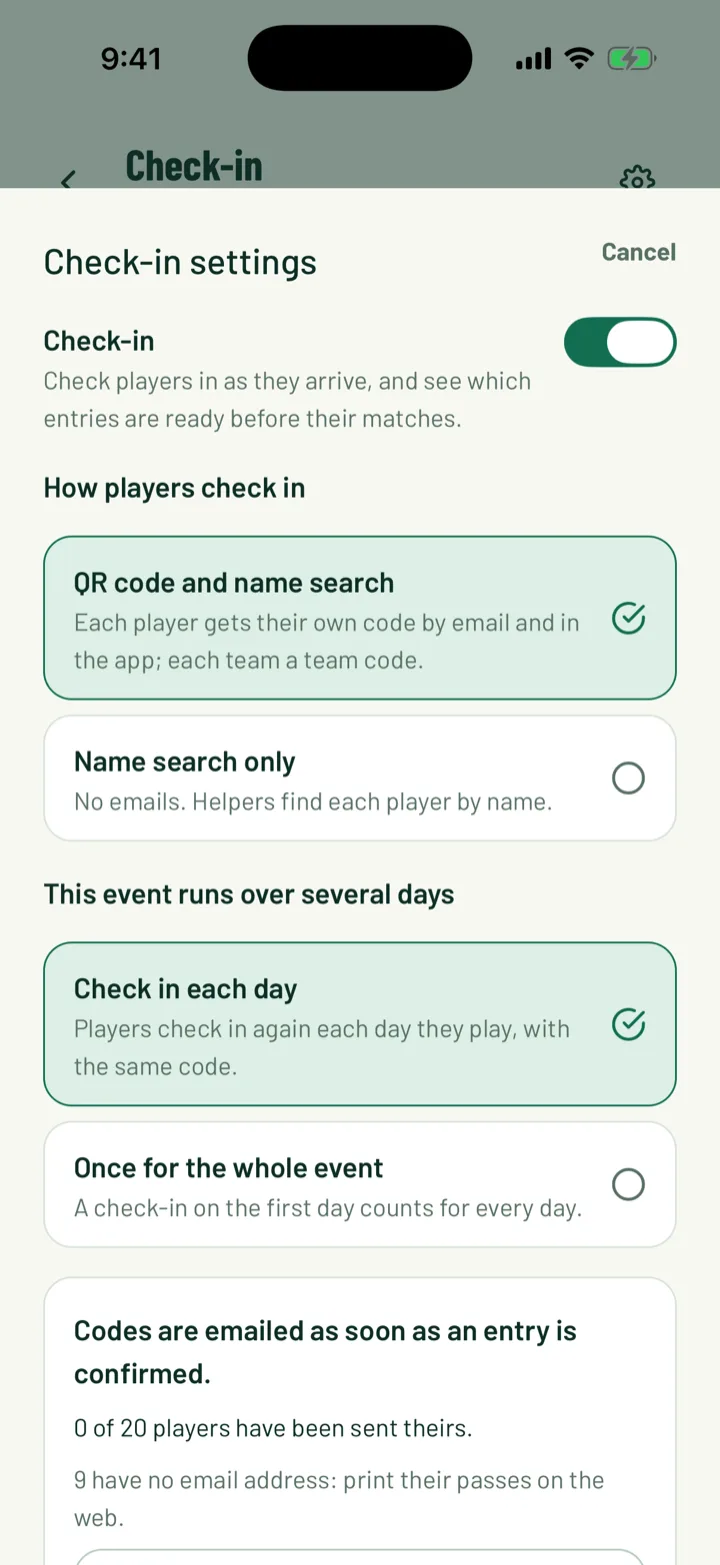
Under How players check in, pick one:
- QR code and name search. Each player gets their own code by email and in the app. Each team also gets a team code.
- Name search only. No emails are sent. Helpers find each player by name.
If the tournament runs over more than one day, you'll also see This event runs over several days:
- Check in each day means players check in again each day they play, with the same code.
- Once for the whole event means a check-in on the first day counts for every day.
To change these later, tap the settings icon at the top of Check-in in the app. On the web, click Settings.
App: Check-in › settings icon · Web: Check-in › Settings
3Send the codes
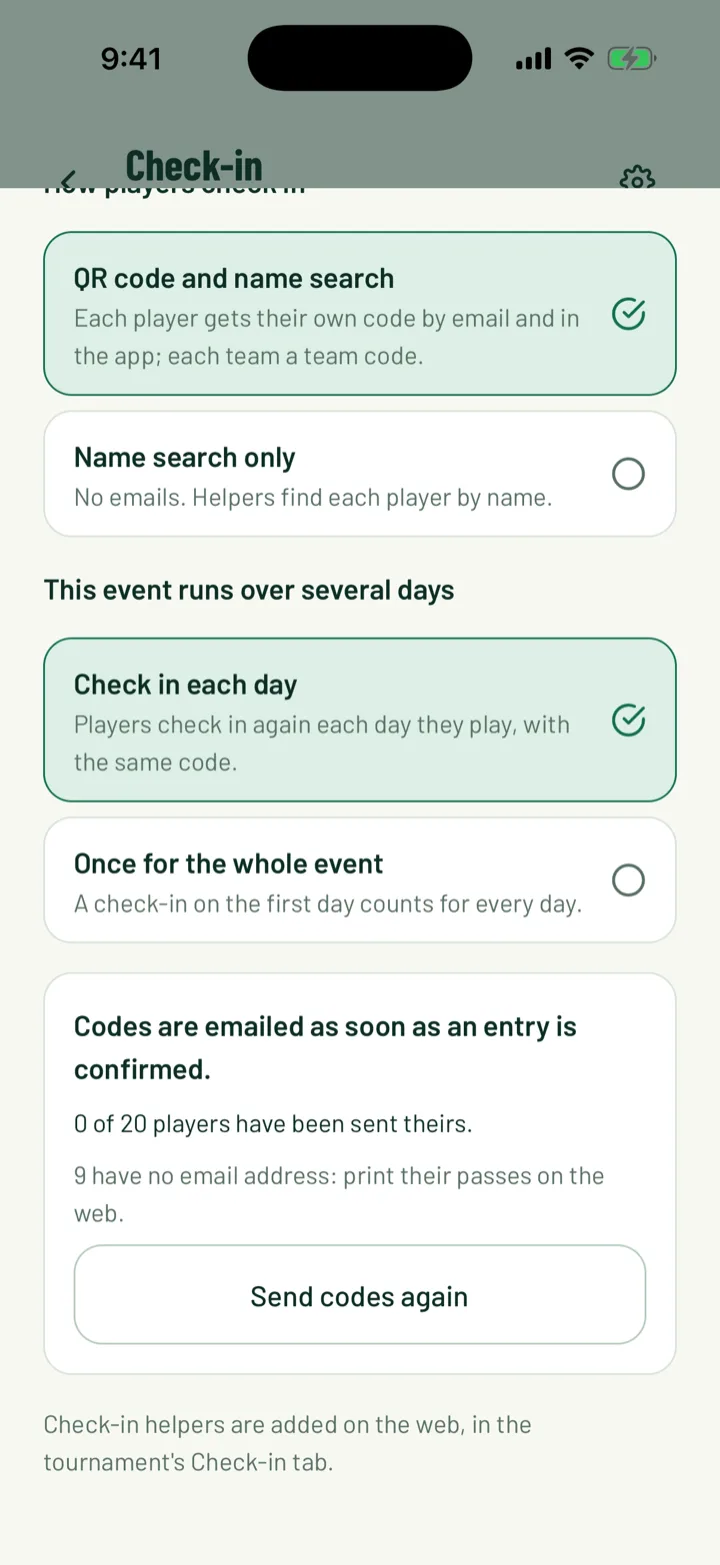
With QR codes on, each code is emailed as soon as an entry is confirmed. Parents get their children's codes. The settings show how many players have been sent theirs.
- Send codes again resends them, for example after you add late entries.
- Some players may have no email address. Click Print passes on the web to print their passes, then click Print.
App: Check-in › settings icon · Web: Check-in › Settings
4Add your helpers
Helpers are added on the web. Under Check-in helpers, type the Helper's email and click Add helper.
- Helpers don't need to be club members. They sign in to Sportdify with that email.
- They can check players in and scan codes, and nothing else.
- Adding a helper doesn't send them anything. Send them the check-in link shown above the list.
Helpers open that link on the web. In the app, they open the tournament and tap Check-in desk. Until they sign in, the list shows hasn't signed in yet next to their email.
Web: Tournaments › tournament › Check-in › Settings › Check-in helpers
5Tick players in
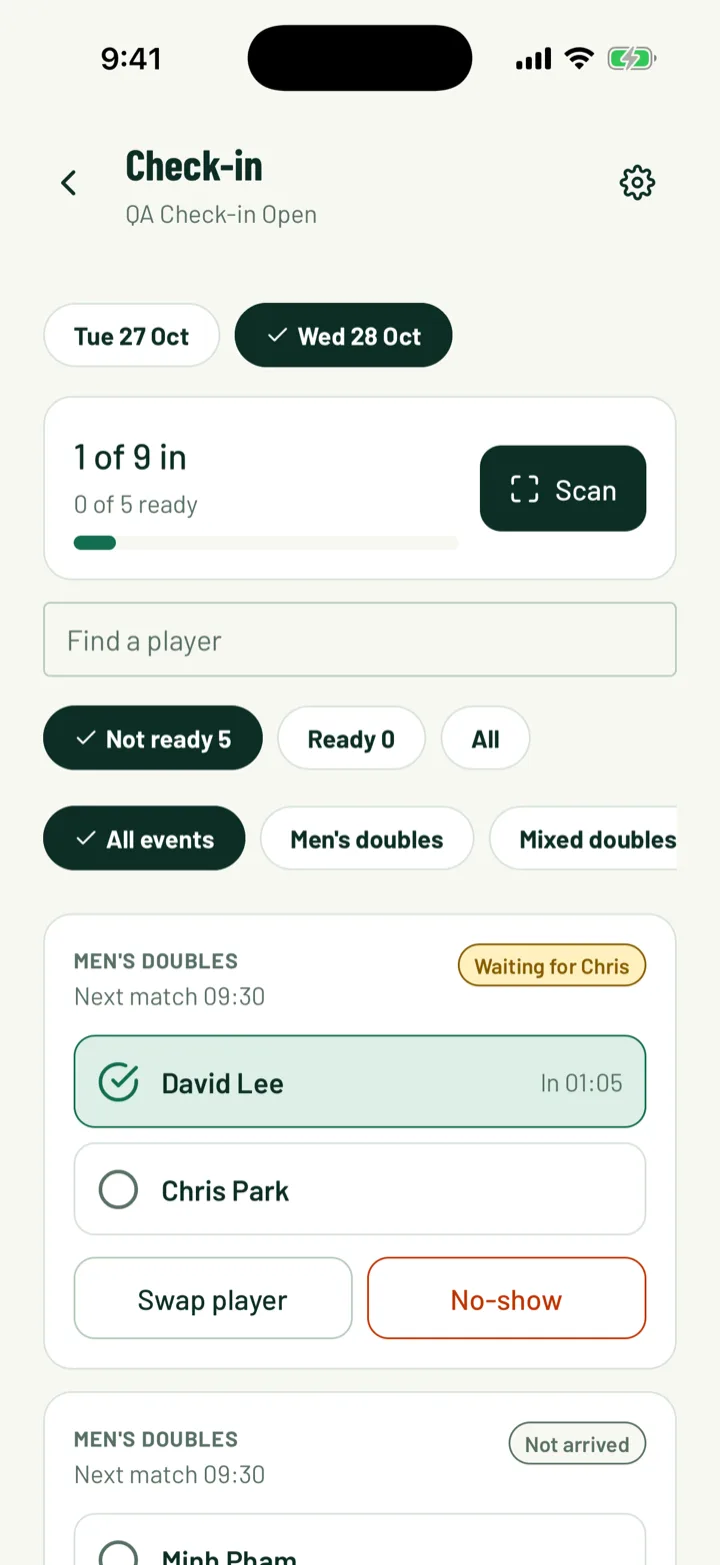
The list shows the day's entries. For a tournament over several days, pick the day at the top.
- Tap or click a player's name to check them in. Tap it again to undo.
- Search with Find a player. On the web you can also search by team.
- In the app, filter by Not ready, Ready or All, and by event. On the web, filter by All, Not arrived, Waiting or Ready, and by category.
Each entry shows its next match and a status: Ready, Not arrived, or who you're still waiting for, such as Short: 5 of 7. The app totals how many players are in and how many entries are ready.
App: Manage tournament › Check-in · Web: Tournaments › tournament › Check-in
6Scan codes
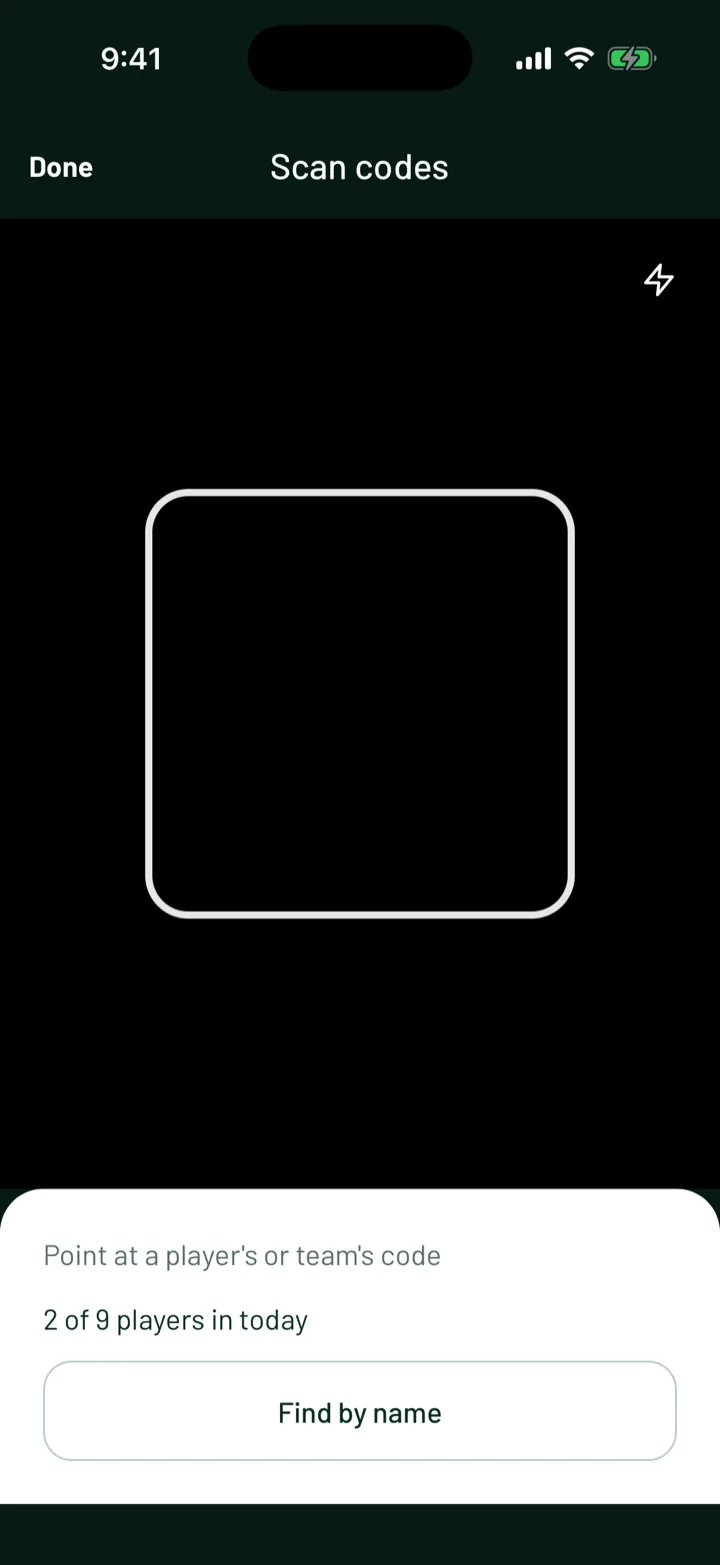
In the app, tap Scan. Point the camera at a player's or team's code. You'll see a message such as Mia Lee is in.
- If a player has no match that day, they're still checked in. Undo it from the list if it was a mistake.
- This code was replaced means the player has a newer code. Ask for it, or find them by name.
- Tap Find by name to go back to the list, or Done when you're finished.
A team code opens the team with everyone ticked. Untick anyone who isn't here, then tap Check in. The button shows how many players, such as Check in 9 players.
On the web, click Scan codes. Use the camera, or type the code under Or type the code.
You can also scan a code with your phone's own camera. It opens the code's page on the website. Organisers and helpers see a Check in button there.
App: Check-in › Scan · Web: Check-in › Scan codes
7Handle a no-show
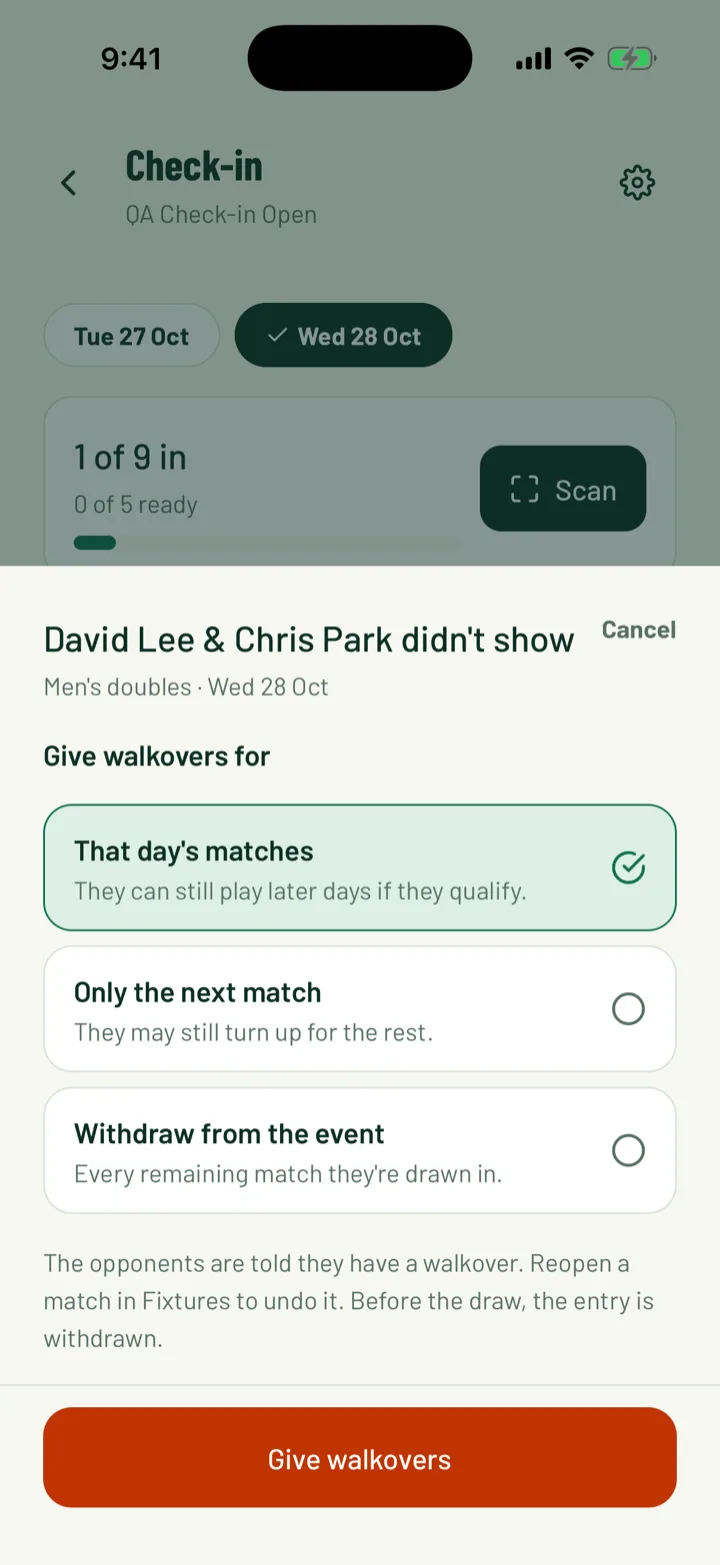
Only organisers can do this, not helpers. On an entry that isn't ready, tap or click No-show. Under Give walkovers for, choose:
- That day's matches. They can still play later days if they qualify.
- Only the next match. They may still turn up for the rest.
- Withdraw from the event. Every remaining match they're drawn in.
Confirm with Give walkovers or Withdraw entry. The opponents are told they have a walkover. Before the draw is made, the entry is withdrawn instead.
In races or rounds, the button reads Did not start. Those players are left off that day's results.
To undo it, tap Undo no-show or Undo Did not start. To bring back a walkover match, reopen it in the fixtures.
App: Check-in › entry › No-show · Web: Check-in › entry › No-show
8Swap a player
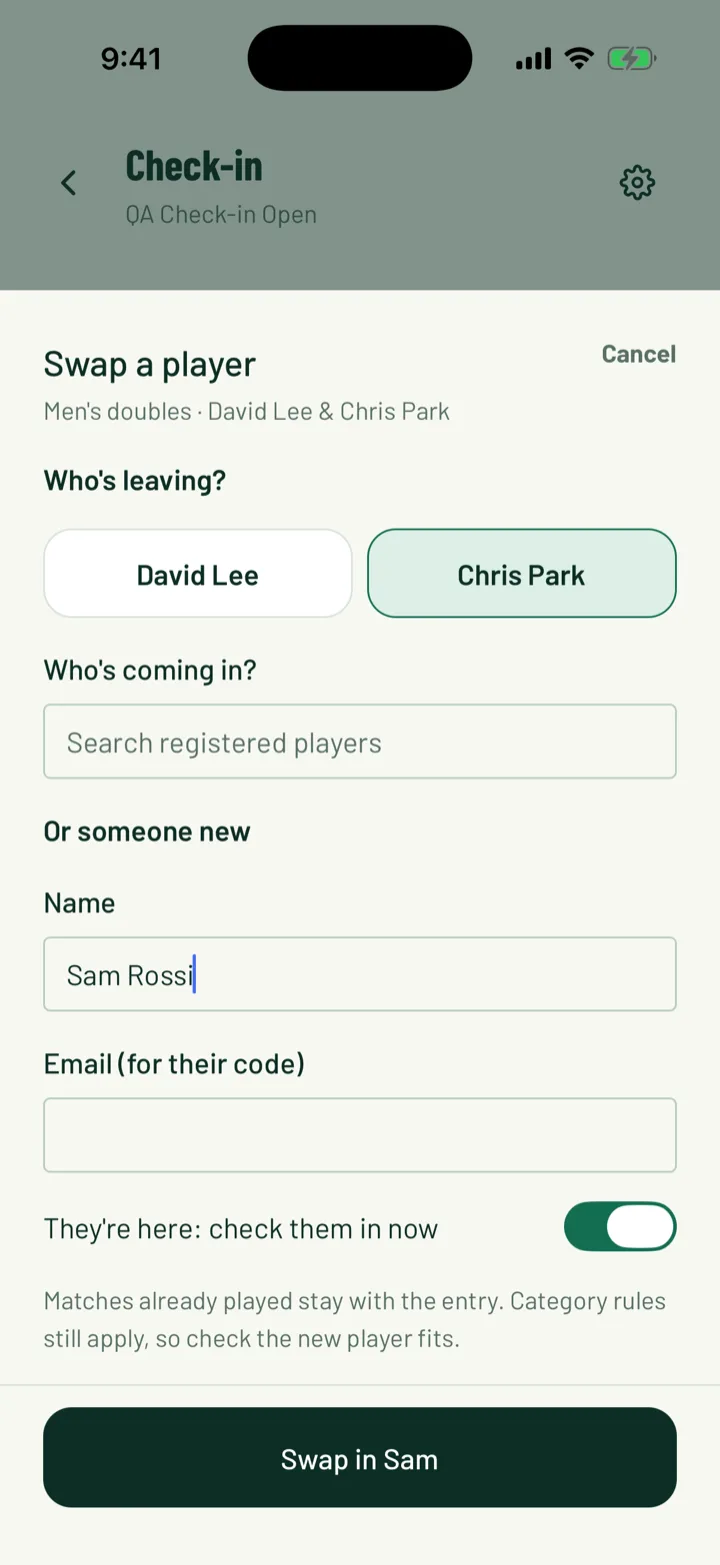
Organisers can swap a player out of an entry on the day. Tap or click Swap player.
- Under Who's leaving?, pick the player.
- Under Who's coming in?, search registered players. For someone not registered, fill in Or someone new with a Name and Email (for their code).
- Turn on They're here: check them in now if they're at the desk.
Confirm the swap. Matches already played stay with the entry. Category rules still apply, so check the new player fits.
App: Check-in › entry › Swap player · Web: Check-in › entry › Swap player
9What players see
Players, parents and team managers see Your check-in code on the tournament page in the app. It opens their code, with Show this at the desk when you arrive, or Show this at the desk each day you play for an event over several days.
Once they're in, the screen shows the time they checked in. They can also show the code from their email.
Still stuck?
Ask us