Help › Tournaments
Enter a tournament
Find a tournament, enter your team or yourself, pay the entry fee and keep track of your entry until match day.
Watch it first
A short recording from the app, with the waiting cut out. The steps below go through it slowly.
This guide is for teams and players entering another club's tournament. You can enter in the app or on the website, but entry fees are paid in the app. If you're organising the tournament, see Run your first tournament instead.
1Find the tournament
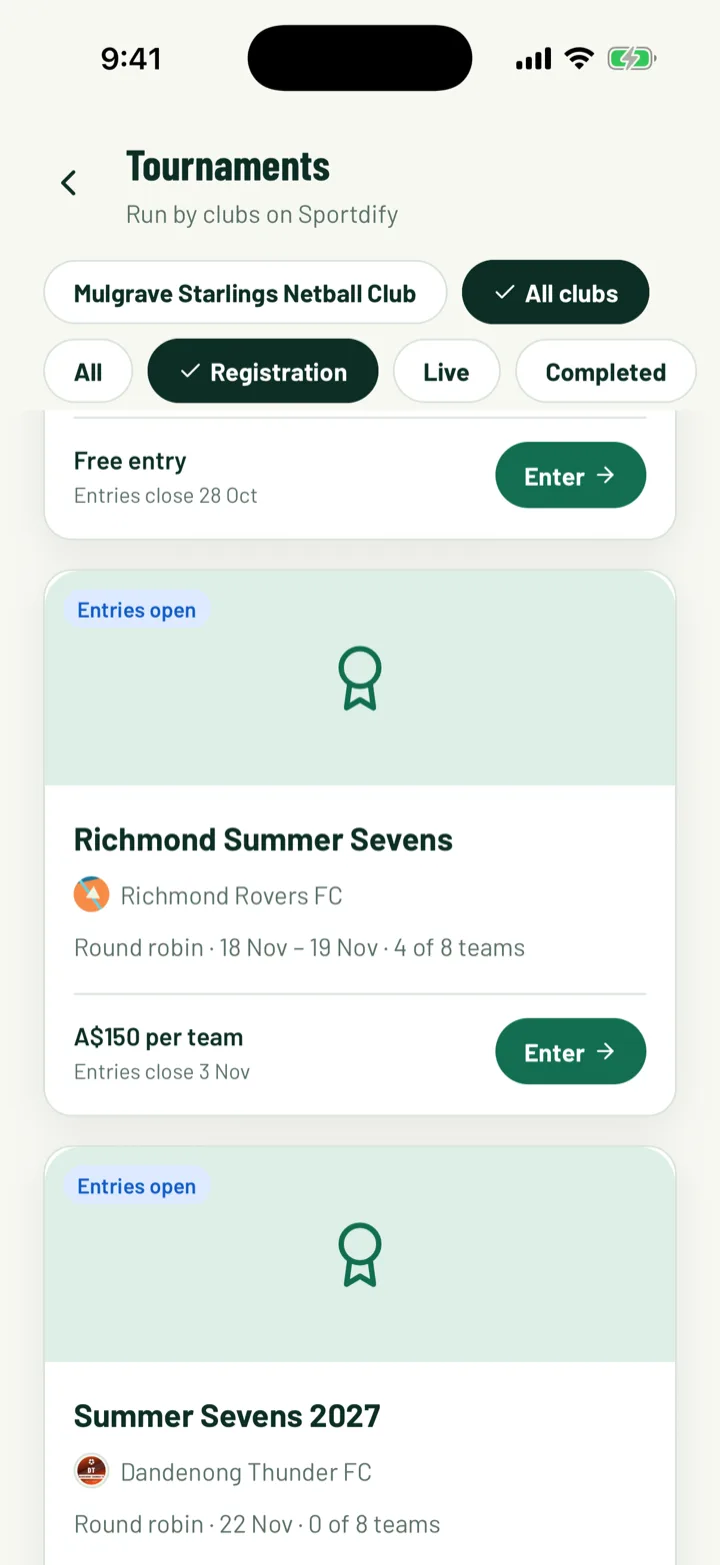
In the app, open the menu or the Home tab and tap Tournaments. Switch to All clubs to see tournaments from every club. Filter by Registration to see the ones taking entries.
Each card shows Entries open, the fee, such as A$80.00 per team, or Free entry, and the closing date.
On the website, the Tournaments page lets you search near you or by City or state, an age category and sport.
If an organiser invited your club, the tournament shows under Invitations in the app, with the inviting club's name. Tap the tick to accept or the cross to decline. You can also open a link the organiser sent you.
App: Menu › Tournaments · Web: Tournaments page
2Start your entry
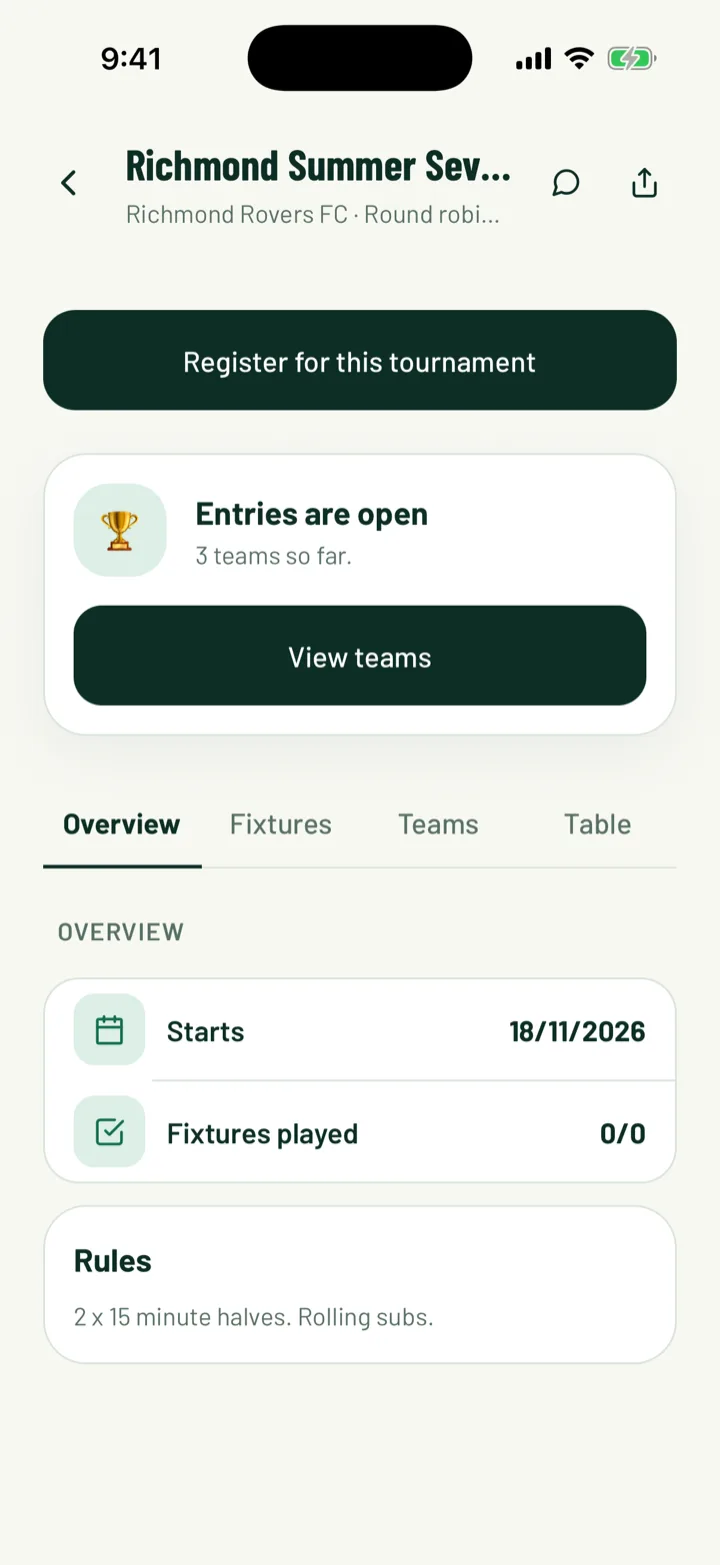
Open the tournament. In the app, tap Register for this tournament. On the website, click Enter your team, or Enter now for a tournament for individual players.
You need to sign in first. If entries are closed, you'll see Entries aren't open.
App: Tournament › Register for this tournament · Web: Tournament › Enter your team
3Enter your teams
Teams enter through a club.
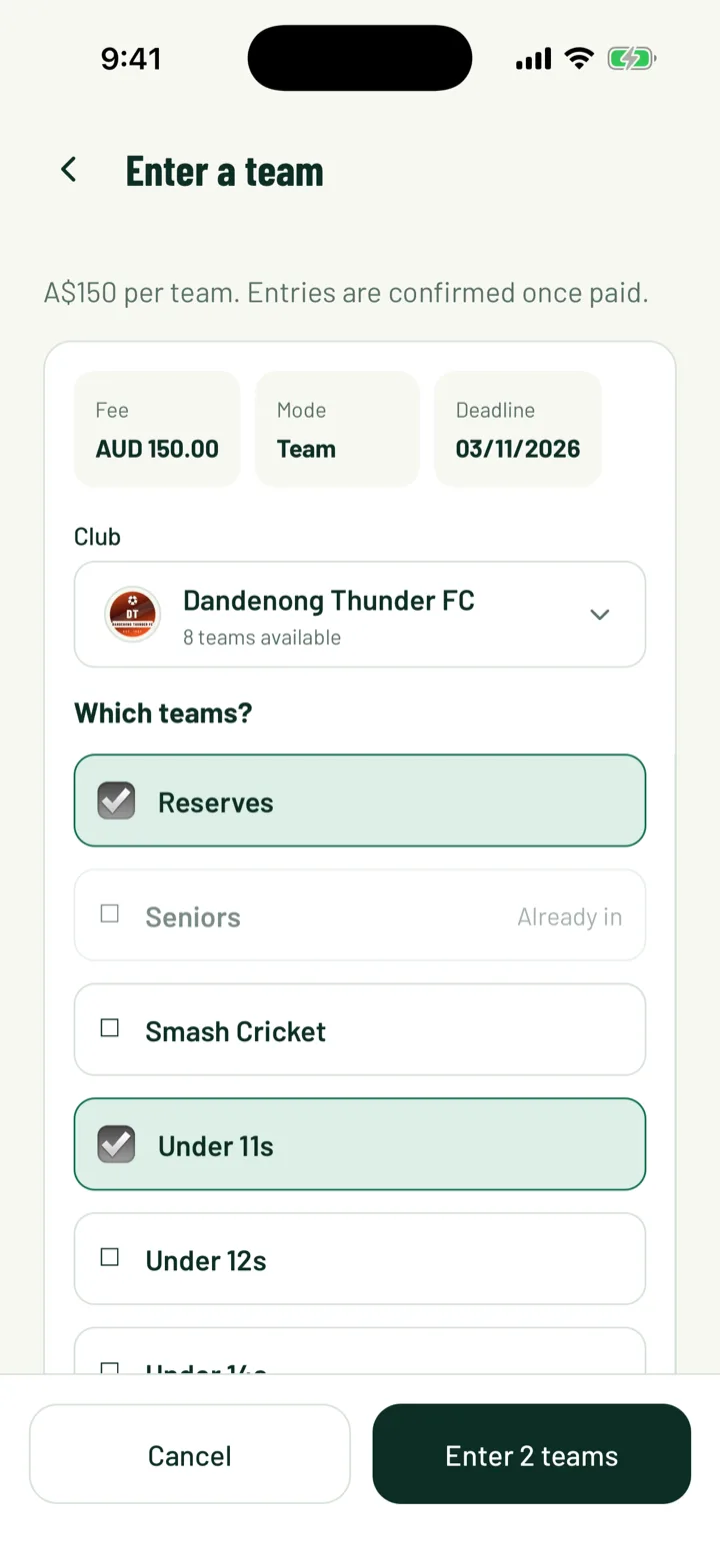
- Pick your Club. If you belong to more than one, choose which one you're entering with.
- Under Which teams?, tick each team. Teams already entered show Already in or Waiting for review.
- No team for this sport yet? Use Add a team to make one.
- The organiser may limit teams per club. You'll see how many you have left.
If you don't have a club, you'll see Create your club. Enter a Club name and First team, then tap Create club. Clubs are free.
If the tournament has categories, tick each one under Categories, then pick the team for each one. A full category puts your team on the waiting list.
Answer the organiser's questions. Then tap the enter button, such as Enter 2 teams. The website's button reads Send entry for one team.
4Or enter as a player
For a tournament where people enter on their own, pick the Profile that's playing in the app. On the website, it's Who's playing?. Parents can enter a child from their family profiles.
If the tournament has divisions, pick your Division. For a weight class, also enter Your weight (kg).
Answer any questions, then tap Submit registration. On the website, click Send entry.
5Pay the entry fee
The fee is shown before you send your entry. How you pay depends on the organiser:
- Paid by card, no approval. In the app, the payment sheet opens as soon as you send your entry. Once it's paid, your entry is confirmed.
- Paid by card after approval. You pay once the organiser accepts your entry. When they do, the entry shows Pay to confirm in My entries, with the fee.
- Paid to the club. The website says The club collects it directly. Pay them the way they ask, and they'll confirm your entry.
Card payments are only in the app. If you entered on the website, open the app to pay.
Teams on a waiting list pay nothing until a place is offered.
6Follow your entry
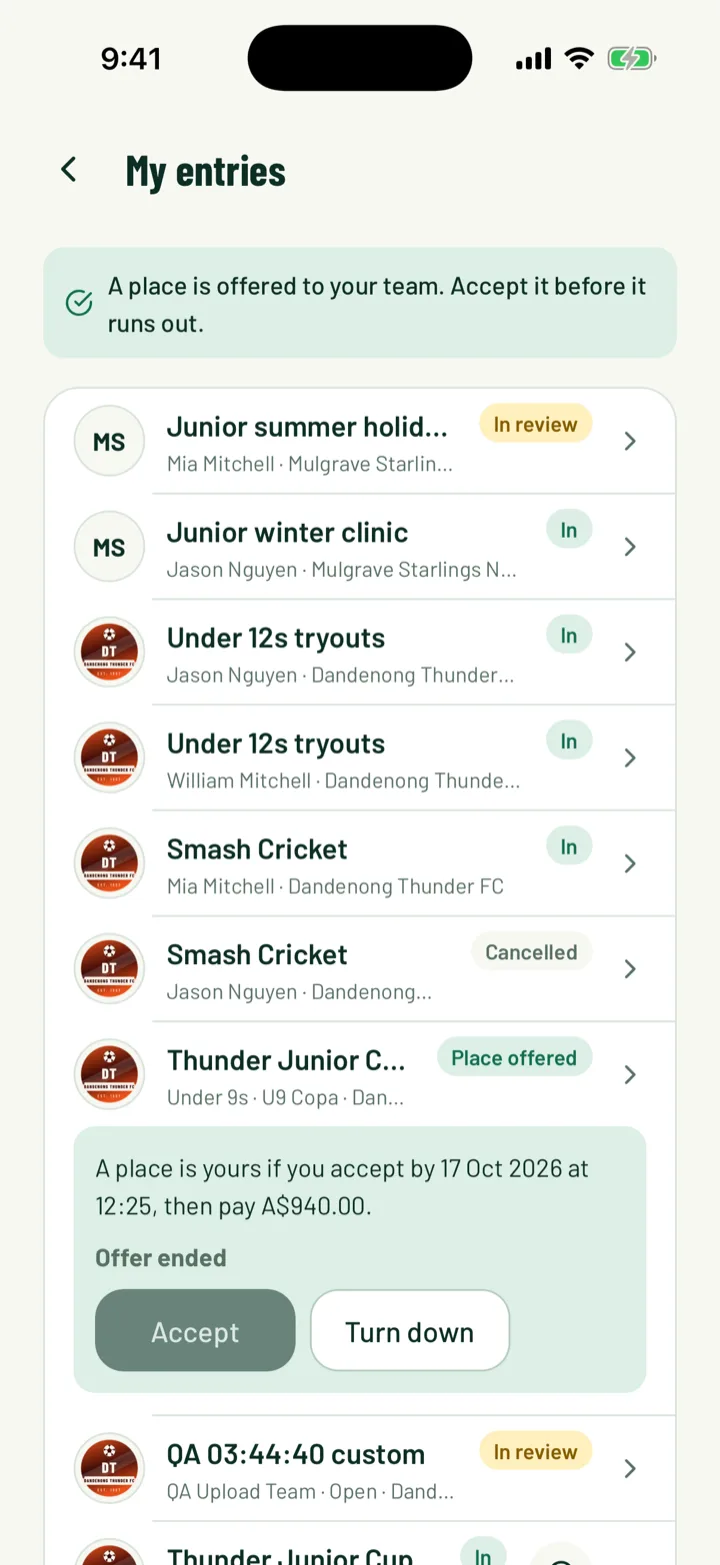
My entries lists every tournament you've entered. Each entry shows a status:
- In review in the app, or Waiting for review on the website, until the organiser decides
- Accepted or In once you have a place
- Pay to confirm in the app, or Payment needed on the website, when the fee is due
- Not accepted if the organiser said no
- Waiting list, with your place in the queue
Messages from organisers show under Notes from organisers in the app.
If a place is offered from the waiting list, you'll see Place offered and the deadline. Tap Accept, then pay if there's a fee. Tap Turn down to pass it to the next team. To leave the queue, tap Leave waiting list.
App: Menu › My entries · Web: My Entries
7Add your players
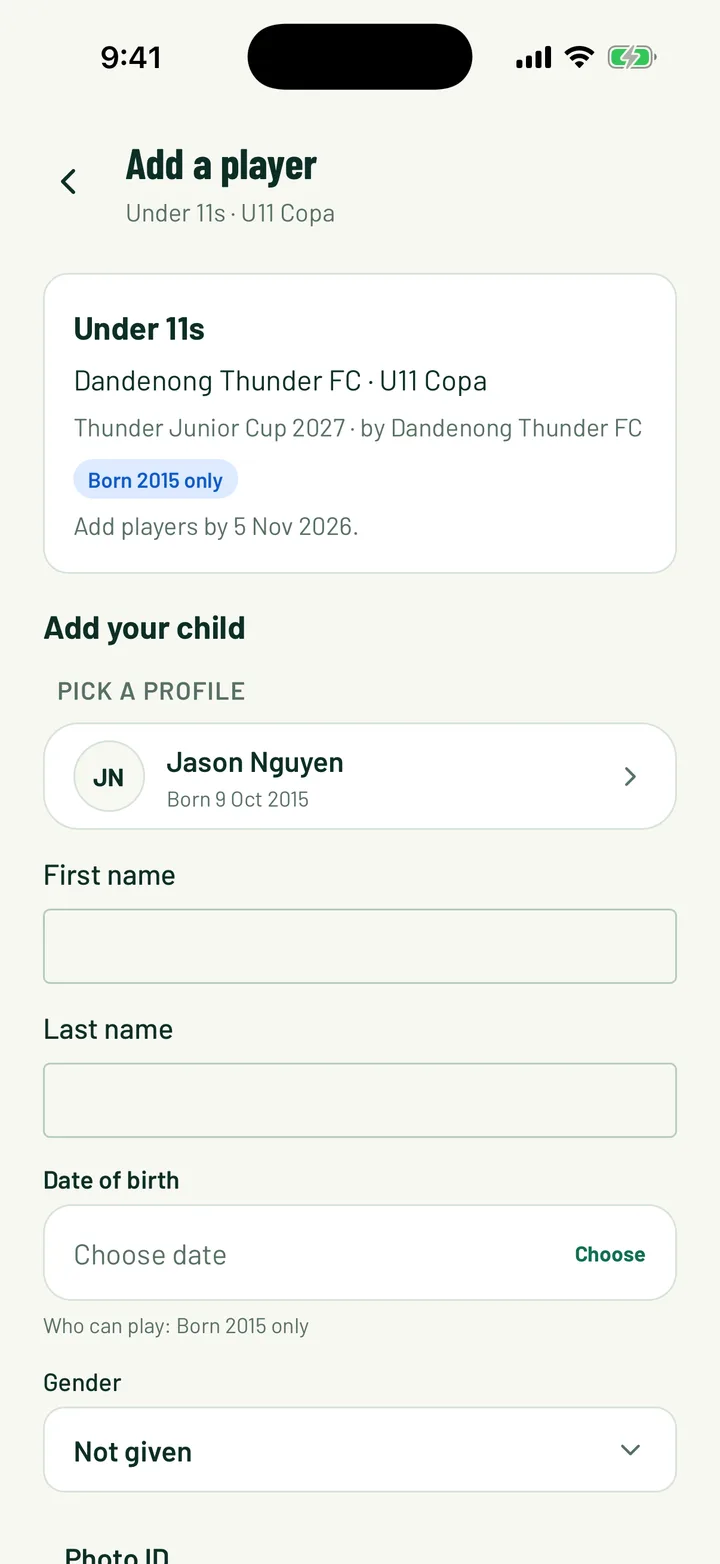
Once your team is entered, build its list for the tournament. In the app, tap Team players under the entry. On the website, click Players.
- Under Coach and manager, tap Add a coach or Add a team manager.
- Share the Player link for parents. Parents use it to add their child with a date of birth and a photo ID.
- Use Switch off to stop the link working, or New link to replace it. The old link then stops working.
The list shows how many players you have and the most the category allows.
App: My entries › Team players · Web: My Entries › Players
8On match day
Open the tournament to see your fixtures, the table and the bracket.
- To ask the organiser something, tap Message organiser on the tournament page.
- If the organiser uses check-in, you'll see Your check-in code on the tournament page. Show it at the desk when you arrive. It's also in your email.
- Can't play a match? Use Forfeit this match, then Ask to forfeit. The organiser confirms it, and you can cancel until then.
Still stuck?
Ask us