Help › Livestreams and recordings
Replays, highlights and storage
Watch and manage game replays and highlight clips, choose the recording quality, and see how long replays are kept and how much storage your club uses.
Watch it first
A short recording from the app, with the waiting cut out. The steps below go through it slowly.
Every game you film from the Livestream screen becomes a replay on the game page. Sportdify also cuts highlight clips from it. This guide covers where to find them, how long they're kept, and the storage they use.
1Get the recording up
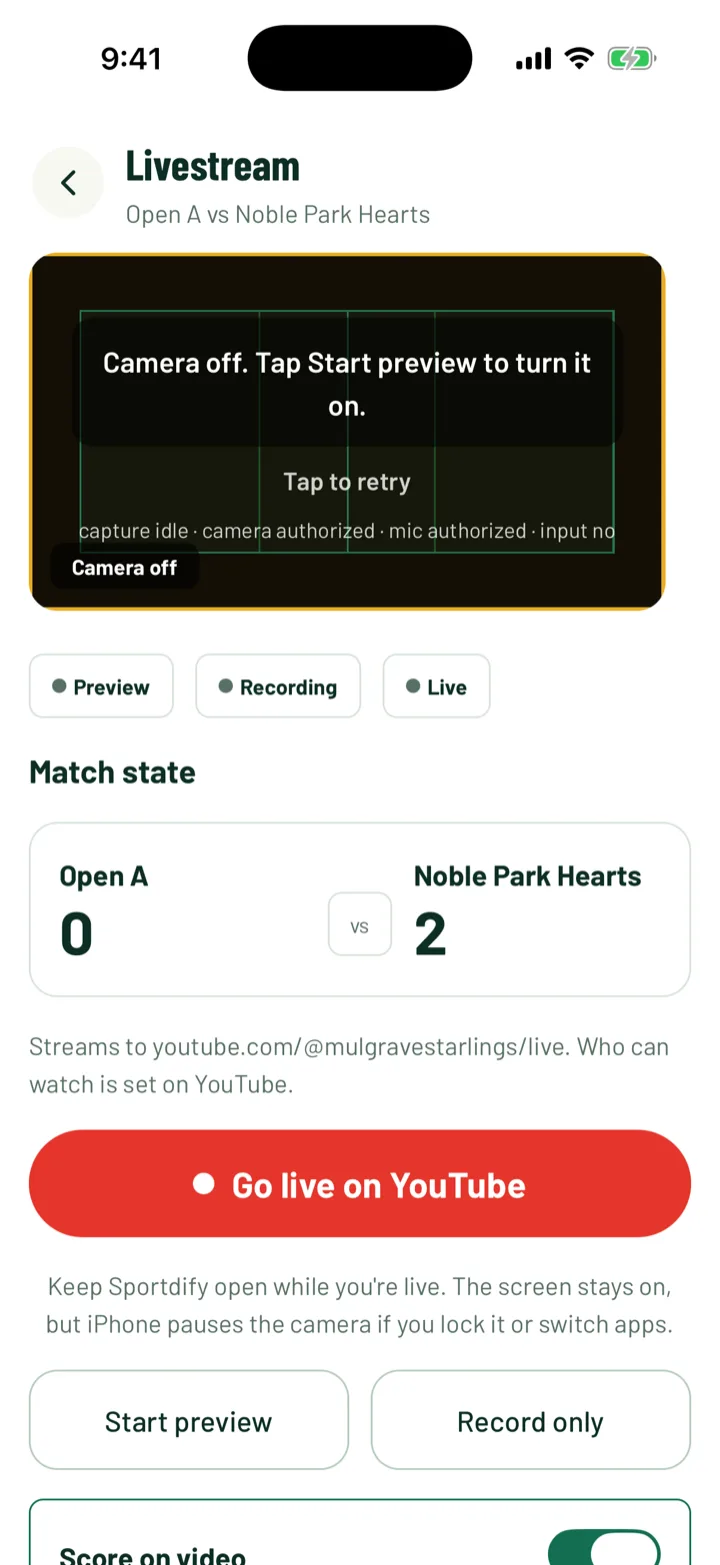
The phone records whenever you go live or tap Record only. When you stop, the recording uploads in the background. You'll see Uploading recordings while it goes.
- You can leave the screen. The upload keeps going.
- If Sportdify couldn't be reached when you started, the recording is kept on the phone and uploaded when you stop.
- If an upload fails, open the Livestream screen again. Under Pending recording uploads, tap the retry button, such as Retry 1 upload.
The replay shows on the game page once it's ready, usually within a few minutes of the end.
App: game › Game operations › Livestream
2Watch a replay
- On the game page, look under Watch and tap Full replay. It shows Available until and the date it's removed.
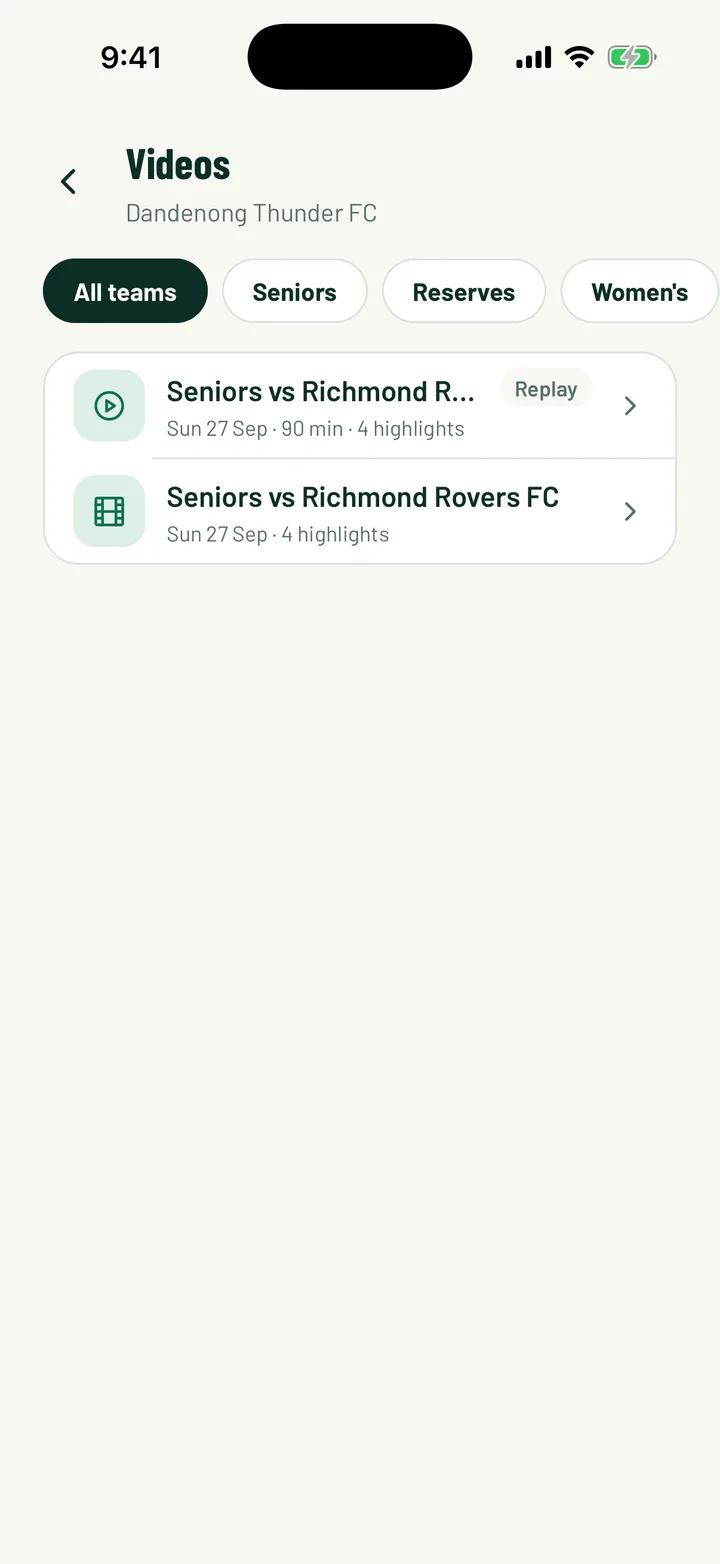
- In the app, open the Club tab and tap Videos. Every stream, replay and set of highlights is listed, newest first. Filter by team at the top.
- On the web, the replay is on the game page.
By default, only your club's members can watch replays.
App: Club › Videos · Web: Games › game
3Watch the highlights
Highlights are cut automatically once the recording is ready. They show on the game page under Highlights, with the number of clips. Tap one to play it.
- Clips are cut around the events you record in live scoring that have a minute: goals, penalties, cards and the rest.
- Goals, penalties and red cards get about a minute of footage. Other events get a little less.
- If no events were recorded, clips are cut around moments the AI camera spotted instead.
Up to 12 clips are made from events. For good highlights, start the game in live scoring at kick-off and record events as they happen.
App: game page › Highlights · Web: game page › Highlights
4Choose the recording quality
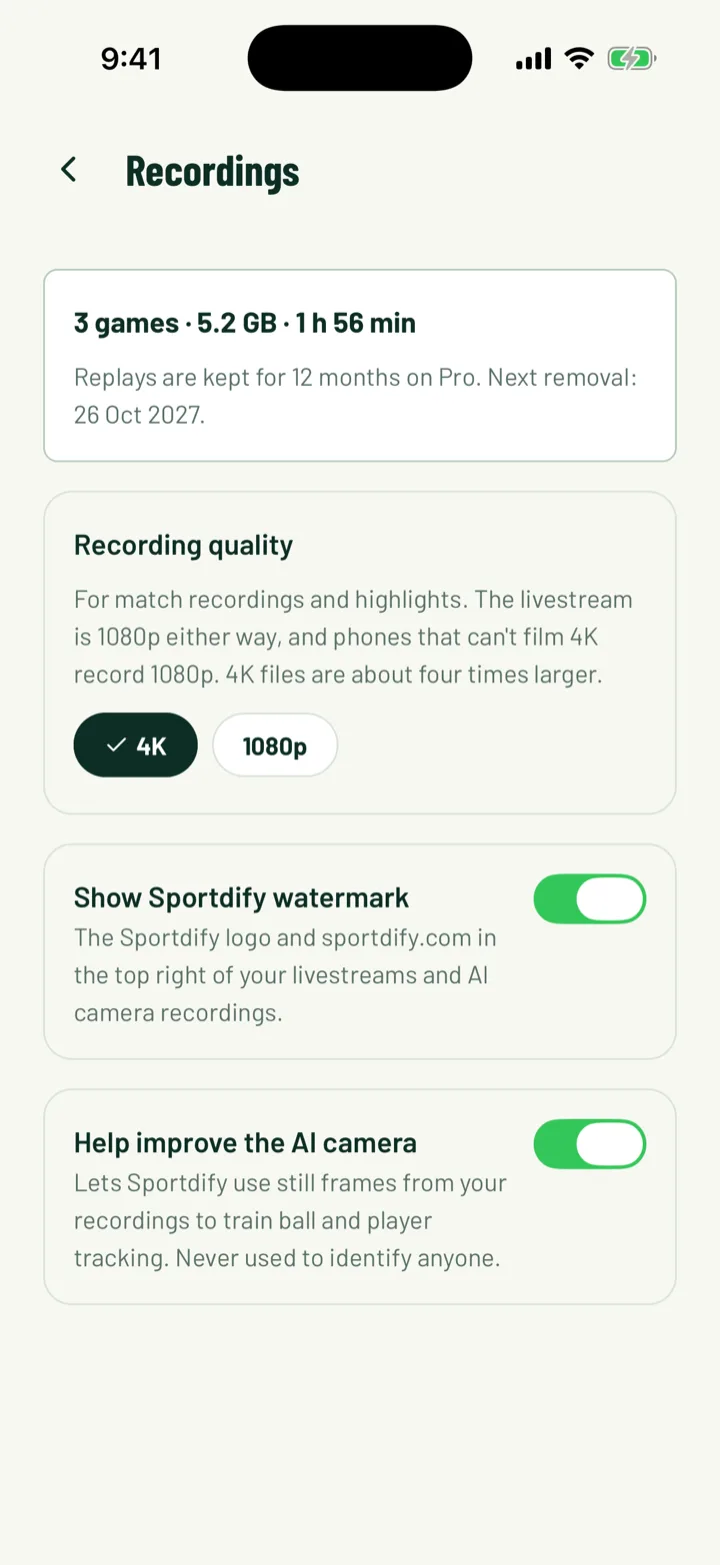
Under Recording quality, choose 4K or 1080p. Club owners and admins can change it.
- It applies to match recordings and highlights. The livestream is 1080p either way.
- Phones that can't film 4K record 1080p.
- 4K files are about four times larger, so they use more storage and take longer to upload.
App: Club › Club settings › Recordings · Web: Settings › Payments › Recordings
5Know how long replays are kept
How long a replay stays depends on your club's plan when the recording is ready:
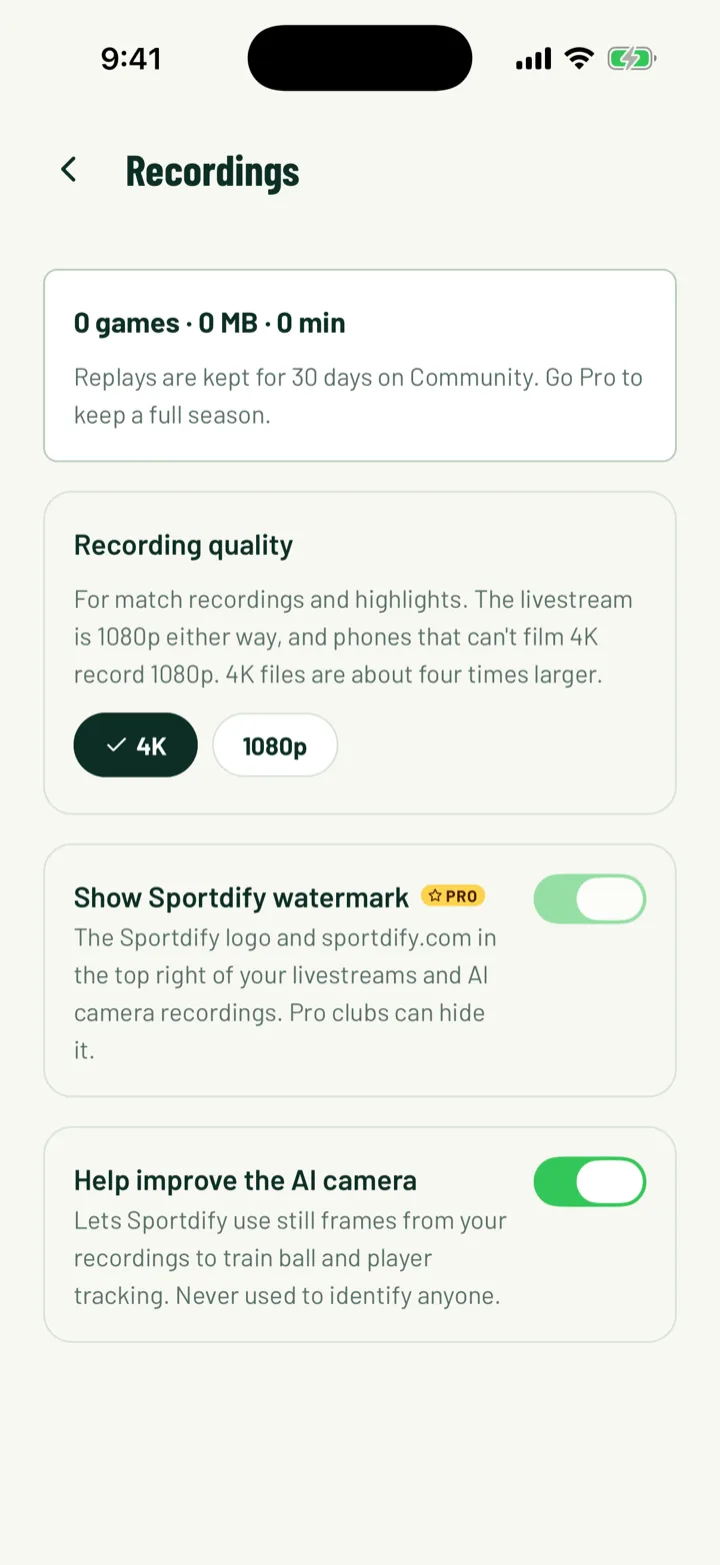
- Community: 30 days after the replay is ready.
- Pro: 12 months, so you can keep a full season.
Recordings shows the games, the space they use and the hours of footage. It also says when the next replay is removed.
The phone's wide camera original is kept for 14 days once the game's replay is ready. It's only needed to cut highlights, so it's the first thing to go.
App: Club › Club settings › Recordings · Web: Settings › Payments › Recordings
6Delete or restore a replay
Club owners, admins, the Media role and whoever filmed the game can delete replays.
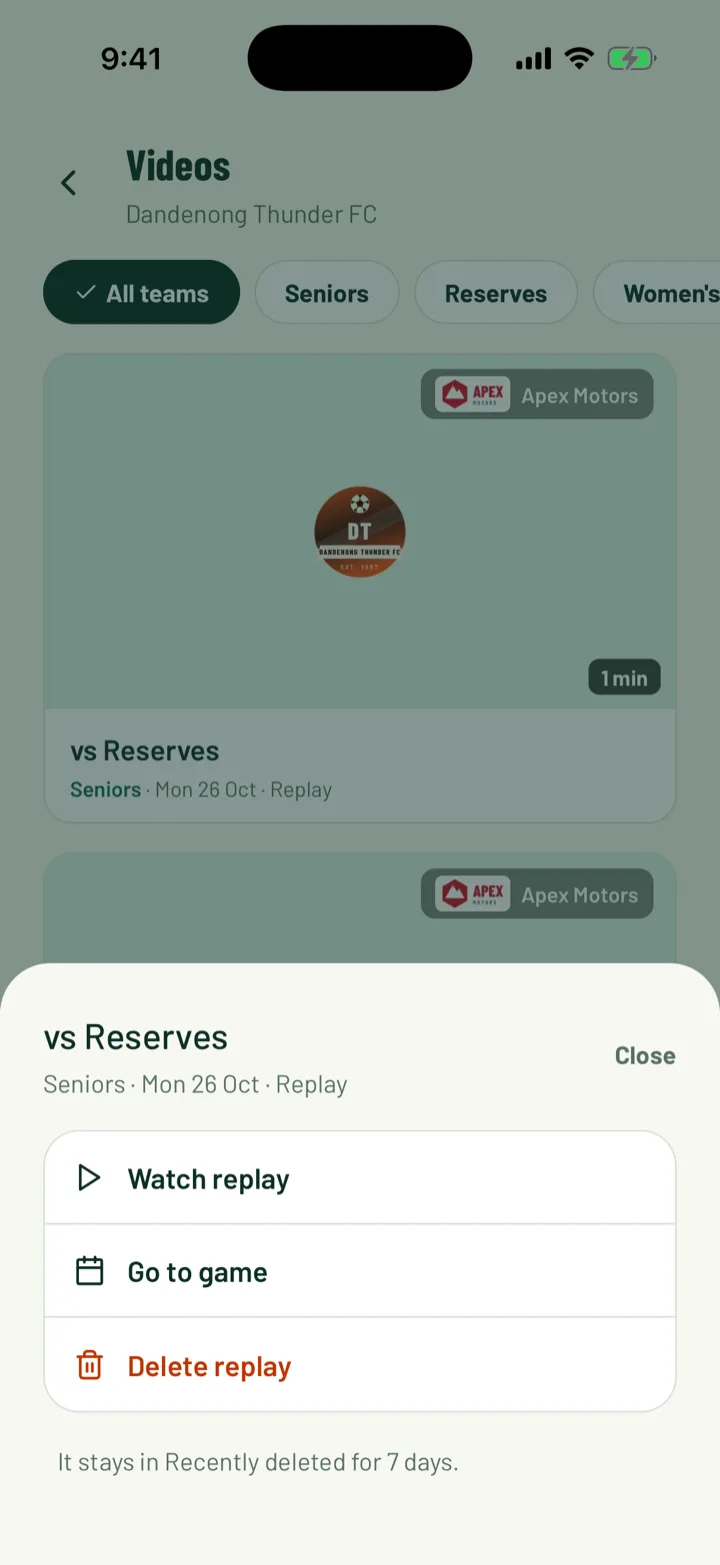
- In the app, touch and hold a replay in Videos and choose Delete replay. If it has highlights, you can choose Delete replay and highlights.
- A deleted replay goes to Recently deleted for 7 days. Touch and hold it there and choose Restore replay. You can also tap it on the game page, which shows Replay deleted.
- To delete one highlight, touch and hold it and choose Delete highlight. It's deleted for good. The replay and the other highlights stay.
On the web, the game page has a Recordings card. Click Delete replay to hide it now and remove its files in 7 days, or Restore to bring it back. Deleting a single file in that list frees storage straight away and can't be undone.
App: Club › Videos › Recently deleted · Web: Games › game › Recordings
7Check your club's storage
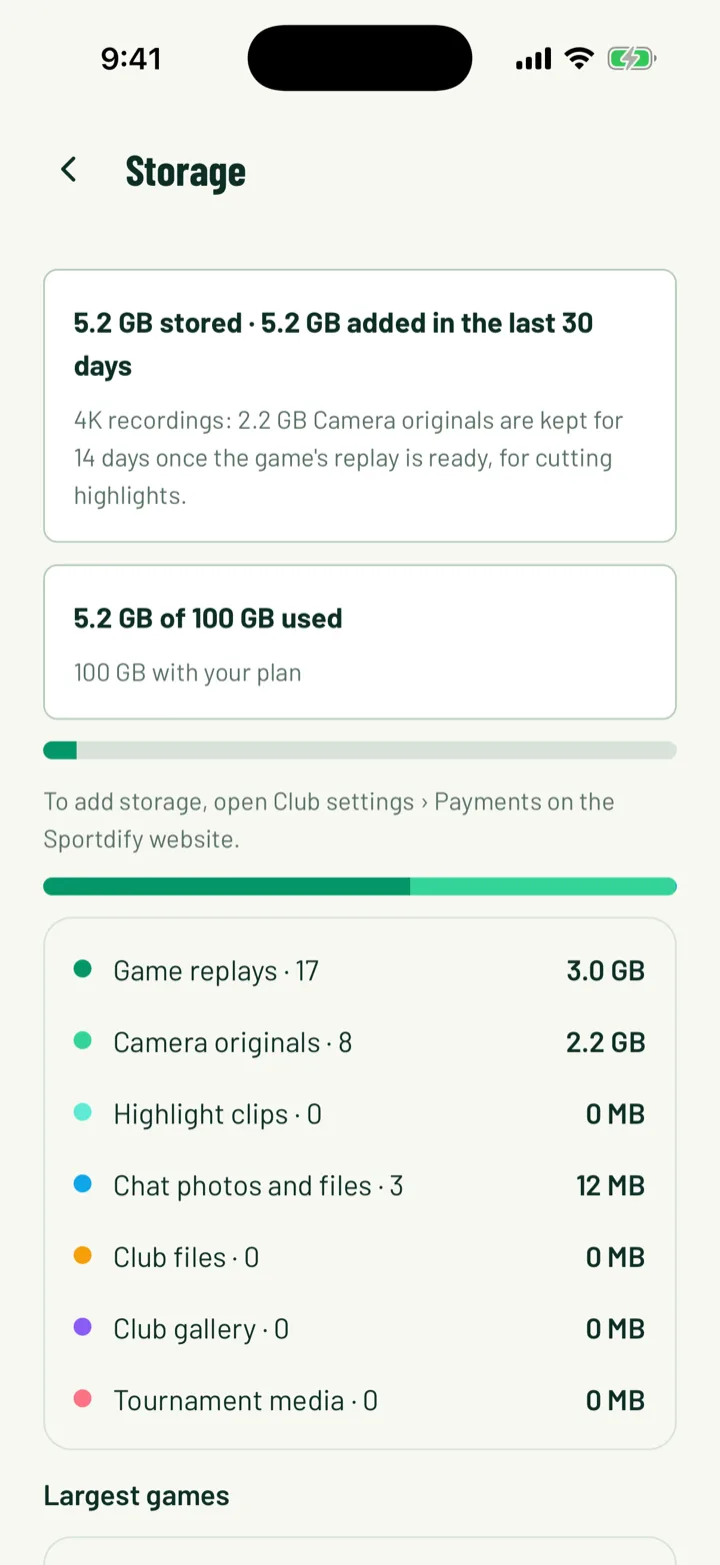
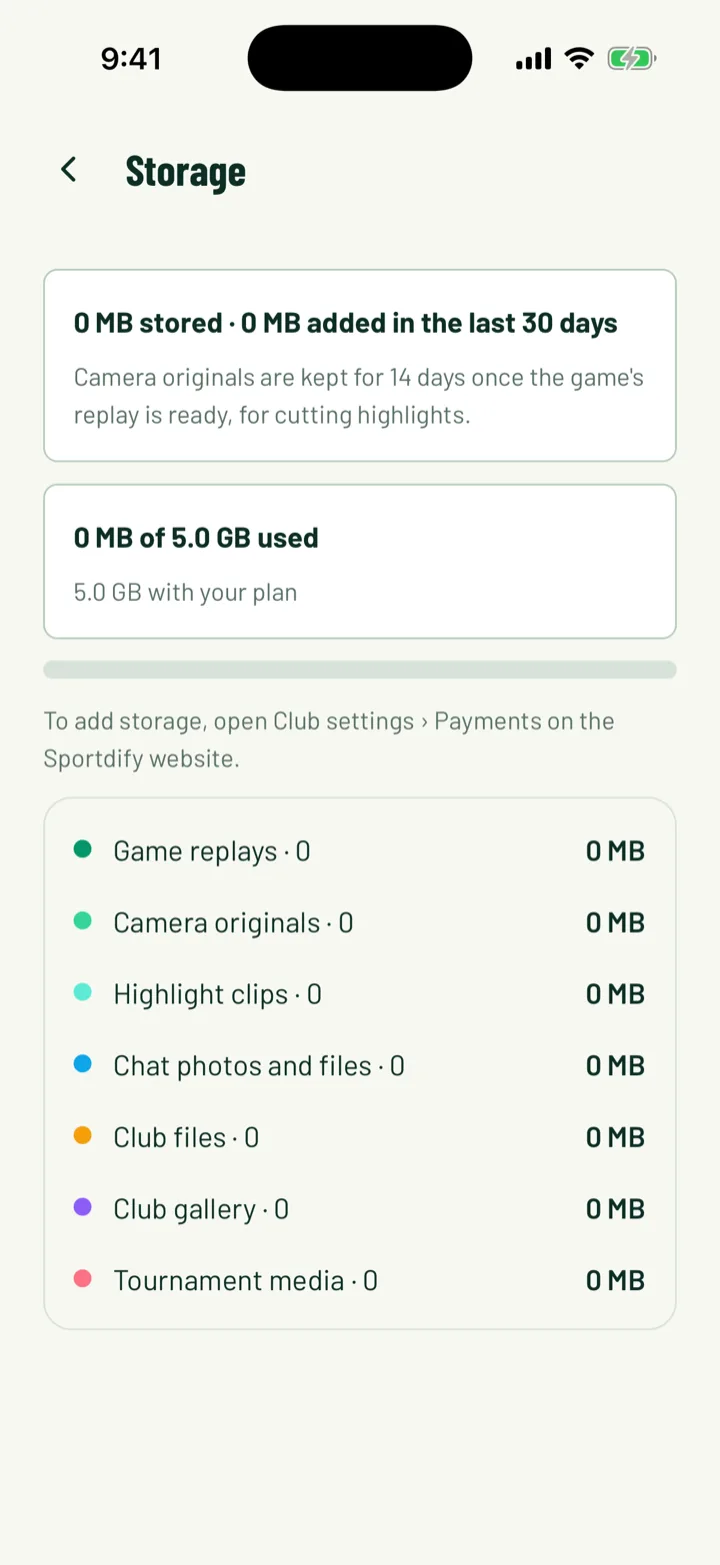
Storage shows everything your club keeps on Sportdify, and how much was added in the last 30 days. It's split into Game replays, Camera originals, Highlight clips, Chat photos and files, Club files, Club gallery and Tournament media. Largest games lists the games that take the most space.
Each plan includes storage:
- Community: 5 GB
- Pro: 100 GB
You'll see how much you've used of your allowance. Over 80%, you'll get a warning to add storage before it runs out.
When storage is full, new club files, gallery photos, tournament media and chat attachments can't be added. Game recordings still save.
App: Club › Club settings › Storage · Web: Settings › Payments › Storage
8Buy extra storage
Only the club owner can buy storage. It comes in 100 GB blocks, paid monthly or yearly by card, in your club's currency. Paying yearly gets you two months free.
- On the web, click the Add 100 GB button, which shows the monthly price. To pay yearly, click the button next to it with the yearly price. Use + and − to change the number of blocks later.
- In the Android app, tap the Add 100 GB button with the monthly price, or the Or … a year button to pay yearly. Later, use Add 100 GB and Remove 100 GB.
- On iPhone, you can't buy storage in the app. Use the website instead.
You can have up to 20 blocks. Removing your last block stops extra storage at the end of the billing period. Until then you'll see when it ends, with Keep it on the web or Keep extra storage in the app.
App: Club › Club settings › Storage · Web: Settings › Payments › Storage
Still stuck?
Ask us