Help › Livestreams and recordings
Livestream a game
Stream a game from a phone to your club's YouTube, Facebook or TikTok, with the score on the video and an AI camera that follows play.
Watch it first
A short recording from the app, with the waiting cut out. The steps below go through it slowly.
Mount a phone on the sideline and Sportdify streams the game to your club's own channel. Streaming to your own channel is free. The phone records the game at the same time, so you get a replay afterwards.
You set up the channel once. After that, going live takes a few taps on game day.
1Add your channel's stream key
Club owners and admins do this once.
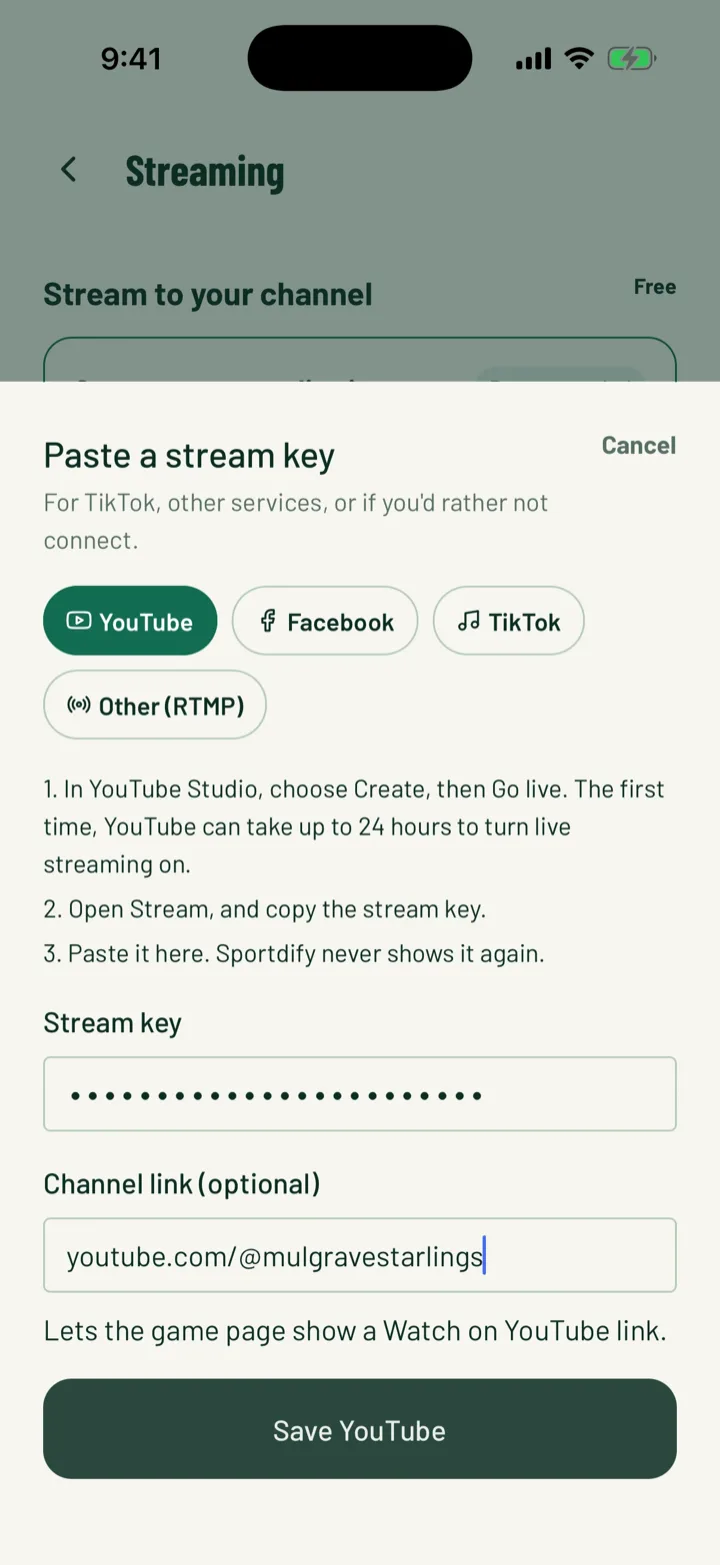
- In the app, open the Club tab and tap Club settings, then Streaming. Under Or use a stream key, tap Paste a stream key.
- On the web, open Settings, then the Payments tab, and find Stream to your own channel.
- Pick YouTube, Facebook, TikTok or Other (RTMP). Follow the steps shown for that platform to find your stream key.
- Paste it into Stream key. Sportdify never shows it again.
- Add your Channel link, Page link or Profile link. Without it, the stream isn't listed on sportdify.com/live or on the game page.
- Tap Save YouTube (or your platform) in the app, or click Save on the web.
To change it later, tap Stream key on the Streaming screen in the app, or click Change on the web. Remove on the web stops streaming to that channel.
App: Club › Club settings › Streaming · Web: Settings › Payments › Stream to your own channel
2Connect a Facebook Page or YouTube channel
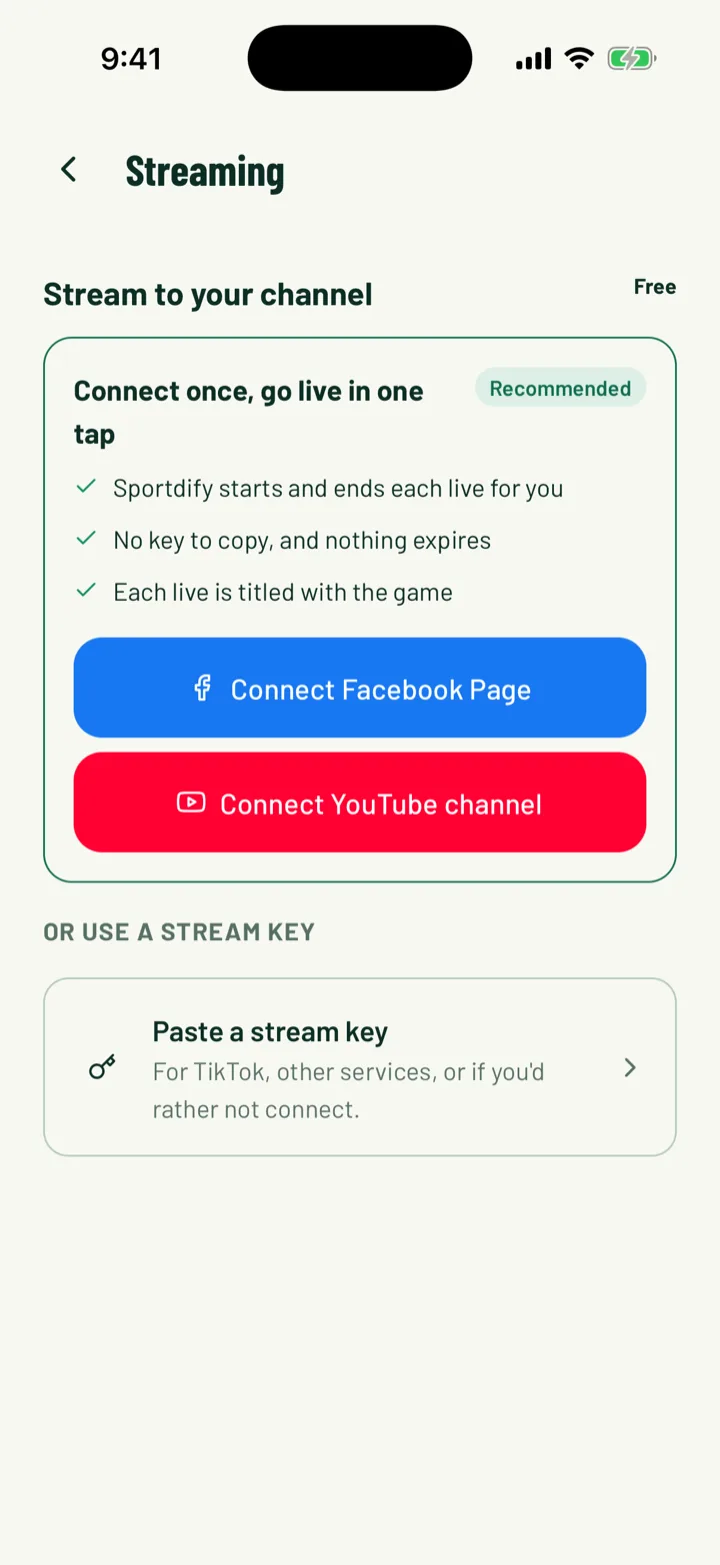
You can connect the club's Facebook Page or YouTube channel instead of pasting a key. Each stream from the app then goes live there by itself. Nobody has to press Go live in Facebook or YouTube Studio.
In the app, open Club settings, then Streaming, and tap Connect Facebook Page or Connect YouTube channel. On the website:
- Click Connect Facebook Page and sign in to Facebook. If you're asked Which Page should Sportdify go live on?, pick the Page and click Connect this Page. Facebook needs the Page to be at least 60 days old with 100 followers.
- Or click Connect YouTube channel and sign in with the Google account that owns the channel. Live streaming must already be on for the channel.
- A connected channel shows Goes live automatically.
- For YouTube, choose Who can find the lives: Public or Unlisted.
You can connect one channel at a time. Any stream key you pasted is kept, and used again if you click Disconnect. If the platform stops letting Sportdify go live, you'll see a warning and a Connect again button.
App: Club › Club settings › Streaming · Web: Settings › Payments › Stream to your own channel
3Set up the phone
Livestreaming needs the club owner, an admin or someone with the Media club role.
- Mount the phone where it can see the whole pitch, and keep it plugged in.
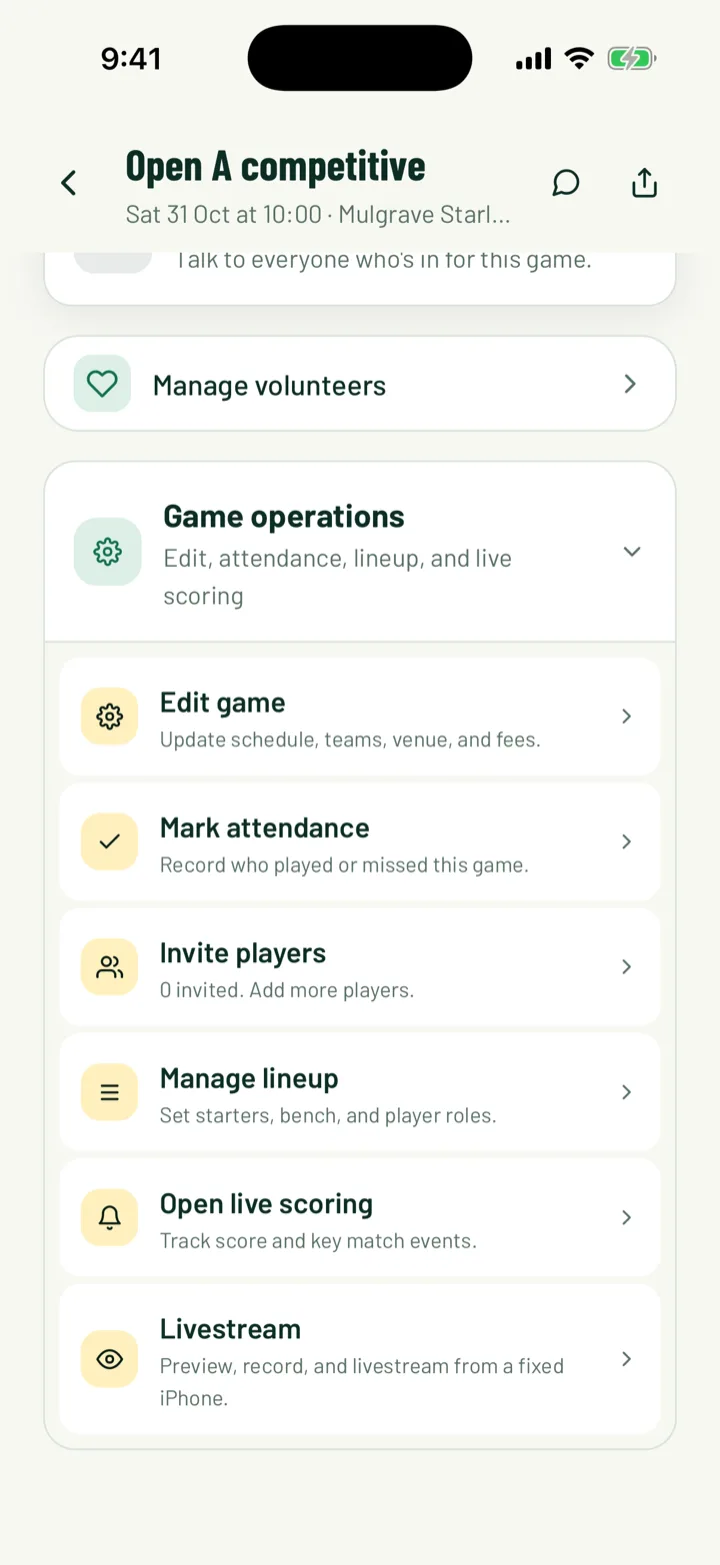
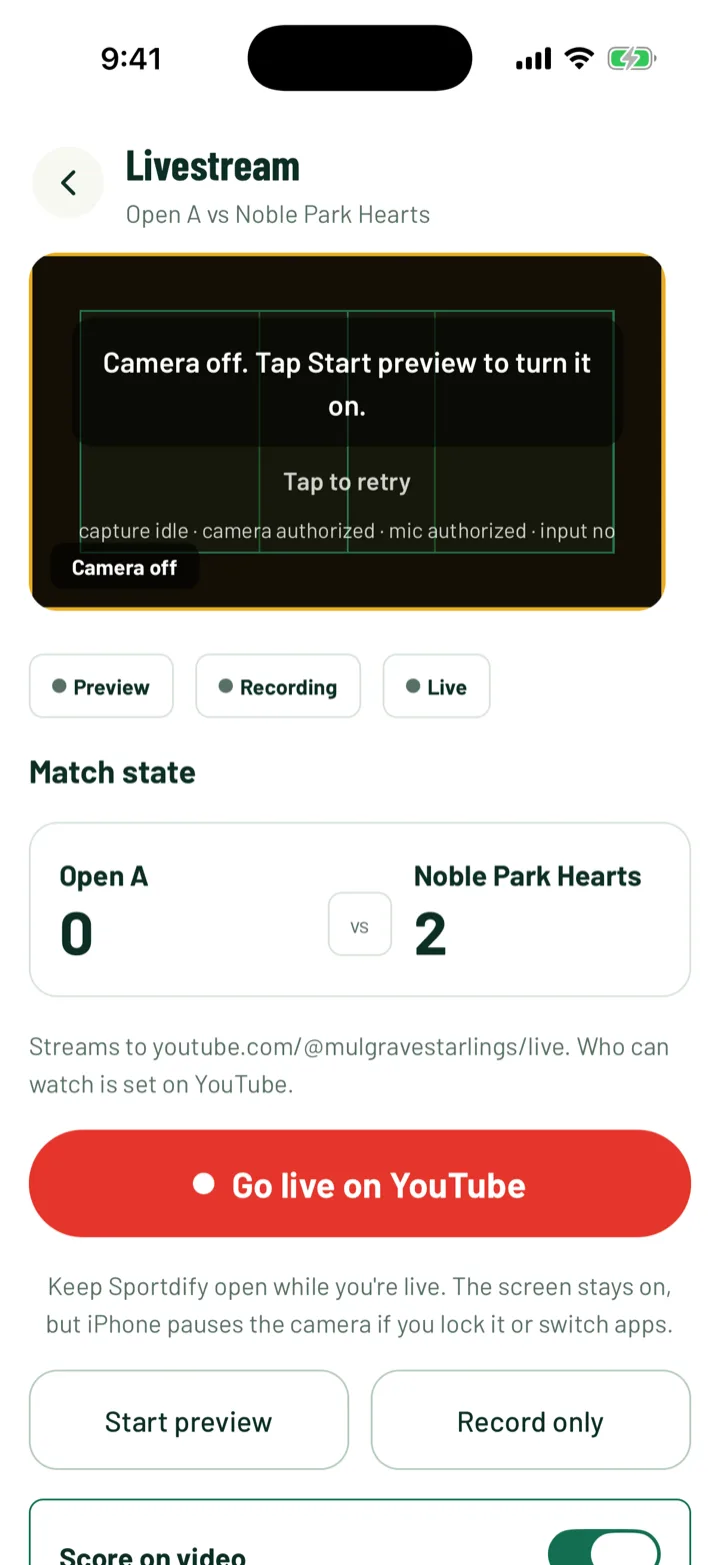
- Open the game, expand Game operations and tap Livestream. From live scoring, tap Open livestream.
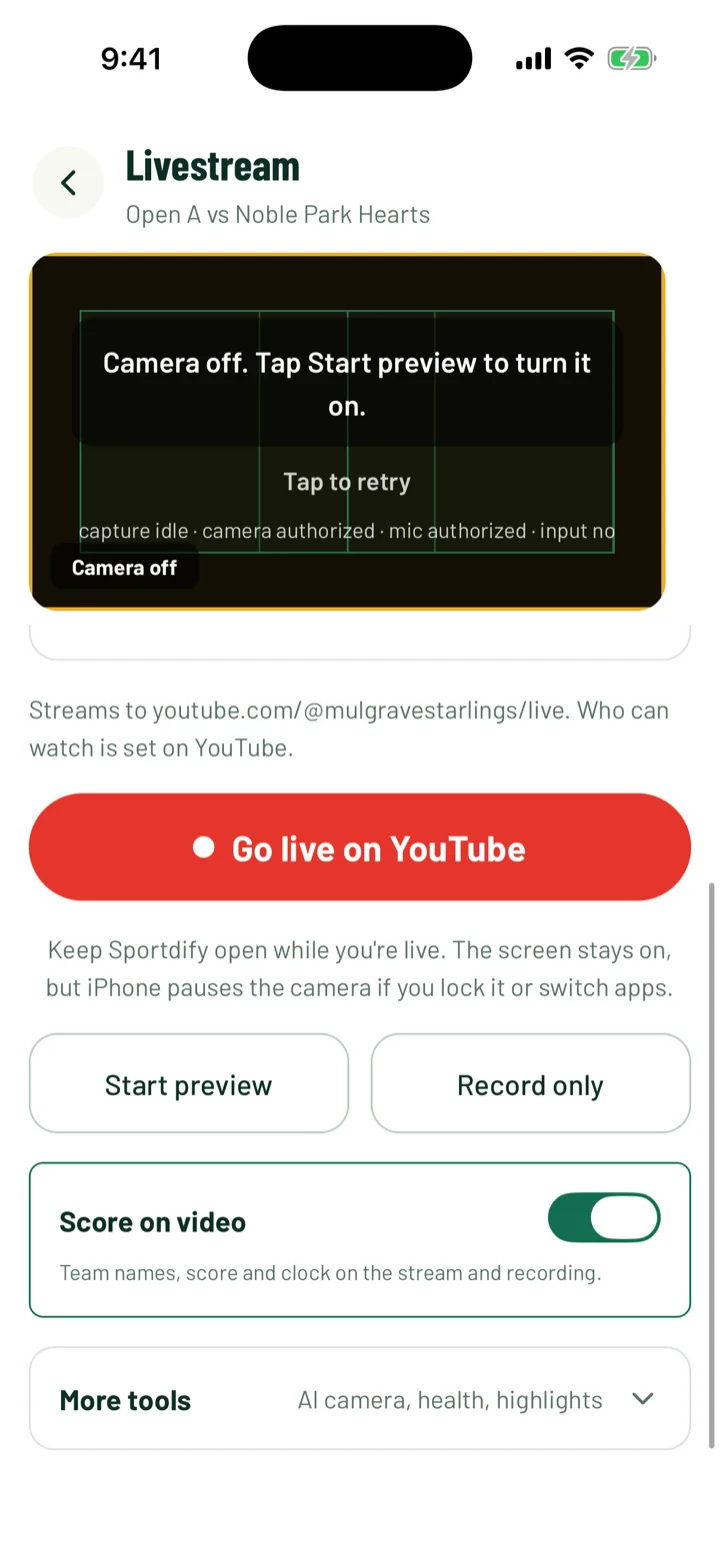
- Tap Start preview. Check that the full pitch is covered.
- Allow the camera and microphone when asked.
The status row shows Preview, Recording and Live, so you can see what's running.
App: game › Game operations › Livestream
4Put the score on the video
Score on video puts the team names, score and clock on the stream and the recording. It's on unless you turn it off. The phone remembers your choice.
The score comes from live scoring and updates every 10 seconds. Use a second phone to score, so the camera phone can stay mounted and untouched.
The bar suits each sport:
- FT shows at full time, and Break between periods.
- Cricket shows the batting side's runs and wickets, with the overs.
- Golf shows the leader, their score and how many holes they've played.
- A penalty shootout adds the shootout score.
App: Livestream › Score on video
5Go live
Tap Go live on YouTube. The button names your platform, such as Go live on Facebook. Above it you'll see where the stream goes. Who can watch is set on your platform.
- If you see Livestreaming isn't set up for this club, an owner or admin can tap Stream to your own channel for free and add the key there.
- For TikTok, tap New TikTok key for this game and paste the key TikTok gave you for this live.
- Record only films the game without streaming. Use it if you only want a replay.
Once you're live, the camera fills the screen. Across the top you'll see LIVE, the time running, the connection (Good, Reconnecting or Offline) and the platform. REC shows the phone is recording too.
If the signal drops, you'll see Connection lost. Trying to reconnect…. The phone keeps recording.
App: Livestream › Go live
6Let the AI camera follow play
The phone films a wide view. The AI camera finds the ball and players, then crops in and pans to follow the play. Viewers see the followed view.
While live, use the buttons on the right:
- AI on / AI off turns following on or off.
- Lock holds the current framing. It shows Locked while held.
- Recentre returns to the active play.
Before kick-off, open More tools and then AI camera for more control. Under Pitch calibration, use the arrows and Zoom in or Zoom out to set the pitch bounds, then tap Save pitch. Manual controls pause the AI's movement, but it keeps tracking.
App: Livestream › More tools › AI camera
7End the stream
Tap End. You'll be asked Stop livestream?. Viewers lose the live feed, but recording can continue. Tap Stop stream to confirm.
- The phone keeps recording. Tap Stop when you're done filming.
- The recording uploads in the background, so you can leave the screen.
- If an upload fails, you'll see Pending recording uploads. Tap the retry button, such as Retry 1 upload, to send it again.
The replay shows on the game page once it's ready, usually within a few minutes.
App: Livestream › End
8Where people watch
While you're live, the game page in the app and on the website shows Watch live on YouTube, or the name of your platform. It opens your channel.
The stream is also listed on sportdify.com/live, as long as you added your channel link.
To share the stream, tap Share on the live screen.
Still stuck?
Ask us