Help › Sponsors and shop
Run a kit drop in the club shop
Open a shop drop, take kit orders with names and numbers, send the totals to your supplier and hand orders out at training.
Watch it first
A short recording from the app, with the waiting cut out. The steps below go through it slowly.
The club shop works in drops. A drop is one round of ordering, like a kit pre-order or a sale of stock you already have. You open it, members order and pay, you order from your supplier, then you hand everything out.
1Check how members will pay
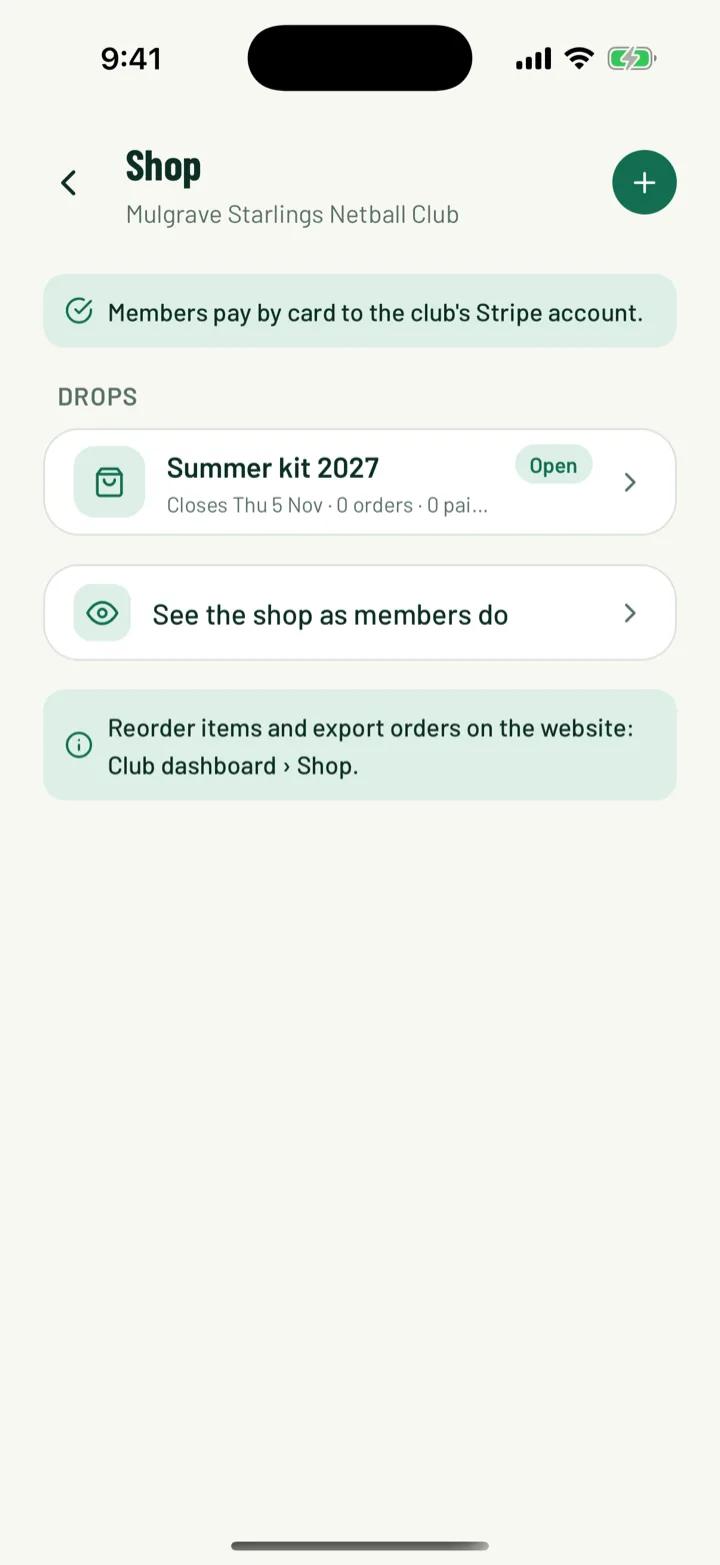
In the app, open the Club tab and tap Shop under Money. On the web, click Shop in the sidebar. Owners, admins and anyone with the Shop manager club role can run the shop.
A note at the top says how members pay:
- By card, to your club's Stripe account. If Stripe isn't finished, members can't order yet. Finish it from the link in the note.
- Directly to the club, if your club collects payments itself. You then mark each order paid when the money arrives.
App: Club › Shop · Web: Shop
2Create a drop
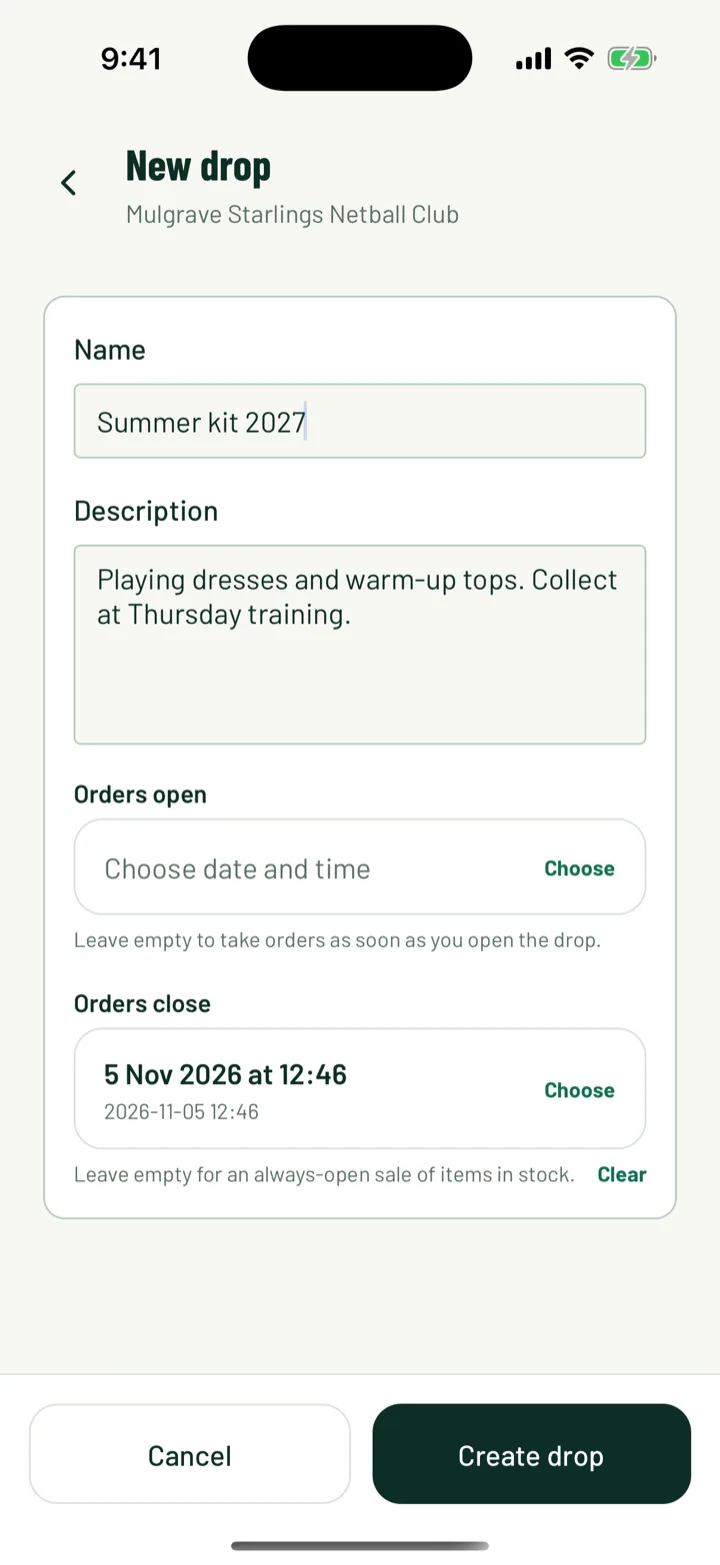
Tap + in the app, or click New drop on the web.
- Give it a Name, like Winter kit 2027, and a Description of what's in it and where to collect it.
- Orders open sets when ordering starts. Leave it empty to start as soon as you open the drop. The web calls it Opens at.
- Orders close sets the last day to order. Leave it empty for an always-open sale of items in stock. The web calls it Closes at.
Tap Create drop. The drop starts as a Draft, so members can't see it yet.
App: Club › Shop › + · Web: Shop › New drop
3Add the items
Open the drop and tap or click Add item.
- Add a photo, a Name and Description, and the Price.
- Leave Stock empty for unlimited or made to order.
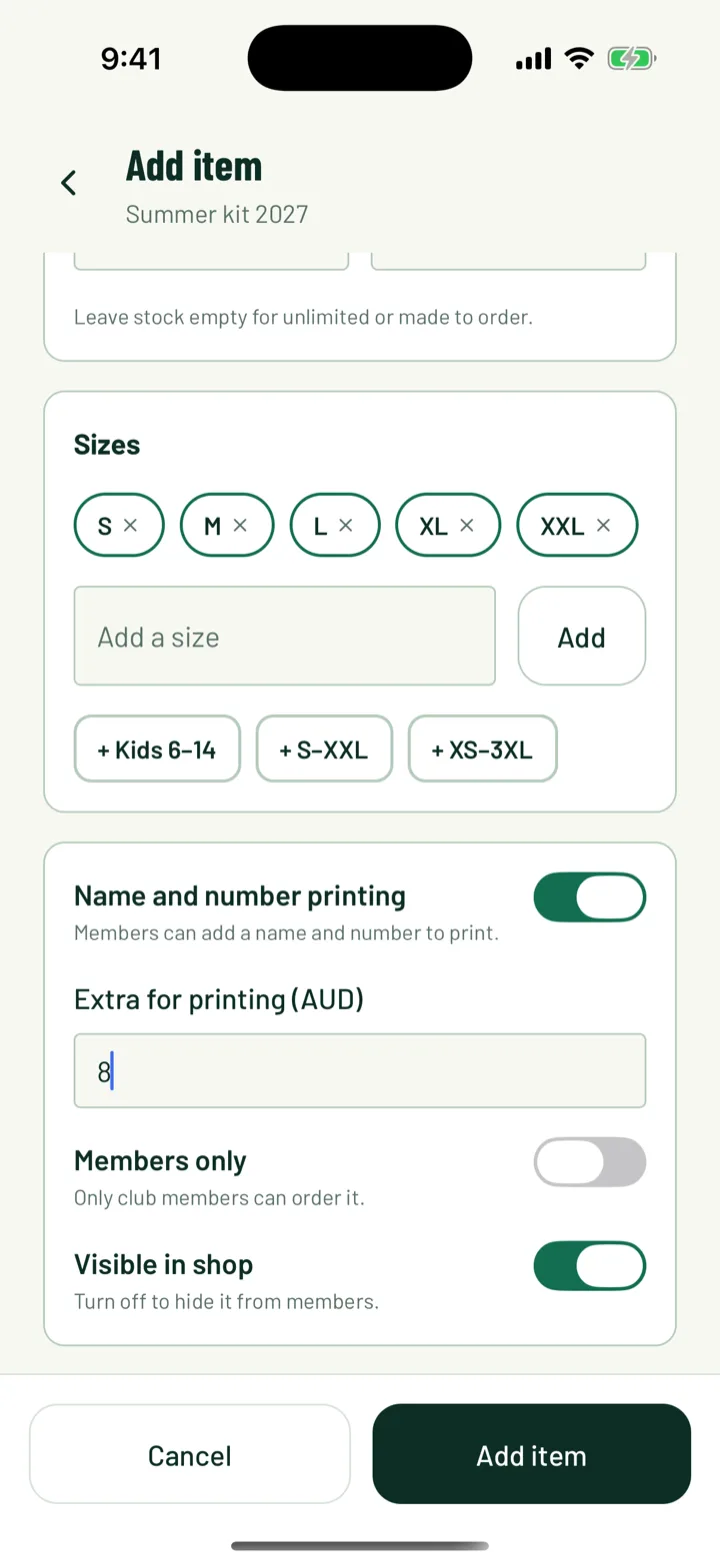
- Add Sizes one at a time, or add a set at once. In the app, tap + Kids 6–14, + S–XXL or + XS–3XL. On the web, use Quick add:. Leave sizes empty for one-size items such as scarves.
- To print names and numbers, turn on Name and number printing in the app and set Extra for printing. On the web, set Personalisation to Name and number and set Name and number price. Enter 0 to print for free.
- Turn on Members only if only club members can order it.
- Turn off Visible in shop in the app, or Active on the web, to hide an item.
Once someone has ordered an item, its price, printing and existing sizes are locked. You can still add sizes.
On the web, use the arrows to change the order members see items in.
App: drop › Add item · Web: Shop › drop › Items › Add item
4Open the drop
Tap or click Open drop. Members can see it and order straight away.
To check what members see, tap See the shop as members do on the app's Shop screen.
App: drop › Open drop · Web: Shop › drop › Open drop
5Members order
Members order in the app. While a drop is open, Shop shows on their Club tab. A drop shared in chat opens the shop too.
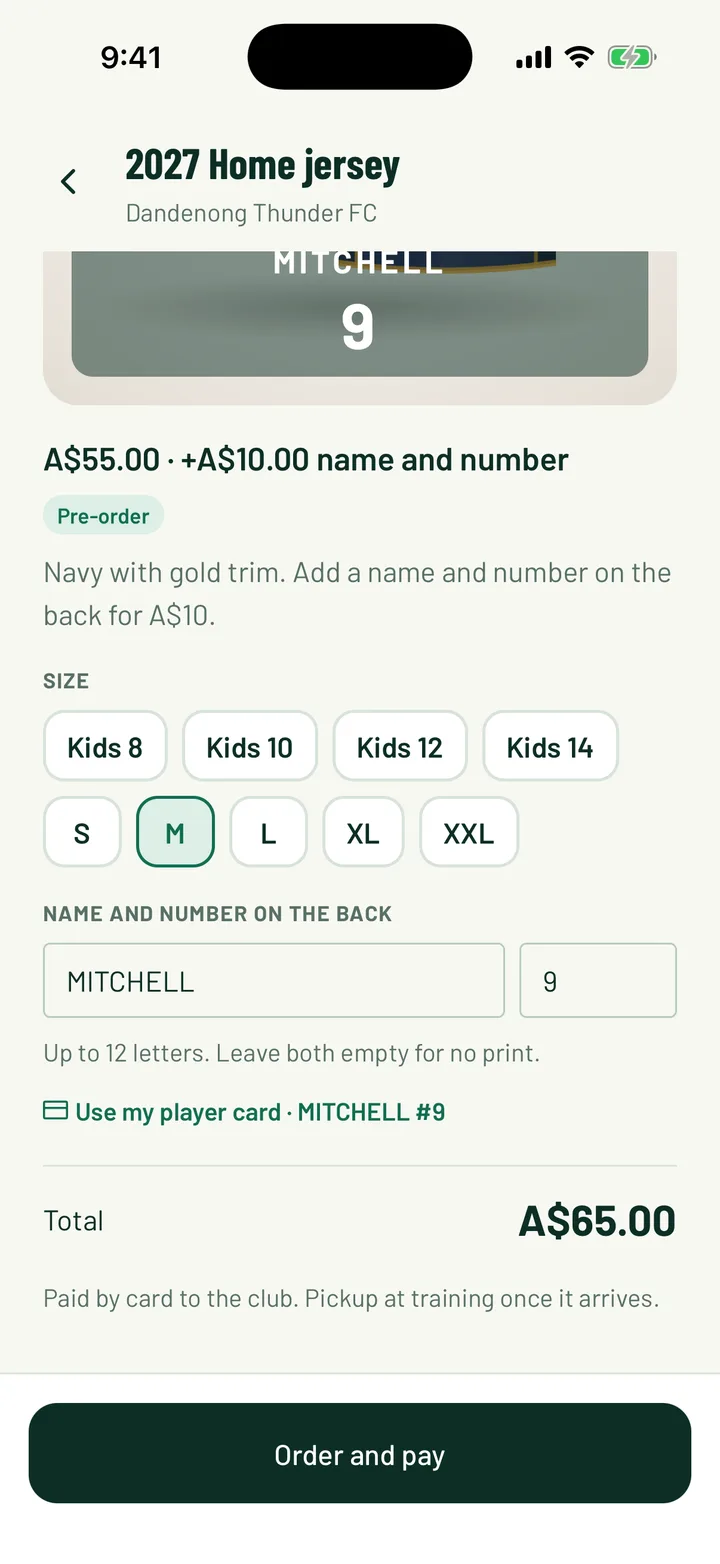
They tap an item, then:
- Choose a Size.
- Type a name and number under Name and number on the back, or tap Use my player card to fill them in. Names can be up to 12 letters.
- Set the Quantity.
- Tap Order and pay to pay by card. If your club takes payment itself, the button says Place order.
App: Club › Shop
6Members follow their order
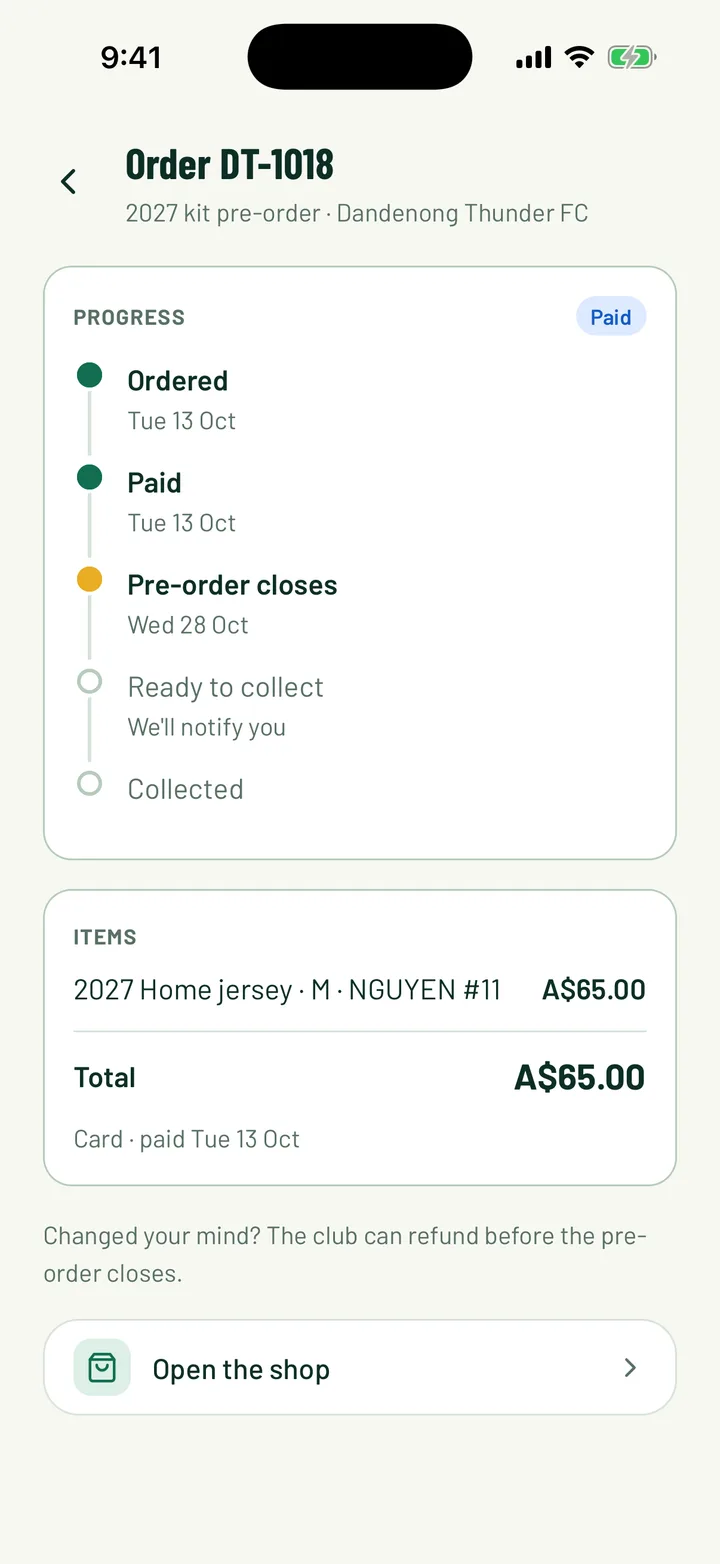
Members find their orders under My orders in the shop, or My shop orders in the menu.
Each order shows its progress: Ordered, Paid, Pre-order closes, Ready to collect and Collected. If a card payment didn't finish, they can tap Pay now.
App: Menu › My shop orders
7Manage orders
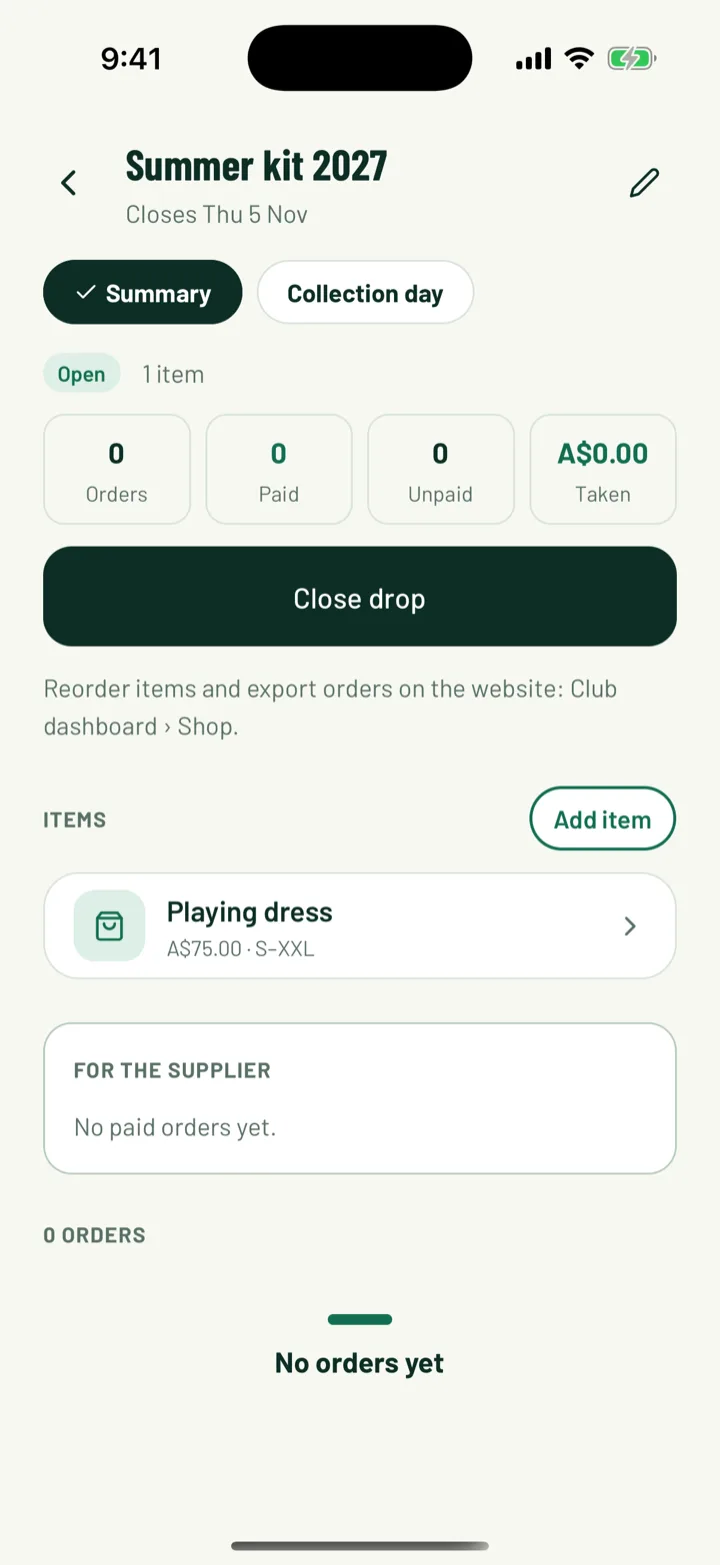
In the app, open the drop and stay on Summary. Orders are listed at the bottom. On the web, open the drop's Orders tab. You can search by buyer or order number and filter by status.
Each order offers the actions that fit. On the web they're in the order's … menu.
- Mark paid: the member paid the club directly.
- Check payment: asks Stripe about a card payment that hasn't come through.
- Mark collected and Undo collected.
- Refund: gives a paid order's money back on the member's card. You can only refund while the drop is still open.
- Cancel order: for an order that isn't paid, so no money moves.
App: drop › Summary · Web: Shop › drop › Orders
8Close the drop and order the stock
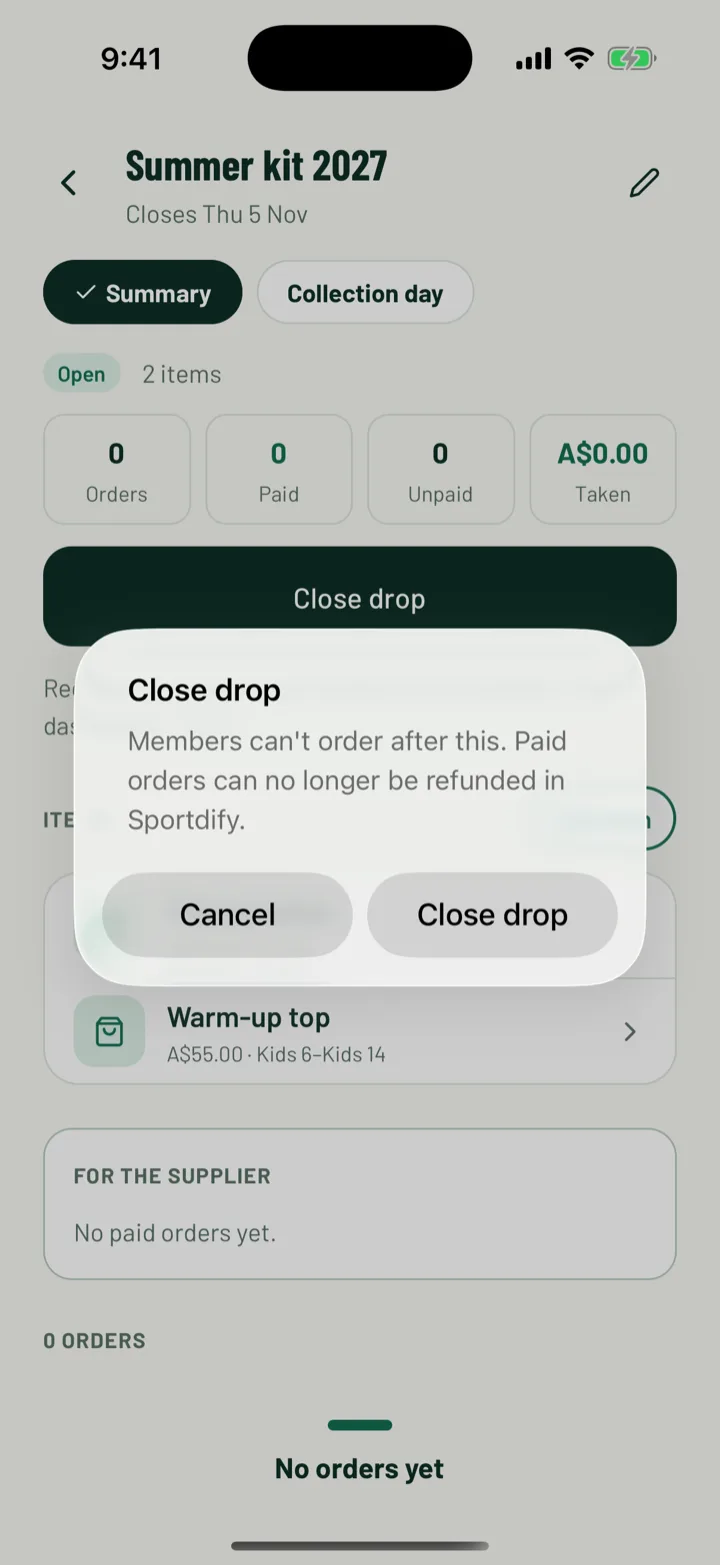
When the closing date passes, members can't order any more. The drop stays open until you close it, and the app marks it Ready to close. Tap or click Close drop to finish it. After this, paid orders can't be refunded or cancelled in Sportdify.
Use For the supplier to place your order. It shows how many of each item and size to order, and every name and number to print.
On the web, the For the supplier tab also has:
- Include unpaid orders, to count orders not paid yet
- Download order list (with names and numbers), a file to send your supplier
Changed your mind? Use Reopen drop in the app, or Reopen on the web, until the stock arrives. On the web, set a closing date in the future first.
App: drop › Close drop · Web: Shop › drop › Close drop
9Hand out the orders
When the stock arrives, tap or click Mark stock arrived · notify members. Paid orders become Ready to collect, and their buyers get a notification. You can't reopen the drop after this.
At training, open Collection day. Orders are listed by member name.
- Tap or click Hand over as each member collects. It changes to Collected.
- On the web, use the search box to find a member or order number.
- Unpaid orders for clubs that take payment themselves show how much to collect.
When everything is handed out, tap Complete drop in the app, or Complete on the web. You can still mark late collections afterwards.
App: drop › Collection day · Web: Shop › drop › Collection day
Still stuck?
Ask us